Edit Liners
The Edit Liner option allows you to view and modify the installed liner(s). You can edit liner properties, composite liner settings (if applicable), and staging information.
To edit liners,
- Make sure one or more liner(s) are created in the model with the Add Liner
 option.
 - Select the Edit Liner option from the Support menu (proceed to Step 2), or right click to select a liner in the model, and select the Edit Liner option from the popup menu (proceed to Step 3).
- You will first be prompted to pick the liner(s). Use the mouse to select the liner(s) you would like to edit. You can drag select multiple liners. Hit Enter key, or right click and select Done Selection, to complete selection.
The Edit Liner dialog will show as below. You can view and modify the information in the dialog.
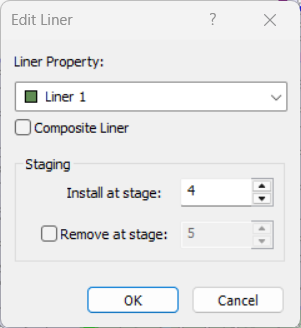
Liner Property – The liner properties determine the liner type and their parameters. More details can be found in Liner Property help topic.Composite Liner – Select the Composite Liner check box to convert the selected liner(s) into a composite liner. Clear the check box to convert a composite liner back to a regular liner.
Staging - if your model is staged, you can specify the installation (and removal) stage of the liner(s).
Install at stage - By default, the installation stage will be set to the stage at which the selected liner(s) were originally installed. You can enter a different stage if necessary.
Remove at stage - (optional) you can also specify a removal stage, by selecting the Remove at stage check box and entering the stage at which the liner(s) are to be removed (uninstalled).
Edit Multiple Liners
You can simultaneously select and edit multiple liners with the Edit Liner option.
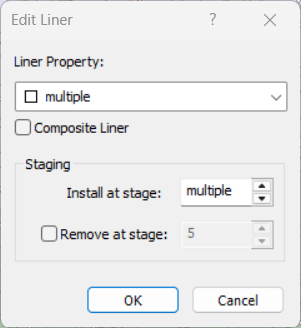
When multiple liners are selected and they have different properties or installation settings, the value of correspondent field in the Edit Liner dialog will be display as “multiple” (as shown below). In this case, if you edit the liner parameters and select OK in the dialog, these parameters will be applied to all selected liners. Therefore, if you wish to edit multiple liners and apply different properties or installation settings to each, the liners must be edited individually.