Compute Recovery
RS2 allows you to resume computation from any completed stage if an analysis is stopped before it finishes.
While an analysis is running, results of completed stages are saved as recovery files. If the analysis is interrupted or aborted midway, these files are used to resume computation rather than restarting from the beginning. This is particularly beneficial for large or complex models, as it prevents loss of progress and saves time by avoiding the need for full re-computation.
Compute recovery also allows you to modify a partially computed model and continue computation. You can reopen a partially computed model and make changes (such as changing material properties, installing a liner, changing the spacing between the bolts, and etc.), if previously completed stages remain unaffected, the analysis can resume from a valid recovery stage rather than restarting from the beginning. Refer to the Recovery Data Validity section to see if the change affects existing recovery data.
Main Control
The Enable file recovery during analysis option is the primary control for compute recovery, located under the Solver Options tab in the Project Setting dialog.
When ON, results are saved as recovery files, allowing interrupted analyses to be resumed from the last completed stage. When OFF, interrupted analyses must be restarted from the beginning.
See more information in the Enable file recovery during analysis topic.
Initial Computation Setup
If your model was never computed, and would like to allow resuming if computation is interrupted:
- In Analysis > Project Settings > Solver Options, turn Enable file recovery during analysis ON.
- Construct your model as needed.
- Save and compute.For a model that has never been computed, Compute from selected recovery stage behaves the same as Compute from the beginning, where computation will start from the beginning.
Resume Computation
Followed are steps to resume interrupted analysis:
- Select Analysis > Project Settings > Solver Options. Ensure the Enable file recovery during analysis option is ON.
- In the Project Settings dialog, go to Stages
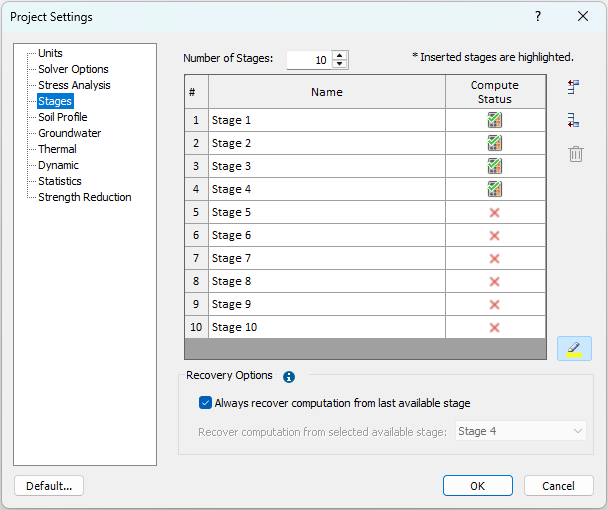
page. The Compute Status column displays the status of each stage from last computation (Figure 1 below).
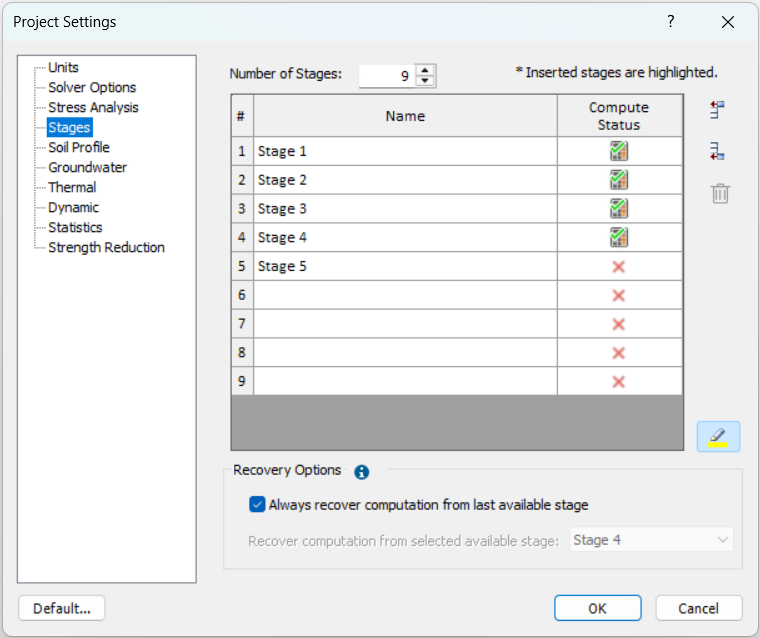
Figure 1. Project Settings - Stages page - Define a recovery stage from the Recovery Options section.
- Always recover computation from last available stage is checked by default. This sets last completed stage as the recovery stage.
- In the example shown in Figure 1, the recovery stage would be set to Stage 4.
- Alternatively, clear this option and select a stage from the Recover computation from selected available stage dropdown list (Figure 2 below).
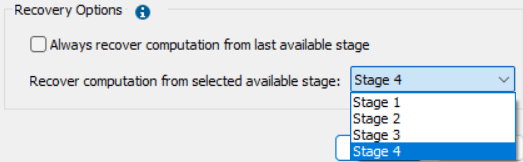
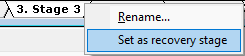
Figure 2. "Recover computation from selected available stage" dropdown list - The recovery stage may also be defined from Stage tabs in viewport. Right-click and select Set as recovery stage. The change is automatically updated in Recovery Options.
IMPORTANT: By setting a recovery stage, results are restored up to that stage (i.e., recovery files will be retrieved up to that stage), and computation resumes from the NEXT stage. For example, if the recovery stage is Stage 4, computation will begin from Stage 5.
- Always recover computation from last available stage is checked by default. This sets last completed stage as the recovery stage.
- Select OK to close the Project Settings dialog.
- Continue construct your model as needed.
- Save the model with Save
 or Save As
  before computing.
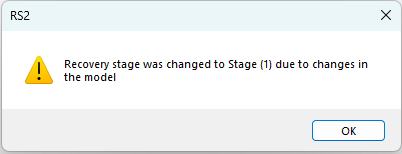
- When saving, RS2 validates the selected recovery stage. If modifications were made to the model at or before the recovery stage, the program will automatically adjust the recovery stage to the nearest eligible stage. In such cases, you will be informed by a notification message. Refer to the Recovery Data Validity section to see if the change affects existing recovery data.
- When a model has recovery files and is saved as a new project using Save As (icon), the recovery files are also saved when saved to a compressed format (*.fez), but they are not included when saving to an uncompressed format (*.fea).
- When saving, RS2 validates the selected recovery stage. If modifications were made to the model at or before the recovery stage, the program will automatically adjust the recovery stage to the nearest eligible stage. In such cases, you will be informed by a notification message. Refer to the Recovery Data Validity section to see if the change affects existing recovery data.
- Compute the model
The following compute options are available from the toolbar or the Analysis menu.- Compute from selected recovery stage

- Compute from the beginning
- Compute from selected recovery stage (Groundwater Only)

- Compute from the beginning (Groundwater Only)
Use a) or c) to resume analysis from the recovery stage.
Otherwise, use b) or d) to restart analysis from the beginning.
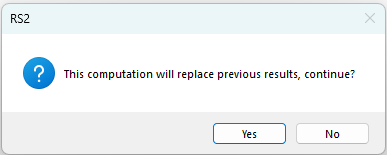
A confirmation message will appear: “This computation will replace previous results, continue?” Select “Yes” to proceed to computation or “No” to cancel.
For more information, see Compute and Compute Groundwater topics.
- Compute from selected recovery stage
- Open RS2 Interpret

- You can view results for each stage. Only completed stages are available, while stages that were not completed will appear greyed out.

Note: For models with SSR analysis, only completed SSR stages are visible in RS2 Interpret. When you reopen the model in RS2 Modeler, check Project Settings > Stages. The Compute Status for the last stage will tell you whether the SSR analysis is finished (i.e., or
or  ).
).
Recovery Data Validity
Model changes may or may not affect existing recovery data, depending on the type of change.
Recovery data is saved for each completed stage during computation. When a change is made, it is written to a specific stage in the compute file. A change at a given stage will invalidate recovery data for that stage and all subsequent stages. Changes made after the last completed stage do not affect existing recovery data.
The following types of changes are illustrated using a single example. As shown in figure below, consider a model with10 stages that was computed halfway and aborted. Recovery data is available up to Stage 4.
Types of changes
a. Removes all recovery data
These changes affect the entire model and invalidate all recovery data. Analysis has to be restarted.
- Change project settings
- Add/ delete a stage
- Change geometry
- Change material properties (exceptions applied for Stage Factor tab)
b. Remove recovery data from the modified stage onward
These changes invalidate recovery data from the stage where the change is applied and all subsequent stages. Analysis can be resumed from last valid recovery stage.
- Remove bolts on Stage 3
- Recovery data for Stage 3 and 4 will be removed
- Add stage factor on material properties at Stage 3
- Recovery data for Stage 3 and 4 will be removed
- Add stage factor on liner properties at Stage 3
- Recovery data for Stage 3 and 4 will be removed
c. Does not remove recovery data
These changes occur after the last completed stage and do not affect existing recovery data. Analysis can be resumed from Stage 4.
- Add bolts on stage 6 (assume model has bolt applied)
- Add stage factor on material properties at stage 6
Standalone Compute UI
The engine can be run as a standalone program (feawin.exe), allowing you to compute model files without opening RS2 Modeler. From the RS2 Compute UI, you can select one or more model files to compute.
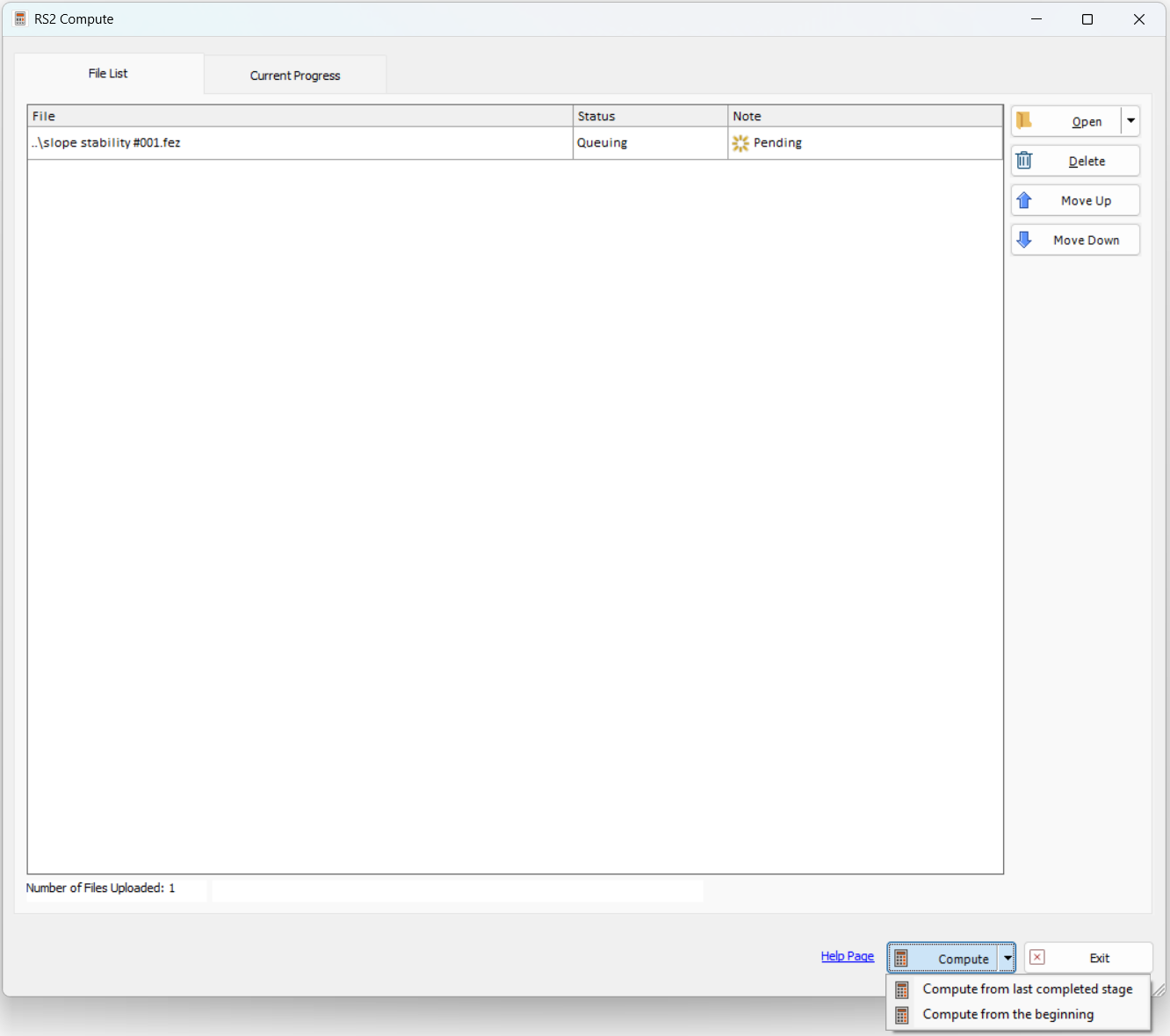
Two compute options are available from RS2 Compute UI:
- Compute from last completed stage
- Compute from the beginning
Groundwater Only compute options are not available here.