On this page
RSInsight Help
RSInsight Overview
RSInsight is an AI-powered assistant designed to help engineers work more efficiently with Rocscience products. It offers two distinct modes of interaction - Ask Mode and Agent Mode - each tailored to different workflows, from knowledge discovery to direct software control.
Ask Mode
Ask Mode allows users to ask natural-language questions related to Rocscience products, geotechnical engineering concepts, and affiliated company solutions. It is designed for fast access to technical knowledge, best practices, and product guidance.

Capabilities
In Ask Mode, you can:
- Ask questions about Rocscience software, workflows, and features
- Explore geotechnical engineering concepts, methods, and terminology
- Get information related to Rocscience affiliate companies, including:
- DIANA
- 3GSM
- 2SI
- Rockfield
- Aquanty
- Receive contextual, AI-generated responses based on selected knowledge sources
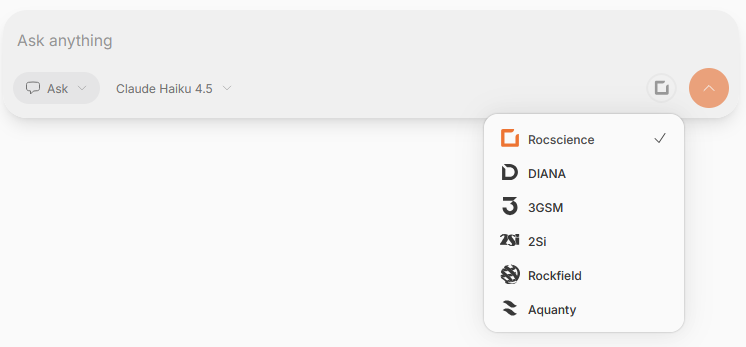
Ask Mode is ideal for learning, troubleshooting, and general exploration without directly controlling any software.
Model Selector
Ask Mode includes a model selector, allowing users to choose between available large language models (LLMs). Different models may offer varying levels of reasoning depth, speed, or creativity, enabling users to tailor responses to their needs.
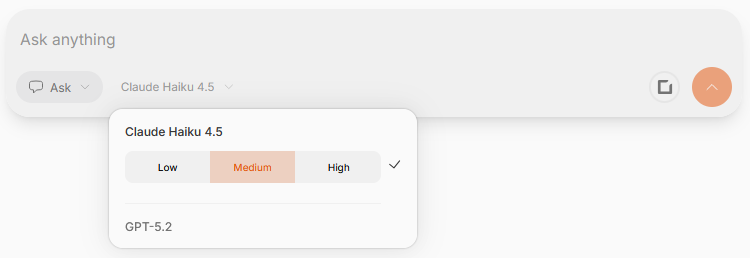
Picking Between Sources
Users can control which sources RSInsight uses when generating responses. This allows you to:
- Focus answers on Rocscience documentation and domain knowledge
- Broaden responses to include general engineering knowledge, when applicable
Source selection helps ensure responses align with the desired level of specificity and reliability.
Quota
Ask Mode usage is governed by a quota system that is calculated based on your RocPortal Cloud licenses. Quota usage depends on factors such as:
- Model selection
- Length and complexity of queries
Quota details are visible within the RSInsight interface.

Agent Mode
Agent Mode enables users to control supported Rocscience programs using natural language. Instead of only answering questions, RSInsight can execute actions inside Rocscience software on your behalf.
What Agent Mode Does
In Agent Mode, you can:
- Use natural language to open files, modify models, run analyses, and extract results
- Interact directly with supported Rocscience programs as if issuing high-level commands
- Combine engineering intent with automation to streamline repetitive workflows
Requirements
Agent Mode requires:
- A valid internet connection
- The RSInsight Desktop application
- A Windows operating system:
- Windows 10 (64-bit)
- Minimum hardware requirements:
- 8 GB RAM
Currently, Agent Mode supports:
- RS2
- RS3
- RSPile
- Dips
- Slide2
- Settle3
Support for additional programs will be expanded in future releases.
Multiple Devices
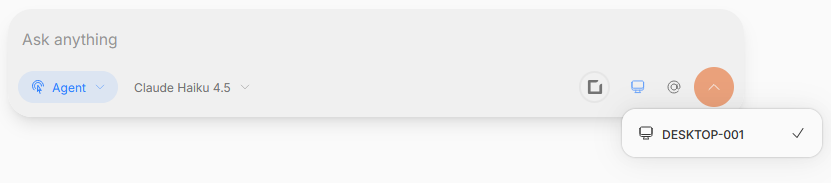
If you have multiple devices connected to your account, feel free to choose any connected device with the following toggle:
Selecting a File
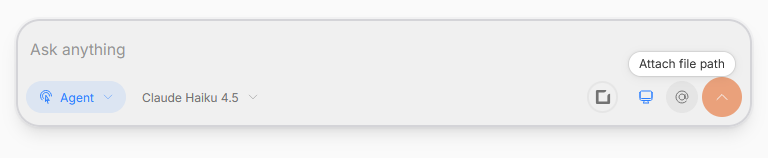
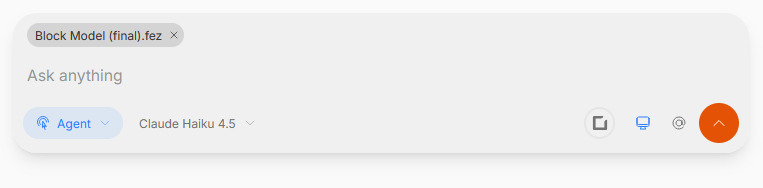
If you want to attach file(s) for the agent to reference, please press the ‘Attach file path’ button.
Opt-In Disclaimer
Agent Mode is an opt-in feature.
By enabling Agent Mode, you acknowledge that:
- Data may be collected to improve the RSInsight experience
- Data collection helps ensure the core functionality and security of RSInsight services
You must explicitly opt in in order for Agent Mode to be available in your account.

RSInsight Desktop
RSInsight Desktop is a companion application required to enable Agent Mode functionality. It acts as a secure bridge between the cloud-based RSInsight service and your local Rocscience software.
Download
RSInsight Desktop can be downloaded:
- Directly from the RSInsight web application after opting in to Agent Mode
- From the Settings modal under Agent Mode
The download is only available for Windows systems.
Setup Process
- Download and install RSInsight Desktop
- Log in using the same account as your RSInsight and RocPortal authentication
- Confirm that your device appears as:
- Registered
- Connected
- Once connected, Agent Mode becomes available in the RSInsight interface
Connector Store
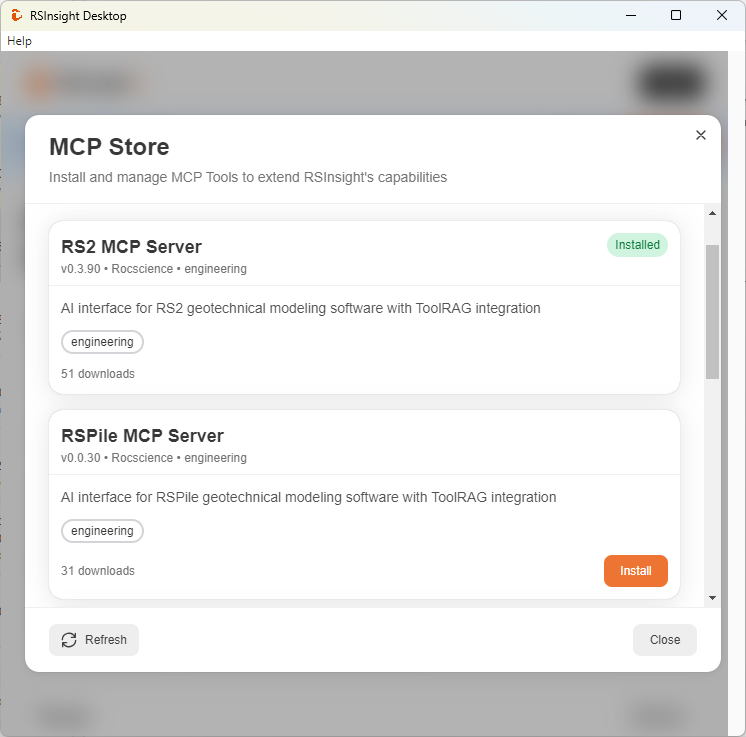
Within RSInsight Desktop, users can access the MCP Connector Store, where you can:
- Download and install Rocscience program connectors
- Enable Agent Mode support for specific Rocscience applications
Only installed connectors can be controlled through Agent Mode.
Status Indicators and Functionality
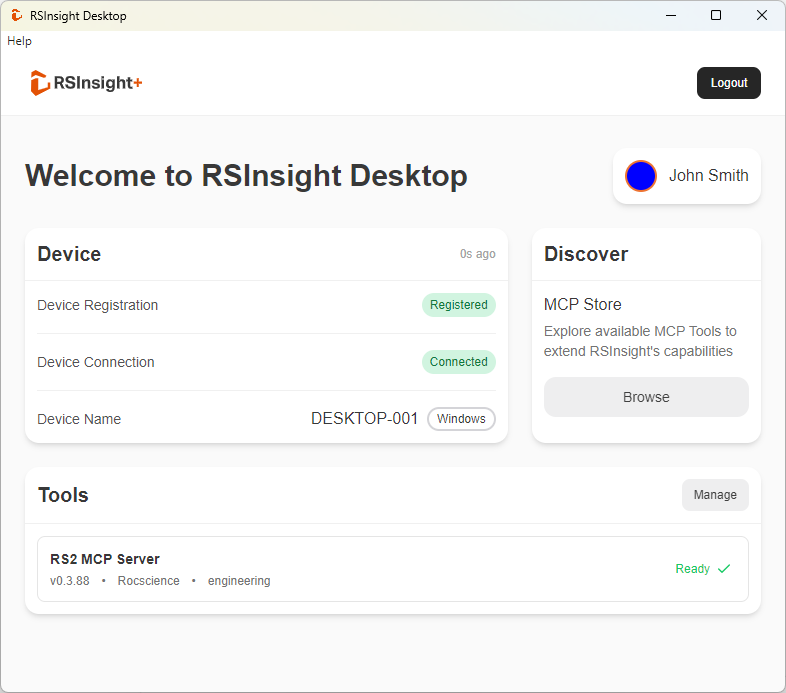
RSInsight Desktop provides visual indicators that show:
- Device registration status
- Connection status
- Active connector availability
These indicators help confirm that the system is ready for Agent Mode interactions.
Switching Modes and Model Selector
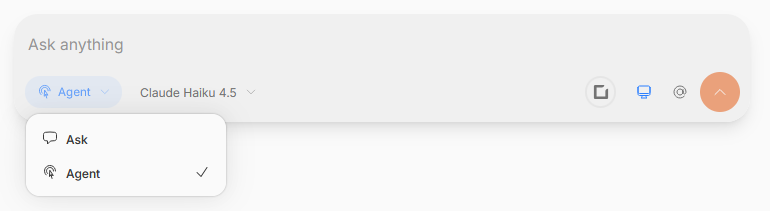
Users can switch between Ask Mode and Agent Mode directly within the RSInsight interface.
- Ask Mode focuses on answering questions
- Agent Mode enables software control (when requirements are met)
Each mode includes its own model selector, allowing users to choose the most appropriate LLM for the task at hand.
Sample Agent Mode Queries
Examples of queries you might use in Agent Mode include:
- “Open my RS2 project, compute and interpret the results”
- "Set the cohesion of Material 1 to 50 MPa"
- "Get the maximum shear stress in joints at stage 3"
- "Get the stress profile along a vertical line at x=10 from y=0 to y=-8"
Available actions depend on the installed connectors and supported programs.
Connectivity Disclaimer
Agent Mode requires a constant internet connection to function correctly. Loss of connectivity may result in:
- Interrupted commands
- Limited or unavailable Agent functionality
Ask Mode may continue to function with reduced capabilities depending on connectivity.
Agent Mode Quota
Agent Mode uses a separate quota from Ask Mode.
- Agent interactions typically consume more resources due to execution and coordination with desktop software
- If additional Agent quota is required, users should contact Rocscience to request an increase
Quota usage and limits are visible within the RSInsight interface.
Version Control
RSInsight Version
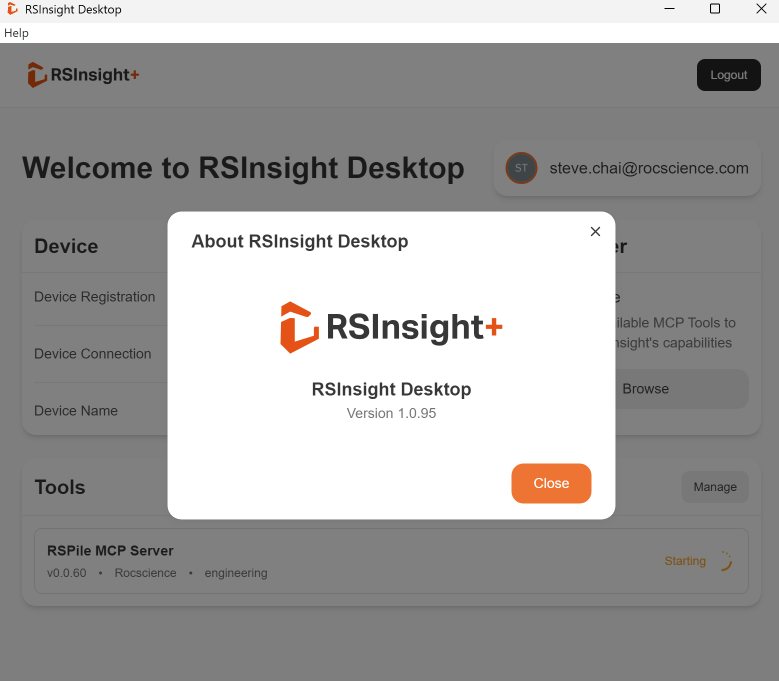
Versions can be checked by clicking Help in the top left corner. You should be able to see the latest version and the app should automatically update to latest version.
MCP Versions
Each Rocscience program needs to be updated to the latest version in order to use the MCP server. Ensure the MCP servers are updated, and the program you want to use are updated to the latest. See the Program Downloads page to find the latest versions of all programs.
If anything is not syncing correctly, try to close the app and re-open. You can also try re-installing RSInsight Desktop Application.
Basic / Flexible Users
Basic and Flexible users are given a different number of requests. Double check the status by checking the bottom left corner of RSInsight.
In case you’re not seeing the updated status, go to your Settings (by clicking on your Account icon with your initial in the bottom left corner) and check the organization. It should show the plan you’re in.

It helps to double check that the organization is selected from RocPortal to sync the accounts to RSInsight. If after syncing the questions still are not updated, close and reopen the app to ensure the changes are made.
For more information related to the usage and data privacy of RSInsight, please see RSInsight Terms & Conditions.
Is this page helpful?
Yes
No