Report Generator
The Report Generator provides a comprehensive summary of model input data and analysis results in a formatted report.
To can access the Report Generator at any time:
- Select Project > Report Generator
 from the Home ribbon.
 - The Report Generator is opened in another window.
The Report Generator information can be customized and exported in a variety of ways, as described below.
Report Generator Options
When you are viewing the Report Generator, the options will display in the menu on top of the window. The Report Generator menu allow you to choose the information which is displayed in the report, and the appearance of the information (e.g. fonts, colors, etc.)
Images
You can add image at the end of the sections by selecting the Images  option in the menu. The dialog below shows each section and the image insert option.
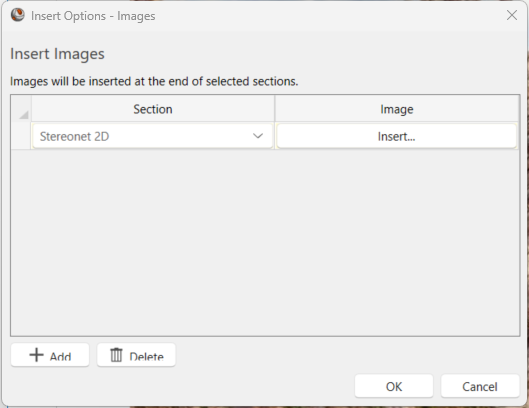
To insert an image:
- Select the
 button.
 - Select the Section from the drop down.
- Click the Insert button to select an image file.
Comments
You can also add comments below each selected section. Select the Comments  icon in the menu, and you will see the following dialog shown below.
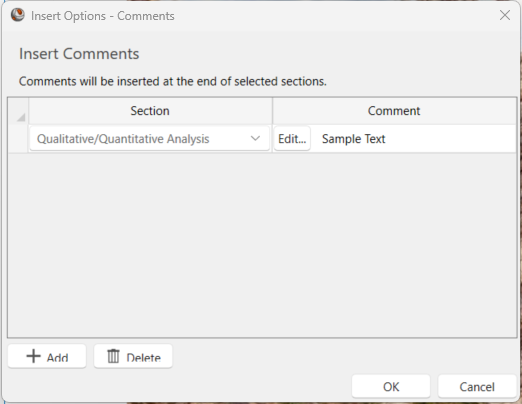
To insert a comment:
- Select the Add button.
- Select the Section from the drop down.
- Click the Insert button.
- In the Edit Comment dialog, enter the comment text.
Cover Page
The Cover Page  option allows you to create a template of your choice with the company logo, name, project title, etc. Select Reset to Default in case you want to revert the changes.
Style Options
The Style Options  allow you to edit the format of the text and color of the sections.
Watermark
You can insert a watermark on the report by selecting the Watermark  option in the menu. The text entered will be shown where it is written behind the report as shown below.
Refresh
You can refresh the report after making the changes to the model. This will generate the most updated report of the project.