Scripting Tools
The Scripting menu includes various tools that allow users to manage the scripting server, access the RocScript Editor and its environment, and view the reference manual.
Manage Scripting Server
This option opens the Scripting Server Manager dialog. You can set the server's port number and view the server status here.
Similar to other APIs, DIPS Scripting requires a server started. The server listens for incoming requests from clients (i.e., your Python script) on a specific port number, and connects to the DIPS program.
How To Use
Users have the option to either manually configure settings in the dialog interface or programmatically initiate operations using the function provided in the DIPS Python API Library.
To start the server in the dialog:
- Select Scripting Options > Manage Scripting Server
 from the Scripting ribbon.
 Enter the Port. The port availability will be displayed, as “Available” or “Unavailable”. “Unavailable” means the port is currently occupied by another server. You can click the Find Port button to search for the next available port.
Port range must be between 49152 and 65535.- Select the Start Server button to connect to the server. The Server Status note describes whether this server is running or not.
Alternatively, you can incorporate the LauchApp() function within your Python script, which bypasses the manual steps outlined above.
To start the server from the Python script: For example, start the DIPS application and a server connected to it at port number 60044.
# Start DIPS
app = DIPSApp.DIPSApp.LaunchApp(60044)
See the Tutorials for more examples.
Stop the Server
To stop a started server, you can click on Stop Server button in the Scripting Server Manager dialog.
- Using a script, you can concurrently run multiple projects by assigning them to different ports. This approach is time efficient.
Meanwhile, if you want to terminate one or more projects associated with a specific port, you can stop the server. This action cuts out the connection between the projects and the API, and frees up the port for other projects or tasks.
There is no associated function in the DIPS Python API Library. Closing the application window will automatically terminate the server connected to it.
To close the (previously launched) application from the Python script:
# Close DIPS
app.Close()
Launch RocScript Editor
The RocScript Editor application is a pre-configured Python editor.
To launch the RocScript Editor application:
- Select Scripting Options > Launch RocScript Editor
 from the Scripting ribbon. You can alternatively open the RocScript Editor from the Windows start menu.
Manage Python Environment
The Manage Python Environment option opens the pre-configured Python editor environment – RocScript WinPython Command Prompt.
To open the RocScript WinPython Command Prompt:
- Select Scripting Options > Manage Python Environment
 from the Scripting ribbon.
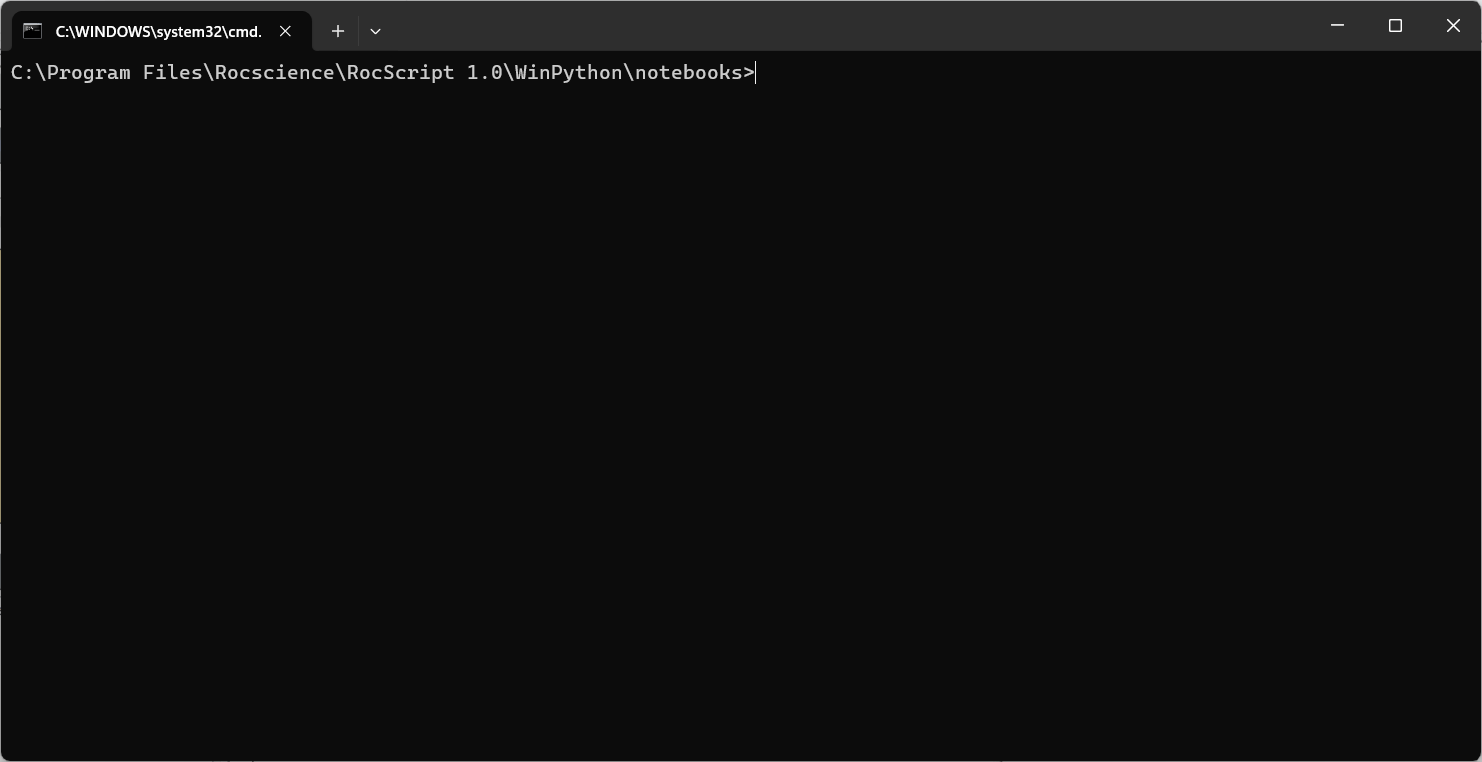
This RocScript Command Prompt is used to manage the Python environment within the RocScript Editor. For advanced users who prefer to use their own Python environment, use the Windows Command Prompt instead.
For more information about the python environment, see the Getting Started with DIPS Scripting tutorial.
Reference Manual
The Scripting Reference Manual lists out all object, method, class, and function in the DIPS Python API Library for client. Script examples are also provided in the guide. Refer to this guide to utilize DIPS Scripting.
To access the Scripting Reference Manual:
- Select Scripting Options > Scripting Reference Manual
 from the Scripting ribbon.
The manual can also be found here.