10 - Scripting
1.0 Introduction
In this tutorial, we will walk you through the setup process and provide an overview of how to run your first Python script for DIPS.
Topics Covered in this Tutorial:
- Python Environment
- RocScript
- Self-hosted Environment
Finished Product:
The finished product of this tutorial can be found in the Tutorial 10 Scripting.dips9 file, located in the Examples > Tutorials folder in your DIPS installation folder.
2.0 Prerequisites
2.1 DIPS Version 9
Before you begin, ensure you have the DIPS program installed. You must have at minimum Version 9.001 in order to use this feature.
2.2 Python Environment
There are two methods to run a script, which differ in the Python environment used:
- Running on RocScript Editor (for all levels of users):
- Download and install RocScript from RocScript Update History page.
- Install the DIPS Python API library.
Each method is detailed below.
3.0 Method 1: Using RocScript
3.1 Opening the RocScript Editor
In DIPS:
- Select Scripting > Launch RocScript Editor
 from the ribbon.
 - The RocScript Editor will launch in a separate application window.
3.2 Open a File
To open a file in the RocScript Editor:
- Select File > Open File option from the menu.
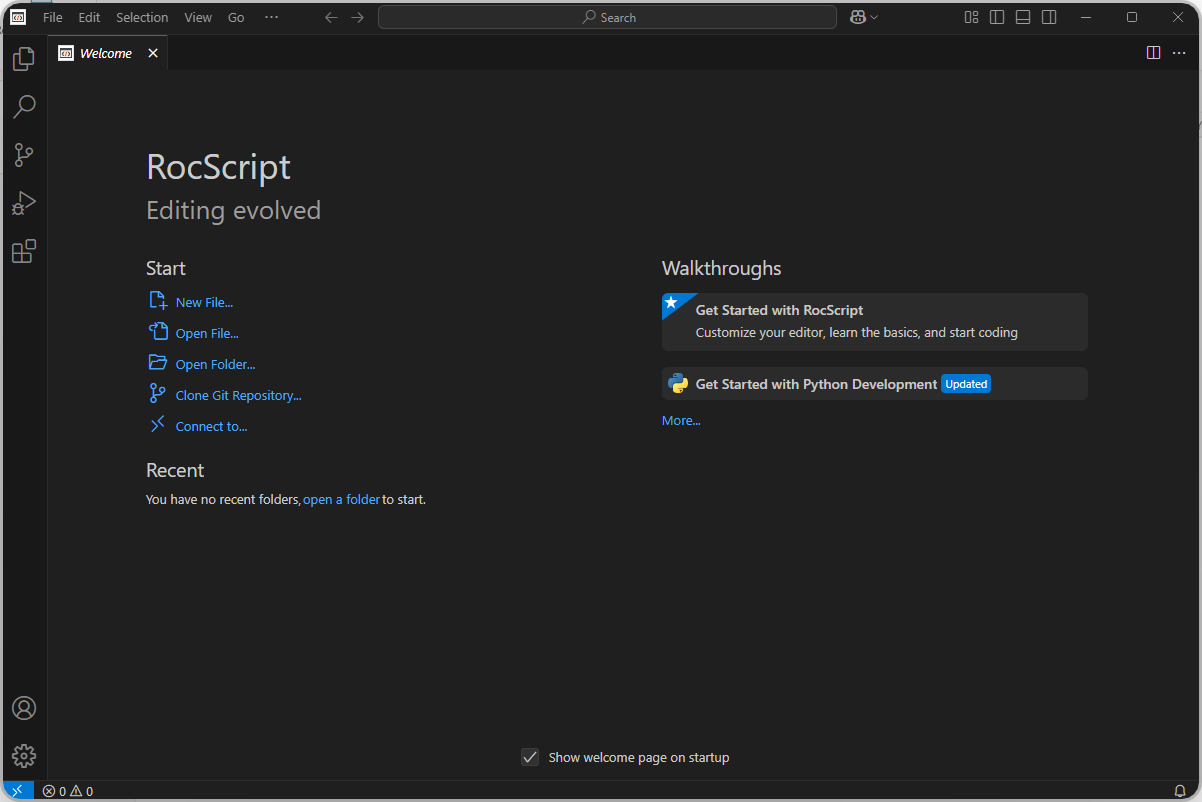
- Select the Tutorial.py Python file from the tutorial folder directory located in the Examples > Tutorials folder in your DIPS installation folder.
3.3 Run the File
To run the file:
- Click on the Run Python File button at the top right of the window:
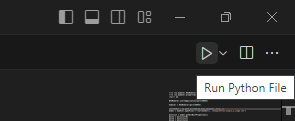
The Tutorial.py script showcases a simple application of DIPS Scripting. Utilizing functions from the DIPS Python API library, it:
- Launches the DIPS application and a server at port 62535
- Accesses the DIPS model
- Creates a Spot Mapping data set and adds it to the Orientation Data.
- Creates a Stereonet 2D
view and in that view:
- Adds a Text Tool.
- Sets and gets the first Traverse visibility and properties.
- Sets the Contours visibility.
3.4 Install Libraries (Optional)
In DIPS:
- Select Scripting > Manage Python Environment
 from the ribbon.
 - The RocScript WinPython Command Prompt will open.
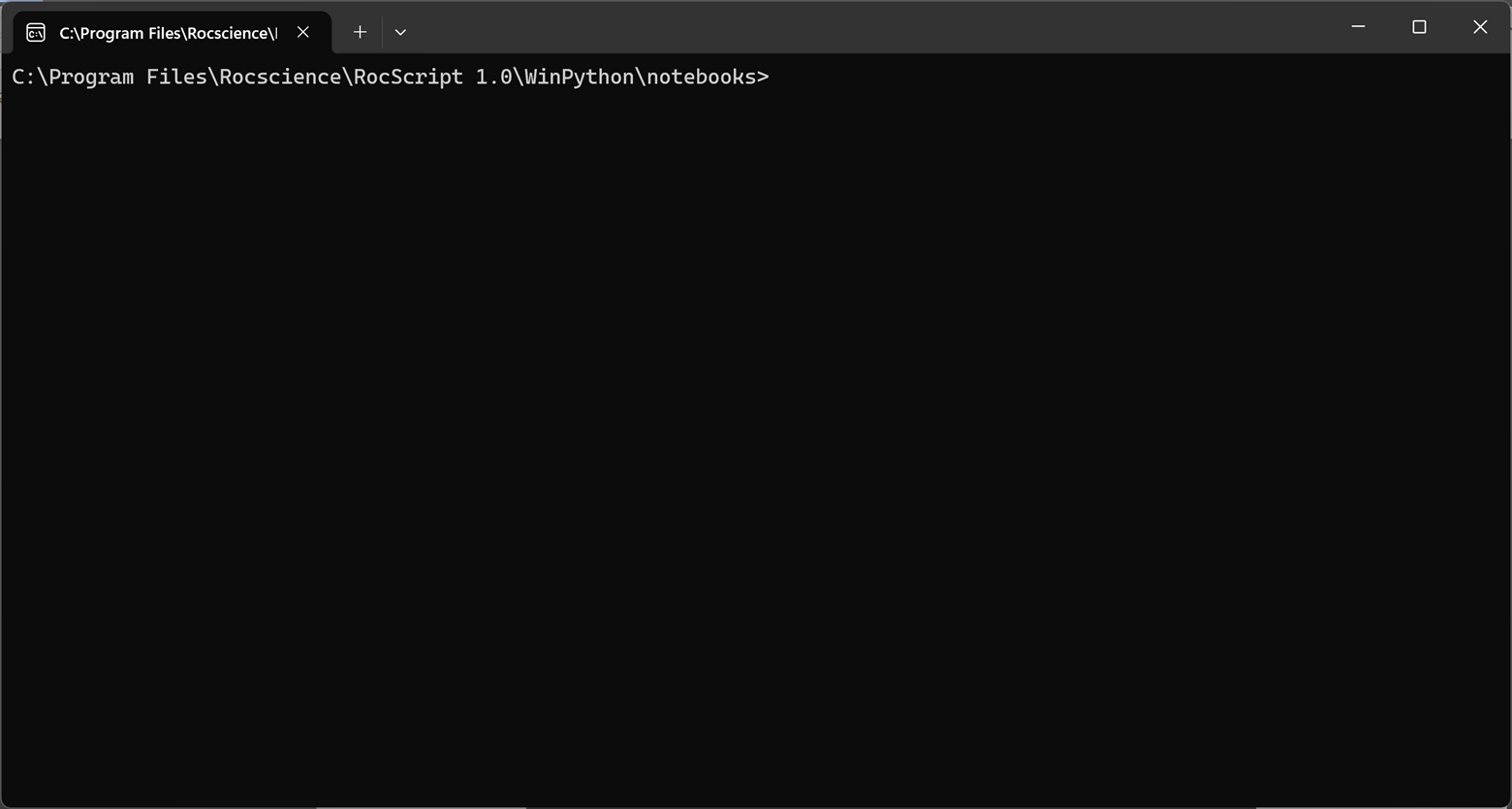
- Check the installed libraries with the command:
pip listPre-installed libraries include:
- The DIPS Python API Library (i.e., DIPSScripting 9.X.X on the list)
- Dependency Python libraries:
- colorama
- grpcio
- iniconfig
- packaging
- pluggy
- protobuf
- Pygments
- pytest
- pytest-mock
- typing_extensions
- Common Python libraries:
- Pandas
- Matplotlib
- If you wish to install more libraries, use the command to do so:
pip install [library name]4.0 Method 2: Using your Own Environment
The Python environment is made up of two parts which need to be installed:
- The Python interpreter (Section 4.1 below)
- The Code Editor (Section 4.2 below)
4.1 Install Python
- Navigate to the Python downloads page (https://www.python.org/downloads/),
- Select the Download for the desired release version. Python 3.0.0 and later should be compatible; however, testing was performed using Python 3.11.2.
- Scroll down and select 'Windows installer (64-bit)'.
- Run the installer. Keep the defaults and select Install Now. Installation should complete successfully.
4.2 Install a Python Code Editor
Any code editor can be used, but we recommend you use Visual Studio Code.
To download and install Visual Studio Code:
- Navigate to the Download page (https://code.visualstudio.com/download)
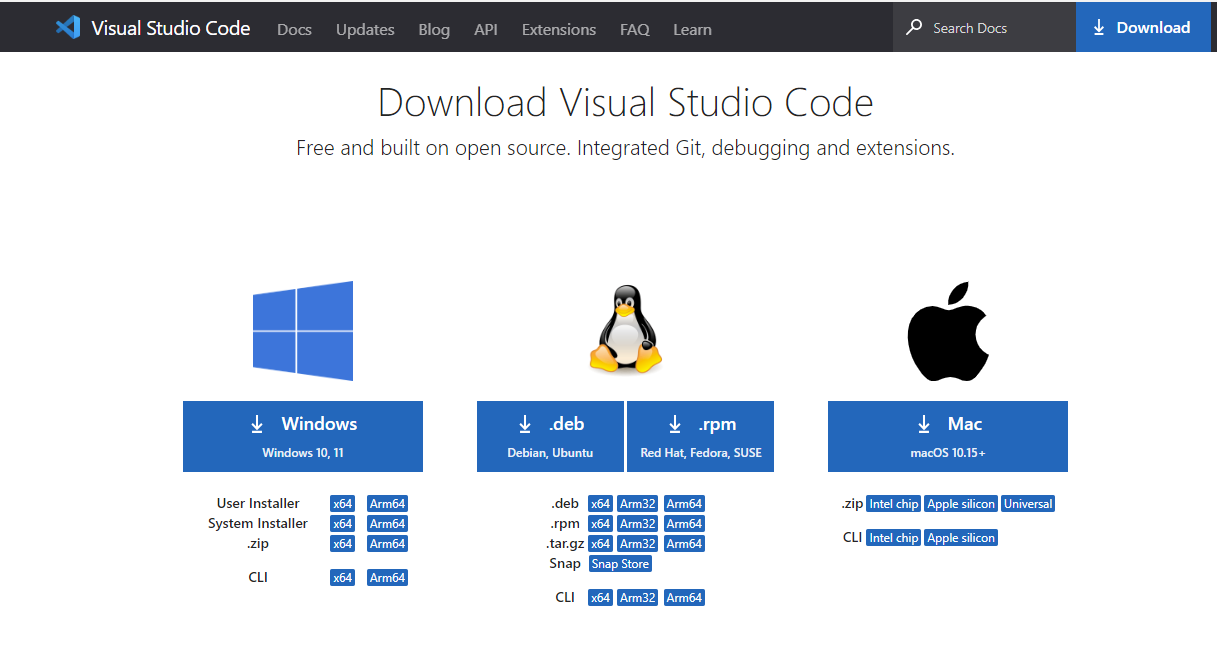
- Select the Windows option
- Run the installer and complete the installation.
4.3 Configure Editor for Python
Visual Studio Code (VSCode) has extensions which can be installed.
- Navigate to the Extensions pane and search for Python.
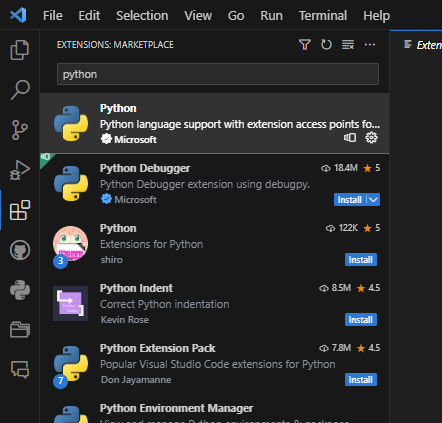
- Install the Python extension.
- Restart VSCode.
4.4 Install the DIPS Library
- In VSCode, select View > Terminal in the menu to open a terminal.
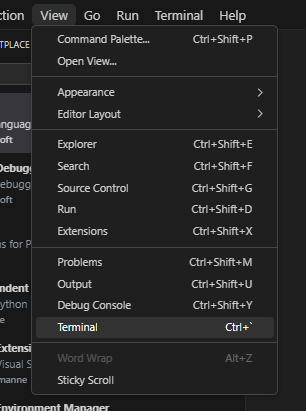
- Install the library using pip, which is a package manager that comes with Python:
pip install DIPSScriptingIf you are not using the latest release of DIPS, you need to specify a library version that matches your DIPS version. For example:
pip install "DIPSScripting==9.1.0"To find a list of available DIPSScripting Python package versions, see Release History.
You can find your version of DIPS by selecting Help > About in the DIPS program.
The DIPS Python API Library is now installed.
4.5 Open a File
In VSCode:
- Select File > Open File in the menu:
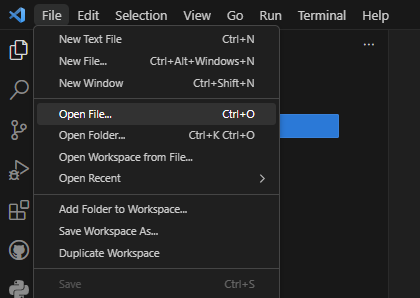
- Select the Tutorial.py Python file from the tutorial folder directory located in the Examples > Tutorials folder in your DIPS installation folder.
4.6 Run the file
To run the file:
- Click on the Run Python File button at the top right of the window.
You’ve successfully set up your Python environment to use DIPS Scripting. You can build your own Python scripts for DIPS now!
5.0 Resources
For more information on DIPS Scripting, check out the following resources:
- DIPS Python Reference Guide
- DIPS Scripting help topic
This concludes the tutorial.