Standard Operating Procedure
The Heap Mode - Two 3D Models supports volume calculations from two 3D models derived from repeated digital imaging of a region (pre and post situation). Primary settings, e.g. pre-existing heap on the floor level or roughed terrains, are considered in volume calculations.
Models must share a common coordinate system for comparison modes.
Standard operation procedure
- Select “Heap Mode - Two 3D Models” after launching the VolumeCalculator.
- Load the 3D models one after the other by clicking the “Load 3D Models“
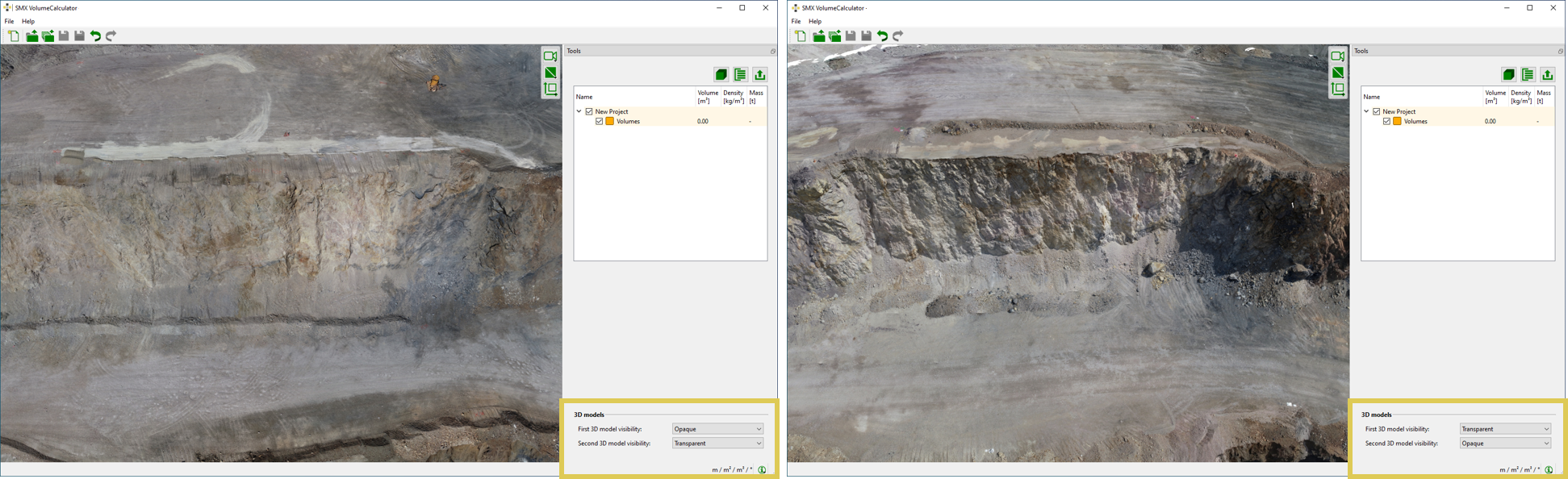
 icon in the toolbar. Inspect the 3D models by changing the visibility of each by using the pull-down menu “First Surface Visibility” and “Second Surface Visibility.”
 - Define a heap volume by following procedure:
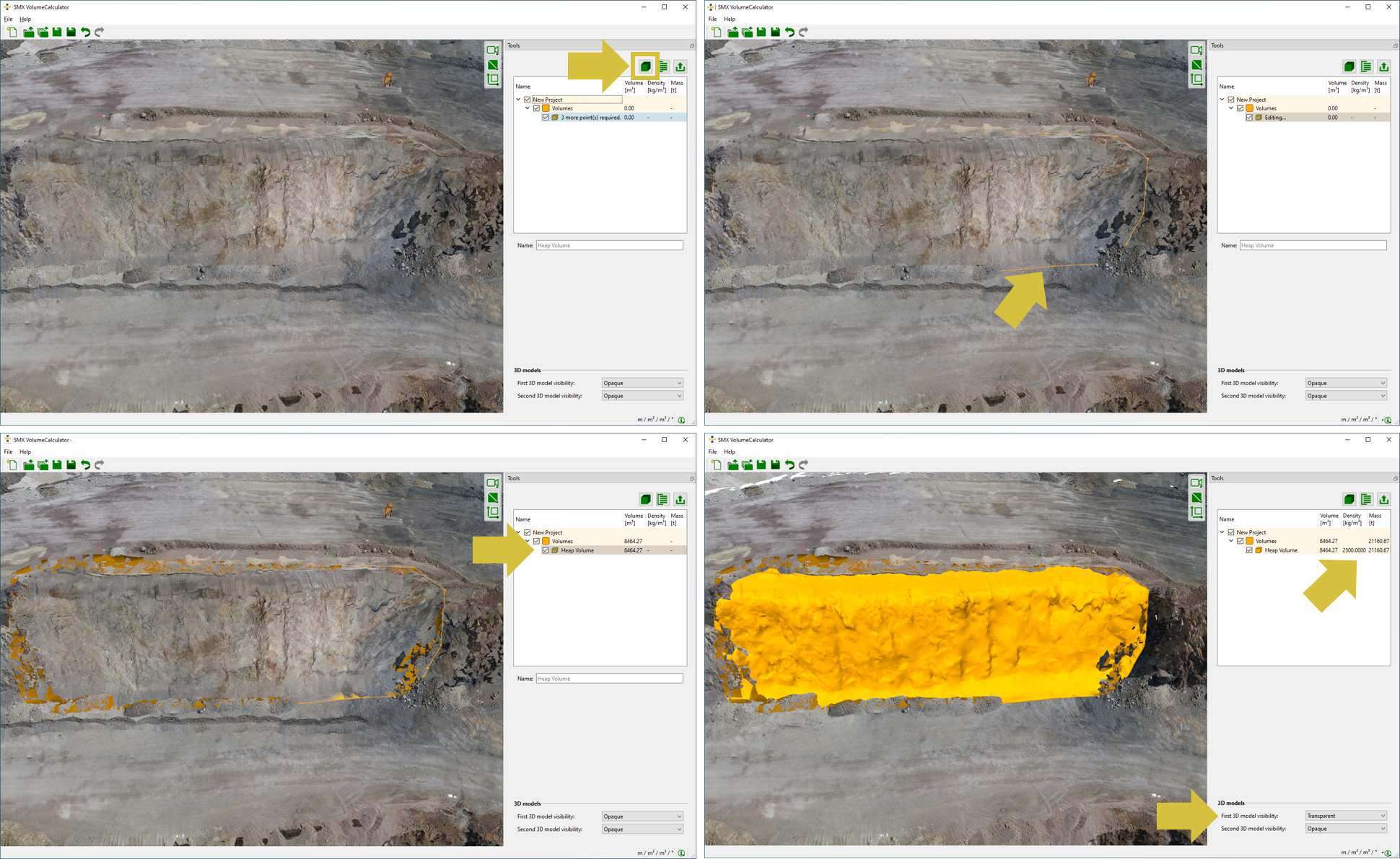
- Click in the “New Heap Volume”
 in the Tools pane of use the short key “H”.
 - Define the boundary of the volume to be calculated on the 3D model by clicking the left mouse button. A polygonal line grows instantaneously. At least three points are required.
- Confirm the boundary of the volume by a click on the “Return” button on the keyboard. The volume is calculated and appears coloured in the viewer whereas the results is available in Volume list in the Tools pane.
- Optional, enter the rock density for weight calculations in the tree widget for volumes.
- Click in the “New Heap Volume”
Invert the sign of calculated volumes by clicking “Invert” in the context menu of the Volume.
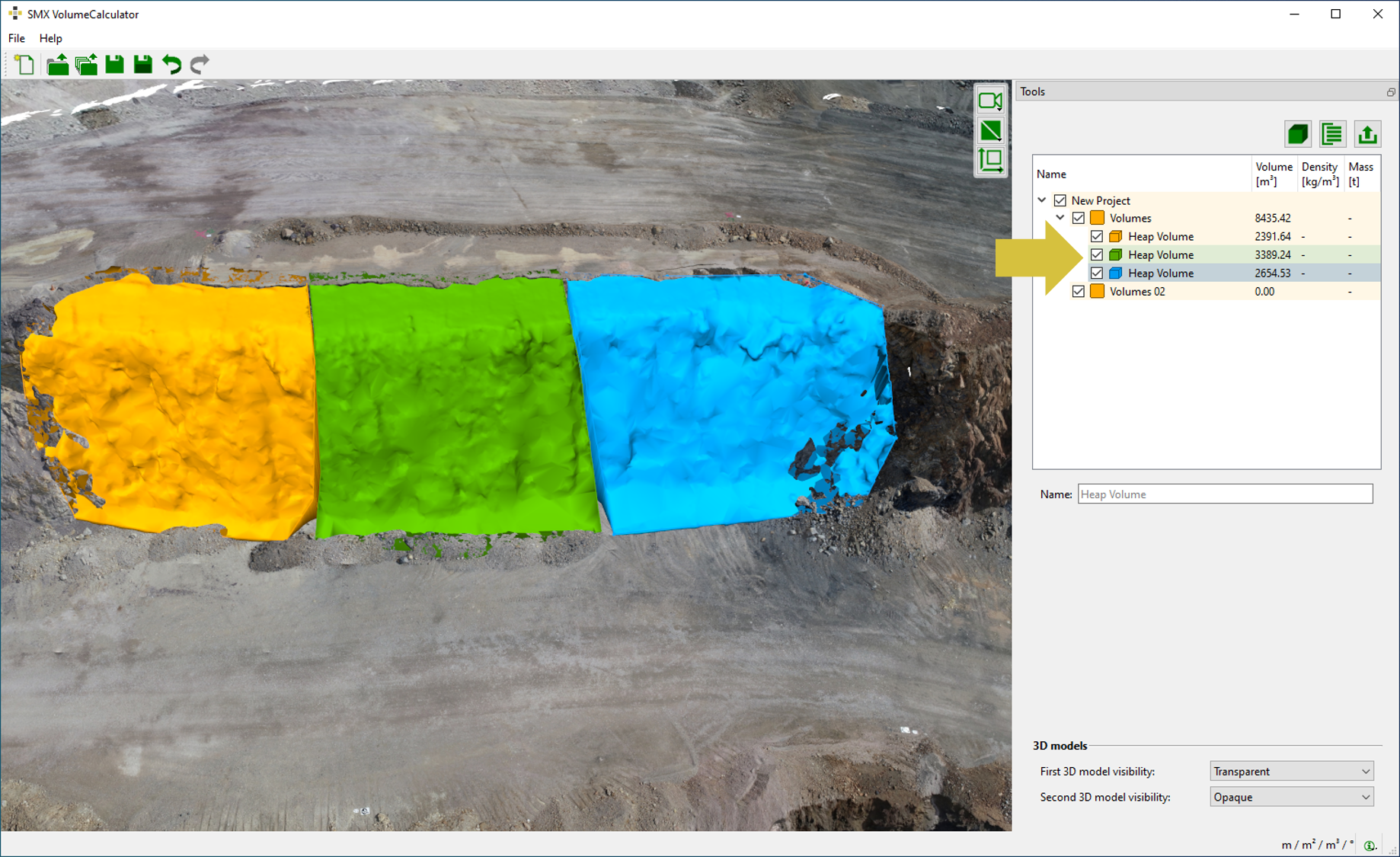
A number of volumes in individual groups can be determined by repeating step 3 of the standard operation procedure (see Figure 10). Using the “Space” button instead of “Enter” starts a new volume calculation in the Volume Group.