Import of OBJ Data
Standard operating procedure
- Import the 3D data (“.obj” file) by using “File | Import 3D model | Import from OBJ” from the menu bar
- The “Import from OBJ” dialog (Figure 4) appears requiring the following input:
- Input file(s): Opens a dialog to select the directory of the 3D data (“.obj” file)
- Output file: Opens a dialog for entering the directory and name of the final 3D model (“.jm3x” file)
- Selection of the referencing mode from the pull-down menu. Following options are available:
- Unreferenced (x, y, z)
- Referenced (specific co-ordinate system)
- Referenced (generic E, N, H)
- Referenced (generic N, E, H)
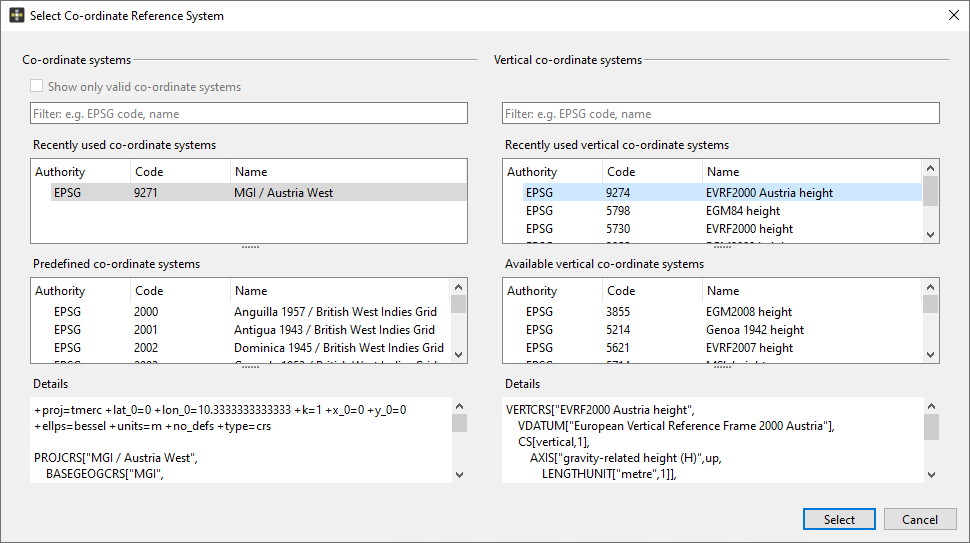
- Selection of the co-ordinate system:
- The referencing modes Unreferenced (x, y, z), Referenced (generic E, N, H) and Referenced (generic N, E, H) requires the selection of the unit from the pull-down menu. Millimetre, meter, inch, international food and US-survey foot are available.
- Referenced (specific co-ordinate system) requires the selection of the specific co-ordinate system in the “Select Co-ordinate Reference System” dialog open by clicking “Browse Co-ordinate Systems”. Specify the co-ordinate system [horizontal and vertical system] in the Select Co-ordinate Reference System dialog and click the “Select” button.
- Confirm the import by clicking in the “Ok” button
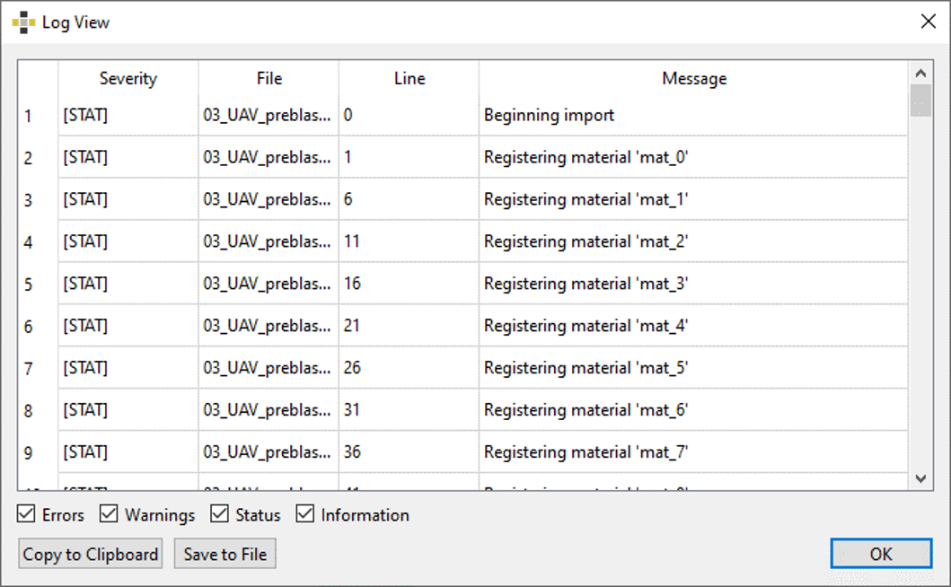
- A detailed view (Log View dialog; see Figure 6) on the import can be called up in the appearing dialog
The ModelEditor supports the import of several related 3D data (“.obj”) files at once by multiple selection in the import dialog.