Search Results

Import

Analyst has several import and export functions thus significantly increasing its capabilities and use for geological and geotechnical engineering. 

Import 3D model

Once a 3D model is loaded, another 3D model can be imported from the menu bar by selecting “File | Import 3D Model”. It is assumed that all the imported 3D models are registered in the same co-ordinate system as the loaded 3D model. The below figure shows an example for several imported 3D models.
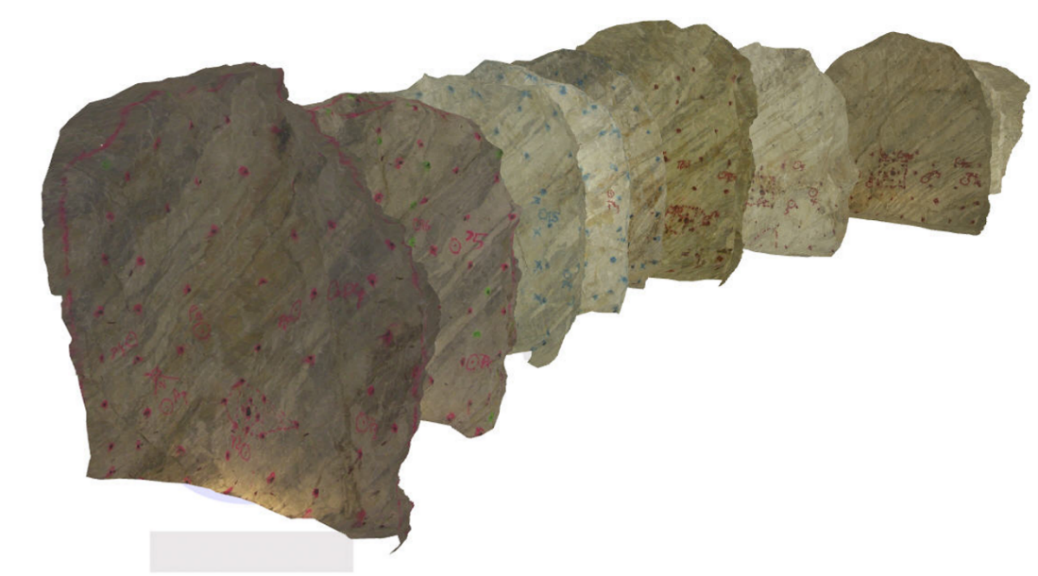
Several imported 3D models used for documentation of a drift tunnel excavation

Import Map

Several Maps can be imported on one or on several 3D models by selecting “Map | Import | Import Another Map” from the menu bar.

Rocscience logo, click here to return to the homepage Portal Account Portal Account Portal Help Log In Log Out Home Shopping Cart icon Click here to search our site Click here to close Learning Tech Support RSInsight+ Logo Documentation Info Chevron Delete Back to Top View More" Previous Next Edit PDF File Calendar Location Language External Link Apply to ACC External Link Fees Video Click here to visit Rocscience's LinkedIn page Click here to visit Rocscience's YouTube page Click here to visit Rocscience's X page Click here to visit Rocscience's Facebook page Click here to visit Rocscience's Instagram page Click here to visit Rocscience's Reddit page Bookmark Network Scroll down for more Checkmark Download Print Back to top Single User Multiple Users RSLog RocFall3 CPillar Dips EX3 RocFall RocPlane RocSlope3 RocSupport RocTopple RS2 RS3 RSData RSPile RSWall NovoTech Bundle RSSeismic Settle3 Slide2 Slide3 SWedge UnWedge RocTunnel3 RocSlope2 BlastMetrix ShapeMetriX FragMetriX TestLicense Commercial License Education License Trial License Shop safe & secure Money-back guarantee