User Data Settings
The User Data sheet shown below allows the user to install camera calibrations files and provides features for data management.
- Mapping definitions
- Install camera calibrations
- Data management
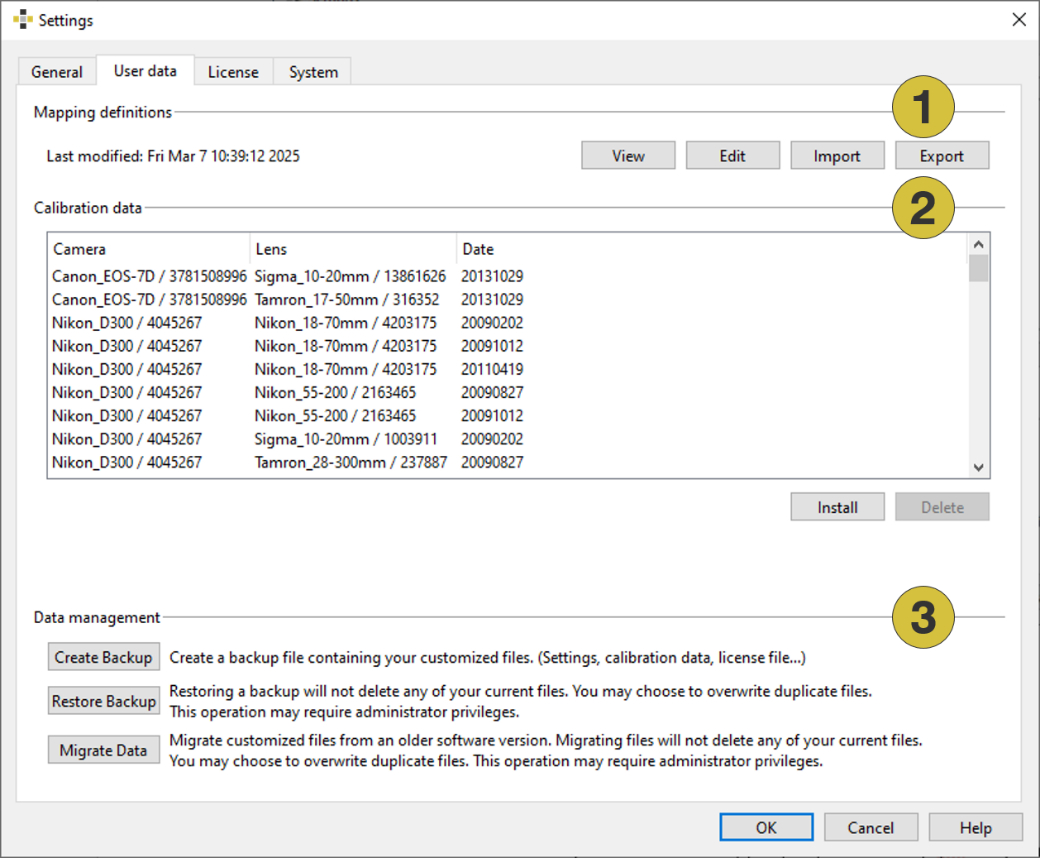
1 - Mapping definitions
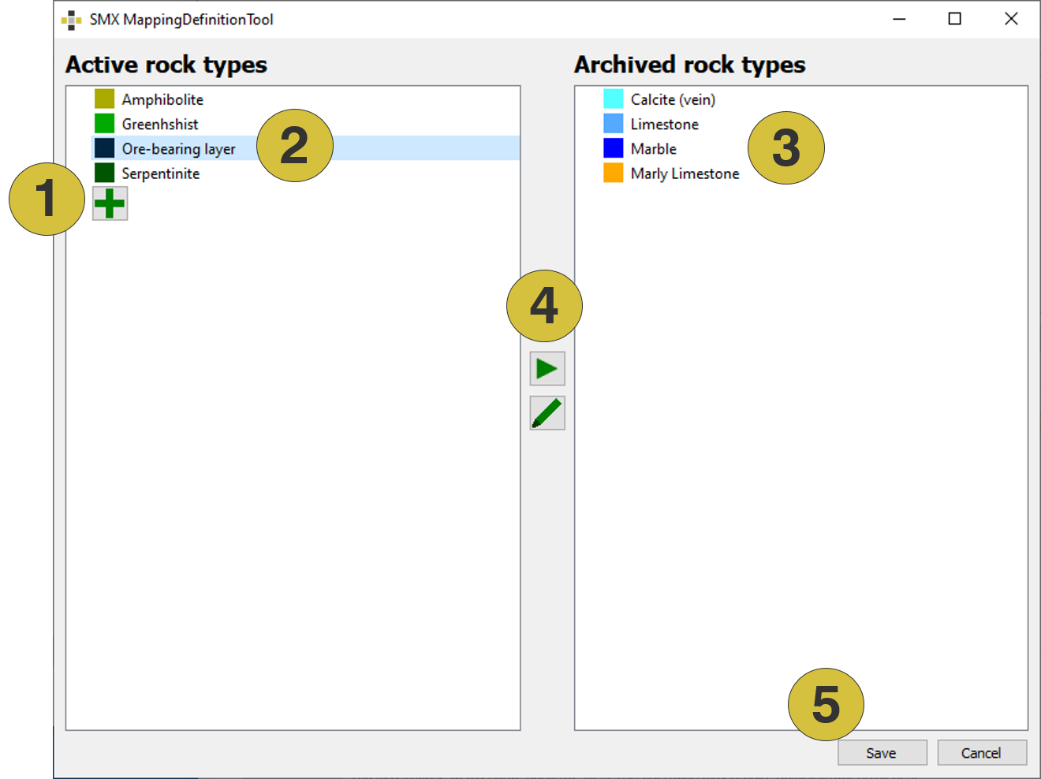
The User Data sheet enables the generation of a Mapping Definition File (“.pb” file). The file contains user defined rock types used for mapping of Lithologic Regions in the Analyst (see user manual of Analyst). The dialog Mapping Definitions Tool is opened by clicking the “Edit” button. Rock types are added by clicking the “Add Rock Type”  icon. The name and colour of the rock type can be defined in the occurring dialog. After closing the dialog, the rock types appear in the Active Rock Types list. Rock types are archived by selecting the desired type and clicking the Arrow
  icon. The rock type is moved to the Archived Rock Types list. Activation of an archived rock type is performed by selecting the desired type and clicking the Arrow
  icon. The rock type is moved to the Active Rock Types list again. Editing of rock types is performed by clicking the
  icon. The Mapping Definition File (“.pb” file) is generated and saved by clicking the “Save” button. Import and export of the file is performed by clicking the “Import” or “Export” button, respectively.
- Add rock types
- Active rock types
- Archived rock types
- Edit rock types
- Save mapping definitions
2 - Calibration data
The User Data sheet is used for viewing, adding and removing calibration files to the software. It lists camera calibrations installed on your computer. The camera model, e.g. Nikon D90, with the corresponding serial number is given in the left column. Each camera is calibrated with one or several lenses specified by the lens type, the focal length and the lens serial number. The right column shows the date of calibration. The calibration files are delivered in a “.zip” file format, which can be found on the original ShapeMetriX CD, the recalibration CD, or on your ftp account. If a specific camera calibration is required, please contact Support.
In order to install a camera calibration file choose the “Install” button and specify the folder and name (“.zip”) of the calibration file. After confirmation the camera calibration is installed to the ShapeMetriX software. In order to remove a camera calibration from the ShapeMetriX software, click on the calibration entry in the calibration list and choose “Delete”. After confirmation the calibration entry is removed.
3 - Data management
- Create Backup - Creates a backup file (“.zip”) containing the customized files (license, settings, calibration data, …)
- Restore Backup - Restores a backup. This operation may require administration privileges.
- Migrate Data - Migrate customized files form an older software version. This operation may require administration privileges.