Report
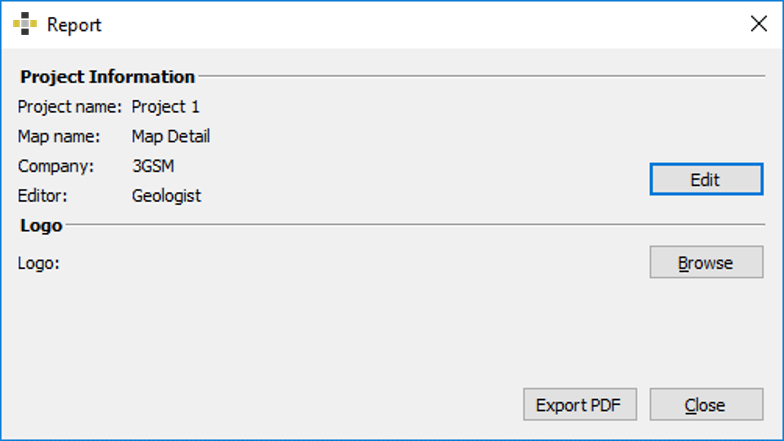
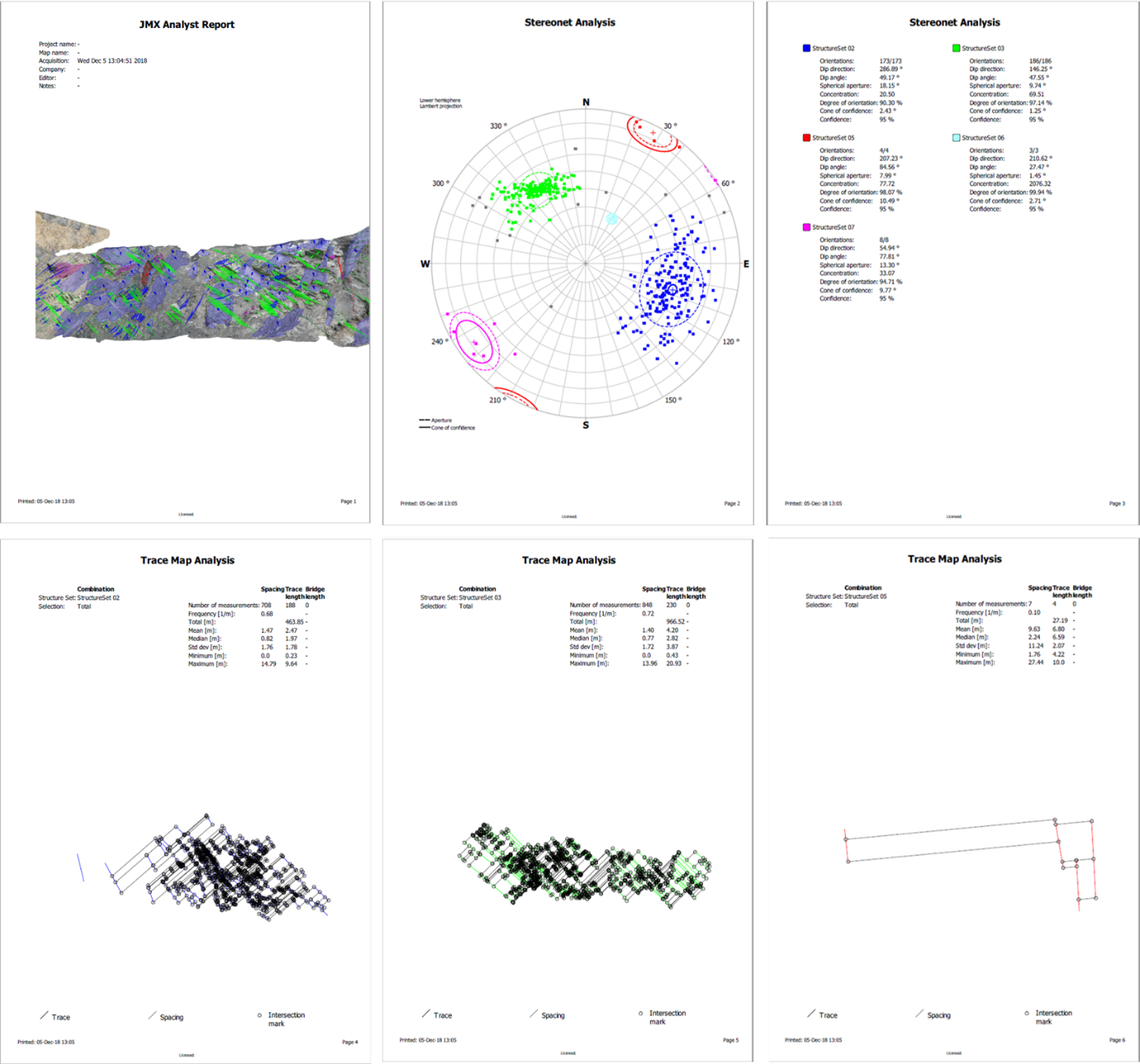
Analyst allows directly printing a report on the performed analysis using the commands “File | Print Report” (general printing), “File | Export Report as PDF” (“.pdf” report) from the menu bar or by clicking the corresponding icon “Print Report”  in the toolbar. Choosing one of these commands a dialog pops up containing two sheets. The Project Information sheet is used for providing project specific information such as report title, project, editor, company. It is also used to provide a company logo and defines whether a screenshot of the evaluated 3D model should be included or not. The below figure shows an exemplary printout of a 3D model evaluation including cover sheet and Structure Set information.