Zone
The Analyst features the definition of Zones, i.e. Analysis Zones and Exclusion Zones. Analysis Zones are closed polygons drawn by the user on the 3D model which selects or excludes Areas, Traces and Bridges intersected or surrounded by the polygon. Analysis Zones are used to create subsets of Structure Sets for further Trace Map Analysis. Exclusions Zones a closed polygons which exclude regions from analysing spacing parameters. Those zones may be areas of limited information (e.g. obstructed zones, vegetation, muck-covered zones, etc.) which affect Trace Map Analysis. Analysis Zones outlined as dashed lines and whereas Exclusion Zones are outlined as dotted lines in the 3D viewer. Both Zones are managed in an individual list (called Zones) in the Structure tab of the Mapping pane.
Standard operating procedure
- Activate “Zones & Scanlines” in the toolbar of the Structure tab by clicking the corresponding radio button
- Click on the “Zone”
 icon or use the shortcut key “Z”
 - Mark the border line of the Zone on the 3D model by clicking the left mouse button. A polygonal line grows instantaneously. Undo the last action by pressing the right mouse button (multiple uses possible).
- Finish the Zone and continue the mapping by pressing the “Space” key or finish the Zone by clicking “Enter” or by clicking the “Zone” icon. The Zone is displayed instantly in the corresponding list in the Structure tab.
- Define the Zone as “Analysis Zone” or “Exclusion Zone” in the Properties pane by clicking the desired radio button
Edit the Zone by a double click with the right mouse button on the item:
- Insert a point by holding “Ctrl” and clicking the right mouse button
- Open the Zone by holding “Alt” and clicking the right mouse button
- Move a point by holding “Shift” and clicking the right mouse button
The below figure hows the shows the Properties pane of Zones. The pane is opened in the context menu with “Show Properties” or by a click on “Windows | Properties” in the menu bar. It comprises the name of the Zone and the type of Zone (i.e. Analysis or Exclusion Zone). In addition, Zone are activated or deactivated for Trace Map Analysis in the individual Structure Sets by using the checkbox “Apply. The name of the Zone is editable in order to provide a descriptive name. Customized notes can be added to individual Zones in the Notes tab.
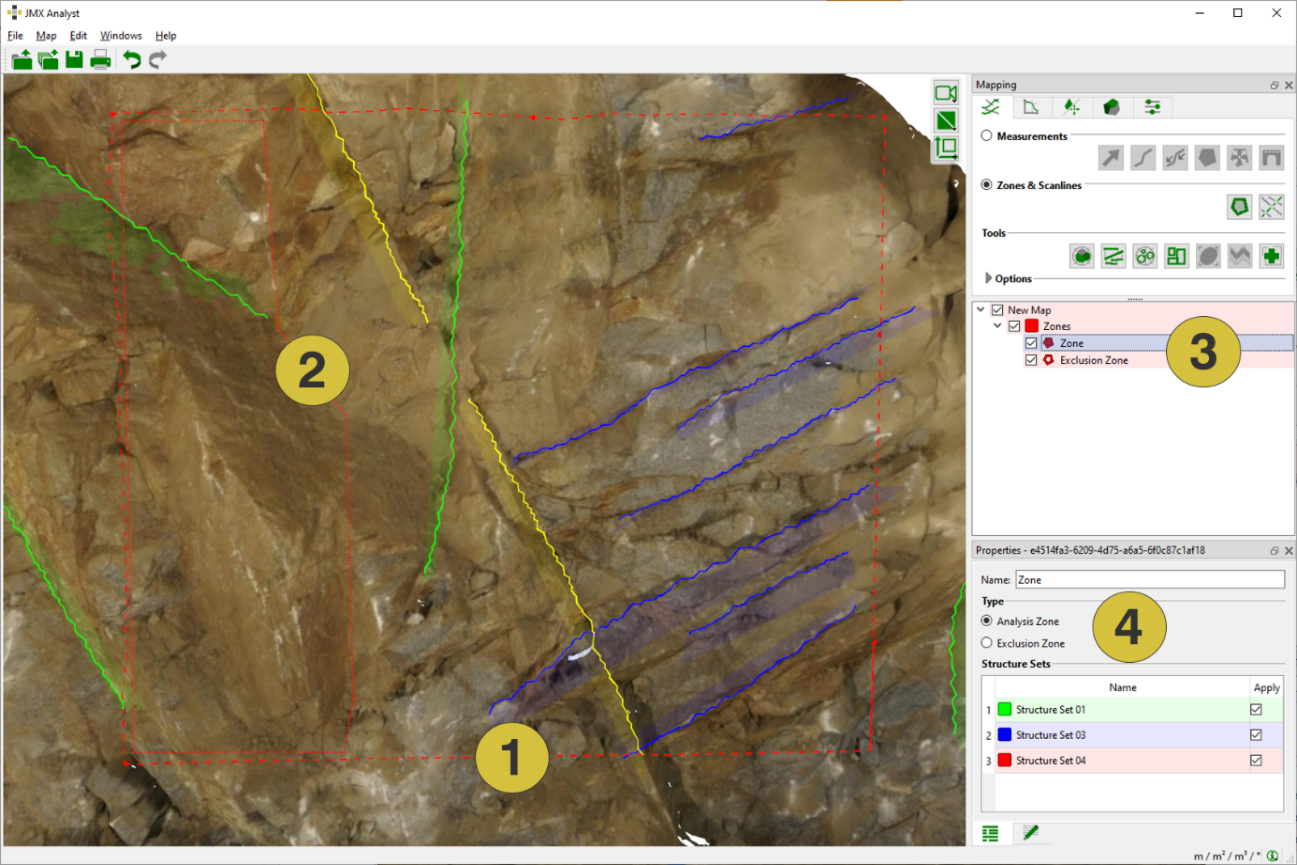
- Analysis Zone
- Exclusion Zone
- Zones listed in the Structure tab
- Selection of Zone type in the Properties pane
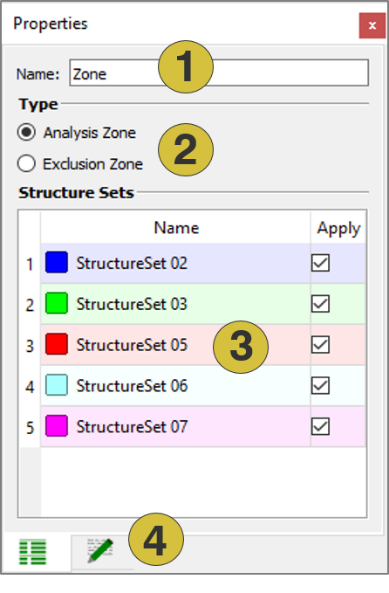
- Name of the Zone (editable)
- Type of Zone (editable)
- Selection of Structure Set (editable)
- Notes (editable)
Context menu
- Edit
Insert a point by holding “Ctrl” and clicking the right mouse button. Open the Zone by holding “Alt” and clicking the right mouse button. Move a point by holding “Shift” and clicking the right mouse button. - Set Colour
Defines a new colour for the Zone - Active
Activates (shows) and deactivates (hides) the selected item - Look at
Centers the Zone in the 3D viewer - Look at and Zoom
Centers and zoom the Zone in the 3D viewer - Delete
Deletes the selected Zone - Show Properties
Opens the Properties pane