Toolbar of the 3D Viewer
This section describes the available functions of the Analyst.
By pressing F1 on the keyboard tooltips for navigation as well as for editing annotations are available in the 3D viewer. The tooltips may differ in respect to the active item. Example:
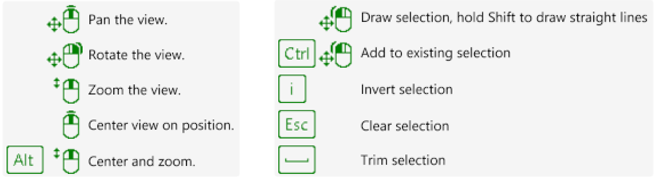
Toolbar of the 3D Viewer
3D View Options 
- Move to Home Position
 - Sets the viewer to its initial position
 - View All

 - Zooms out from the current view. Zooms to the previous view again
 - Top Down View
 - Orientates the 3D model from the camera view (top down)
 - Auto Rotate (fixed or view)
 - Rotates the 3D model from a fixed point (top down) or from the current point of view
 - Projection type

 - Toggles between perspective and orthographic projection
 - Fullscreen
 - Switches between the fullscreen display and the windowed display
Mesh Draw Mode 
- Draw as is - The 3D topography is completely overlaid by the digital photograph
- Wireframe
 - A triangulated red coloured point cloud is forming the topography
 - Wireframe Overlay
 - The 3D model and a red coloured overlay of the wireframe is forming the topography
 - Points
 - The point cloud of the scene shown
 - Show Texture - Displays the 3D model with texture in the viewer (shortcut key “Ctrl” T)
3D View Visibility 
- Show Reference Points - Shows or hides Ground Control Points used for referencing (MultiPhoto)
- Show Axes - Turns the co-ordinate axes on and off
- Show Bounding Box - Turns the bounding box surrounding of the 3D model on and off
- Show Reference Plane - Shows or hides the Reference Plane
- Show Contour Lines - Shows or hides contour lines on the 3D model