Import Bolts from CSV File
The Import Bolts from CSV File feature offers an option to generate bolts by importing a CSV file. This includes delimited text files such as *.txt and *.csv.
To use this feature, an external geometry must exist, otherwise it will remain disabled, grayed out.
To import bolts from a CSV file:
- Select Support > Import Bolts from CSV File

The Import Bolts From CSV File dialog appears.
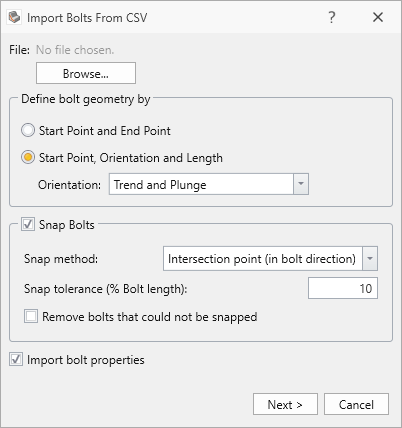
- Click the Browse button.
- In the Open file dialog, select a delimited text file (.txt, .csv) and click Open to load it.
- Under Define Bolt Geometry By, there are two options in which the bolt geometry can be imported:
- Start Point and End Point
- Start Point, Orientation and Length
- In default Snap Bolts option is checked with the tolerance of 10 % to make sure those bolts with their head locations in 10 % proximity to attach to the nearest surface. This can also be done after the importing process as a standalone feature to support this behavior is offered independent to Import Bolts from CSV feature.
- Optionally, users can select the Import Bolt Properties checkbox if different bolt property must be assigned for the imported bolts. However, bolt property items with matching names must exist in Bolt Properties dialog. Note that this option is not intended to explicitly import the mechanical properties, which are controlled from the Bolt Properties dialog, but to make distinguishment for different property assignment.
- Click Next.
A preview of the file is shown. From this window, the user can specify how the data is imported.
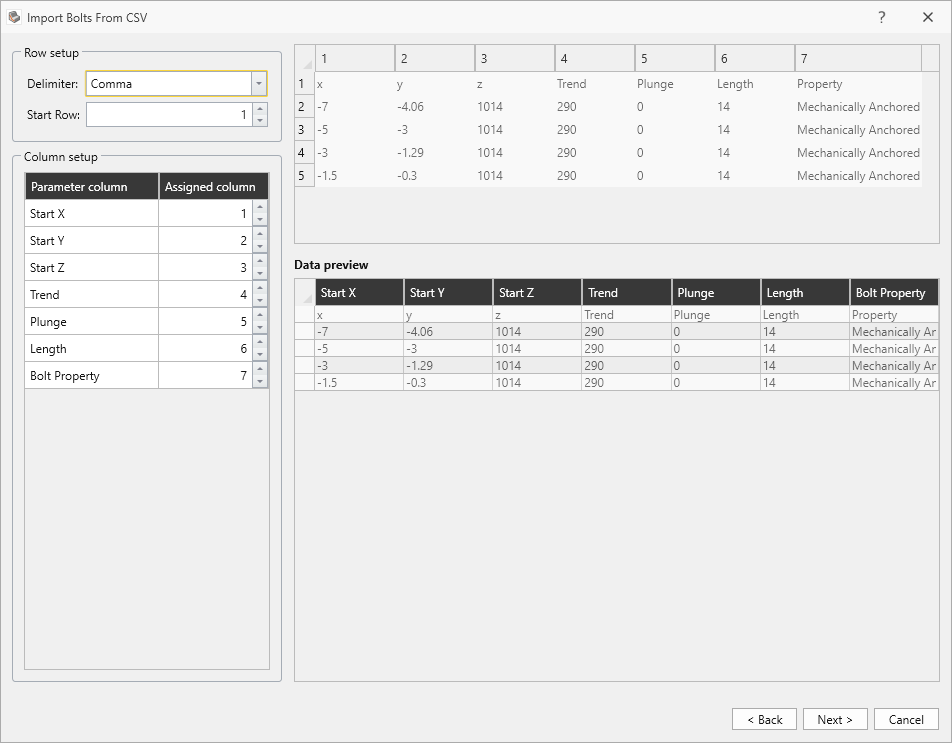
- Set the Data Delimiter (e.g., Comma, Semi-Colon, Space, Tab, Pipe, or All).
- Set the Start Row. Any data from rows before the start row are ignored.
- Set the Data Column Selection for each of the expected columns by setting the column index.
Note: The file must contain, at minimum, the predefined columns. All additional columns are appended to the right of the predefined columns. - Click Next.
The next window shows a preview of the imported data and performs data validation on the bolt parameters. Note that Bolt Property can be modified/selected in this dialog based on the available options; however, the geometrical information can only be fixed from the source file.
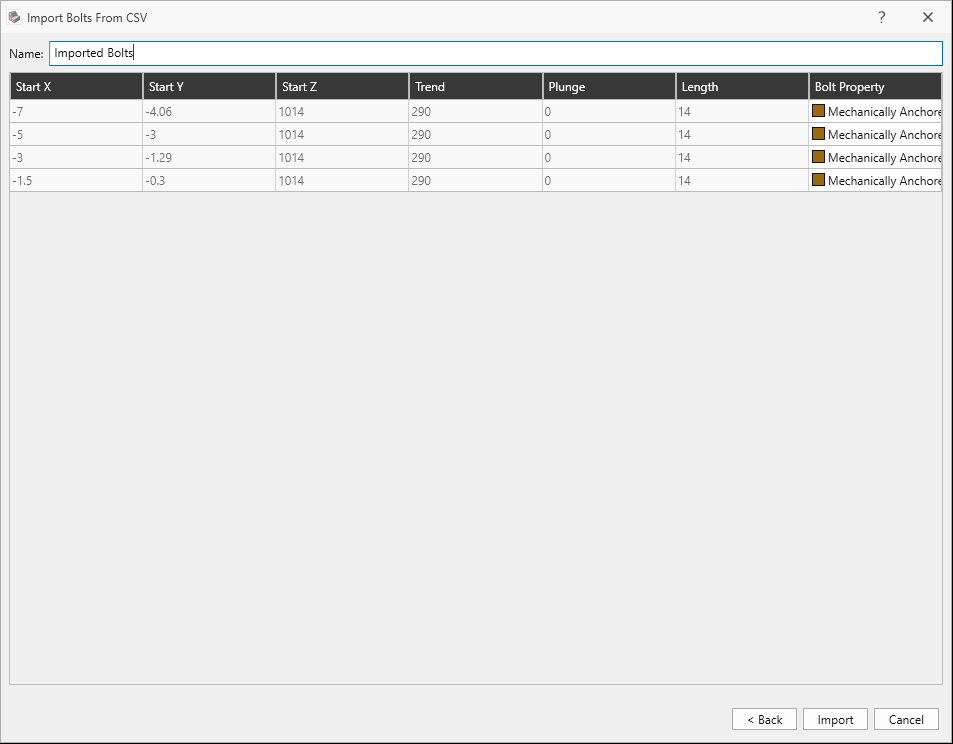
- Enter a Name for the imported bolts.
- Assign a Bolt Property to each bolt by double-clicking the cell to activate the drop down and select a predefined bolt property.
- To assign a bolt property to all bolts: right-click, select Assign Bolt Property to All, and select a predefined bolt property.
- To assign a bolt property to selected bolts: highlight one or more cells/rows under the Bolt Property column, right-click, select Assign Bolt Property to Selected, and select a predefined bolt property.
- If any cells contain invalid data (e.g., blank, mismatching Bolt Property name), then those cells are highlight RED, and the message "Some bolts are not shown in the Preview due to invalid data highlighted in the table above."
Note: Invalid bolt entries are not shown in the Preview. - A Preview of bolts for import is shown in the 3D CAD View, colored according to the Bolt Property color.
- Click Import to import the data.
- The Import Summary dialog shows the number of bolts which were imported successfully, and a list of import issues (if any).
- Click Close to finish the import.
Once bolts are successfully imported, bolts that share the same Bolt Property are grouped under one Imported Bolts entity in the Visibility Tree.