Scripting Tools
The Scripting menu includes various tools that allow users to manage the scripting server, access the RocScript Editor and its environment, and view the reference manual.
Manage Scripting Server
The Manage Scripting Server  option opens the Scripting Server Manager dialog. From here you can set the server and its port number.
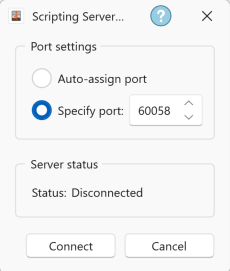
Similar to other APIs, RSSeismic Scripting requires a server started. The server listens for incoming requests from clients (i.e., your python script) on a specific port number, and connects to the RSSeismic program.
How to use
Users have the option to either manually configure settings in the dialog interface or programmatically initiate operations using the function provided in the RSSeismic Python API Library.
To start the server in the dialog:
- Select Available Port by entering a port number in the field or using the up/down buttons at the side.
- The port availability will be displayed, as “Available” or “Unavailable”. “Unavailable” means the port is currently occupied by another server. You can click the Auto-assign port button to search for the next available port.
- Using a script, you can concurrently run multiple projects by assigning them to different ports.
- To start the server on the specified port, click the Connect button.
- The Server Status note describes whether this server is running or not.
To start the application using a python script:
You can incorporate the startApplication() function within your python script, which will bypass the manual steps outlined above.
For example:
It starts the RSSeismic application and a server is connected to it at port number 60058.
# Start RSSeismic
    RSSeismicApplication.startApplication(port=60058)
See the Scripting section on the Tutorials page for more examples.
Stop the Server
If you want to terminate one or more projects associated with a specific port, you can stop the server. This action cuts out the connection between the projects and the API, and frees up the port for other projects or tasks.
- To stop a started server, click Disconnect in the Scripting Server dialog.
There is no associated function in the RSeismic Python API Library. Closing the application window will automatically terminate the server connected to it.
Launch RocScript Editor
Selecting Scripting > Launch RocScript Editor  in the RSSeismic menu opens the RocScript Editor application, which is the pre-configured Python editor. You can alternative open the RocScript Editor from the Windows start menu.
Manage Python Environment
The Manage Python Environment  option opens the pre-configured Python editor environment – RocScript WinPython Command Prompt.
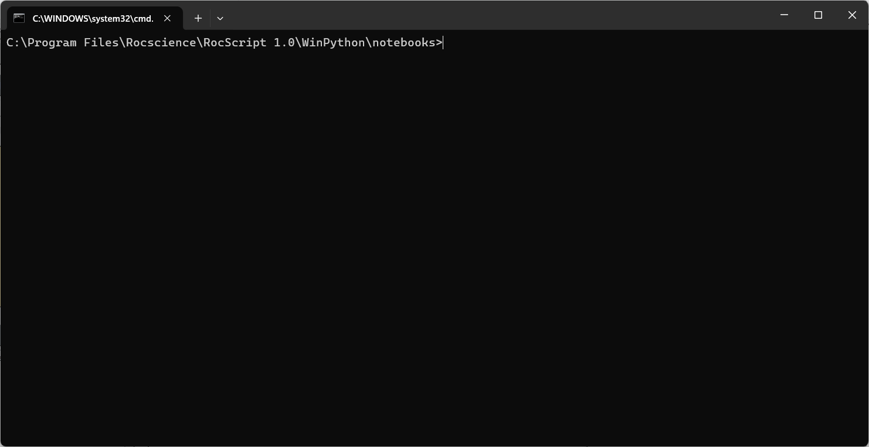
This RocScript Command Prompt is used to manage the python environment within the RocScript Editor. For advanced users who prefer to use their own python environment, use the Windows Command Prompt instead.
For more information about the python environment, see the tutorial – Getting Started with RSSeismic Python Scripting.
Reference Manual
The RSSeismic Python Reference Manual  lists out all object, method, class, and function in the RSSeismic Python API Library for client.