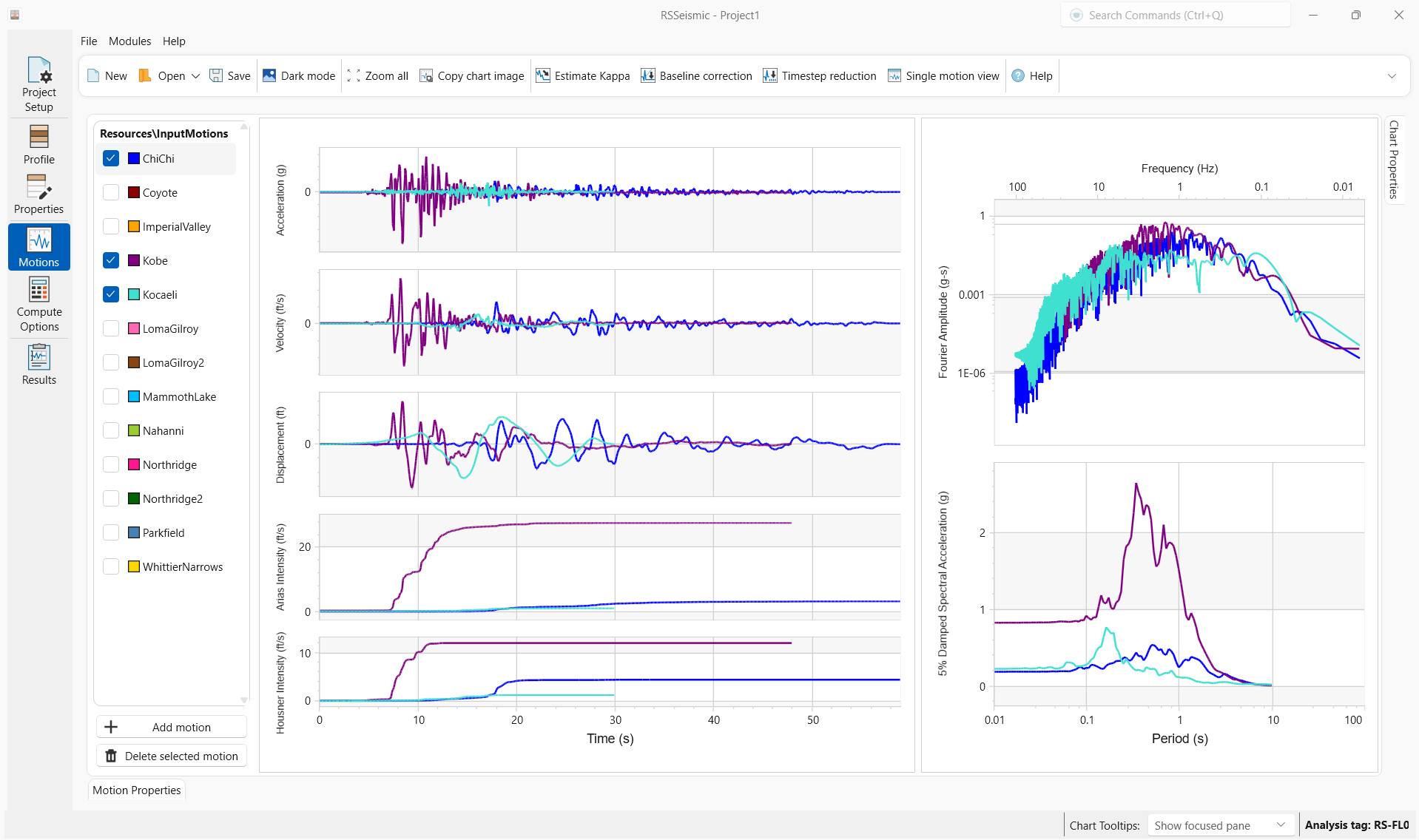
Motion Manager Overview
The Motion Manager can accessed from the start screen when you launch the RSSeismic program, or by selecting Modules > Motion Manager in the menu. The Motion Manager module is used to view/ input motions. To view/process a motion, simply click on the check box for the related motion in the Resources\InputMotions list. RSSeismic will generate acceleration, velocity, displacement and Arias intensity time histories, as well as the response spectrum and Fourier amplitude spectrum for the selected motion.
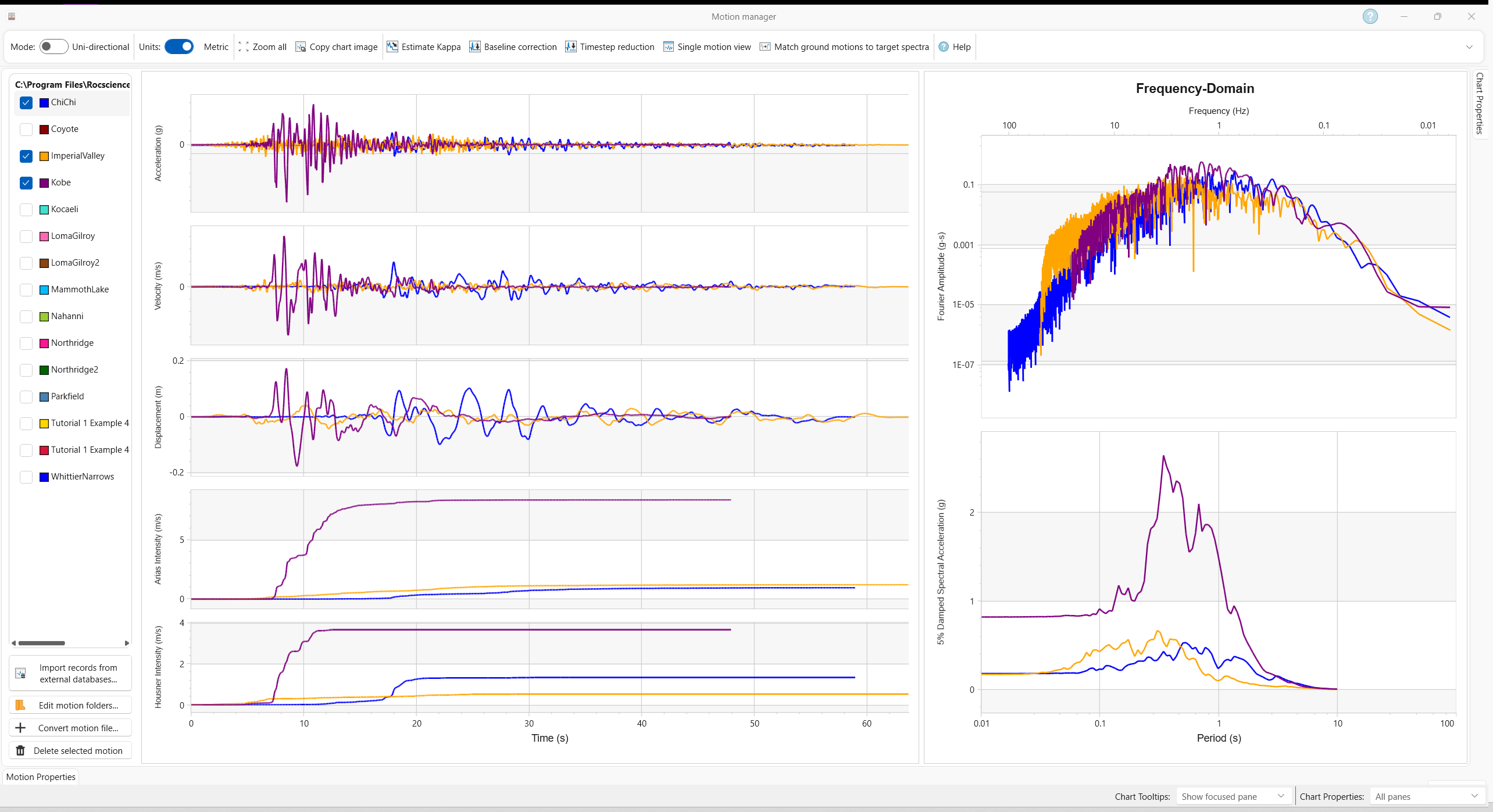
Multiple motions can be viewed at the same time, and each motion is automatically assigned a unique colour.
Uni-directional mode
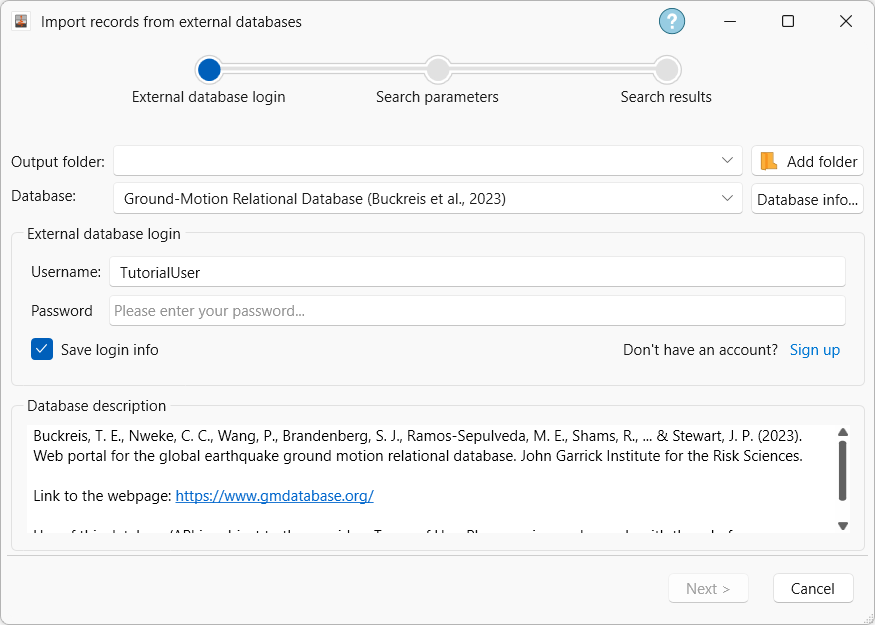
Import records from external databases
The ground motion manager in RSSeismic provides access to multiple external ground motion databases. Currently, RSSeismic supports querying ground motions from the Ground Motion Relational Database (Buckreis et al., 2023), the Engineering Strong Motion (ESM) Database (Luzi et al., 20216) and the Center for Engineering Strong Motion Database (CESMD), providing access to more than 100,000 ground motion pairs. See the Import Records from External Databases topic for more details.
Default Motions
RSSeismic comes with a library of default motions for users to select and use in their analysis. These Motions cannot be deleted by the user.
Edit Motion Folder
To specify your own folder of motions, click Edit motion folder and specify the folder location. This can also be done by selecting File > Preferences. If motions are correctly formatted in the proper to .txt format, new motions can simply be added to this folder and they will automatically appear in the RSSeismic list. (See the Convert Motion topic for full details on how to format the motion file.)
To add non .txt files to the user specified motions folder, the user will need to click Convert Motion.
Convert/Delete Motions
Users can Add/Delete motions using the Convert/Delete buttons at the bottom left of the screen. All motion files added by users are stored in the their Motion directory, whose location can be specified by the user in File > Preferences, or by clicking Edit Motion folder in the bottom left of the screen.
Zoom In/Out
The relative size of each of the plots can be adjusted by scrolling the mouse wheel to zoom in and out. Users can also adjust the position of the plot by clicking and dragging with the left mouse button.
Chart Properties
The Chart Properties pop out menu is located on the right side of the screen for editing various aspects of the displayed charts. This includes fonts,
Motion Properties
The ground motion parameters (PGA, PGV and PGD), timestep, Nyquist frequency and number of points of the selected ground motion can be viewed in the Motion Properties pan at the bottom of the screen.
Edit Motions
In the toolbar and right click menu several options are provided for viewing, editing, and correcting Motions including:
Bi-directional Mode
The bi-directional mode in RSSeismic allows users to view and select input motions as pairs. RSSeismic will generate acceleration, velocity, displacement and Arias intensity time histories, as well as the response spectrum and Fourier amplitude spectrum for the selected motions pairs and present them on top of each other. This mode provides many of the features of the uni-directional mode related to managing the ground motions, as well as features specific to ground motion pairs.
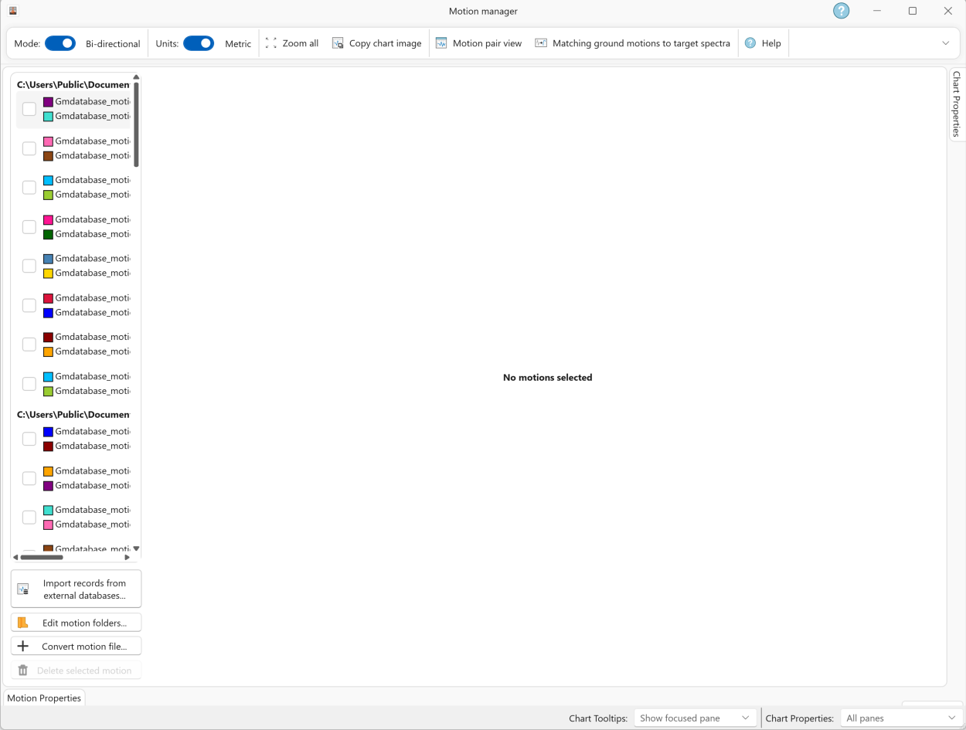
RSSeismic recognizes horizontal ground motion pairs from file names. Each component must be named {sharedPrefix}_{componentSuffix}.txt, where the two files share the same prefix before the last underscore and differ only in the component suffix after it (for example, Event_EW.txt with Event_NS.txt, or Event_H1.txt with Event_H2.txt). A pair is created only when exactly two horizontal components share that prefix; files with no underscore are not paired, and vertical suffixes such as V, UD, Z, or SEED codes ending in Z (for example HNZ) are currently ignored. For bi-directional analysis, use the same motion file format as uni-directional mode; simply provide two horizontal component files.
Motions Tab
When running an analysis, the Motions tab gives users the ability to select a ground motion or ground motion pair, as well as edit the directories used to store the ground motions. The Motions tab also has a direct link to the Ground Motion Manager, where users will be able to view, process and import ground motions.