Global Settings
The Settings page → Global Settings dialog allows customization of the general settings that are unrelated to any specific data template, such as default coordinate system for a new project, or page layout for a new log template and the marker icons used for the maps.
To access the Global Settings:
- Go to the left-hand navigation menu and select Settings,
- Click Global Settings button,
- Make desired changes as necessary,
- Click Save.

These customizations include the following sub-tabs
General tab
User-Interface Language
To change the language of RSLog user-interface, please go to Settings page → Data Entry tab → Language section.
Style of Tables
The majority of data entry in RSLog is carried out in tables. In this section of the Settings page user selects the style of tables in RSLog:
| Compact View | Spreadsheet View |
|---|---|
When this style is selected, only the key columns are shown. To edit the full data for a record, hover on that row and click the Edit button at the right end of the row; This opens a new dialog box where you can edit all input data. 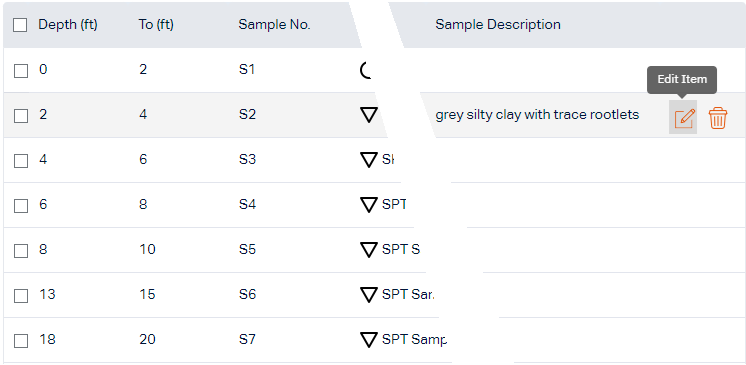 | This style resembles editing a spreadsheet. All columns are shown and user can navigate between cells using arrow keys. To edit a cell, press Enter or click on the cell. To finish editing, press Enter again. 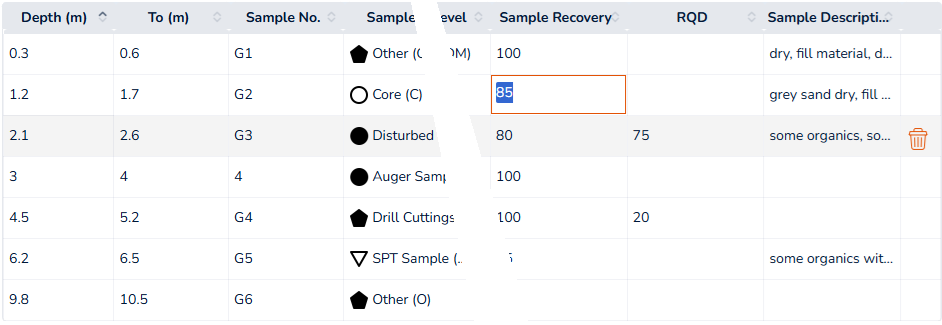 |
Sample Data (demo)
Using this feature you can import demo projects and demo borehole log templates to your RSLog account. Use this if you accidentally deleted the demo projects and templates from your account.
Project Status tab
Use the table to edit the list of project statuses. The following statuses cannot be altered:
- Active (site investigation): is used to show that the project is in site investigation phase,
- Archived: a project with Archived status will not be shown in the list of current projects. You can see the Archived projects by going to the Archived tab on Projects page.
Templates tab
This tab covers the following default settings when designing a report template:
Default Templates
- Select the default Borehole Log Template used for generating a borehole log.
- Select the default Figure Template used for generating a report.
Font Style
Select the default font style used for the design of new templates.
Margins and Page Settings
Select default margins, paper size and orientation used for the design of new templates.
Theme tab
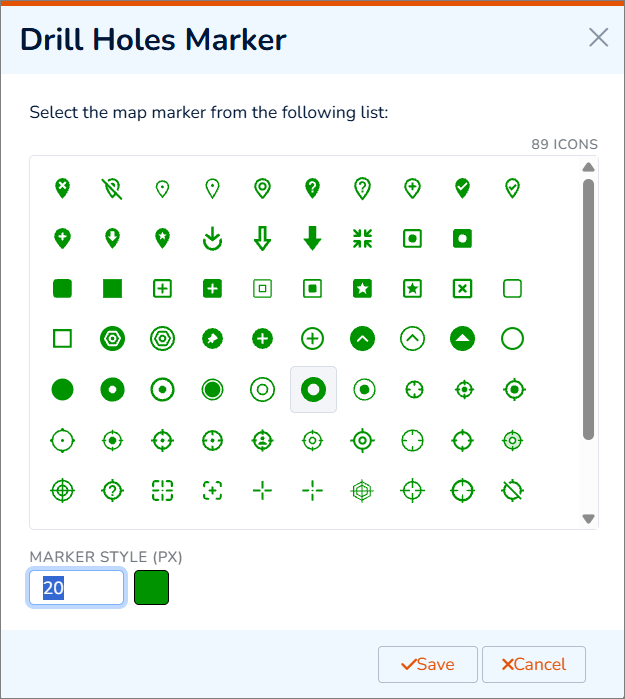
This tab is used for customizing the style of map markers and their labels throughout the application. To change a map marker, click that marker and select from the list of options. You can set the icon color and label size: