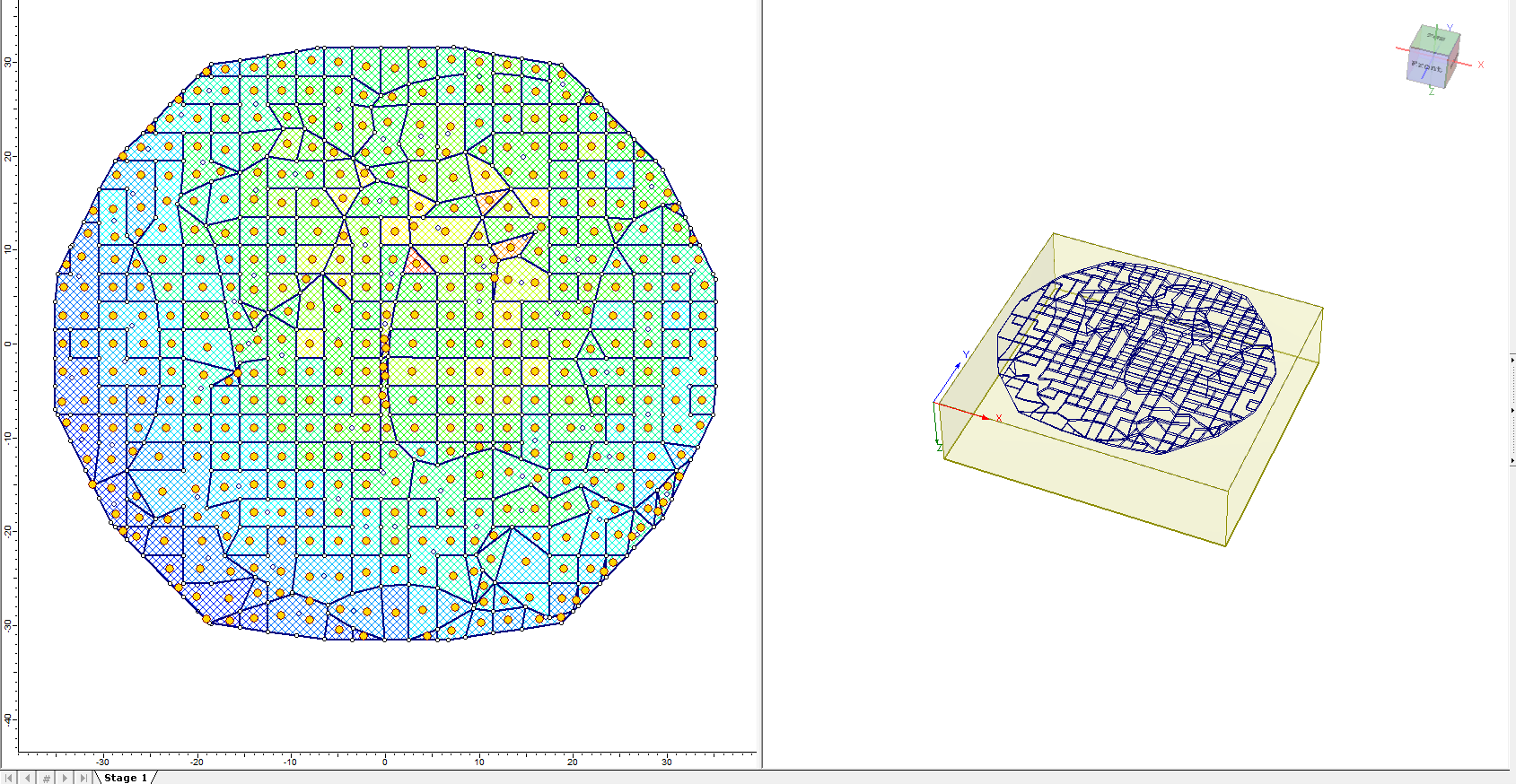
Multiple Load Import
The Multiple Load Import feature allows you to exchange boundary conditions between Settle3 and CSI structural analysis programs. You can import multiple load segments from SAFE or ETABS Excel output into Settle3 for settlement analysis and subgrade modulus reaction workflows.
Settle3 reads batch load data with associated coordinates, magnitudes, and elevations, then automatically generates query points at the center of each imported load or at load edges for output such as subgrade soil modulus.
Import Loads from SAFE
- Select Loads > Import Loads (SAFE Integration)

The Import Loads from SAFE dialog will guide you through two steps
- Select Excel Files — choose your connectivity and soil pressure spreadsheets and the source program version.
- Import Loads Settings — configure staging, merging, depth, filters, and other import options.
Select Excel Files
Two Excel files and the File Configuration are required.
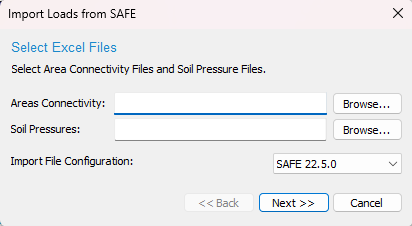
For both of the spreadsheets, use the sheets exported directly from SAFE or ETABS without modifying the columns because Settle3 reads the information based on the columns of the selected Import File Configuration preset.
If a required cell has an invalid data type, Settle3 displays the following warning message:
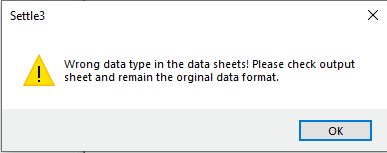
Other data problems may show different messages (empty cells, missing stress, missing point coordinates, or inability to read the file). Invalid load polygons with fewer than three vertices are automatically removed rather than reported with an error message. If an error is encountered we encourage you to review the selected preset and your spreadsheets to examine where the error is coming from.
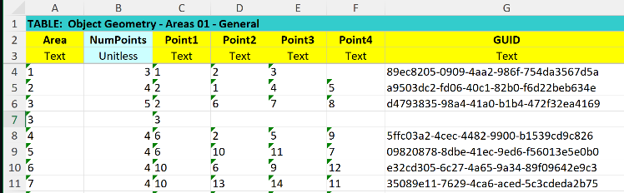
Areas Connectivity
This spreadsheet defines each floor/area object and the joint IDs at its vertices.
Below is an example of the Areas Connectivity spreadsheet that is the SAFE 16.0.2 preset format.
Soil Pressures
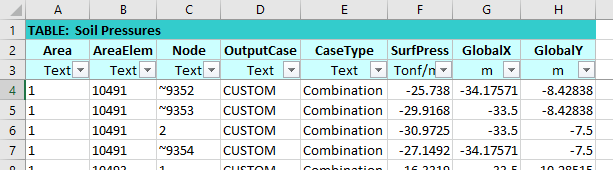
This spreadsheet contains the information of magnitude of loads for the area labels defined in the ‘areas connectivity’ sheet.
Below is an example of the Soil Pressures spreadsheet that is the SAFE 16.0.2 preset format.
Import File Configuration
Select the program and version used to generate the spreadsheets. Settle3 currently supports:
| Preset | Program / Version |
|---|---|
| SAFE 16.0.2 | CSI SAFE 16.0.2 |
| SAFE 22.5.0 | CSI SAFE 22.5.0 |
| ETABS 20.3.0 | CSI ETABS 20.3.0 |
Choose the preset that matches your Excel export format (previous versions of Settle3 required the formatting of SAFE 16.0.2). Column layout and optional fields depend on the selected preset.
Click Next >> after both files are selected. Settle3 validates the files and reads available output cases and step types from the soil pressure spreadsheet.
Import Loads Settings
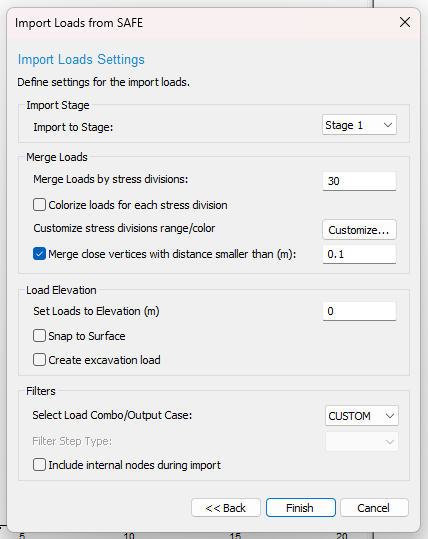
After importing the spreadsheets, Settle3 allows you to define different settings for the imported load.
Import Stage
Use Import to Stage to assign all imported loads to a specific project stage.
Merge Loads
‘Merge Loads by stress divisions’ combines imported load segments into stress ranges to improve performance when many small segments are present. If you want to maintain the original load geometry from the spreadsheet, you can enter 0 divisions. By default, this value is kept at 30.
Customize stress divisions range/color
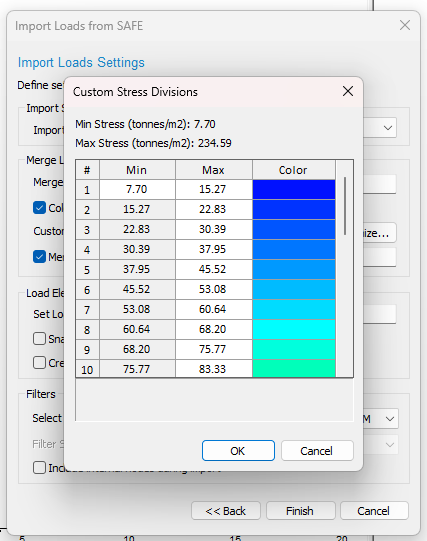
When ‘Colorize loads for each stress division’ is enabled, you can define the range of each division you have created with min/max values in stress. Select ‘Customize…’ to see the custom stress division with unique colors assigned for improved visualization of the imported loads as shown below.
Merge close vertices with distance smaller than:
This option allows users to merge any close vertices that are too close to each other which may create an overlap of the load. In this case, it is advised to merge any vertices that are close to each other to create a more reasonably distributed load condition.
Load Depth
This option allows users to set loads to depth to either depth/elevation depending on the model setting.
Snap to Surface
When enabled, imported polygonal loads are snapped to the ground surface defined in your soil profile. Each load vertex follows the surface elevation, which is useful when the structural model coordinates do not exactly match the Settle3 ground surface.
Create excavation load
This option allows users to create the excavation load on the regions of the imported load.
Filter Step Type
Available for SAFE 22.5.0 exports only. SAFE 22.5.0 soil pressure spreadsheets include a step type column (for example, Min, Max, or other step labels from the analysis). Select the step type to import. This filter is disabled for ETABS 20.3.0 and SAFE 16.0.2 presets because those export formats do not include a step type column.
Include internal nodes during import
SAFE and ETABS may report internal mesh nodes with joint IDs prefixed by ~. By default, these internal nodes are excluded from import. Enable this option to include internal node pressures and connectivity when building imported loads.
If internal nodes are excluded, Settle3 displays an informational message listing internal points that were identified and omitted from the connectivity sheet.
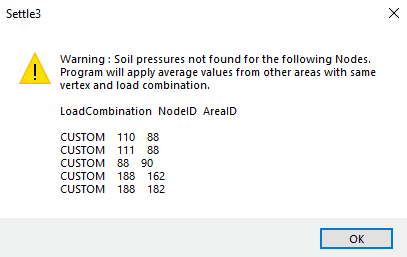
Warning message on average values:
For imported loads, if the imported loads have nodes that do not have soil pressure, Settle3 will do the automatic averaging of the nearby nodes with pressure as shown below as an example.
While the load is being imported, you will see the progress bar in the middle of the program.
The imported load with custom division with colours will be shown in the modeller as shown below: