Dense Reconstruction
The Dense Reconstruction calculates the detailed object geometry including a detailed point cloud, surface mesh and texture.
User interface
The user interface Dense Reconstruction of the MultiPhoto comprises the 3D viewer with the navigation bar displaying the coarse 3D point cloud and the settings for Dense Reconstruction (Figure 24).
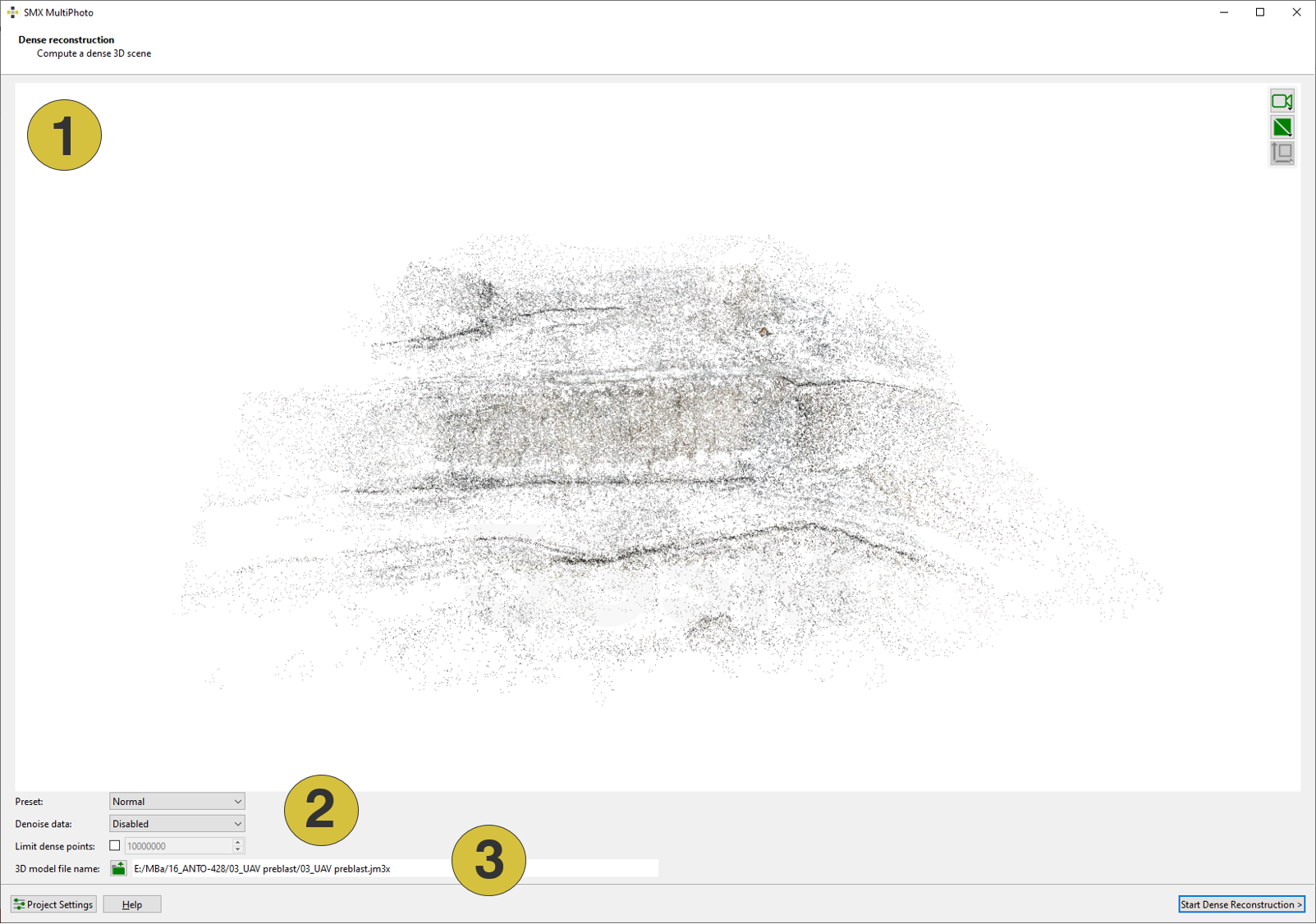
- 3D viewer with coarse 3D point cloud
- Dense Reconstruction settings
- Output file (“.jm3x”)
Features
Dense Reconstruction Settings
- Preset
- Fast: Preset for fast Dense Reconstruction
Low resolution topography, low resolution texture (for e.g. volume calculations) - Normal: Default Dense Reconstruction settings
Medium resolution topography, high resolution texture
(for e.g. blast design) - High: Preset for high detail Dense Reconstruction settings
High resolution topography, high resolution texture (for e.g. rock mass characterisation)
- Fast: Preset for fast Dense Reconstruction
- Limit dense points - Defines the upper limit of points which generates the reconstructed 3D model. Default value is 10.000.000 points.
- De-noise depth maps
- Disable: Disables noise suppression. The point cloud should be used for applications with standard requirements on surface quality. No special geometric resolution Preset is needed. (e.g. for blast design, volume calculations)
- Enable: Enables noise suppression. The point cloud can be used for application with enhanced requirements on surface quality. Normal or High geometric resolution Preset is required (e.g. for rock mass characterisation).
- Output file name - Opens a dialog for entering the directory and name of the final 3D model (“.jm3x” file)
General
- Project Settings - Allows to adapt the export settings of the current project (generation of the reconstruction report, ortho-photo, GeoTIFF and “.obj” export).
- Help - Opens the user manual
- Start Dense Reconstruction - Starts the reconstruction process and continues to the next step
Standard operating procedure
- Check the coarse 3D point cloud for plausibility
- Choose the Dense Reconstruction mode - Fast, Normal or High
- Disable ore enable “De-noise depth maps”
- Optionally, limit the number of 3D points by enabling the checkbox “Limit Dense Points”.
- If necessary, rename and select the directory of the output file (“.”) by clicking the “Output File Name” icon
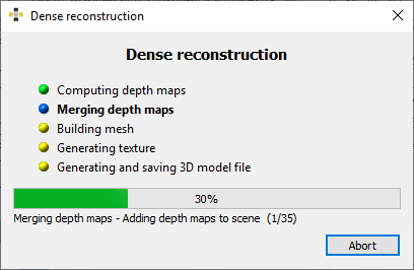
- Start the reconstruction process by a click on the “Start Dense Reconstruction” button. The appearing progress window shows the current status of reconstruction.
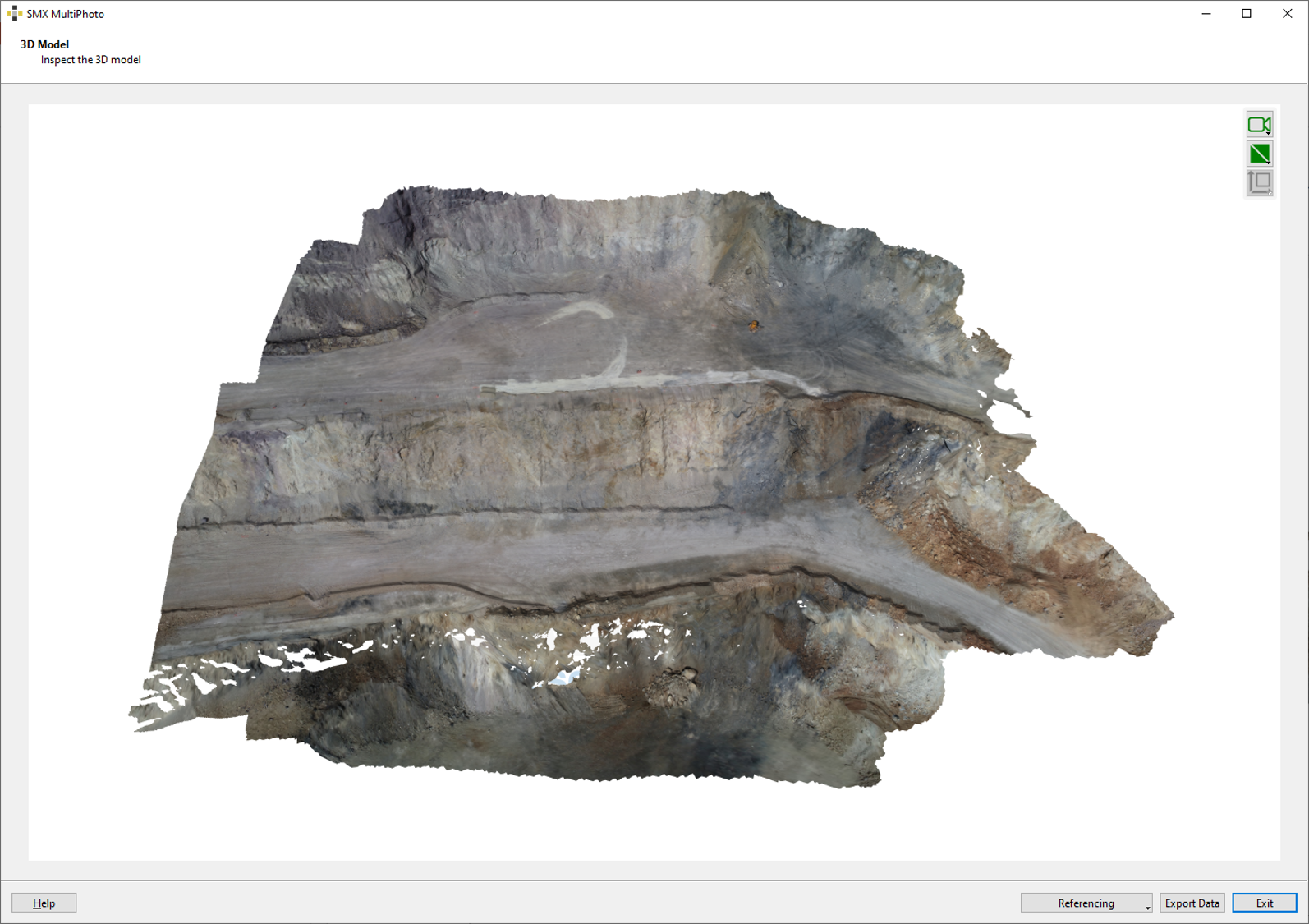
- Inspect the 3D model in the 3D viewer