3D Viewer
3D View Options 
- Move to Home Position
 - Sets the viewer to its initial position
 - View All

 - Zooms out from the current view. Zooms to the previous view again
 - Top Down View - Orientates the 3D model from the camera view (top down)
- Auto Rotate (fixed or view)
 - Rotates the 3D model from a fixed point (top down) or from the current point of view
 - Projection type

 - Toggles between perspective and orthographic projection
 - Fullscreen
 - Switches between the fullscreen display and the windowed display
Mesh Draw Mode 
- Draw as is - The 3D topography is completely overlaid by the digital photograph
- Wireframe
 - A triangulated red coloured point cloud is forming the topography
 - Wireframe Overlay
 - The 3D model and a red coloured overlay of the wireframe is forming the topography
 - Points
 - The point cloud of the scene shown
 - Show Texture - Displays the 3D model with texture in the viewer (shortcut key “Ctrl” T)
The 3D model with the corresponding fragmentation results (colour coded overlay) are displayed in the 3D viewer by clicking the “3D Fragmentation” icon in the toolbar. The colour overlay insert (legend) is located at the bottom right corner of the 3D viewer. It comprises a user adjustable colour scale. Each colour within corresponds to a certain span.
The 3D viewer serves for visualization of fragmentation results on the 3D model only. Localization of individual fragments (see the Data pane topic) and editing (Edit Mode in the toolbar, see Operations | Editing of Fragments the topic) is done in the 2D viewer.
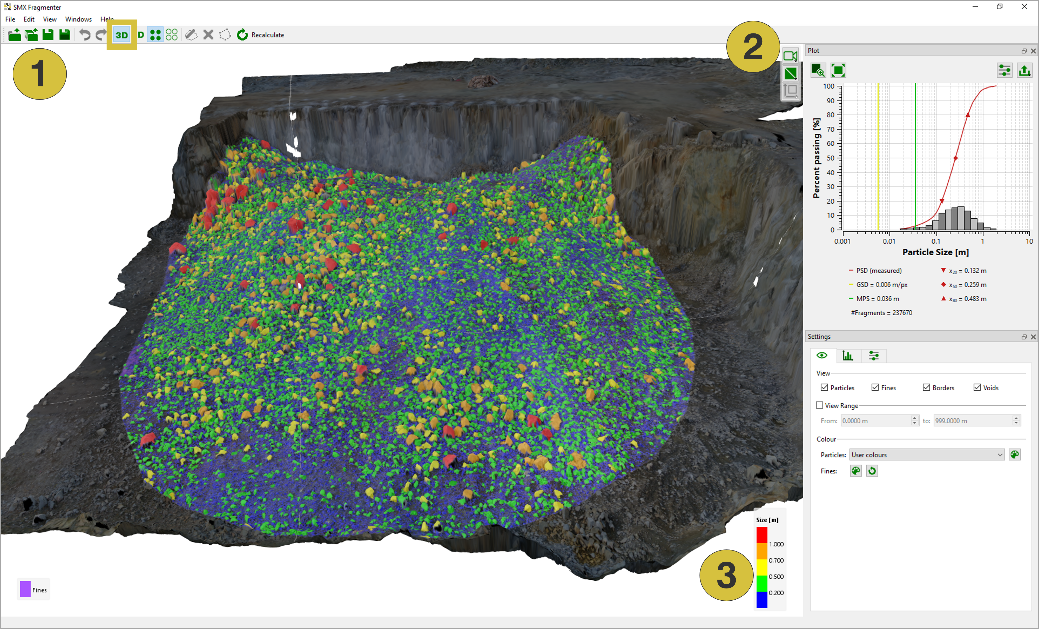
- Viewer window
- Navigation bar
- View options