Menu Bar
This section describes the available functions of the Fragmenter.
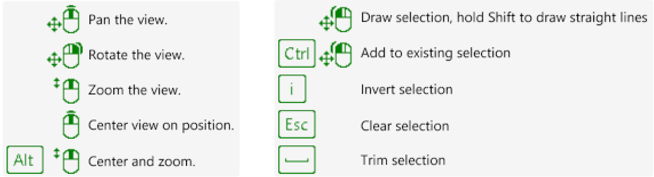
By pressing F1 on the keyboard tooltips for navigation as well as for editing are available in the 3D viewer. Examples:
Menu bar
The menu bar comprises five menus File, Edit, View, Windows and Help. The menu commands are accessible using the mouse cursor.
Menu File
- Open 3D Model - Opens a 3D model (“.jm3x” file)
- Load Analysis - Loads fragmentation analysis (“.frag” file)
- Save Analysis - Saves the fragmentation analysis to the current “.frag” file
- Save Analysis as - Saves the fragmentation analysis to a new “.frag” file
- Save 2D Image - Saves the current image as “.jpg” file
- Export
- Export Plot as CSV - Exports the plot to a “.csv” file
- Export Plot PDF - Exports the plot to a “.pdf” file
- Export Data as CSV - Exports the table data to a “.csv” file
- Export Report as PDF - Writes a report directly to a “.pdf” file
- Exit - Closes the Fragmenter
Menu Edit
- Undo - Revokes the previously executed commands step by step
- Redo - Redoes the commands revoked by the “Undo” function step by step
- Split Fragment - Splits a fragments into two parts
- Split Fragment Automatically - Splits a fragment automatically into (several) parts
- Merge Fragments - Merges two fragments
- Merge Fragment Automatically - Merges several fragments automatically
- Delete Fragment - Deletes a fragment
- Edit Fragment - Enables to edit an individual fragment
- Add Fragment - Adds a new fragment
- Assign New Label - Assigns a label to a fragment
- Edit Project Information - Defines a project name and adds notes to the current project
Menu View
- Show 2D - Switches to the 2D viewer
- Show 3D - Switches to the 3D viewer
- Show Particle Colours - Enables/disables colouring of the fragments
- Show Particle Boundary - Enables/disables the display of particle boundaries
- Improve Contrast of Image - Enhances the contrast of the image in the viewer
Menu Windows
- Reset Layout - Resets the layout
- Data - Shows/hides the Data pane
- Settings - Shows/hides the Settings pane
- Plot - Shows/hides the Plot pane
Menu Help
- User manual - Opens the user manual
- Units - Displays the units used by the software
- About Fragmenter - Displays version and release information of the software component
- RSInsight - Direct link to RSInsight, the AI‑powered support platform