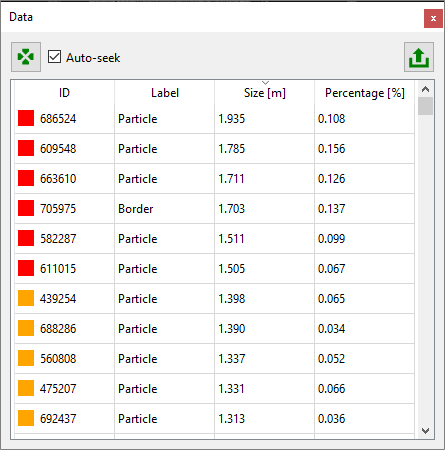
Data Pane
The Data pane lists the detected fragments in a table. A fragment selected in the list is also highlighted in the viewer by a red coloured boundary. The fragment is located by clicking the “Seek to Fragment”  icon. By enabling the checkbox “Auto-seek”, fragments are automatically located when selecting them in the table. The data is exported to “.csv” by clicking “Export Data CSV”
  icon or using “File | Export Data as CSV” from the menu bar. Please refer to the Export topic for further information.
The features “Seek to Fragment” and “Auto-seek” are only active in the 2D viewer.