2D Viewer
The viewer window comprises two scroll bars and five buttons supporting the image display:

- Window fit
 - Fits the size of the image to the size of the viewer
 - Zoom in
 - Zooms into the photo
 - Zoom out
 - Zooms out of the photo
 - Zoom to region
 - Enables to zoom in and out by using the computer mouse
 - Move
 - Enables mouse navigation
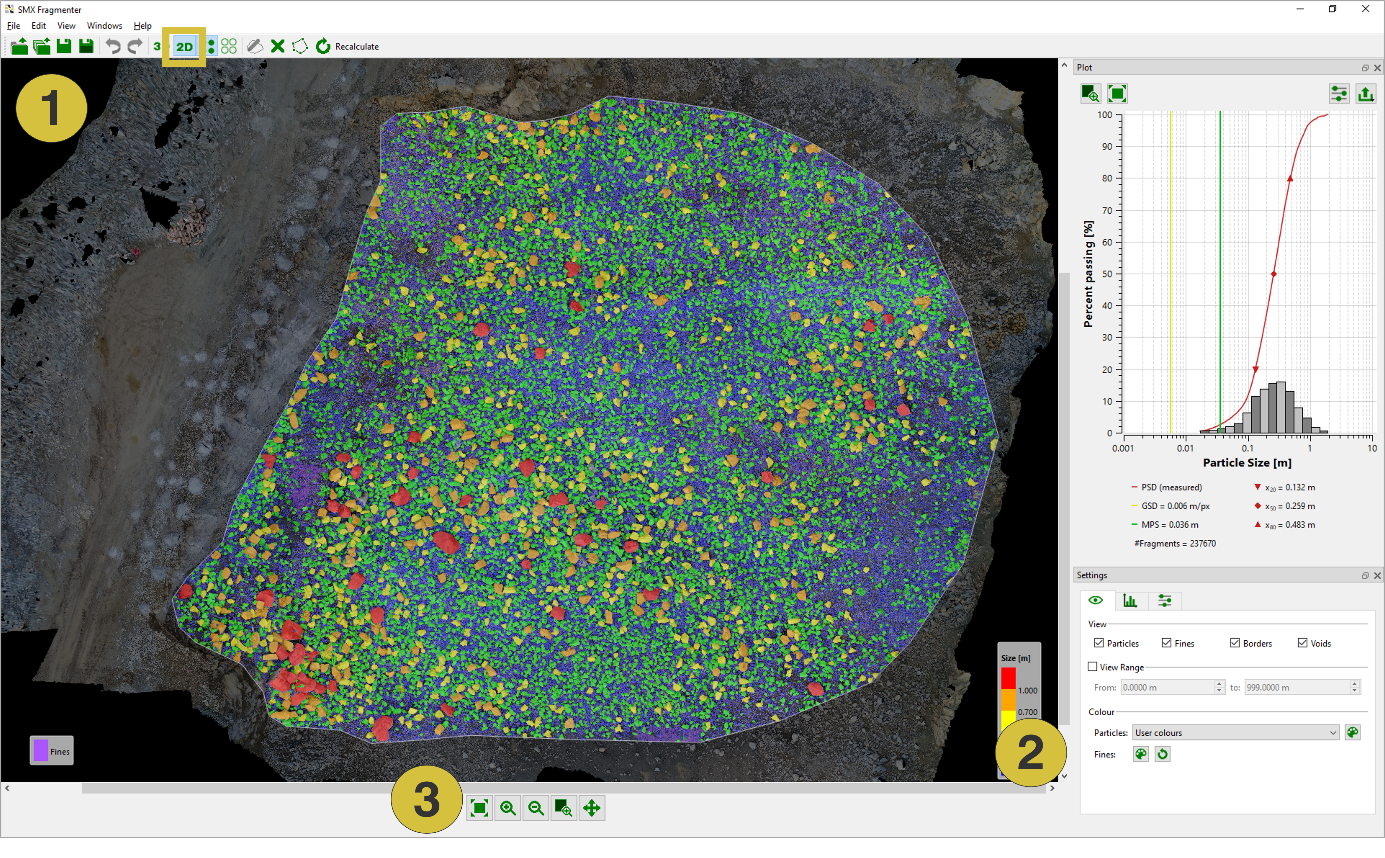
- Viewer window
- Scroll bar
- View functions
Mouse navigation: Zooming can also be done using the mouse wheel after clicking the “Move” button.
Panning is performed with the horizontal and vertical scroll bars at the bottom and the right hand side of the viewer window or by keeping the middle mouse button pressed.
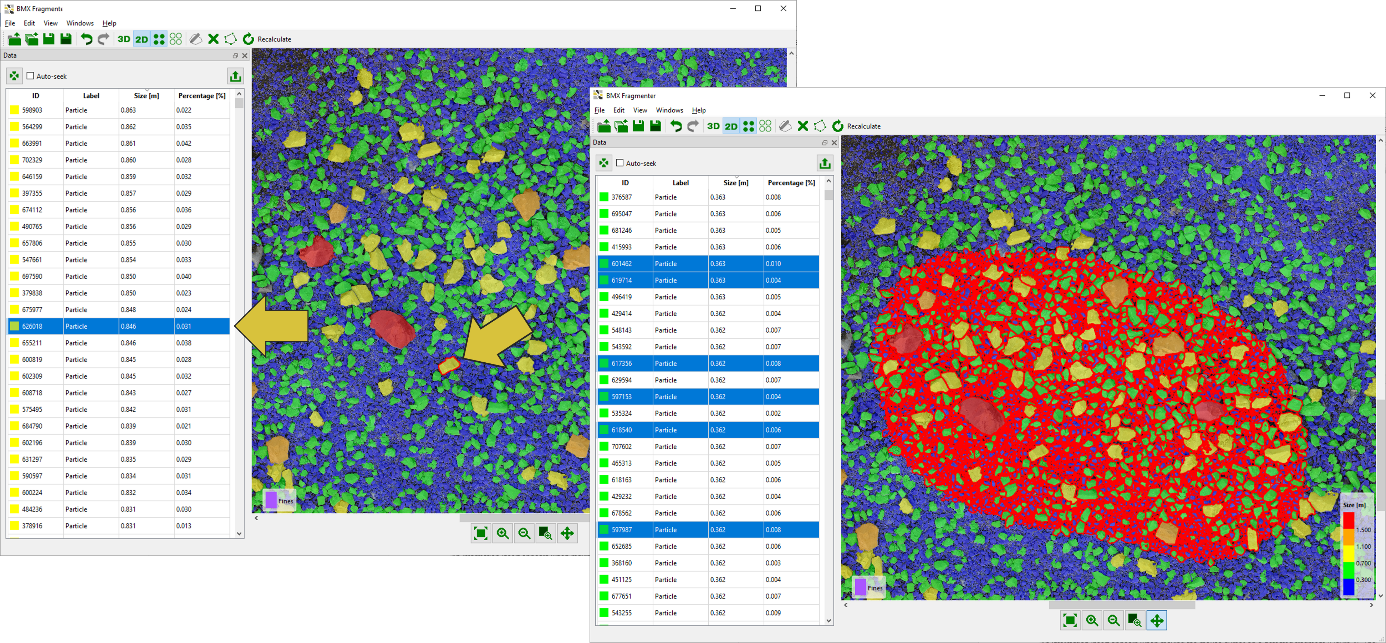
Individual fragments are selected in the 2D viewer by clicking the left mouse button on the item. The fragment is highlighted (red boundary) in the viewer as well as in the in the Data pane (see Data Pane topic). Multiple fragments are selected by enclosing the fragments by dragging the cursor while keeping the left mouse button pressed. After releasing the mouse button selected fragments are highlighted. See below.
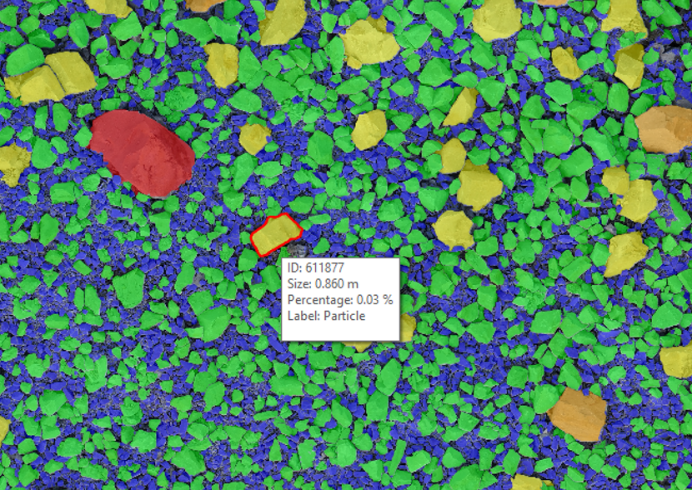
An information insert appears when moving the mouse cursor on a detected fragment. The insert shows the fragment ID, the particle size, its relative percentage and assignment (label).