Settings Pane
The Settings pane comprises the dock bar and three tabs, i.e. View Settings, Plot Settings and Computation tab, which can be switched. The features of the provide tabs are described in the following.
View settings
- View
- Particles - Enables/disables the visibility of Particles
- Fines - Enables/disables the visibility of Fines
- Borders - Enables/disables the visibility of Borders (Particles)
- Voids - Enables/disables the visibility of Voids
- View range - Limits the lower and upper size of active particles
- Colours
- Particles - Definition of the colour scheme of detected particles by user selection from the pull-down menu
- Fines - Opens a dialog for selecting a customized colour for Fines
Colour schemes
The Fragmenter supports a variety of predefined colour schemes. In addition, the software enables a user defined colouring of particles by selecting “User Colours” in the pull-down menu. The colour and range is defined in the Edit User Colours dialog opened by clicking the “Select Particle Colours”  icon next to the pull down menu.
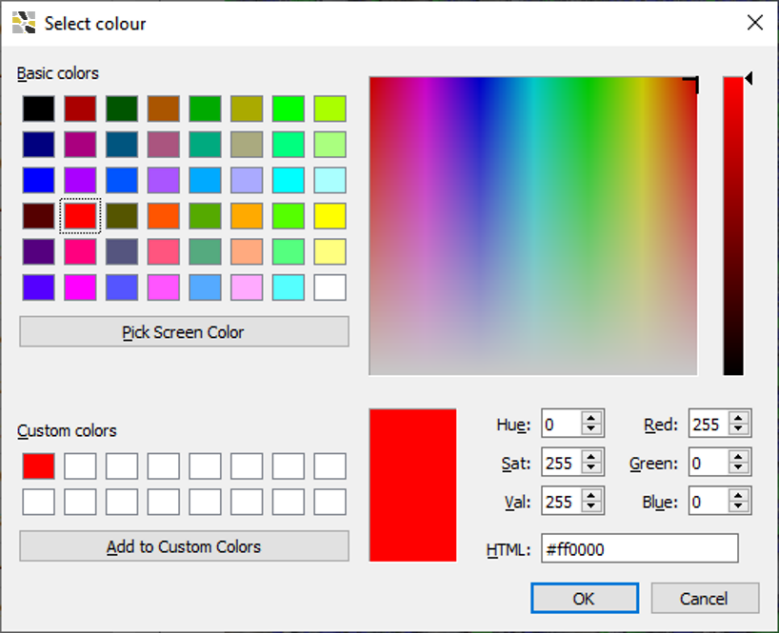
The user can change the colour ranges by entering the lower (From) and upper limits (To) of particle sizes in the fields corresponding to a single colour. The colour is changes by clicking on the coloured field and choose the desired colour in the “Select Colour” dialog.
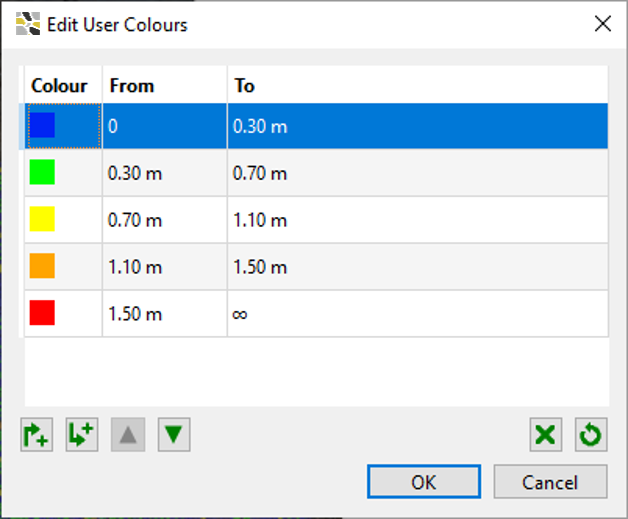
Additional features are provided to adapt the colour scheme:
- Insert Row Above Selection
 - Inserts a colour class above the selected class
 - Insert Row Below Selection
 - Inserts a colour class below the selected class
 - Move Selection Up
 - Move the selected colour class up
 - Move Selection Down
 - Moves the selected colour class down
 - Remove Selection
 - Deletes the selected colour class
 - Reset to Defaults
 - Resets the colour scheme to default colours and values
The customized scheme is applied by clicking the “Ok” button.
The colour of Fines is adapted by clicking the “Select Fine Colour” icon. The “Select Colour” dialog opens and the user can select the colour by mouse interaction. The colour is set to default again by clicking the “Reset Fine Colour to Default” icon.
Plot Settings
- Histogram
- Bins - Defines the class division (bins) of the histogram in the Particle Size Distribution Plot
- Fragmentation model - Adds a distribution function to the plot (see below)
- User defined % passing - Defines a user defined value for percentage passing
- View
- MPS - Enables/disables the display of the MPS value as green vertical line in the Particle Size Distribution Plot
- GSD - Enables/disables the display of the GSD value as yellow vertical line in the Particle Size Distribution Plot
- User defined % passing - Enables/disables the display of the particle size at a user defined percentage of particles (xuser) in the Particle Size Distribution Plot
The following best-fit distribution function are available in the software:
- Rosin-Rammler
- Swebrec
- Swebrec extended
Given plot parameters for the functions are:
- x_50 - median particle size for the best fit distribution function
- N, N_eq: - degrees of uniformity
- a, b, c: - curve shape parameters
For further information refer to: F. Ochterlony (2005). The Swebrec © function: Linking fragmentation by blasting and crushing. Trans. Inst. Min. Metall., Section A: Mining Technology, Vol. 114; A29 – A44
Computation settings
- Size unit - Available units are millimetre [mm], meter [m], inch [in], internationalfoot [ft] and US survey foot [ft]
- Preset
- Blast - Mode for general particle size distributions
- Riprap - Mode for homogenous particle size distributions
- Include
- Fines - Includes/excludes Fines from the analysis
- Borders - Includes/excludes Borders from the analysis