ShapeMetriX Import
The ShapeMetriX Import option allows users to import 3D model geometry files (.3grs) from Rocscience's 3GSM software ShapeMetriX.
To import a ShapeMetriX geometry file:
- Select Geometry > Import/Export > ShapeMetriX Import

- The ShapeMetriX Import dialog will open. Click the Browse
 icon and select your .3grs file.
Click Open. The geometry file will be imported, and surface reconstruction will be performed automatically. The preview of the surface geometry will be
displayed in the dialog.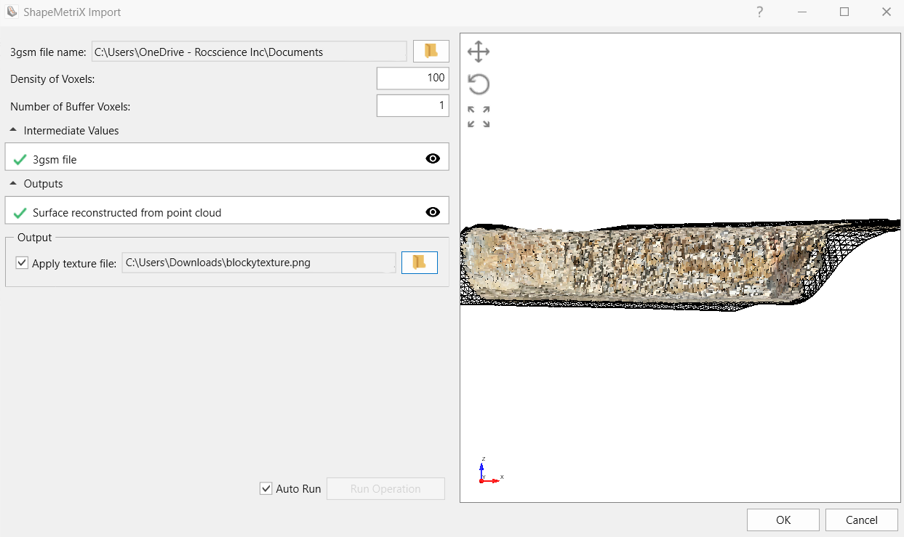
- The following parameters can be specified:
- Density of Voxels: this controls how dense the resulting mesh will be. Increasing the density will result in a denser mesh triangulation.
- Number of Buffer Voxels: this controls how far beyond the extents of the input point cloud the surface is extrapolated. Increasing the number will cause the surface to be extended further. Increasing this value can be useful to fill gaps in sparse input data, though at large numbers the extrapolated regions may not accurately reflect the input data.
- Auto run: Surface generation from the reconstructed surface can be turned ON and OFF by selecting or deselecting the Auto Run checkbox.
dialog.
- A texture file of the slope surface (obtained from ShapeMetriX) can also be imported by selecting Output > Apply texture file and selecting the image file. Accepted file formats include .png, .jpeg, .jpg, and .bmp.
- Click OK to complete the geometry import.
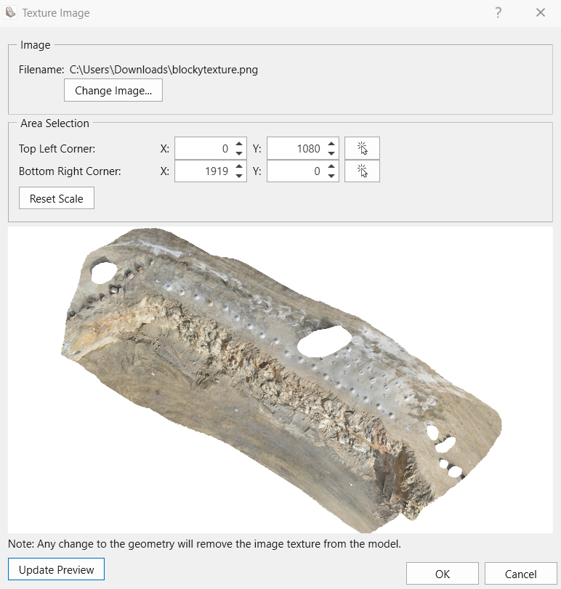
- If a texture image file is applied, a new Texture Image dialog will appear after the ShapeMetriX Import dialog is closed. The following parameters can be specified:
- The texture image file can be changed by clicking the Change Image button.
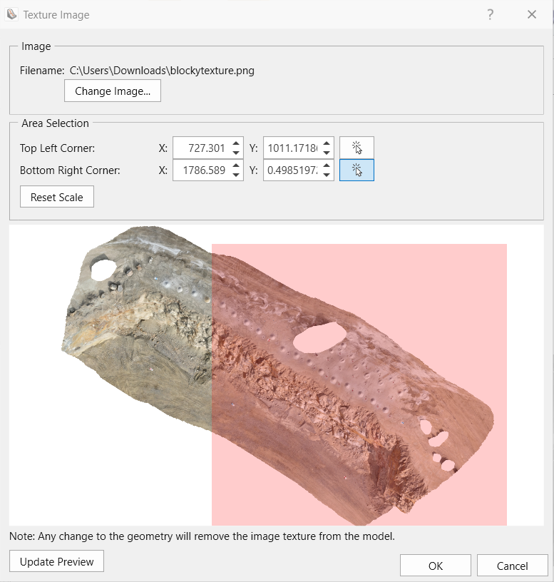
- The entire texture image file is applied to the slope geometry by default. To crop the image, select the Top Left Corner
 and/or Bottom Right Corner and resize the red square that appears in the image. The image in the red area is applied to the slope geometry. To reset the image back to default, click Reset Scale.
 - Click Update Preview to update the slope surface with texture shown in the main viewport.
The geometry entity as well as any applied texture image will be added to the Visibility Tree. Note that the entity is imported as a Surface. If a texture has been applied to the geometry, then the Properties Pane of the imported ShapeMetriX file will display a Textures section. Visualizing the texture in the viewport can be toggled on or off using this section. Additionally, new textures can be applied, and existing textures can be edited or deleted.
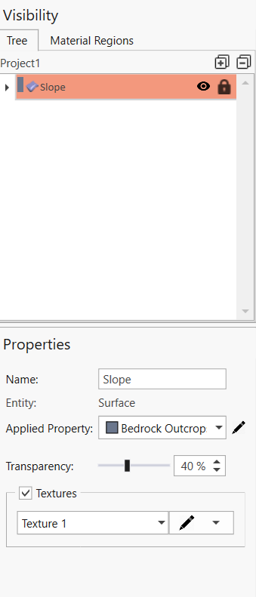
Note that any changes to the imported slope geometry will remove the texture image from the model.
To see an example of this import process, see Tutorial 7 – ShapeMetriX Integration.