Standard Operating Procedure
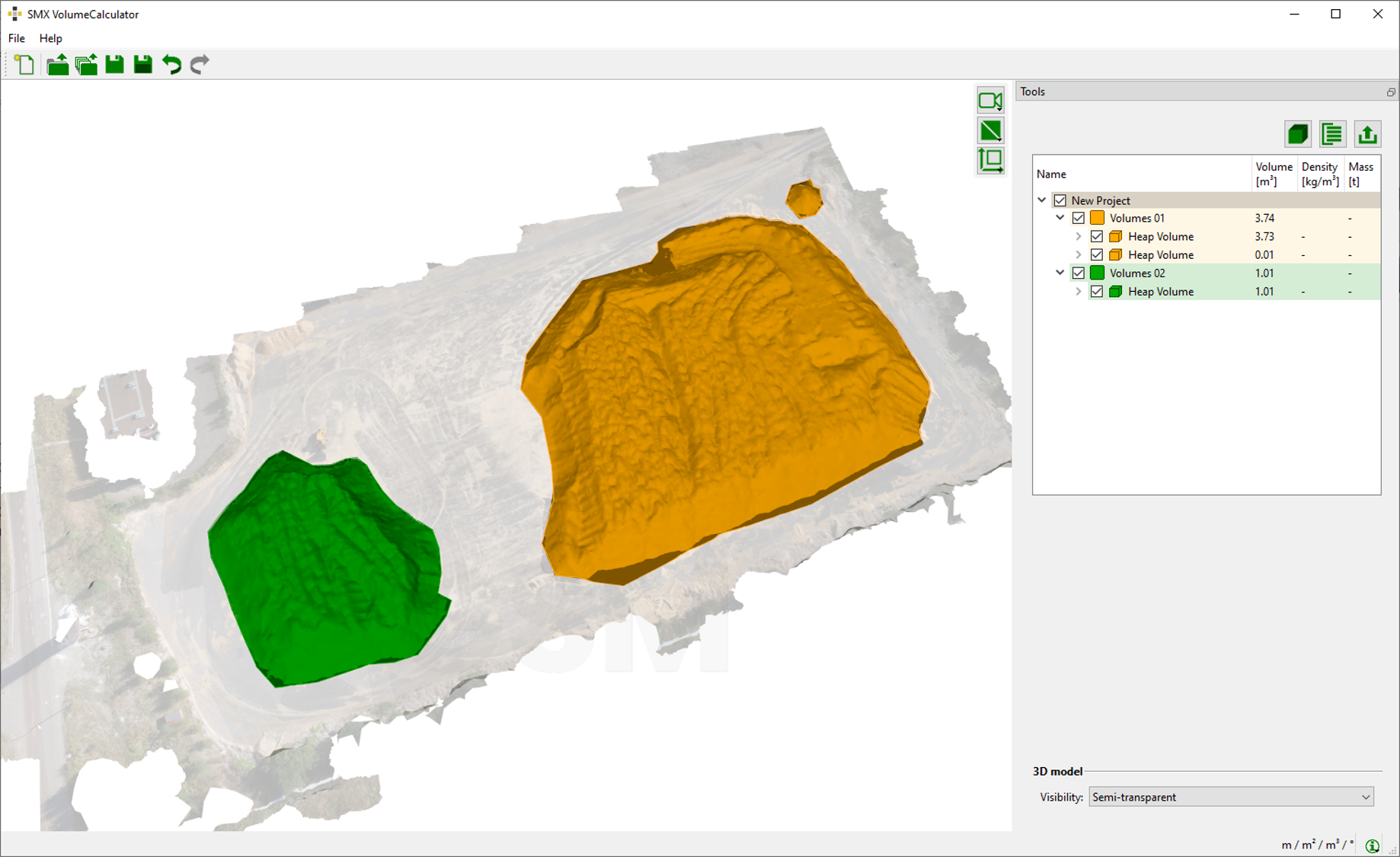
The Heap Mode - One 3D Model features volume calculations between a 3D model and a Boundary Plane. The Boundary Plane is generated automatically by the software from the volume polygon drawn on the 3D model by the user. However, the position of the Boundary Plane can be modified interactively.
Boundary Planes are calculated for each individual volume.
Standard Operating Procedure
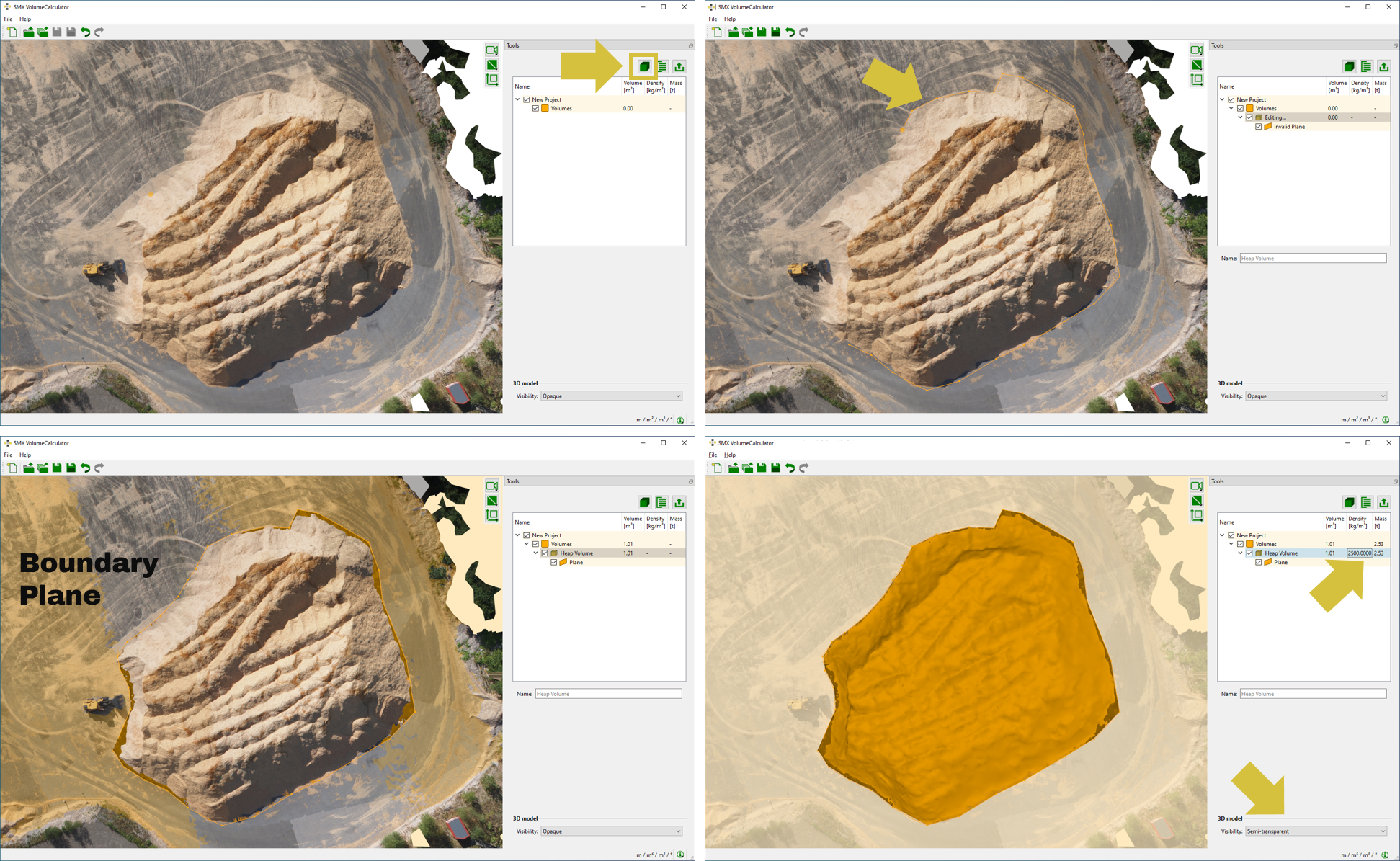
- Select “Heap Mode - One 3D Models” after launching the VolumeCalculator.
- Load the 3D model one after the other by clicking the “Load 3D Model“
 icon in the toolbar.
 - Define a heap volume by following procedure:
- Click in the “New Heap Volume”
 in the Tools pane of use the short key “H”.
 - Define the boundary of the volume to be calculated on the 3D model by clicking the left mouse button. A polygonal line grows instantaneously. At least three points are required.
- Confirm the boundary of the volume by a click on the “Return” button on the keyboard. The volume is calculated and appears coloured in the viewer whereas the results is available in Volume list in the Tools pane. Next to the volume the Boundary Plane is visualized in the 3D viewer as well as in the Volume list.
- Optional, enter the rock density for weight calculations in the tree widget for volumes.
- Click in the “New Heap Volume”
Invert the sign of calculated volumes by clicking “Invert” in the context menu of the Volume.
A number of volumes in individual groups can be determined by repeating step 3 of the standard operation procedure. Using the “Space” button instead of “Enter” starts a new volume calculation in the Volume Group.