One Range Pole Mode
The One Range Pole Mode requires the following parameters:
- Upper Target
- Lower Target
- Distance between the targets
Standard operating procedure
- Choose the mode “One Range Pole Mode” from the pull down menu.
- Activate the first point by clicking the “Upper Target” entry in the point list.
- Localize the position in the 3D viewer by clicking the left mouse button. The list of reference images is updated and the active image is shown in the viewer.
- Choose the “Manual Target Mode” icon or the “Automatic Mode Icon” and centre the target by clicking with the mouse in the viewer. For locating the target discs the image should be zoomed as much as reasonable for visual interpretation. Check the position of the center by changing the size of the reticule. The reticule is well-centered if the circles touch the target’s boundary simultaneously at two opposing points and in two perpendicular directions
- Choose at least 2 images (3 or more are recommended) showing the same target point and click the center of target. The status signals Baseline and the Inliers turn into green.
- Activate the “Lower Target” in the list and repeat steps 3 – 5.
- Enter the distance between the Upper and Lower Target in the corresponding “Target Distance” field.
- Enable referencing by clicking the “Save” button.
- Choose an action form the pull down menu “Referencing” or close the MultiPhoto by clicking the “Exit” button.
Refer to the hints given in the Status Information, if one of status signals Baseline (distant ratio between images) and Inliers turn into orange or red.
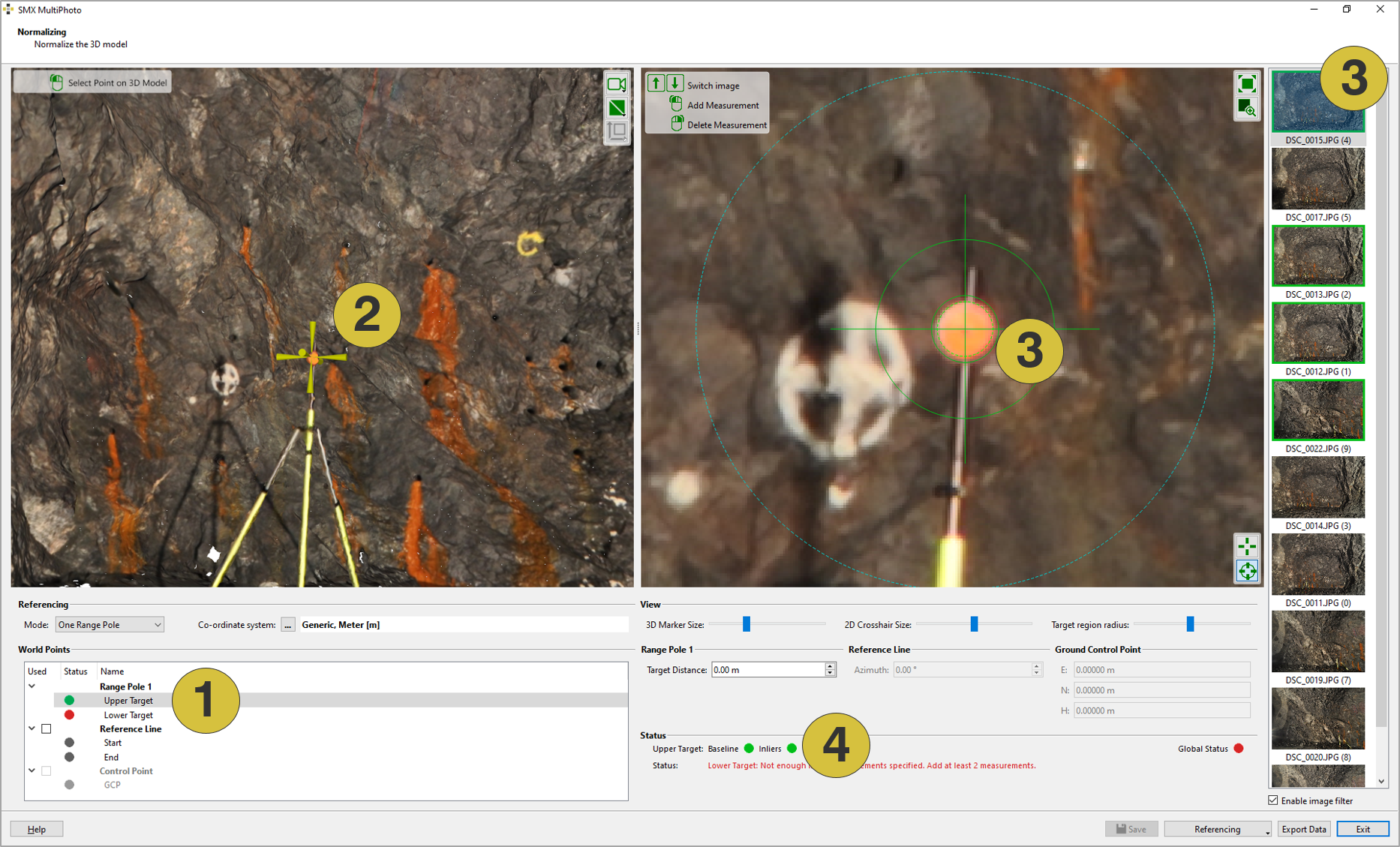
- Targets in the list
- Localization of the target in the 3D viewer
- Target in individual images
- Status of the individual targets
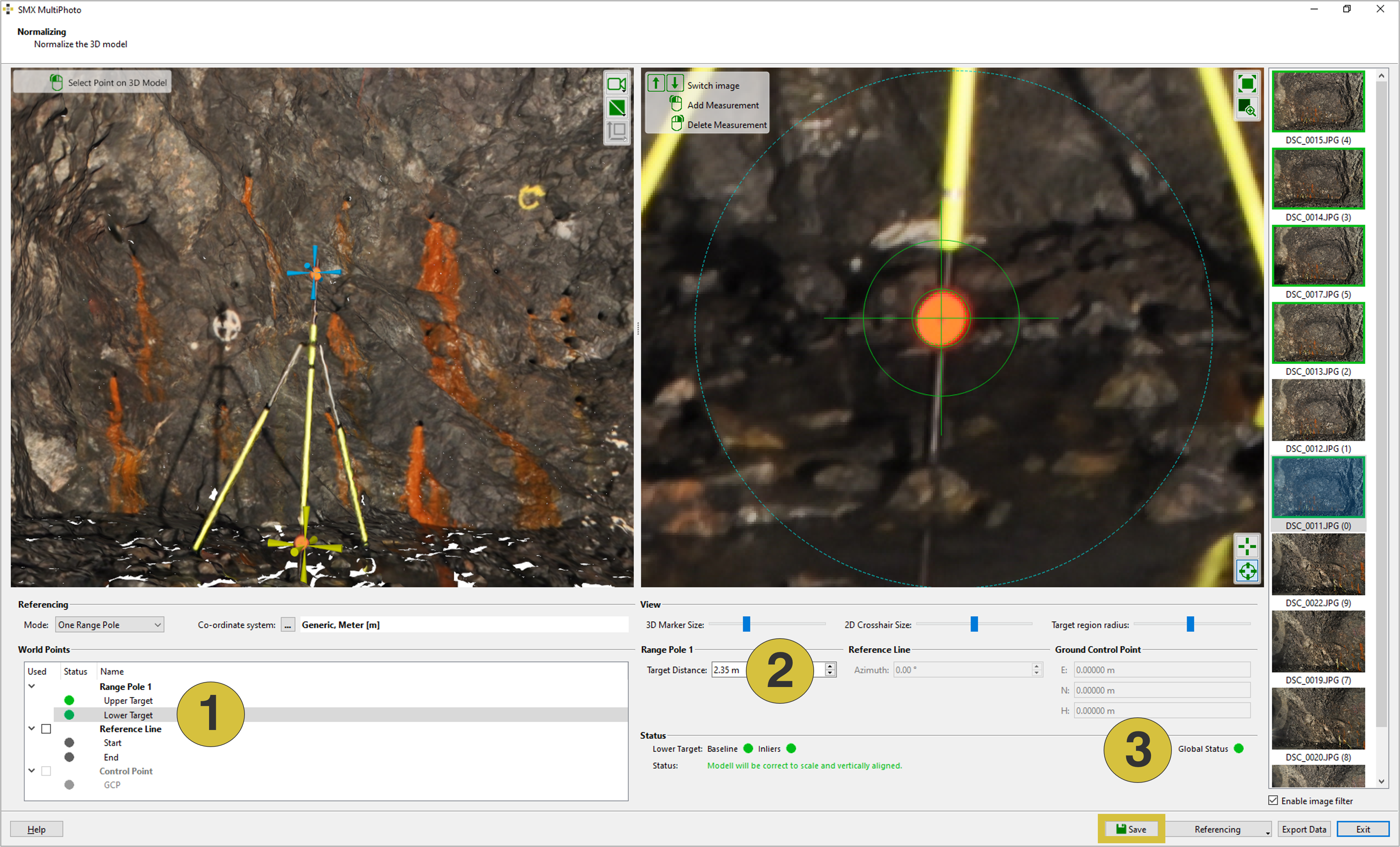
- Upper and Lower Target centered
- Distance between the two targets
- Global status