Search Results

Adjustment of the Boundary Plane

The position of the Boundary Plane can be adjusted as follows:

  1. Select the Boundary Plane in the Volume list. The current position is given in the properties field below. 
  2.  Enter the context menu by clicking the right mouse button and click “Edit.
  3. Adjust the Boundary Plane on the basis of the input parameters:
    1. Inclined plane
      • Dip direction and dip angle
      • Position: Easting (x), Northing (y) and Height (z)
    2. Horizontal plane
      • Elevation
  4. Confirm the position by pressing the “Enter” button. 
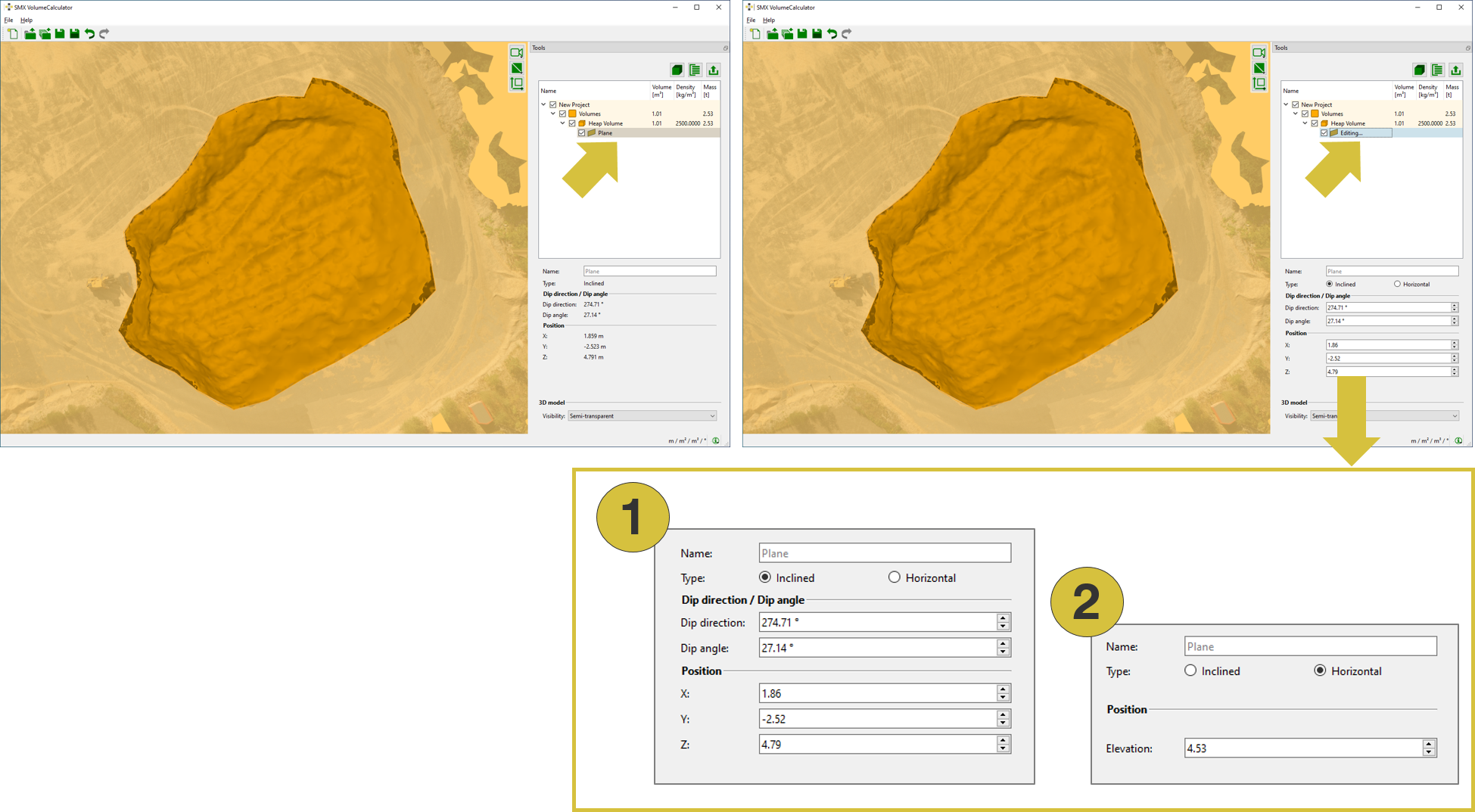
Dialog for adjusting the Boundary Plane
  1. Define inclined plane 
  2. Define horizontal plane 
Rocscience logo, click here to return to the homepage Portal Account Portal Account Portal Help Log In Log Out Home Shopping Cart icon Click here to search our site Click here to close Learning Tech Support RSInsight+ Logo Documentation Info Chevron Delete Back to Top View More" Previous Next Edit PDF File Calendar Location Language External Link Apply to ACC External Link Fees Video Click here to visit Rocscience's LinkedIn page Click here to visit Rocscience's YouTube page Click here to visit Rocscience's X page Click here to visit Rocscience's Facebook page Click here to visit Rocscience's Instagram page Click here to visit Rocscience's Reddit page Bookmark Network Scroll down for more Checkmark Download Print Back to top Single User Multiple Users RSLog RocFall3 CPillar Dips EX3 RocFall RocPlane RocSlope3 RocSupport RocTopple RS2 RS3 RSData RSPile RSWall NovoTech Bundle RSSeismic Settle3 Slide2 Slide3 SWedge UnWedge RocTunnel3 RocSlope2 BlastMetrix ShapeMetriX FragMetriX TestLicense Commercial License Education License Trial License Shop safe & secure Money-back guarantee