3 - Freehand Set Windows
1.0 Introduction
This tutorial covers the creation of Sets via the Add Freehand Set Window method. The Add Freehand Set Window option is offered as an alternative method of creating Set Windows. You may find it useful for selecting irregular data clusters. For a given grouping of poles, you should get identical results using either the Freehand or 4-sided Curved Set Windows.
Topics Covered in this Tutorial:
- Add Freehand Set Window
- Contour Plot
Finished Product:
The finished product of this tutorial can be found in the Tutorial 03 Freehand Set Windows.dips9 file, located in the Examples > Tutorials folder in your DIPS installation folder.
2.0 Model
If you have not already done so, run DIPS by double-clicking on the DIPS icon in your installation folder. Or from the Start menu, select Programs > Rocscience > DIPS > DIPS.
If the DIPS application window is not already maximized, maximize it now, so that the full screen is available for viewing the model.
DIPS comes with several example files installed with the program. These example files can be accessed by selecting File > Recent > Examples Folder from the File menu (or File > Open from the Home ribbon). This tutorial will use the Example.dips9 file to demonstrate the basic plotting features of DIPS.
- Select File > Recent > Example Folder
 from the menu.
 - Open the Example.dips9 file. Since we will be using the Example.dips9 file in other tutorials, save this example file with a new file name without overwriting the original file.
- Select File > Save As
 from the menu.
 - Enter the file name Tutorial 03 Freehand Set Windows and Save the file.
3.0 Pole Data Grid
If the Pole Data Grid is not already the active view:
- Select the Pole Data Grid
 view tab.
You should see the Pole Data Grid view shown in the following figure.
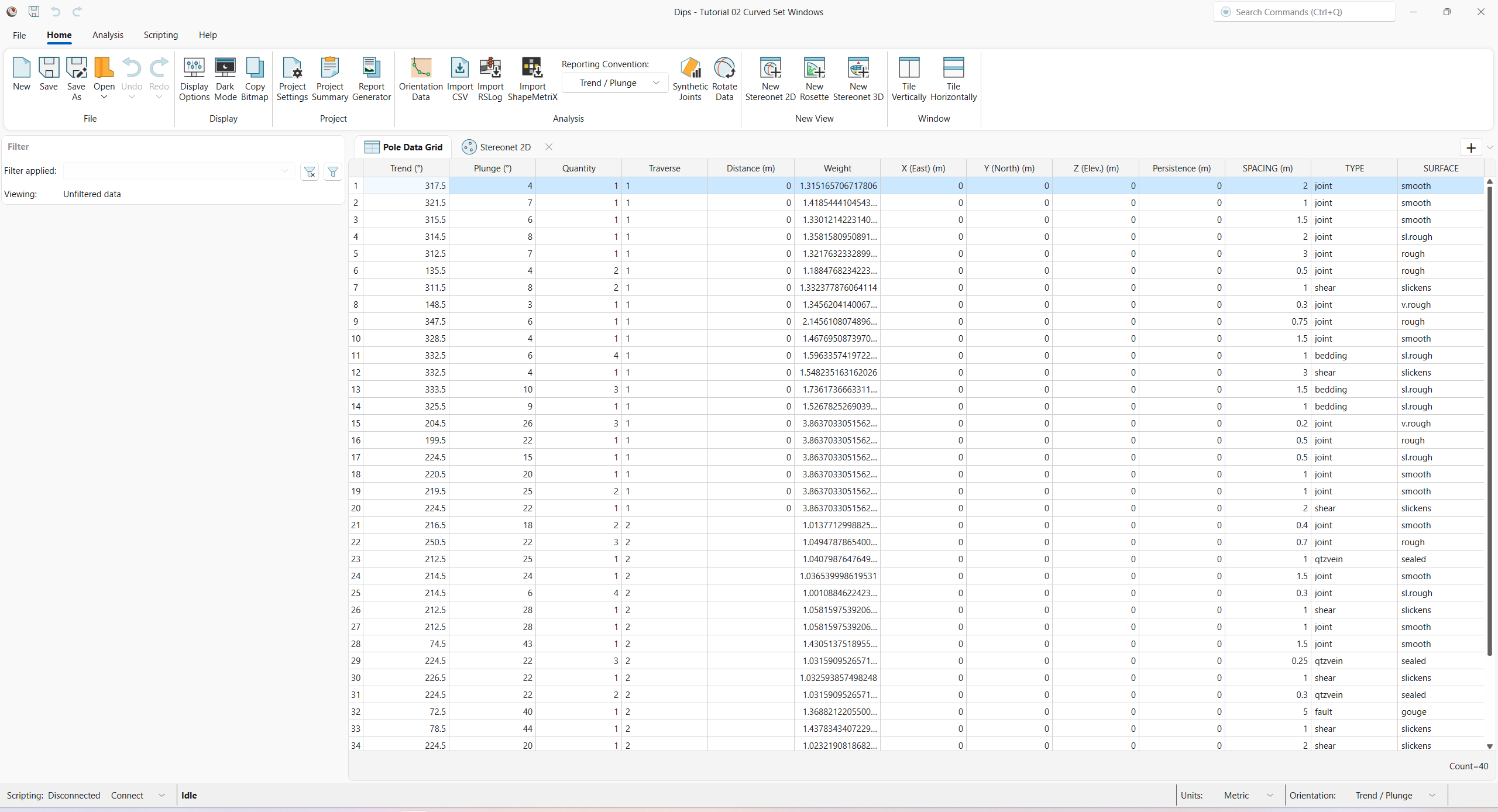
The Pole Data Grid shows all processed orientation data entered in the Orientation Data dialog. Note that there are 40 rows of data (i.e., Count=40).
4.0 Stereonet 2D
Now look at the Stereonet 2D view:
- Select the Stereonet 2D
 view tab.
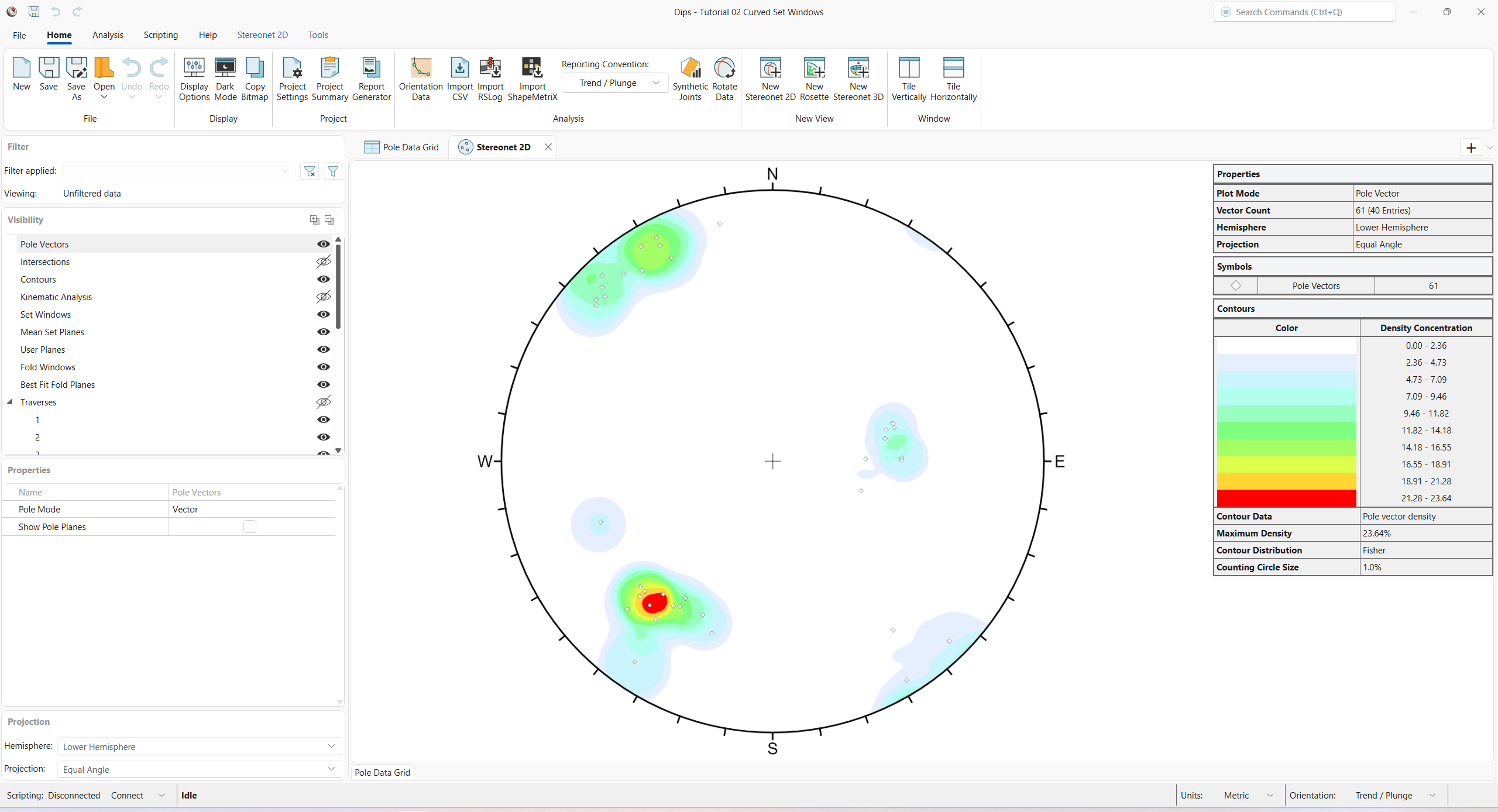
You should see the Stereonet 2D view shown in the following figure.
5.0 Add Set Window
A Set, as defined in DIPS, is a grouping of poles created with one of the following options:
Sets are created for the purpose of obtaining Mean Set Plane orientations and Set Statistics of orientation data clusters.
In this tutorial, we will focus on creating Sets with the Add Freehand Set Window option.
For a given group of poles, the Mean Set Plane and Set Statistics should be identical, regardless of which type of Set Window is created. We will reproduce the same three Sets from Tutorial 02 – Curved Set Window.
5.1 Add Freehand Set Window
The Add Freehand Set Window option allows you to draw windows around data clusters on the stereonet. The windows created with the Add Freehand Set Window option are polygonal, defined by Trend and Plunge vertices.
Let’s create our first Set with the small data cluster at the right side of the stereonet.
- Select Stereonet 2D > Sets > Add Freehand Set
 from the ribbon.
 - Draw a Freehand Set Window around the data cluster at the right side of the stereonet (i.e., the previous Set 1 data) by holding down the left-click mouse button.
- Hit ENTER to finish (or right-click > Done). The Edit Freehand Set Window dialog appears.
- Leave the default Name = Set 1.
NOTE: The Name acts as a unique Set identifier, which is also used for set associations, listed under the Set column in the Pole Data Grid.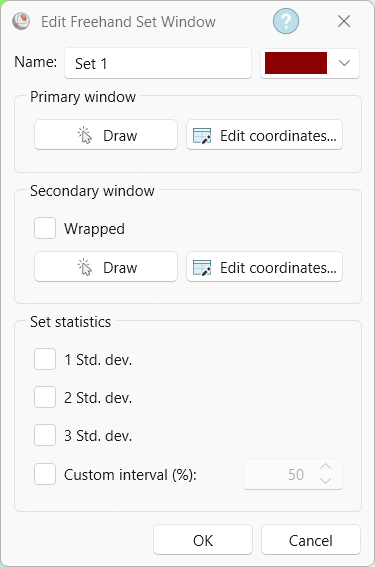
Edit Freehand Set Window dialog - Click OK to close the dialog and finalize the Freehand Set Window.
Set 1 will be created as shown below.
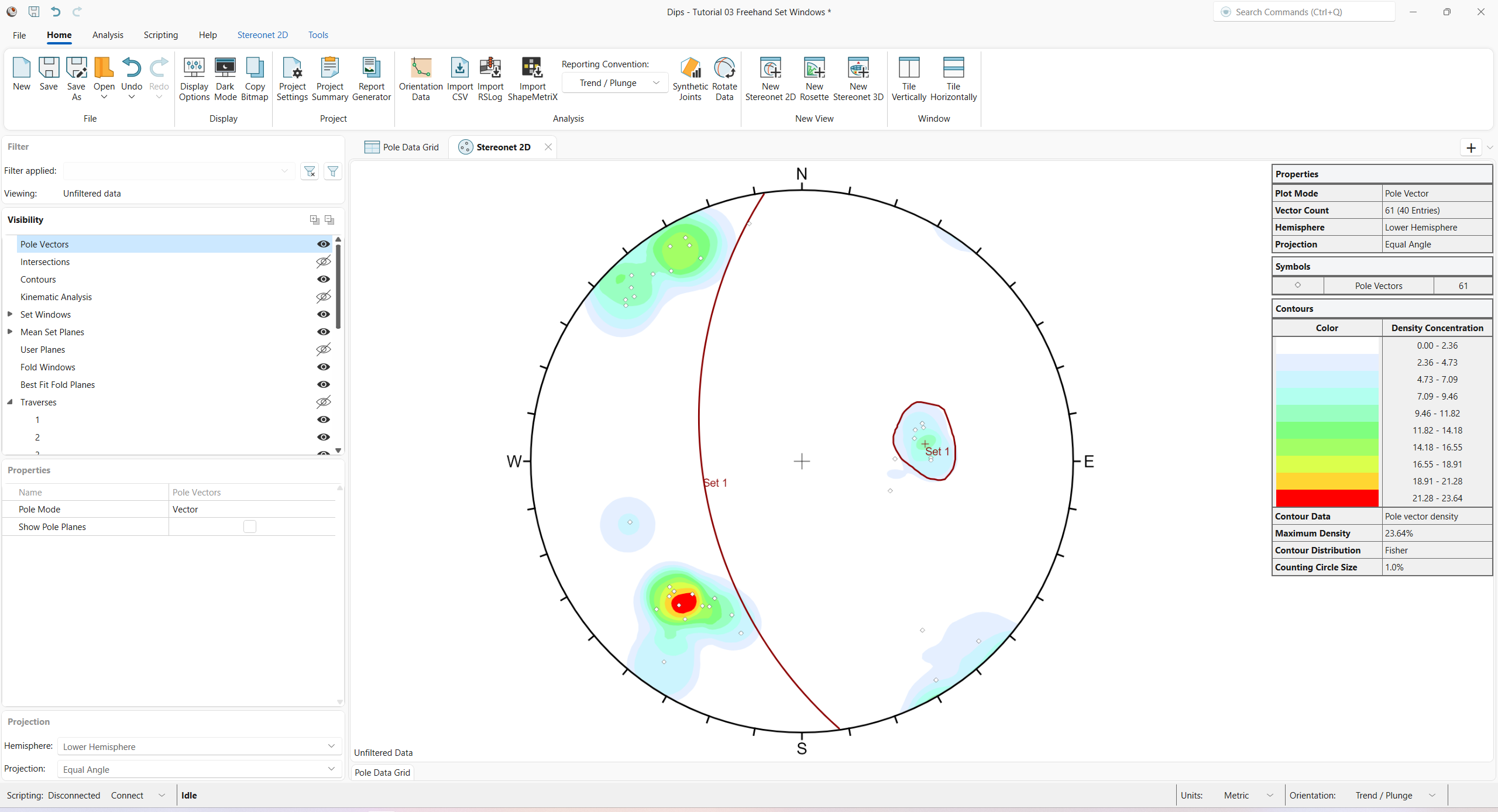
When the Set Window is created, you will notice the following, as shown in the above figure:
- The Set 1 Set Window and corresponding Set 1 Mean Set Plane are shown in the Stereonet 2D view.
- A Set 1 is added to the Set Windows group, and a corresponding Set 1 is added to the Mean Set Planes group in the Visibility tree.
5.2 Data Tips
If you hover the mouse over the Set Window, a pop-up data tip will display:
- Freehand Set Window
- Name = Set 1
- Poles = 8
- Entries = 6
The “6 entries” refers to the number of rows of the Pole Data Grid within the Set. Since we have a Quantity column, each row can represent multiple data units (poles). In this case, the 6 rows represent 8 poles.
If you hover the mouse over the Mean Set Plane, a pop-up data tip will display:
- Mean Set Plane (Unweighted)
- Name = Set 1
- Trend = 81.99
- Plunge = 40.59
The display of unweighted or weighted Mean Set Plane(s) is determined by the selection of the Stereonet 2D > Weighting > Apply Weighting option in the ribbon. The orientation is reported according to the selected Orientation reporting convention.
6.0 Add Wrapped Set Window
We will create another Set, this time with a window which wraps around the perimeter of the stereonet. This allows data near the perimeter, on opposite sides of the stereonet, to be selected as a single Set.
This useful feature of DIPS automatically calculates the correct mean vector for Sets with poles plotting on opposite sides of the equator, since a mean orientation calculated from the Lower Hemisphere alone will be incorrect! The poles within a wrapped Set Window that plot on the opposite side of the stereonet are incorporated into the vector addition as negative poles (i.e., plunge = -plunge, trend = trend +180), so that the mean will be correctly calculated.
Let’s create a second Set using a wrapped Freehand Set Window.
- Select Stereonet 2D > Sets > Add Freehand Set from the ribbon.
- Draw a Freehand Set Window around the data cluster at the upper left of the stereonet (i.e., part of the previous Set 2 data) by holding down the left-click mouse button.
- Hit ENTER to finish (or right-click > Done).The Edit Freehand Set Window dialog appears.
- Leave the default Name = Set 2.
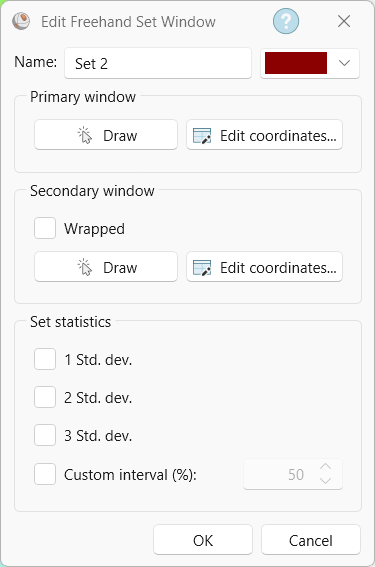
Edit Freehand Set Window dialog - Under the Secondary Window:
- Select the Wrapped checkbox. This will ensure that the Secondary Window is treated as a Wrapped Set, so that the Mean Set Plane and Set Statistics are correctly calculated.
- Select the Draw button.
- Draw a Freehand Set Window around the data cluster (2 poles) on the opposite side at the lower right of the stereonet (i.e., wrapped part of the previous Set 2 data) by holding down the left-click mouse button.
- Hit ENTER to finish (or right-click > Done).
- Click OK to close the dialog and finalize the Freehand Set Window.
Set 2 will be created as shown below.
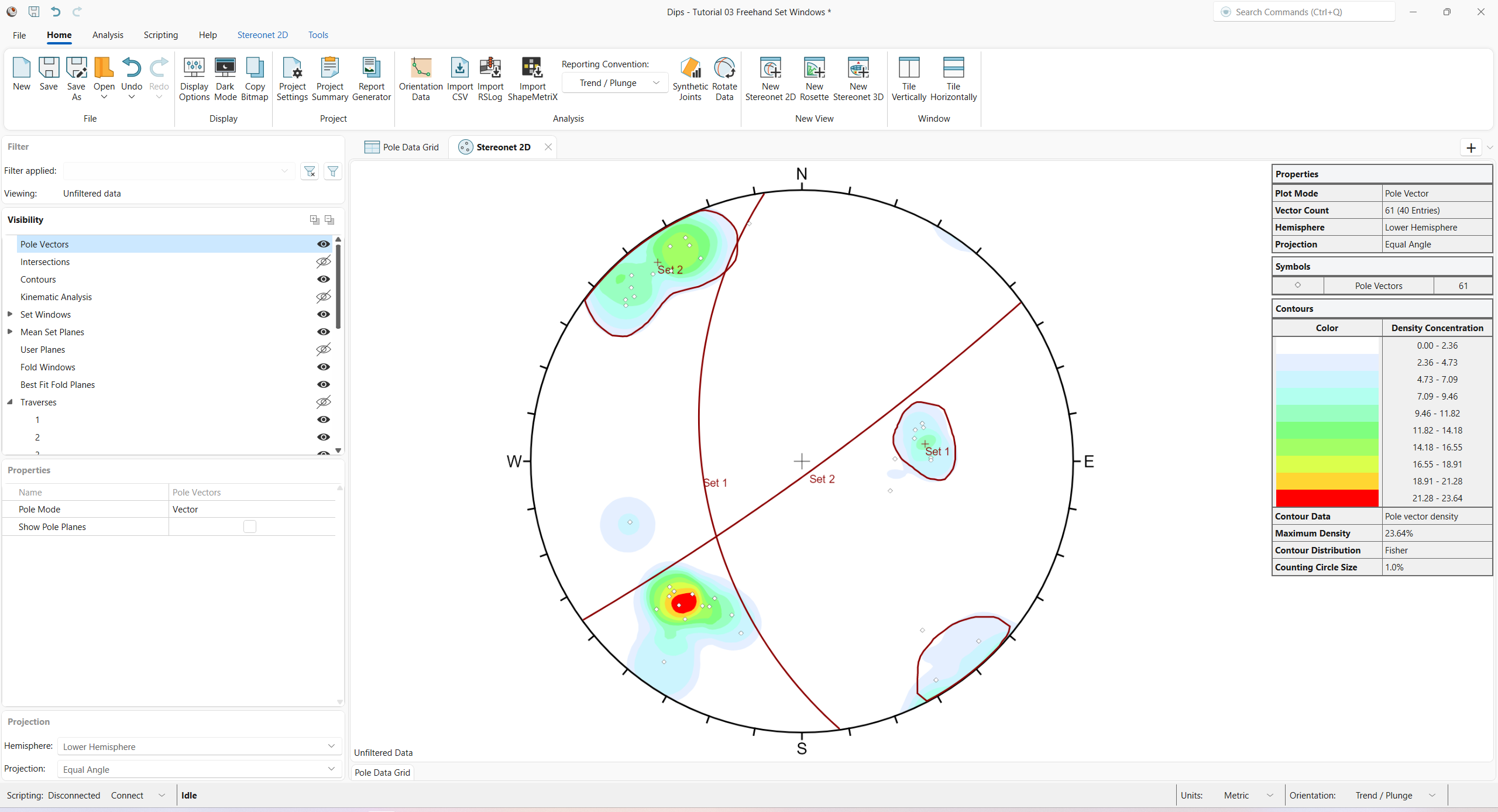
When the Set Window is created, you will notice the following, as shown in the above figure:
- The Set 2 Set Window and corresponding Set 2 Mean Set Plane are shown in the Stereonet 2D view.
- A Set 2 is added to the Set Windows group, and a corresponding Set 2 is added to the Mean Set Planes group in the Visibility tree.
If you hover the mouse over the Set 2 Set Window, a pop-up data tip will display:
- Freehand Set Window
- Name = Set 2
- Poles = 20
- Entries = 13
If you hover the mouse over the Set 2 Mean Set Plane, a pop-up data tip will display:
- Mean Set Plane (Unweighted)
- Name = Set 2
- Trend = 324.05
- Plunge = 5.47
Note that the Set column in the Pole Data Grid view is updated to record the data in both Sets 1 and 2. Note also that data which does not currently belong to any Set has a BLANK entry in the Set column.
Now, create a third Freehand Set Window around the remaining data concentration on the Contour Plot.
- Select Stereonet 2D > Sets > Add Freehand Set from the ribbon.
- Draw a Freehand Set Window around the data cluster at the lower left of the stereonet (i.e., the previous Set 3 data) by holding down the left-click mouse button.
- Hit ENTER to finish (or right-click > Done). The Edit Freehand Set Window dialog appears.
- Leave the default Name = Set 3.
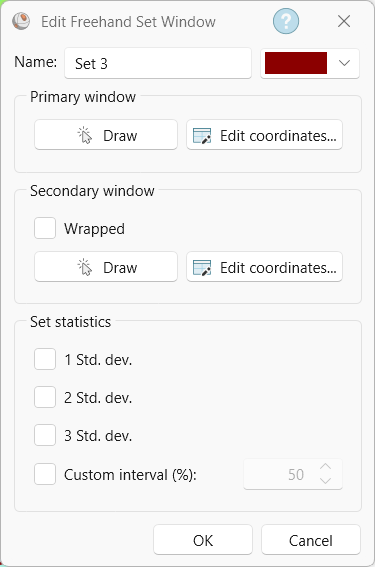
Edit Freehand Set Window dialog - Click OK to close the dialog and finalize the Freehand Set Window.
Set 3 will be created as shown below.
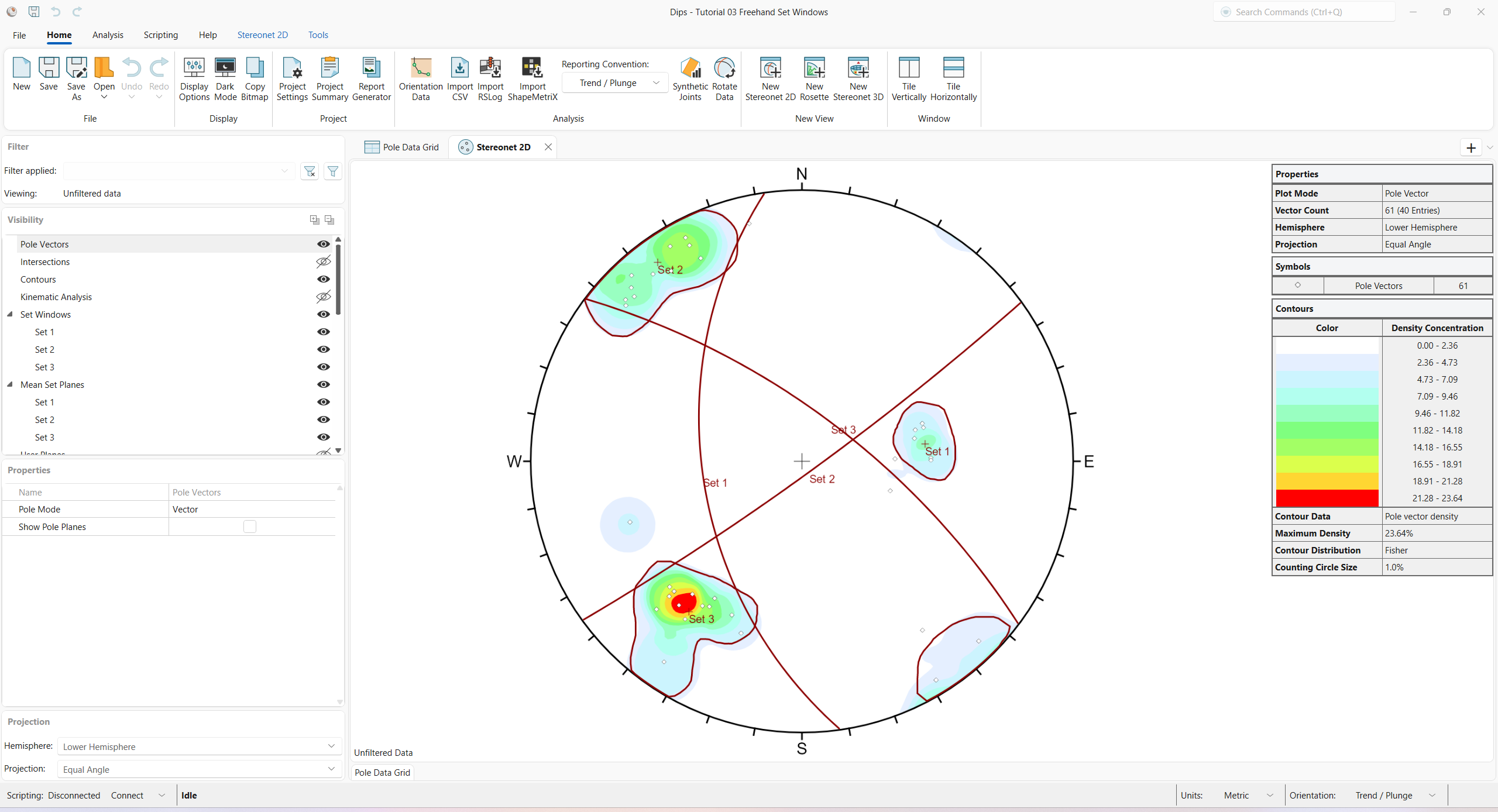
When the Set Window is created, you will notice the following, as shown in the above figure:
- The Set 3 Set Window and corresponding Set 3 Mean Set Plane are shown in the Stereonet 2D view.
- A Set 3 is added to the Set Windows group, and a corresponding Set 3 is added to the Mean Set Planes group in the Visibility tree.
6.1 Data Tips
If you hover the mouse over the Set Window, a pop-up data tip will display:
- Freehand Set Window
- Name = Set 3
- Poles = 26
- Entries = 16
If you hover the mouse over the Mean Set Plane, a pop-up data tip will display:
- Mean Set Plane (Unweighted)
- Name = Set 3
- Trend = 216.91
- Plunge = 20.33
This concludes the tutorial. You are now ready for the next tutorial, Tutorial 04 – User Planes.