8 - Jointing Analysis
1.0 Introduction
This tutorial will demonstrate how to use the Joint Spacing, Joint Frequency, and RQD Analysis options in DIPS. The tutorial uses the example file Joint Spacing.dips9, which is already set up for such analyses.
Topics Covered in this Tutorial:
- Joint Spacing
- Joint Frequency
- RQD Analysis
Finished Product:
The finished product of this tutorial can be found in the Tutorial 08 Joint Spacing.dips9 file, located in the Examples > Tutorials folder in your DIPS installation folder.
2.0 Model
If you have not already done so, run DIPS by double-clicking on the DIPS icon in your installation folder. Or from the Start menu, select Programs > Rocscience > DIPS > DIPS.
If the DIPS application window is not already maximized, maximize it now, so that the full screen is available for viewing the model.
DIPS comes with several example files installed with the program. These example files can be accessed by selecting File > Recent > Examples Folder from the File menu (or File > Open from the Home ribbon). This tutorial will use the Joint Spacing.dips9 file to demonstrate the basic plotting features of DIPS.
- Select File > Recent > Example Folder
 from the menu.
 - Open the Joint Spacing.dips9 file. Since we will be using the Joint Spacing.dips9 file in other tutorials, save this example file with a new file name without overwriting the original file.
- Select File > Save As
 from the menu.
 - Enter the file name Tutorial 08 Joint Spacing and Save the file.
3.0 Pole Data Grid
If the Pole Data Grid is not already the active view:
- Select the Pole Data Grid
 view tab.
You should see the Pole Data Grid view shown in the following figure.
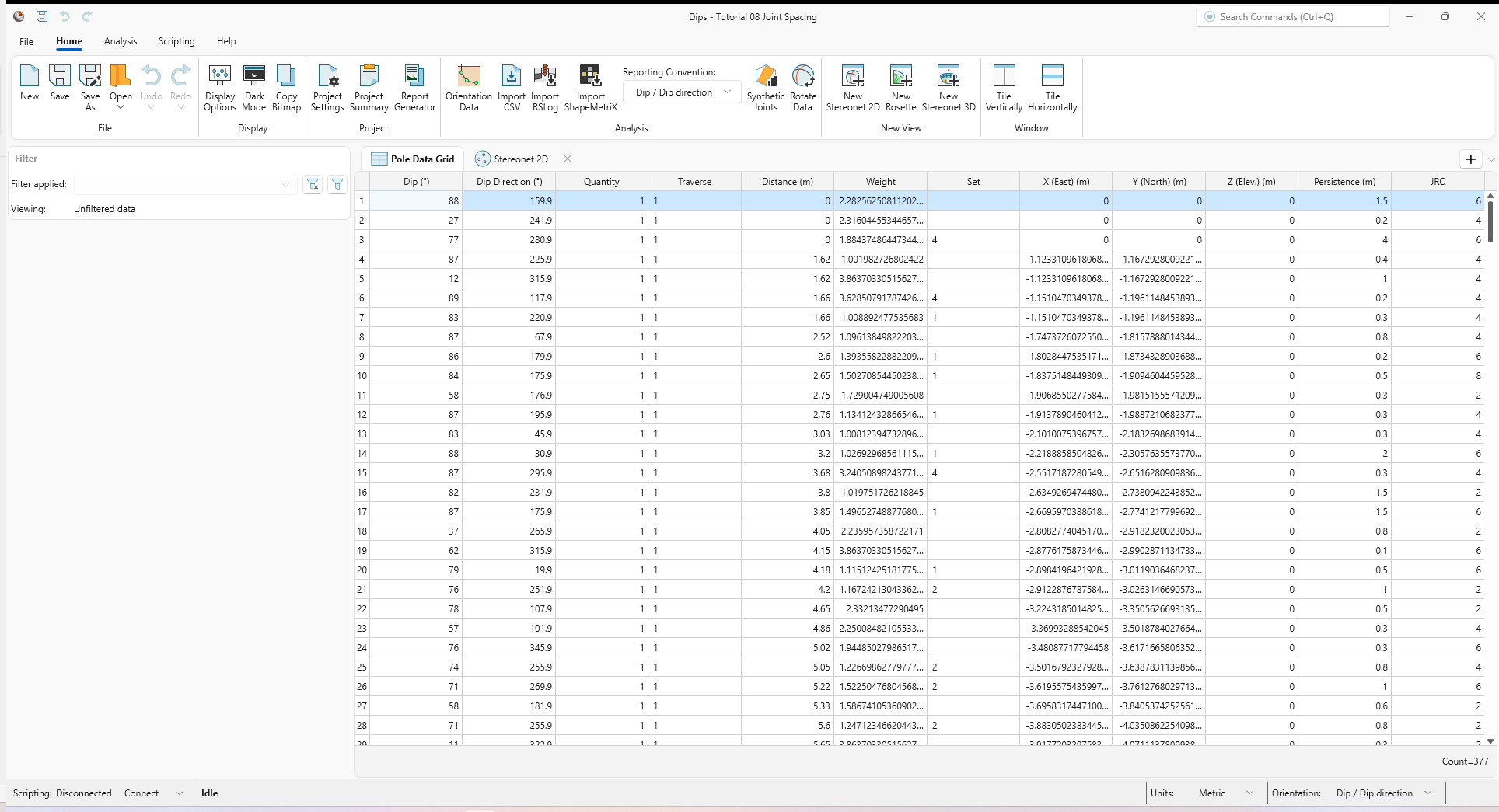
The Pole Data Grid shows all processed orientation data entered in the Orientation Data dialog. Note that there are 377 rows of data (i.e., Count=377) and the following columns:
- Dip and Dip Direction columns showing the processed orientations in the selected Reporting Orientation.
- Quantity column
- Traverse column
- Distance column
- Weight column
- Set column
- X (East) column
- Y (North) column
- Z (Elev.) column
- Persistence column
- One extra column (JRC)
4.0 Stereonet 2D
Now look at the Stereonet 2D view:
- Select the Stereonet 2D
 view tab.
You should see the Stereonet 2D view shown in the following figure.
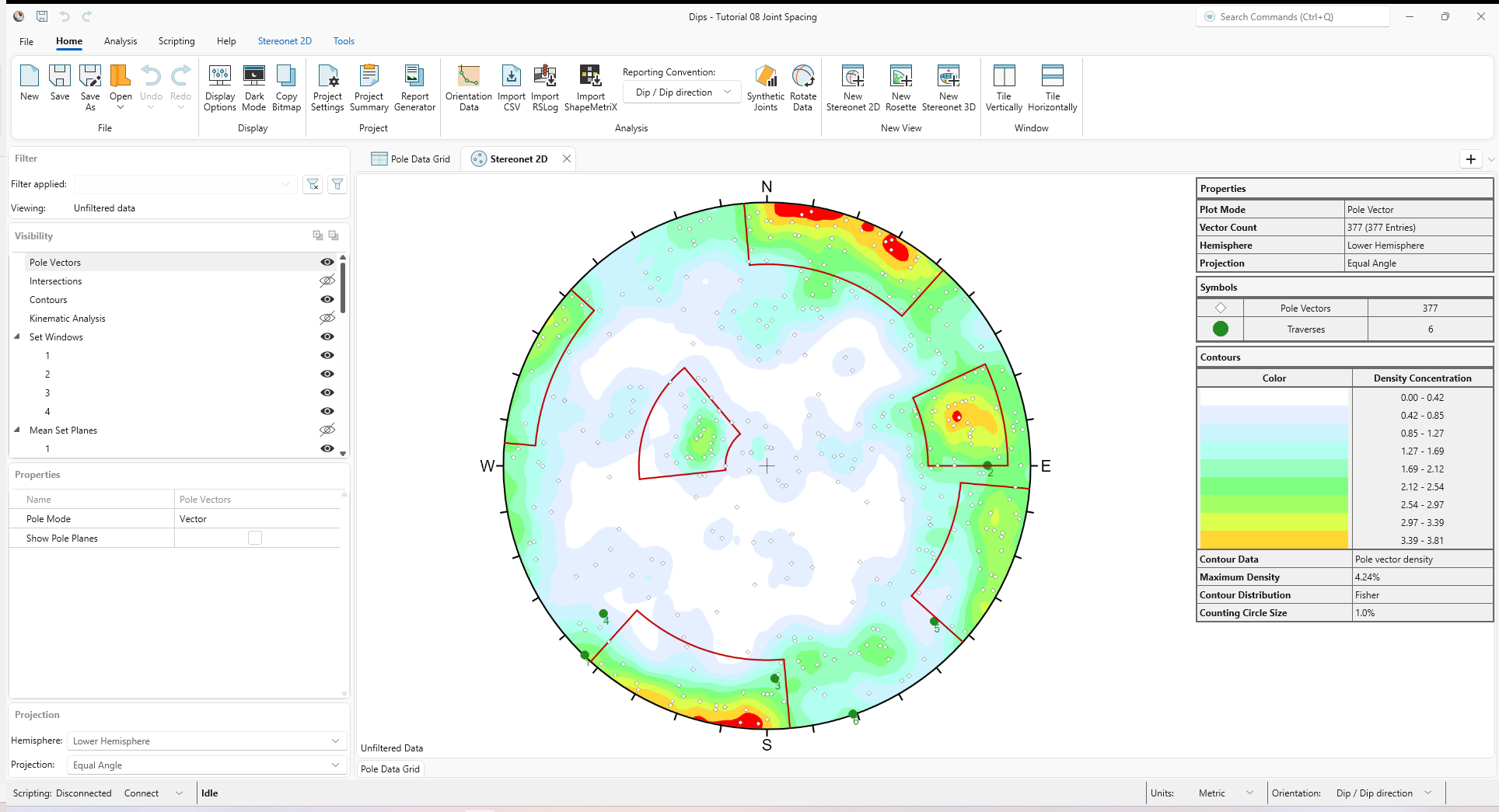
The main features of this file are:
- Six Linear Scanline traverses (1, 2, 3, 4, 5, 6) are defined (Home > Analysis > Orientation Data from the ribbon), each with a Declination of 53.9 degrees, indicating that 53.9 degrees will be added to the dip direction of the data, to correct for magnetic declination.
- The Distance measurements along each Linear Scanline Traverse have been entered.
- Four Set Windows (1, 2, 3, 4) defining four joint sets have been added over the main pole concentrations on the stereonet.
5.0 Units
The Units Reporting Convention is set to Metric in Project Settings.
The Units apply to the Distance column and all related analyses (e.g., Joint Spacing, Joint Frequency, and RQD Analysis).
6.0 Joint Spacing
The Joint Spacing option will convert distance measurements along a linear or borehole Traverse into true (perpendicular) spacings between adjacent joints belonging to the same joint set.
The Joint Spacing option is only enabled if THREE criteria are met:
- You must have at least one (or more) joint Sets defined, using the options available for creating sets (e.g. Add Curved Set Window, Add Freehand Set Window, Add Circular Window, Manual Cluster Analysis).
- You must have at least one (or more) linear or borehole traverses defined (e.g. Linear Scanline, Linear Borehole Oriented Core, Linear Borehole Televiewer, Curved Borehole Oriented Core, Curved Borehole Televiewer).
- The Distance values are entered in the Discontinuities tab of the Orientation Data dialog.
The Joint Spacing.dips9 file that you have just opened satisfies the above criteria, so we will proceed to the Joint Spacing option.
- Select Analysis > Jointing Analysis > Spacing
 from the ribbon. The Joint Spacing dialog appears. The dialog will indicate the Sets and Traverses currently defined, in this case, 4 Sets and 6 Traverses. You may only choose ONE Set at a time, but you can select any or all Traverses.
 - Set Spacing Type = True from the drop down.You can choose True Spacing or Apparent Spacing. Generally, you will want to plot True Spacing. Apparent Spacing is simply based on the raw measurements from the Distance column.
- Select Set = 1.
- Click the Select All button under Traverses to select all traverses (1, 2, 3, 4, 5, and 6).
- Enter Number of Intervals = 20.
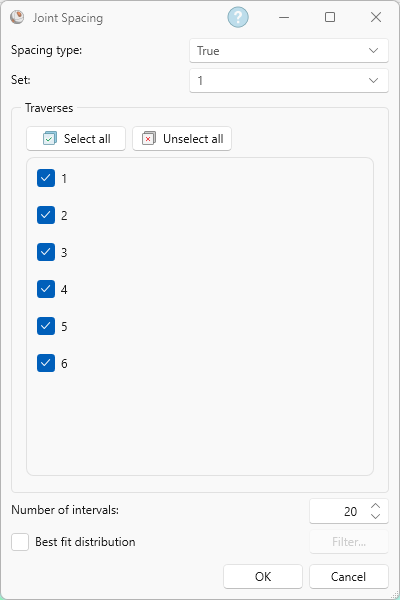
Joint Spacing dialog - Click OK to close the dialog and generate a Joint Spacing chart view.
You should see the following graph.
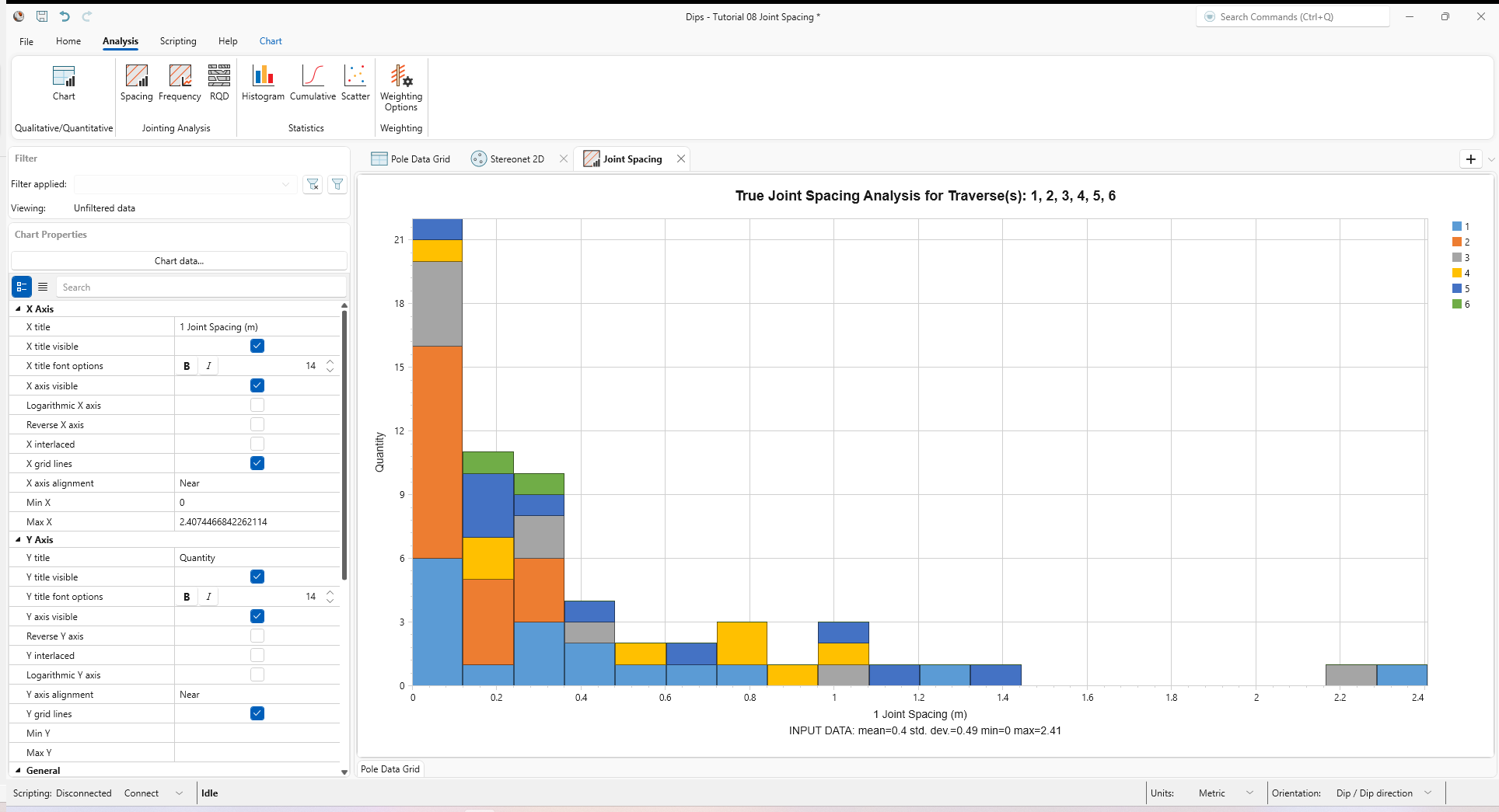
TIP: Chart data can be edited at any time by selecting the Chart Data button in the Chart Properties pane or Chart > Chart Data > Change Data option in the ribbon.
7.0 RQD Analysis
Now let’s demonstrate the RQD Analysis option.
The RQD Analysis option allows you to calculate the Rock Quality Designation (%) calculated from distance measurements recorded along a linear or borehole Traverse. When adjacent distance measurements between joints are less than or equal to 10 centimetres (metric) or 4 inches (imperial), that length is flagged as "poor quality". RQD is a measure of the percentage of core length pieces which are greater than this cutoff value, relative to the total measured interval.
To use the RQD Analysis option:
- You must have at least one (or more) Linear or Borehole Traverses defined (e.g. Linear, Linear BH Oriented Core, Linear BH Televiewer, Curved BH Oriented Core, Curved BH Televiewer).
- The Distance values are entered in the Discontinuities tab of the Orientation Data dialog.
The Joint Spacing.dips9 file that you have just opened satisfies the above criteria, so we will proceed to the RQD Analysis option.
- Select Analysis > Jointing Analysis > RQD
 from the ribbon. The RQD Analysis dialog appears. All currently defined Traverses will be listed in the dialog.
 - Select Traverse = 1.
- Select Interval type = Discrete.
- Enter Interval = 1 m.
- By default, the Cut Off Length = 0.1 m (i.e., 10 cm) according to the standard RQD definition.
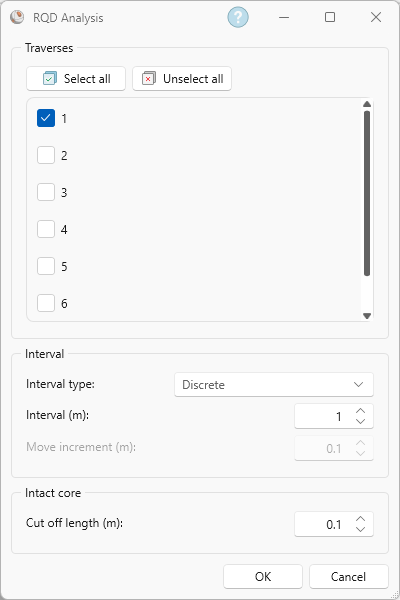
RQD Analysis dialog - Click OK.
You should see the following graph for Traverse 1.
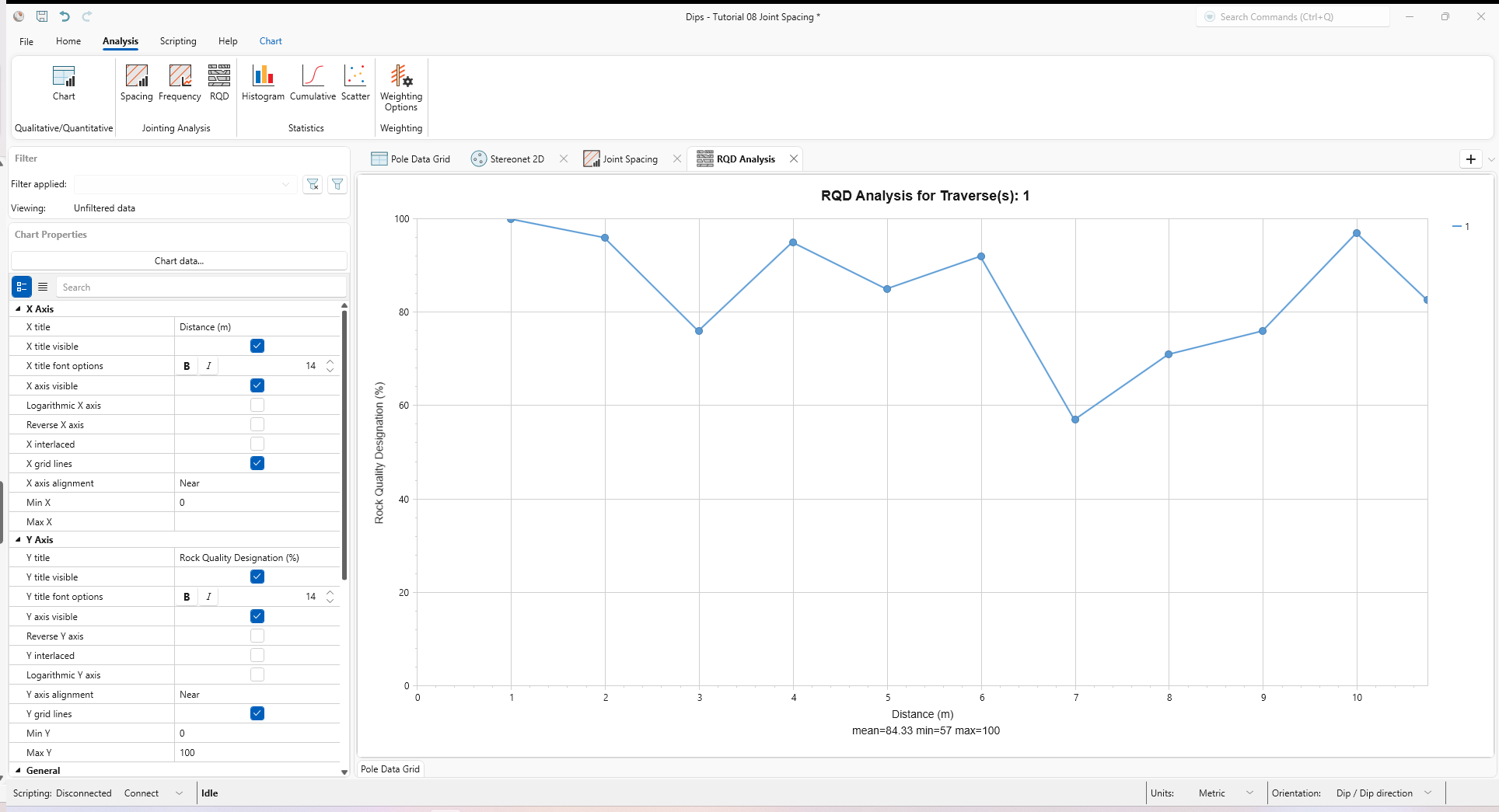
With the Discrete interval option, each interval begins at the end of the previous interval.
Let’s try the Moving Interval option, which moves the interval in overlapping increments. This may help to better identify narrow transitions in RQD value.
- Select Analysis > Jointing Analysis > RQD Analysis from the ribbon. The RQD Analysis dialog appears.
- Select the Interval type = Moving.
- Enter Interval = 1 m.
- Enter Move Increment = 0.1 m.
- By default, the Cut Off Length = 0.1 m (i.e., 10 cm) according to the standard RQD definition.
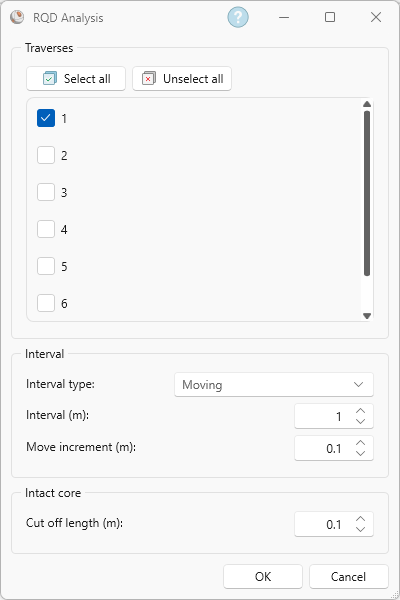
RQD Analysis dialog - Click OK.
You should see the following graph for Traverse 1.
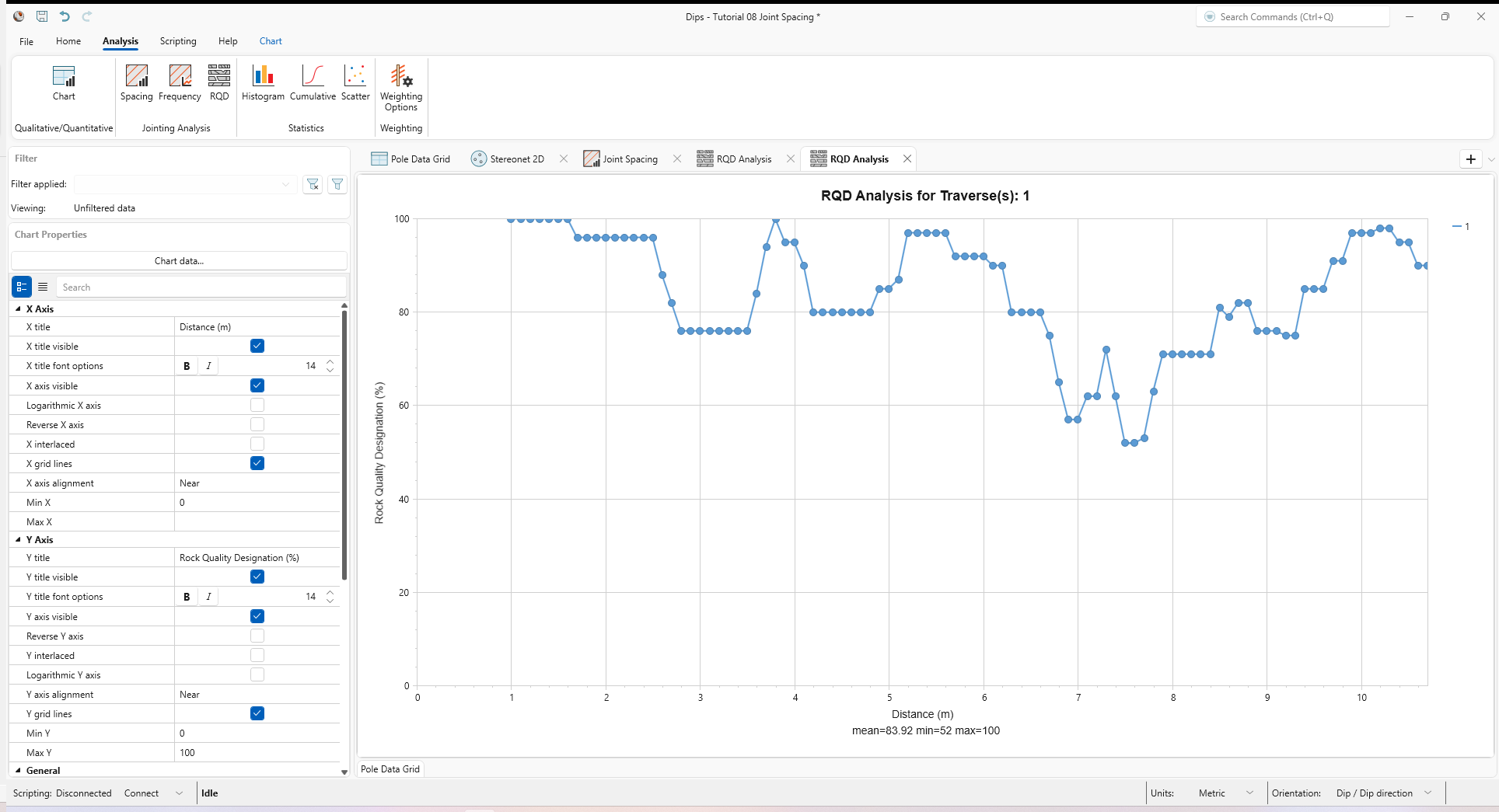
You can also plot multiple Traverses on the same RQD plot; this is left as an optional exercise.
8.0 Joint Frequency
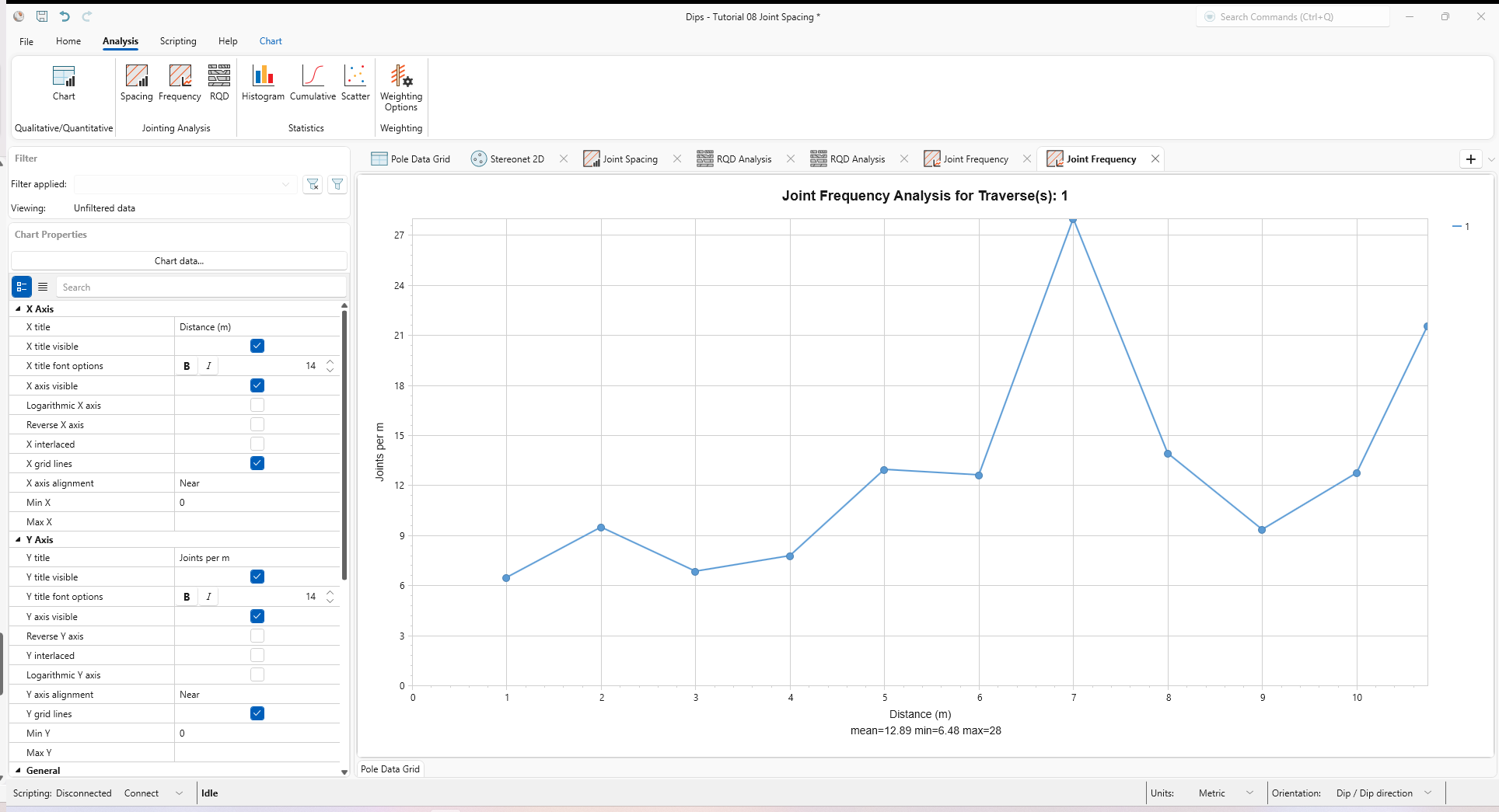
The Joint Frequency option is very similar to the RQD Analysis option and allows you to plot the linear 1D frequency of joints along the length of each Traverse.
To use the Joint Frequency option:
- You must have at least one (or more) linear or borehole traverses defined.
- The Distance values are entered in the Discontinuities tab of the Orientation Data dialog.
The Joint Spacing.dips9 file that you have just opened satisfies the above criteria, so we will proceed to the Joint Frequency option.
- Select Analysis > Jointing Analysis > Frequency
 from the ribbon. The Frequency Analysis dialog appears.
 - Select Traverse = 1.
- Select Interval = Discrete.
- Enter Interval Value = 1 m.
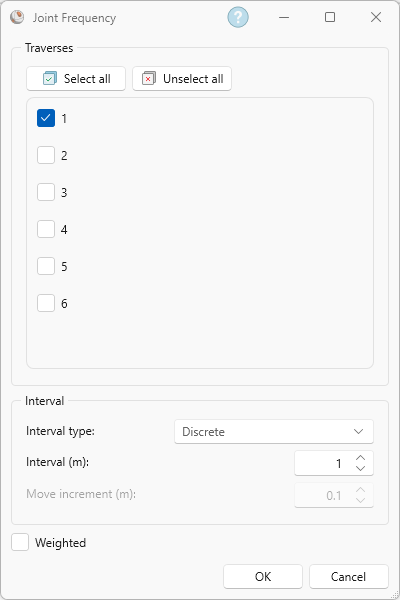
Joint Frequency dialog - Click OK.
You should see the following graph for Traverse 1.

You can also apply the Terzaghi Weighting to the Joint Frequency.
- Select Analysis > Jointing Analysis > Joint Frequency from the ribbon. The Frequency Analysis dialog appears.
- Select Traverse = 1.
- Select Interval = Discrete.
- Enter Interval Value = 1 m.
- Select the Weighted
checkbox. This will apply the Terzaghi Weighting to the joint count and plot the weighted number of joints per meter.
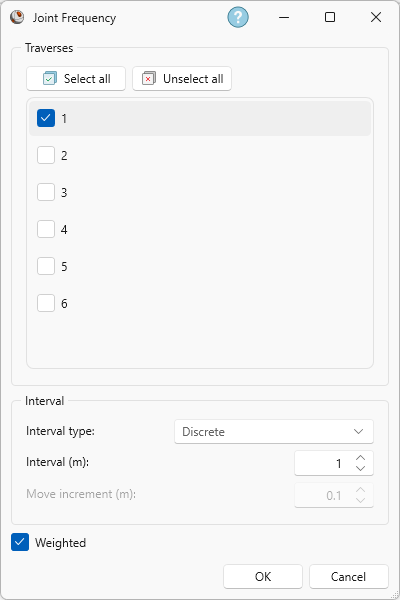
Joint Frequency dialog - Click OK.
You should see the following graph for Traverse 1.
9.0 Core Loss
It should be noted that the Jointing Analysis options do not account for intervals of lost or damaged core or unlogged core. It is assumed that distance readings are from continuous measurement of the intact core.
This has the following implications:
- Joint Spacing: If there is a gap in the Distance measurements, an artificially large joint spacing value may be recorded if joints from a given set occur on either side of a gap.
- RQD Analysis: A gap in distance measurements would be recorded as RQD = 100, since no joints would be recorded, which would register as “intact” core.
- Joint Frequency: Frequency would be recorded as zero over a gap in the distance record.
In conclusion, there is currently no method of specifying lost/damaged/unlogged core lengths for the Jointing Analysis options, so this should be kept in mind when interpreting results.
This concludes the tutorial. You are now ready for the next tutorial, Tutorial 09 – Data Filters.