Multi-Tiered Wall Wizard
A Multi-tiered wall is a sub-wall type within the Segmental Wall type that represents two MSE walls constructed at different elevations. The program provides a wizard to create multi-tiered walls, along with Edit and Delete buttons to modify or remove existing walls.
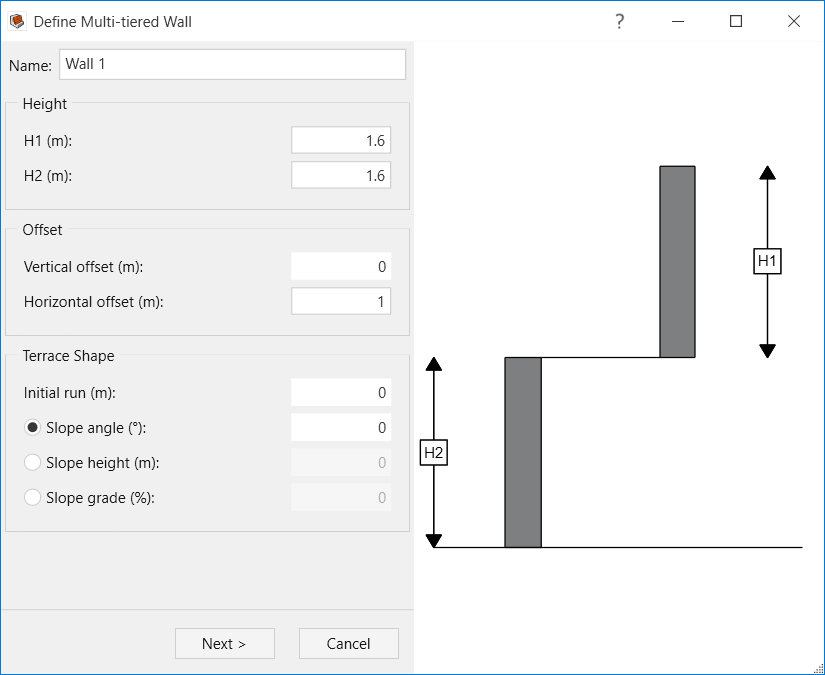
When the segmental wall type is selected, the Multi-tiered Wall Wizard can be used to define a multi-tiered wall quickly. The wizard guides you through these steps:
- Define the wall’s basic geometry – the height of each tier, the offsets between the tiers, and the shape of the terrace between the tiers
- Define the dimensions of the wall units
Step 1. Define wall geometry
In this step, you can enter the basic dimensions of the multi-tiered wall.
- Height
- Height (H1): The height of the upper tier
- Height (H2): The height of the lower tier
- Offset
- Vertical offset: The offset between the top of the lower tier and the bottom of the upper tier. The offset is negative if the upper tier is embedded into the lower tier, or positive if there is a gap between the two tiers.
- Horizontal offset: The horizontal offset between the two tiers. The offset is measured between the heel of the upper tier and the top back of the lower tier.
- Terrace shape
- Initial run: The distance behind the lower tier before the slope starts
- The slope can be defined based on its angle, height, or grade.
Step 2. Define wall units
In this step, you can define the wall units. The number of courses for each tier gets calculated automatically based on the tier heights entered on the previous page and the dimensions of the wall units.
- Wall unit properties: opens the wall units dialog, where you can edit existing wall units or define a new one.
This page does not allow you to define different wall units for each tier. After completing the wizard, section profiles for each tier are automatically created and can be viewed and edited in the Section Profiles dialog (Wall > Wall Profile > Define Section Profile). Detailed changes to each tier’s profile can be made through this dialog.
See Tutorial 9 – Multi-Tiered Wall for a step-by-step example of how to use the multi-tiered wall wizard.