Agent Mode
With RocScript installed, the Scripting tools can also be utilized by RSInsight’s Agent Mode feature. Agent Mode allows engineers to work with RSWall project files (.rswall) and optional supporting documents to automate model setup, editing, and analysis. The RSInsight system can identify the relevant inputs, map them to the correct RSWall parameters, and build or modify the model in the RSWall application.
You can start from a project that is already open in RSWall, or by attaching a saved .rswall file in the chat.
Agent Mode in RSWall
Using Agent Mode, workflows such as inspecting an existing retaining wall model, editing soils and loads, defining wall geometry, and running stability analysis can be executed through natural-language interaction with RSWall. Users describe the analysis objective, and RSInsight translates that intent into the appropriate model operations.
This applies across the wall types RSWall supports: gravity, cantilever, abutment, MSE/SRW, and gabion. Typical Agent Mode work includes assigning soils to wall regions, generating wall segment, updating reinforcement and leveling pads, and computing results.
Example Workflow
A typical workflow starts from a saved .rswall project. With Agent Mode selected, attach the project file in RSInsight and use a prompt such as:
"Attach to the open the RSWall project and summarize the walls, materials, and loads."
RSInsight reads the model and can then apply design changes. For example:
"Assign Soil 2 to the retained soil on Wall 1, Segment 1. Then set a 20° broken backslope with an initial run of 7 and a slope run of 7, using the project’s current units."
RSInsight updates the soil assignment and backslope on the selected segment. To compute and review results, continue with:
"Compute the analysis for Wall 1 and report the critical factor of safety, including any analysis warnings or errors."
RSInsight runs the analysis and returns the critical factor of safety together with any issues found on that wall.
For engineers new to RSWall, this provides guidance through a standard inspect → edit → compute loop. For experienced users, it removes the operational steps between the question and the answer.
How to initialize RSInsight Agent Mode
Before using RSInsight Agent Mode, the RSWall MCP Server needs to be installed and activated. To do so:
- After logging into your RocPortal account, go to the RSInsight page (https://www.rocscience.ai/).
On the home screen, click Opt In to enable Agent Mode features. You can also opt in from your RSInsight Settings. Click on your Profile Icon in the bottom left of the screen, select the Agent Mode tab and tick the checkbox to Opt In.
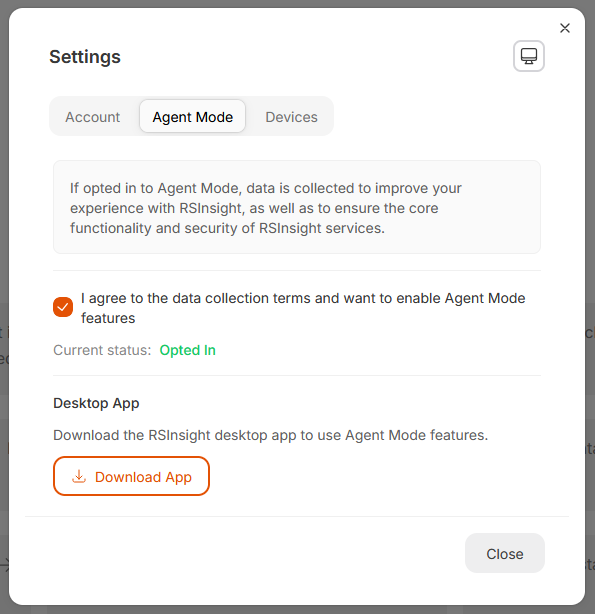
- Click Download App to install the RSInsight Desktop app.
- Once installed, launch the RSInsight Desktop app. You will be prompted to connect with your RocPortal account. Follow the prompts on your browser.
In the RSInsight Desktop app, go to the MCP Store and click Browse.
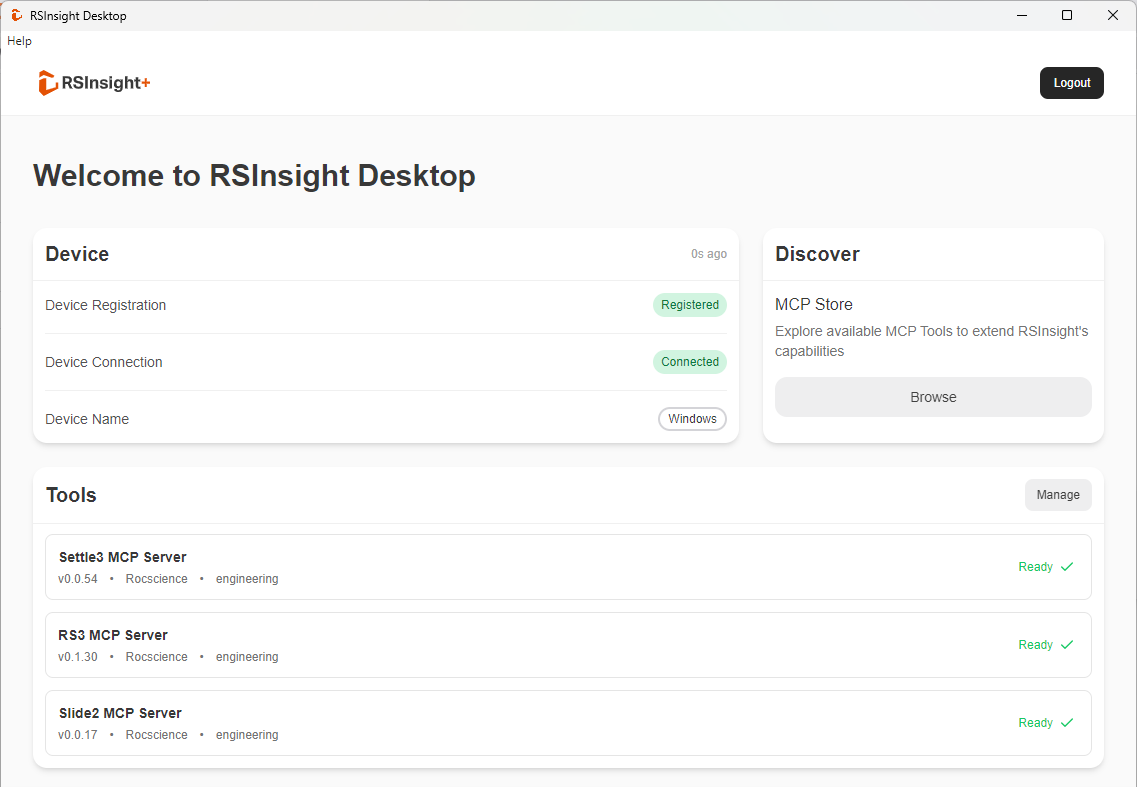
Locate the RSWall MCP Server and click Install. Note that you will first need the latest version of RSWall to proceed with installation.
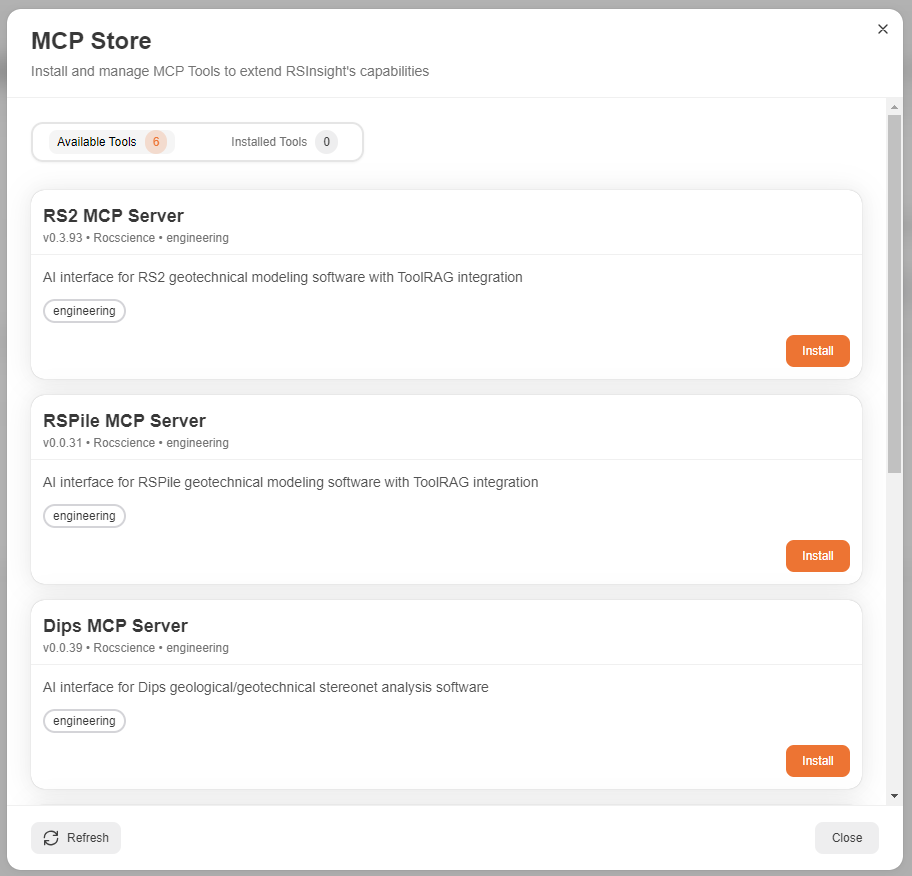
- Once installed, the RSWall MCP Server will appear under the Tools section, where you can view the connection status. When connected, the server will say “Ready.”
Start a conversation with Agent Mode
- Log in to your RocPortal account and go to RSInsight.
Launch the RSInsight Desktop app to connect to the RSWall MCP Server.
If you have not installed the RSWall MCP Server, see the instructions above before proceeding.- Click Chat to start a new chat.
In the Chat box, click the drop down on the left and change Ask to Agent.
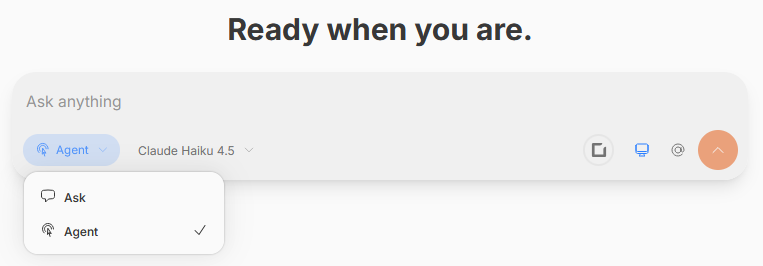
You are now ready to begin your conversation with RSInsight.
- Click @ to attach data and model files.
- Enter prompts into the chat box to initiate actions.
RSWall MCP Server Capabilities
At the moment, not all scripting functions are supported by the RSWall MCP Server. Below lists the scripting functions currently available.
Supported
- Project management: Open an existing .rswall file, attach to a project already open in RSWall, save changes, and close the project.
- Project data: Read and edit soils/materials, line/uniform/point loads, and Project Summary metadata.
- Wall profiles: Create, copy, delete, and configure gravity, cantilever, and abutment wall profiles, including dimensions and unit weight.
- MSE/SRW walls: Configure wall units, section profiles, manufacturer library presets, reinforcement properties and layouts, and leveling pads.
- Gabion walls: Configure wall units, section profiles, manufacturer library presets, basket counts, and basket tilt.
- Site and design conditions: Assign soil regions and configure backslope/front-face topography, groundwater, and base-strength options for the current design standard.
- Wall generation: Generate multi-segment MSE/SRW and gabion walls using the Wall Wizard.
- Analysis and results: Run analysis for individual segments, walls, or the full project, and read result status, factors of safety (including the critical value), analysis issues, and relevant symbols.
Not Supported
- Project settings: Creating a new RSWall project through File > New, or changing the project's wall type or design standard.Direct UI compute workflow automation.
- Multilayer and Support Designer: Dedicated support for Multilayer and Support Designer workflows is not currently supported.
- CAD/CSV import/export: Dedicated import/export of wall geometry is not currently supported.