6 - Importing Ground Motion Records from External Databases
1.0 Introduction
This tutorial will demonstrate RSSeismic’s capabilities of importing records from external databases using the Import from external databases option in the Motion Manager module. The ground motion API integration allows users to directly import records from external ground motion databases, in order to use them as input motion for analysis. Users can access a variety of three-component ground motion records from databases such as the Buckreis et al. (2023) ground motion database and import them to use them as an input motion without having to leave the RSSeismic environment.
The site profile in this tutorial is the same site used for Tutorial 5, but instead of using the ChiChi record included as part of the built-in input motions, we will import 11 pairs of ground motions and use them as input motions for the analyses.
Topics Covered in this Tutorial:
- Importing records from an external database
Finished Product:
The finished product of this tutorial can be found in the Tutorial 6 folder. All tutorial files installed with RSSeismic can be accessed by selecting File > Recent Folders > Tutorials Folder from the RSSeismic main menu.
2.0 Project Setup
- Begin by opening the project file from Tutorial 5.
- Select File > Recent Folders > Tutorials Folder
 in the menu.
 - In the Tutorial 5 folder, open the Tutorial 5 Automatic Profile Generation.rsseismicfile file.
- Select File > Recent Folders > Tutorials Folder
- Save a new copy of file by selecting File > Save As
 and name it Tutorial 6 Import Ground Motion from External Database.
 - In the Project Setup
 , select Profile Generation = Create Profiles Manually.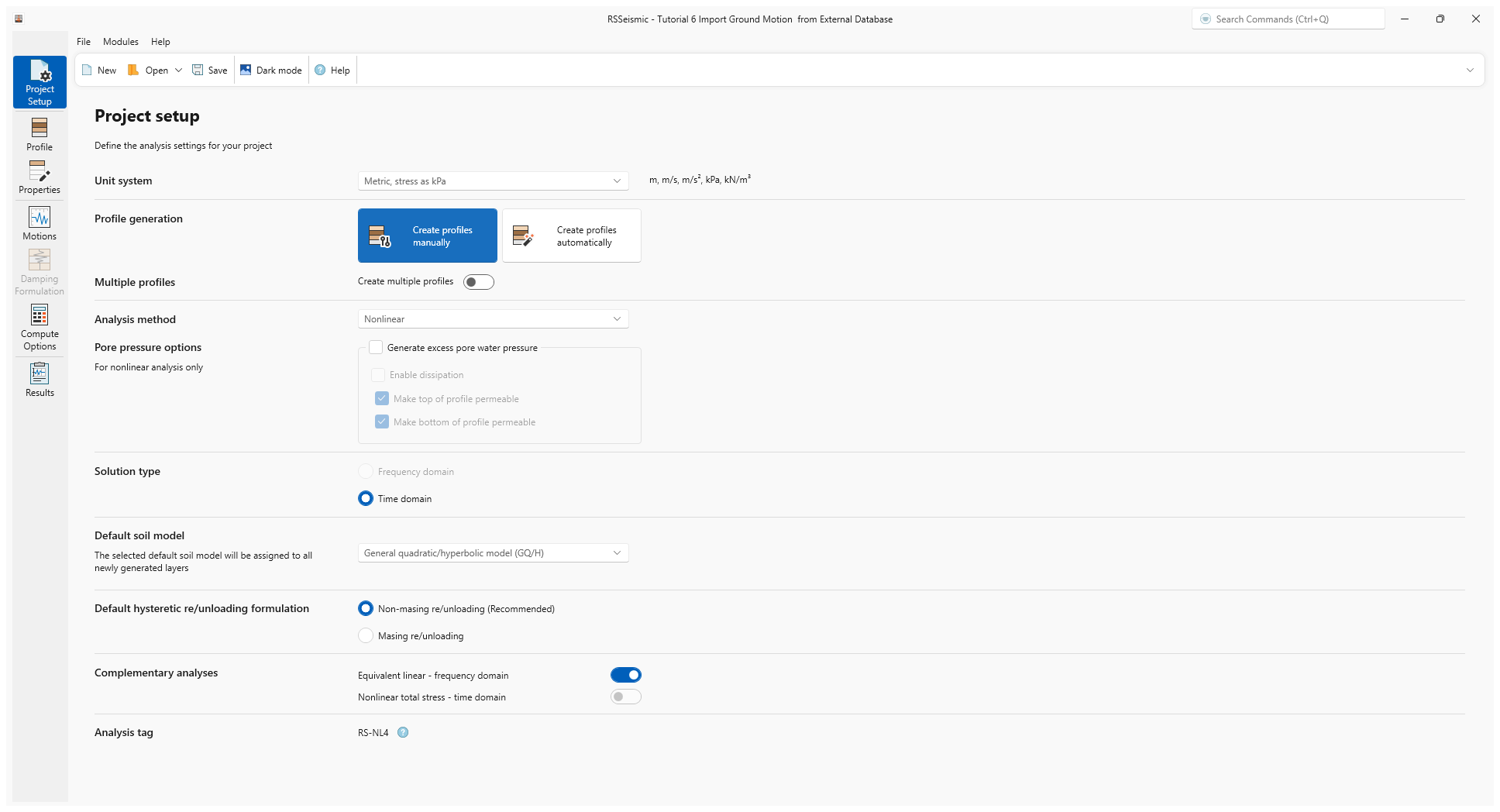
- Leave all other parameters as is.
3.0 Profile
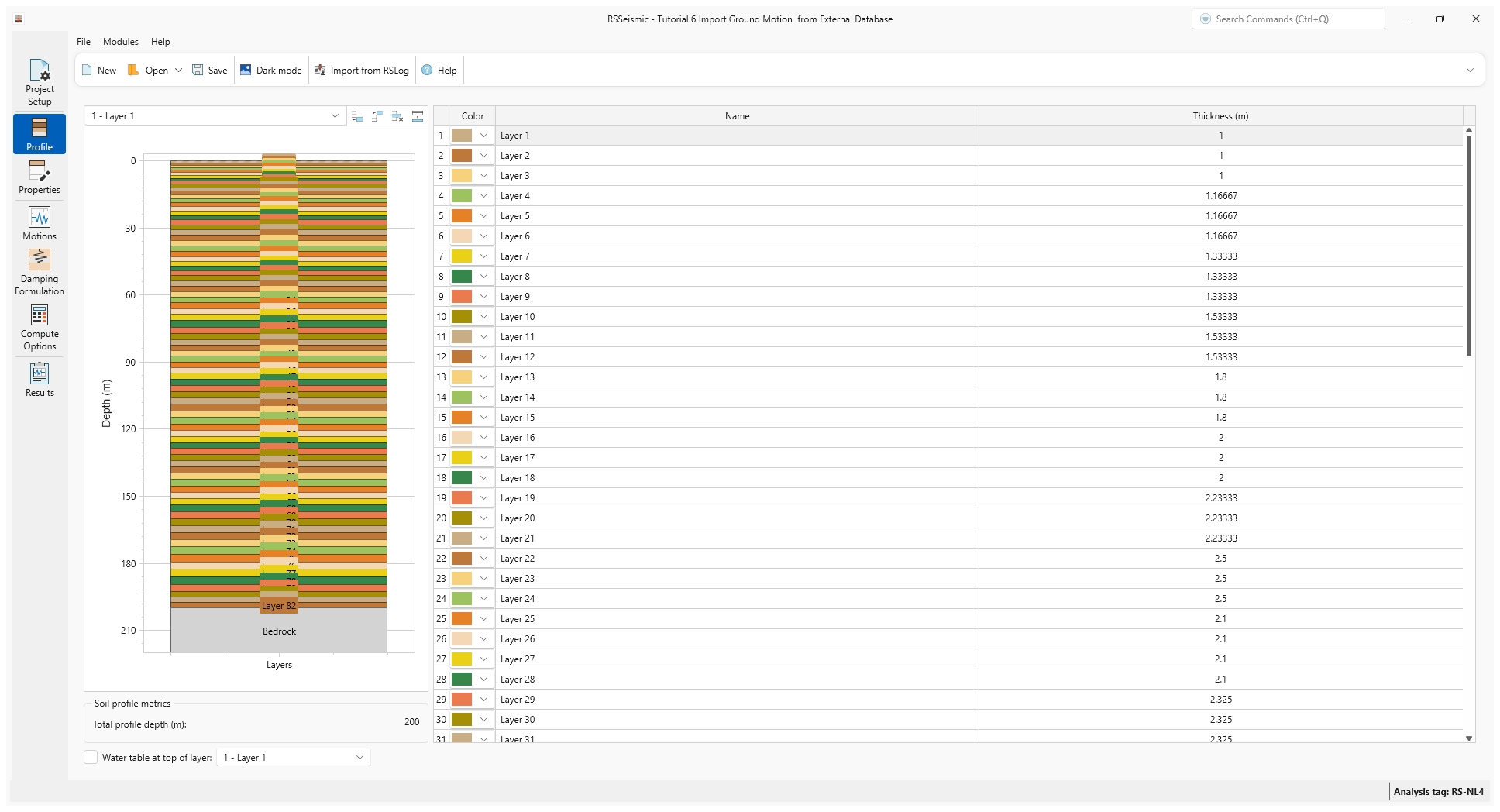
- Select the Profile
 tab. The profile thicknesses should be populated as shown.
4.0 Properties
- Select the Properties
 tab. The properties will already be selected.
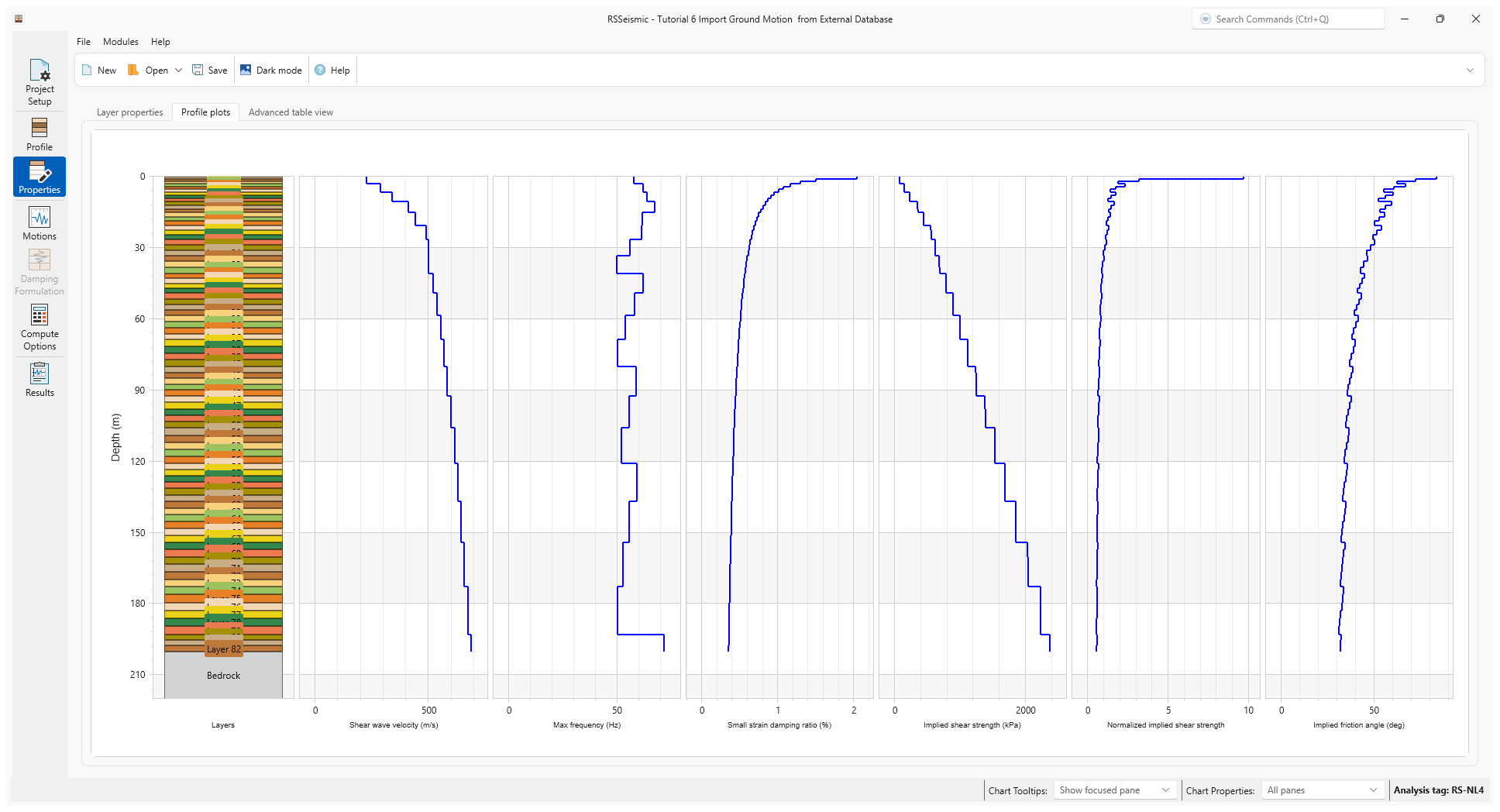
 - Select on the Profile plots tab to and inspect the generated profiles.
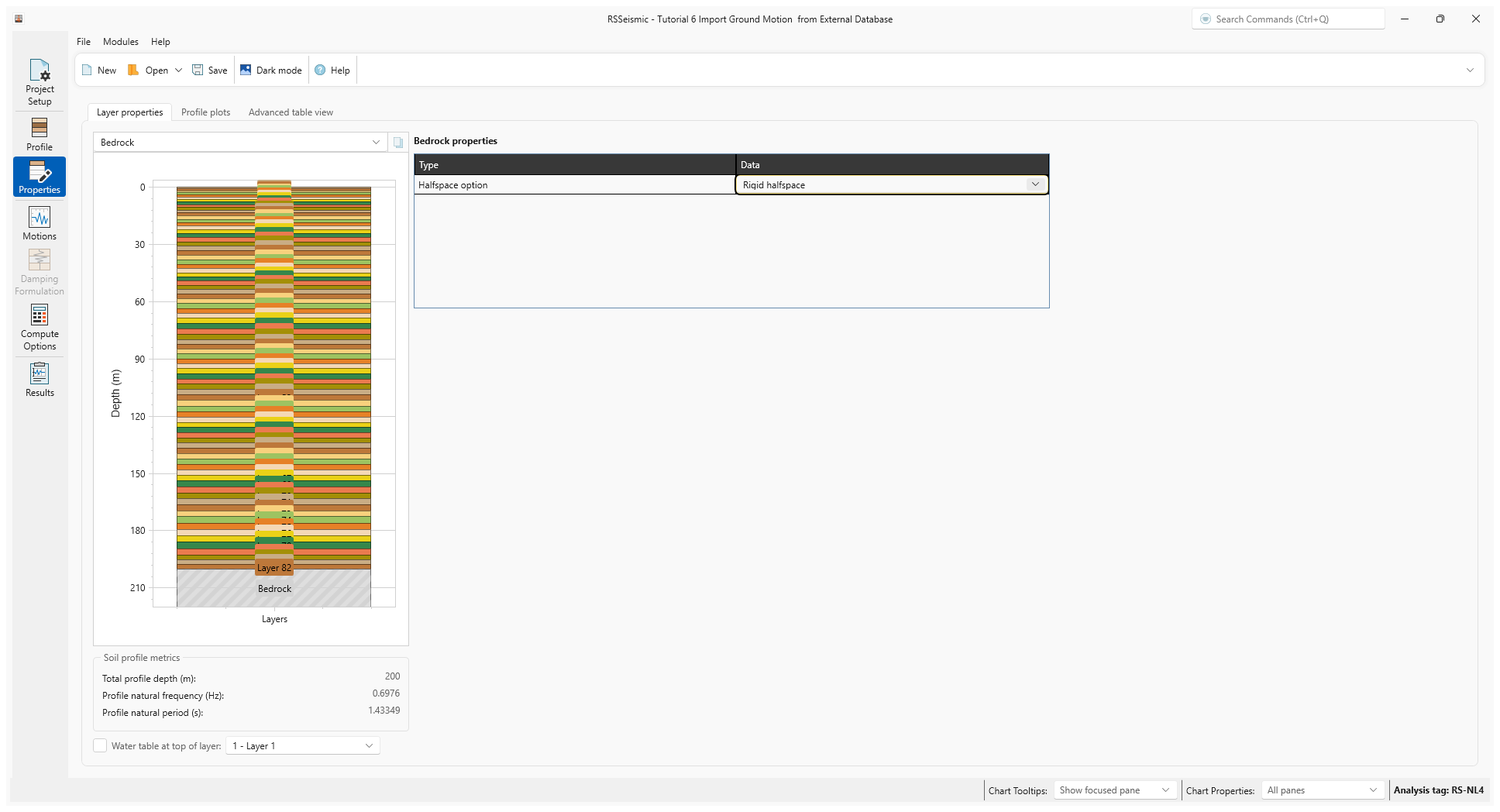
- After inspecting the Profile plots, return to the Layer properties tab and click on the Bedrock layer. Ensure the bedrock properties are as follows:
- Halfspace option = Rigid halfspace
5.0 Motions
- Select the Motions
 tab.
tab.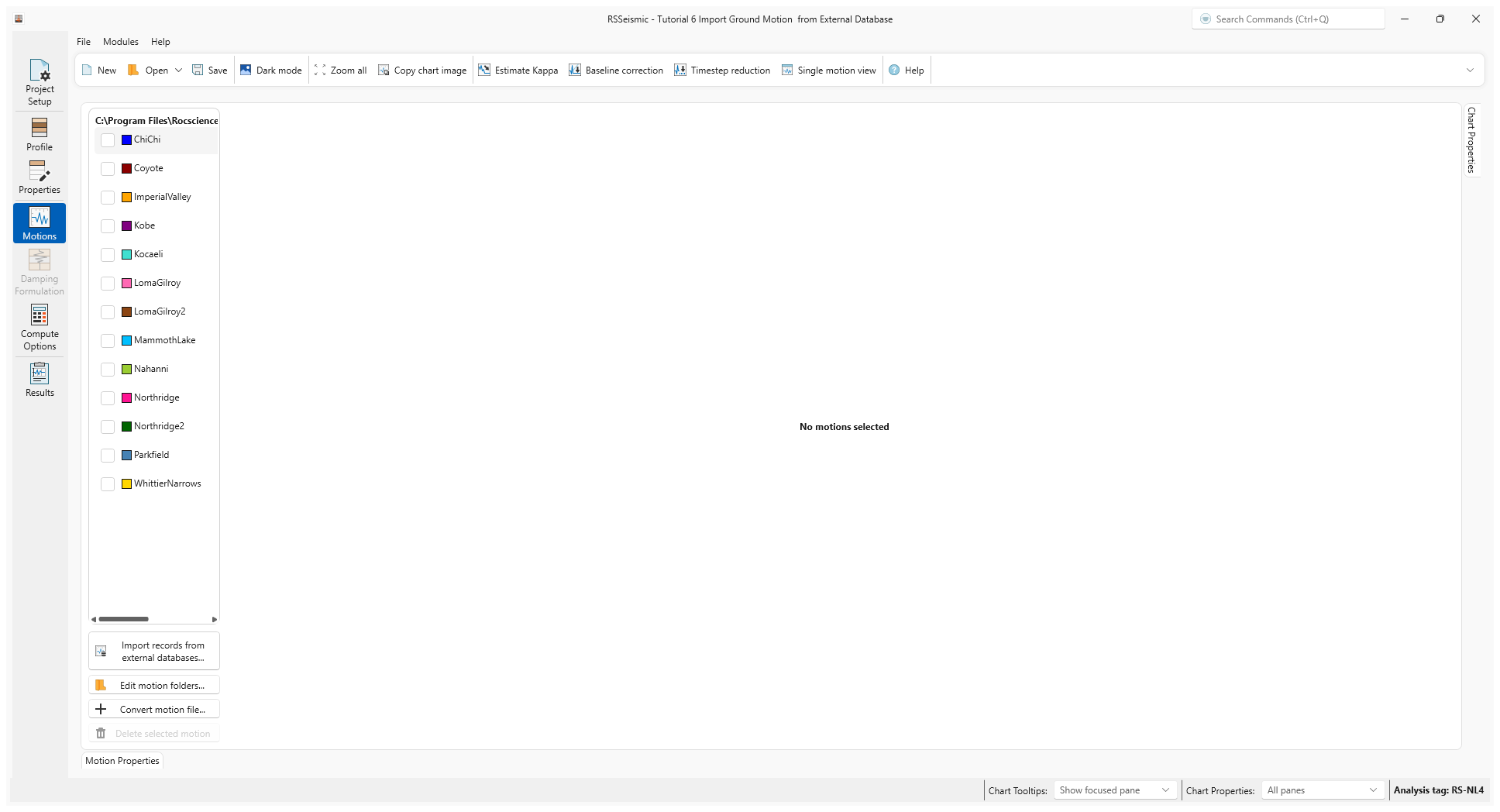
- Below the list of Motions, click the Import records from external databases
 button.
 - The Download motion from database dialog will open. This dialog gives users access to external databases through API integration.
Click Add Folder to select the output folder where the selected records will be saved. For this example, we will select the Tutorial 6 folder: C:\Users\Public\Documents\Rocscience\RSSeismic Examples\Tutorials\Tutorial 6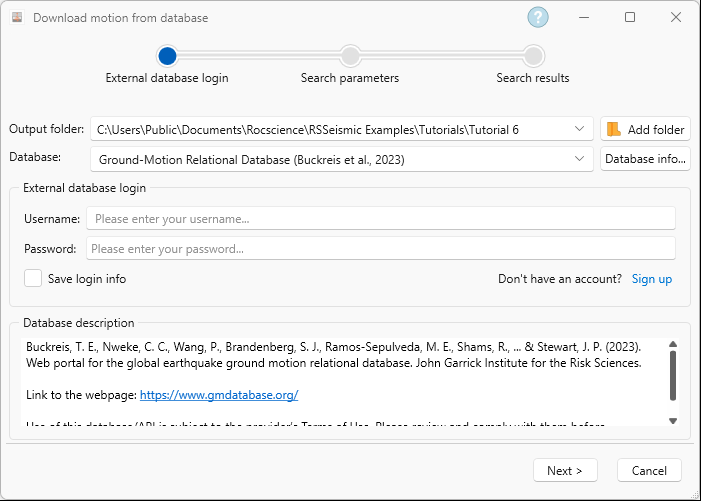
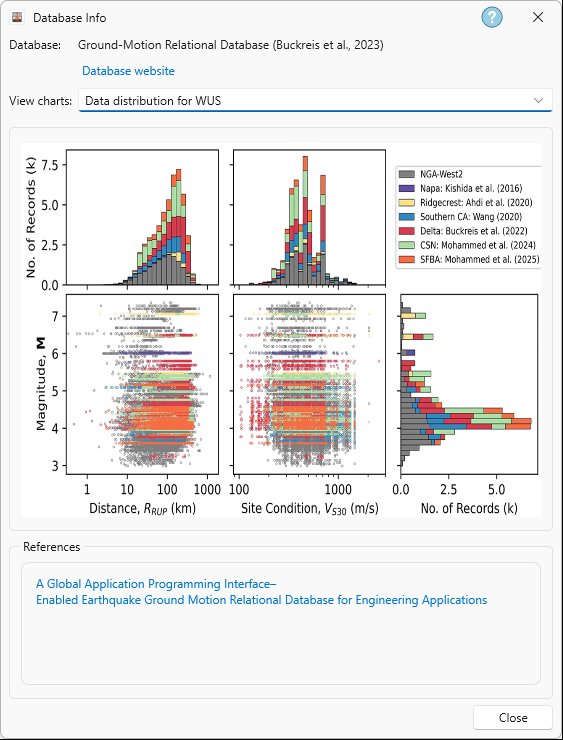
- Click Database Info. This will give an overview of the selected database along with a link to the publication presenting the database.
- Select View charts = Data distribution for WUS. The Data distribution for the Western United States (WUS) is shown. Several figures are displayed that show the extent of the data coverage by the selected database.
- Click Close to close the Database Info dialog.
- Under External Database Login, enter your Username and Password, and then click Next.Importing ground motion records from this database requires an account. Users that do not have an account can create a free one by accessing the following link (https://www.gmdatabase.org/users/login) and clicking on “register.” Alternatively, in the Download Motion from Database dialog, you can click the “sign up” link next to the Save login info checkbox, and you will be directed to the registration page.
- After logging in, users are prompted to enter the search parameters. Here they choose which search fields to use and specify allowable ranges (minimum/maximum values) to narrow results if applicable. For this tutorial we will use 2 parameters. Click Add Parameter twice and enter the following:
- Magnitude: Range: 7 - 9
- Rrup (km): Range: 10 - 75
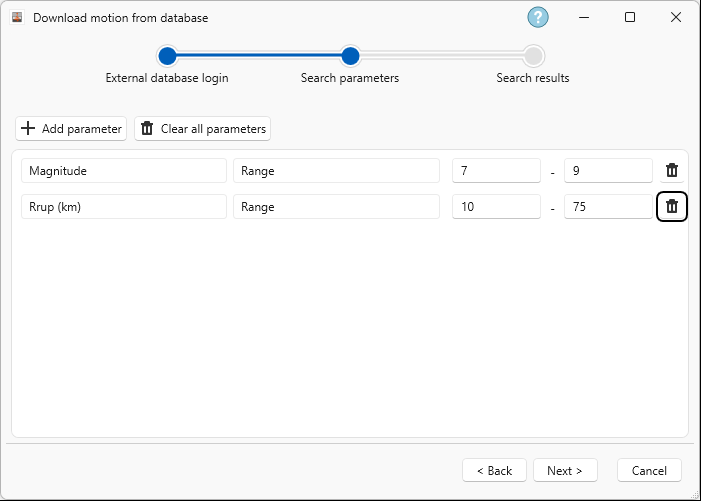
- Once the parameters have been entered, click Next.
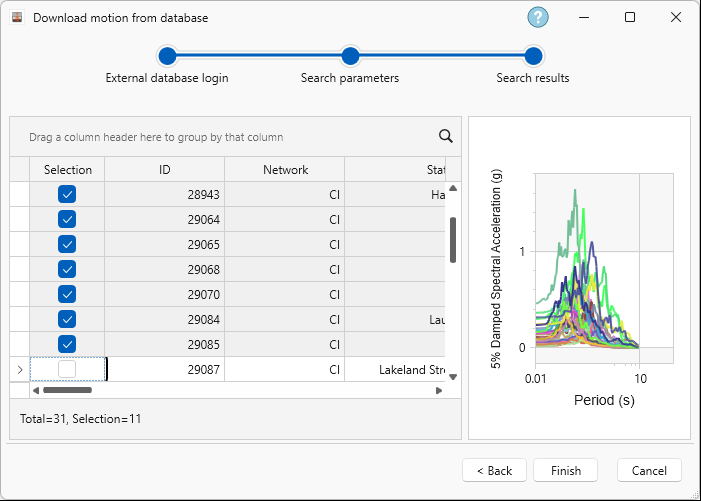
- For this search, a total of 62 events satisfied the criteria. We will select the first 11 events shown in the table for our analyses. The chart on the right shows the spectral acceleration for all 3 components of each selected record
- Click Finish. The new motion records will be imported.
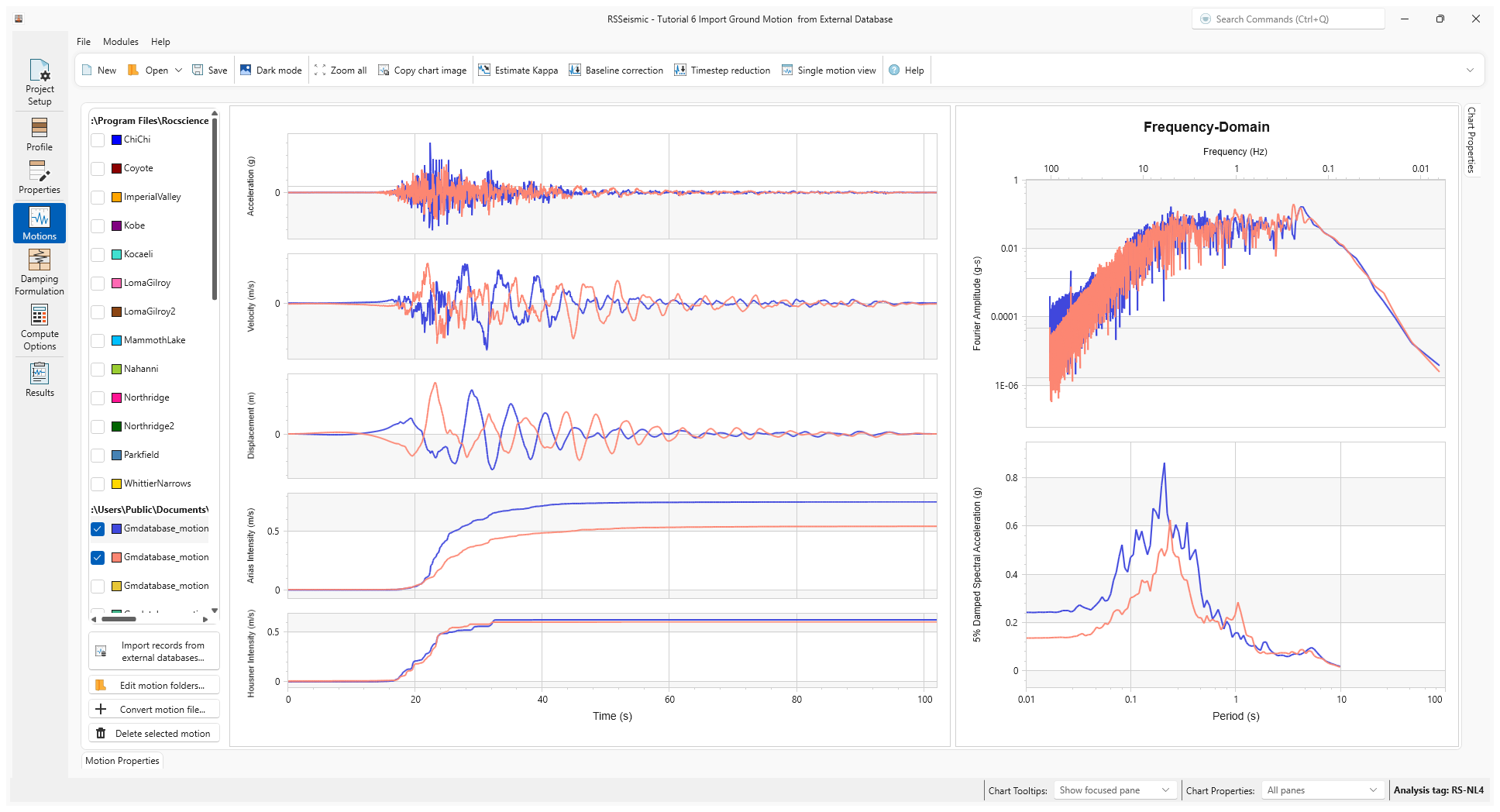
- Select the 2 horizontal components (h1 and h2) of the event labeled as motion_28869.
6.0 Damping formulation
- Select the Damping Formulation
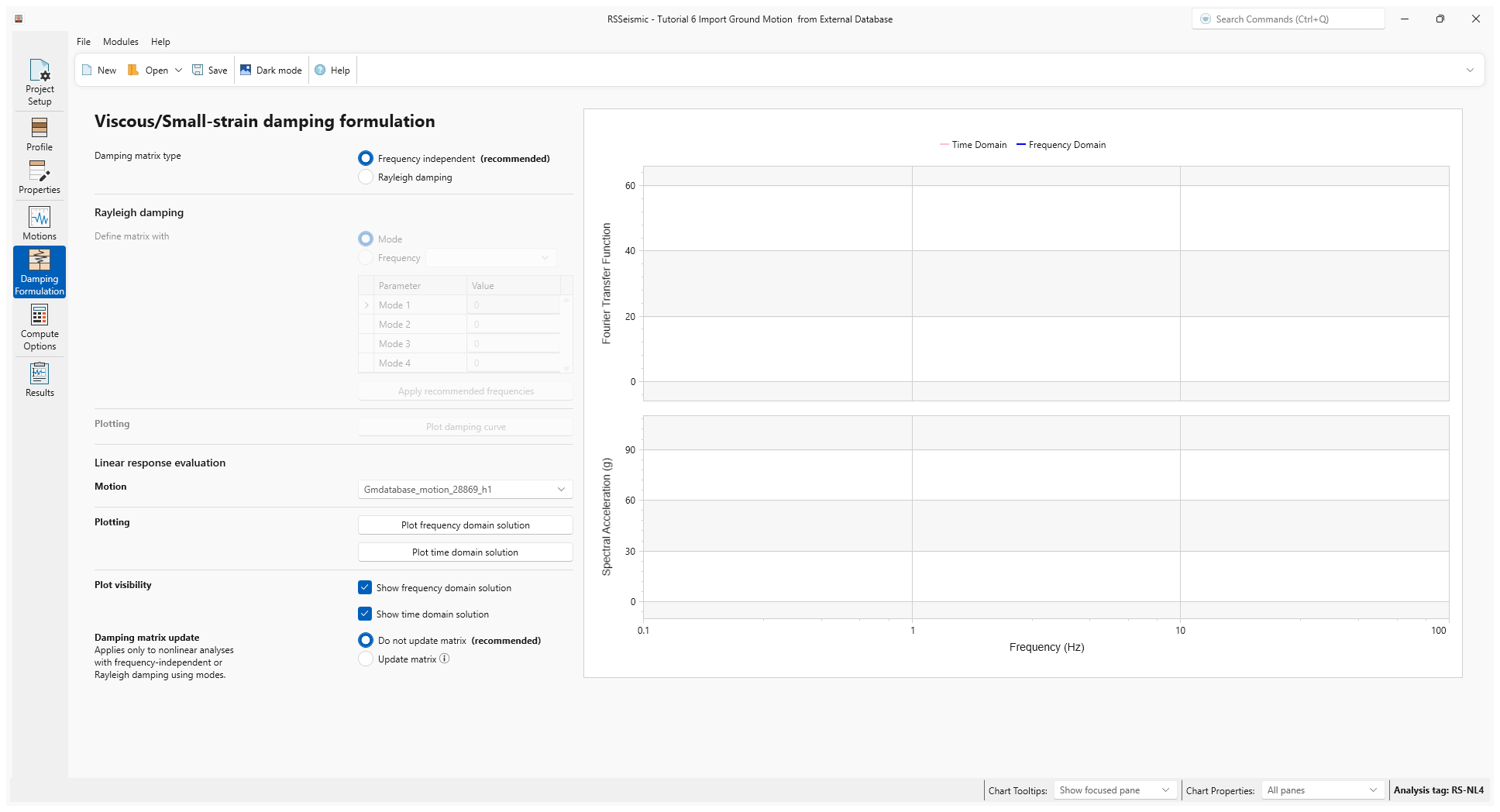
 tab. For the Viscous/small-strain damping formulation, confirm Frequency independent is selected.
7.0 Compute Options
- Select Compute Options
 tab.
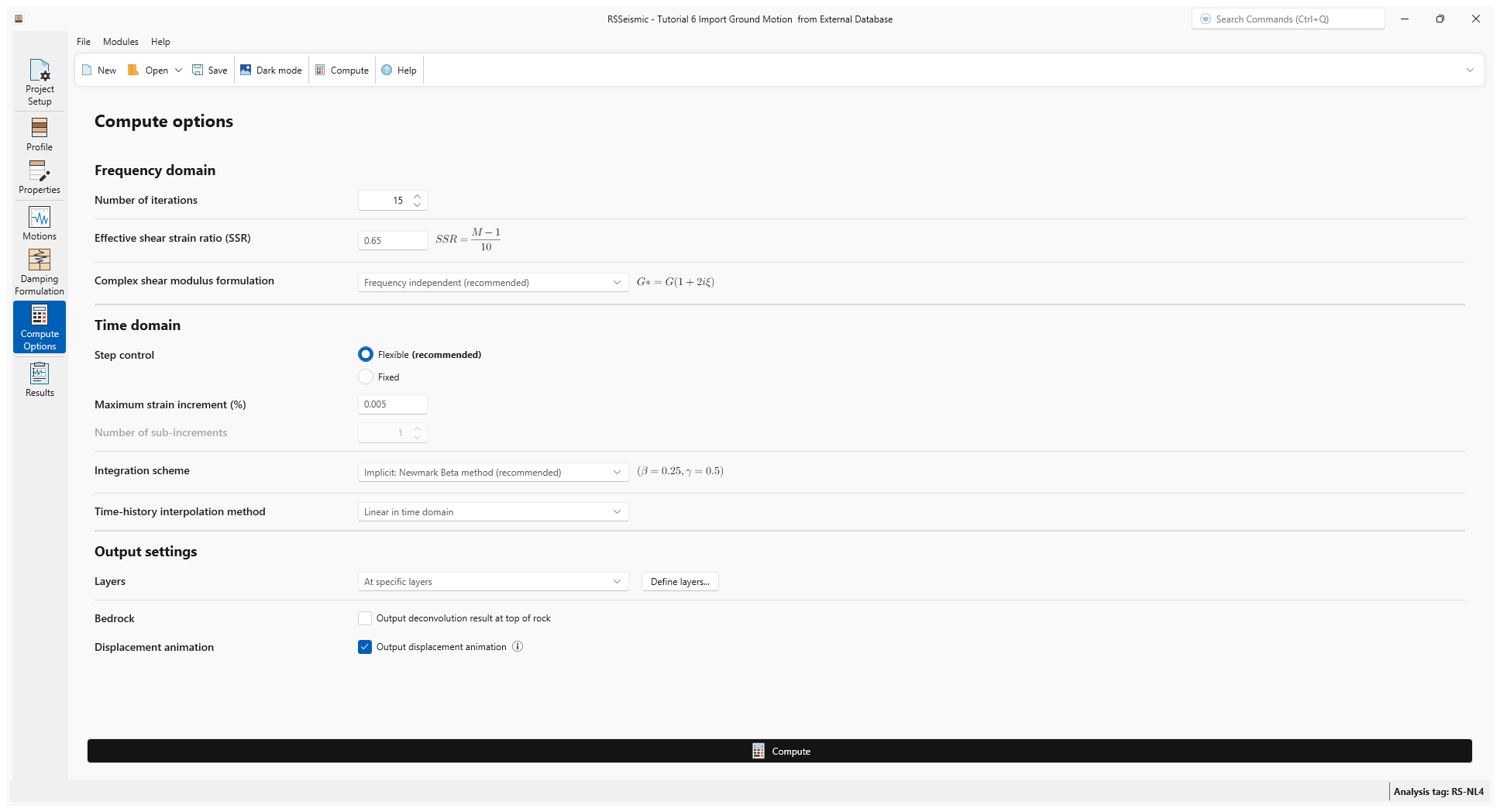
tab. - Run the analysis by clicking Compute .
8.0 Results
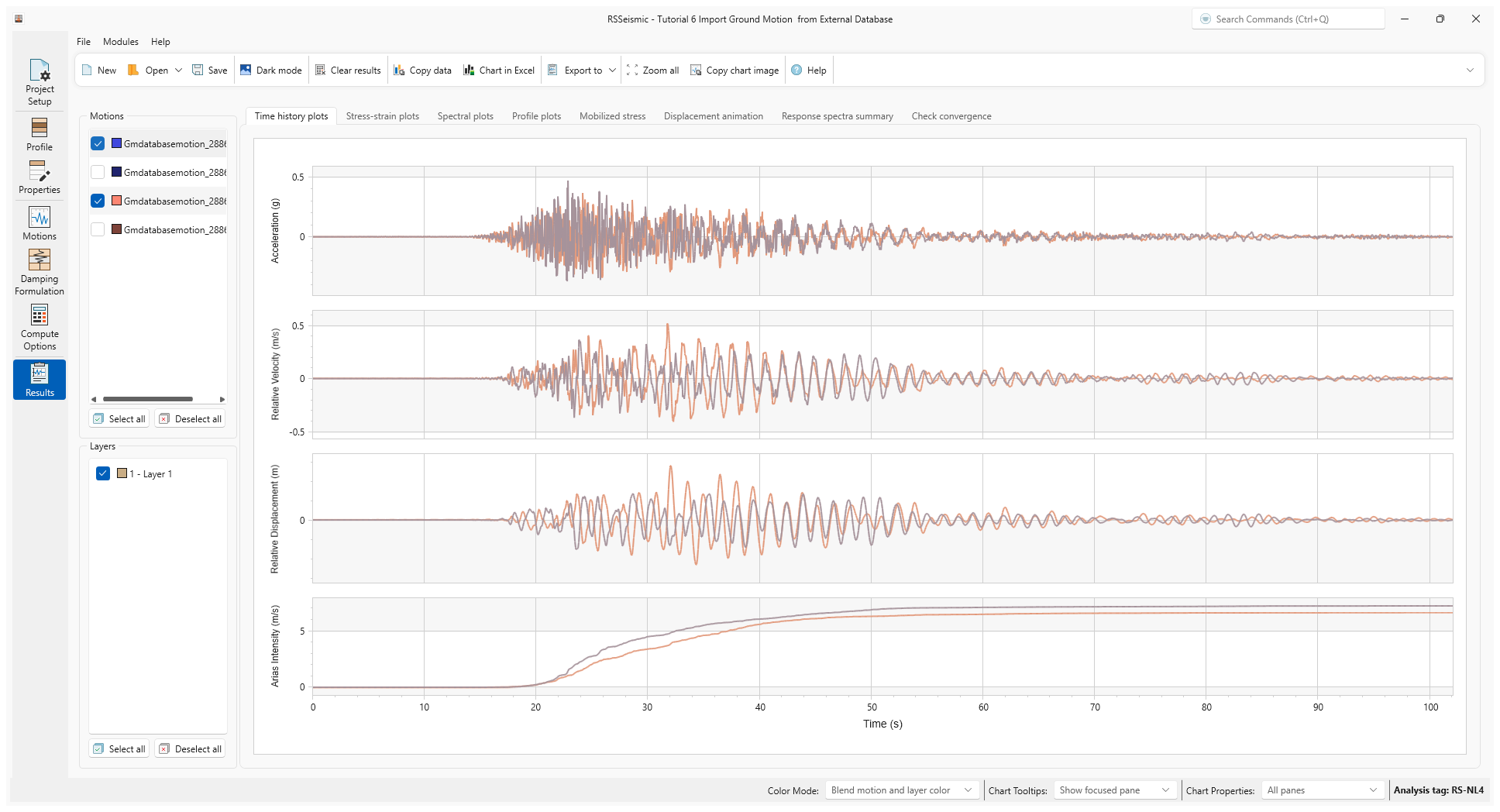
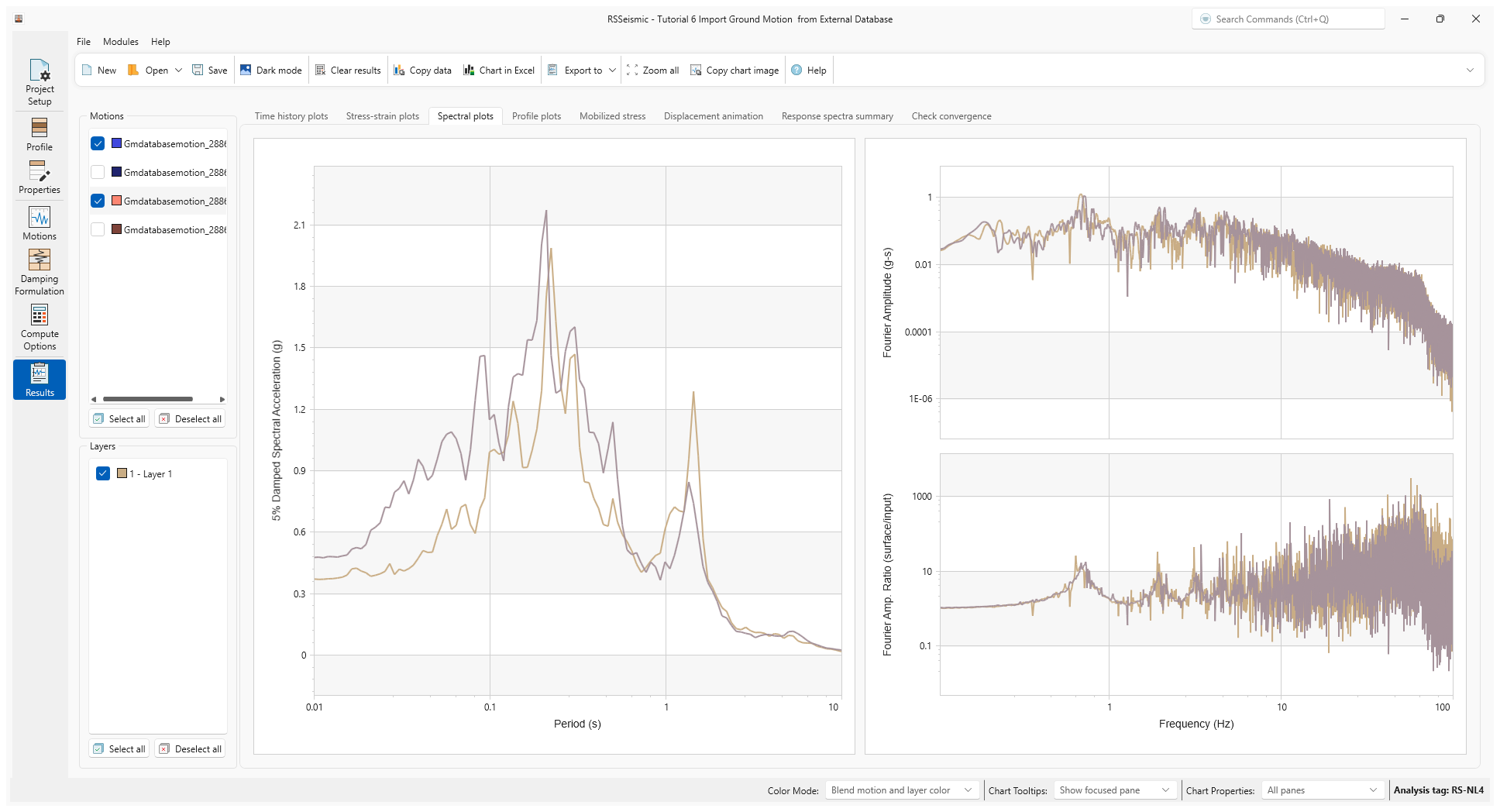
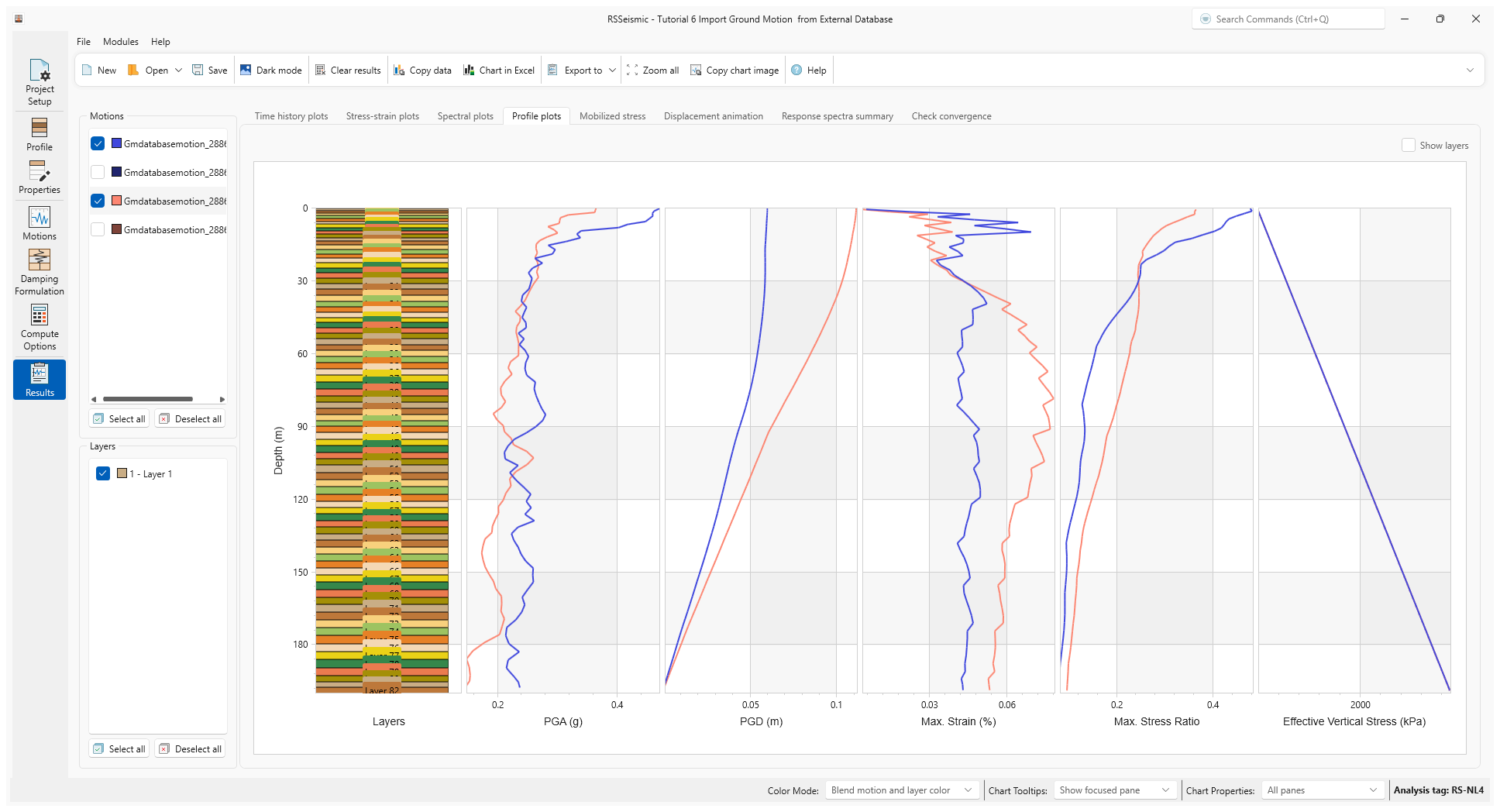
After the analysis is completed, users will be able to access and inspect the results from multiple perspectives. Below are the results of the Nonlinear analysis.
Time histories:
Spectral response:
Profile plots:
9.0 Summary
This tutorial will help users learn how to incorporate the Import from external databases feature in their 1D site response workflow. The introduction of this feature is part of a larger effort to streamline seismic analysis in the Rocscience environment.