10 - Getting Started with RSWall Python Scripting
In this tutorial, we will walk you through the setup process and provide an overview of how to run your first Python script for RSWall.
Prerequisites
Before you begin, ensure you have the RSWall program installed. You must have at minimum Version 1.006 in order to use this feature.
Python Environment
There are two different ways to set up python environments, as listed below.
Running on RocScript Editor
- Comes pre-installed with RSWall and includes the RSWall Python API library
- For all-level users
Running on your own Python environment
- Requires downloading the RSWall Python API library
- For advanced users
Each method is detailed below.
Method 1: Using RocScript
1.1 Opening the editor
- In RSWall, select Help > Scripting > Open RocScript Editor
 from the menu. The RocScript Editor will open.
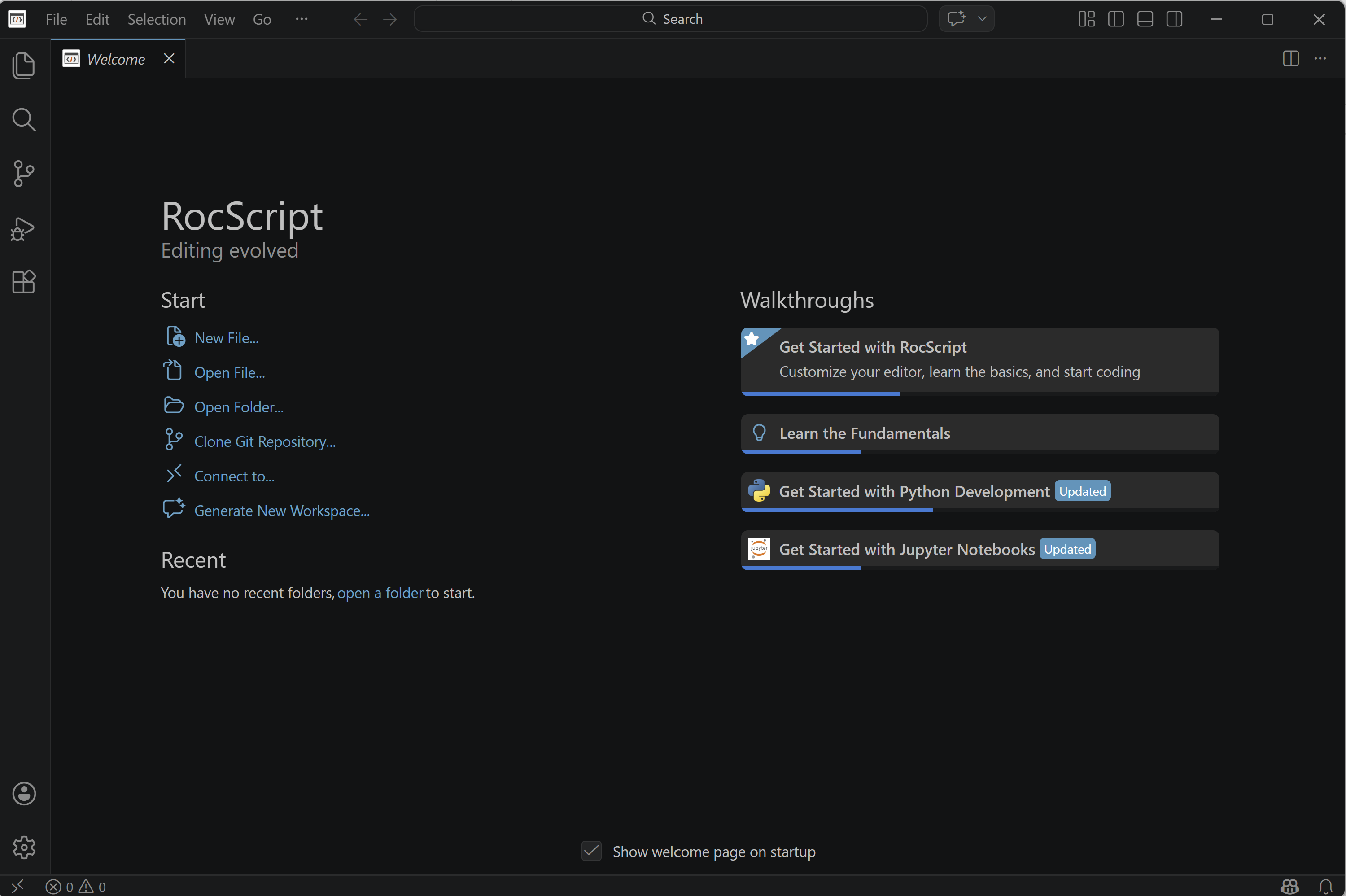
You can also open the RocScript Editor from the Windows start menu. For more information about the RocScript Editor, see the Scripting Overview help topic.
1.2 Open a File
To open a file from the RocScript Editor:
- Select File > Open File from the menu.
- Select the RSWall_Scripting_Tutorial.py python file from the tutorial folder directory: C:\Users\Public\Documents\Rocscience\RSWall Tutorials\Tutorial 10 -Starting Scripting\RSWall_Scripting_Tutorial.py
If you provided a custom location for examples when installing RSWall, search the provided location instead.
1.3 (Optional): Install Libraries
- In the RSWall program, select Help > Scripting > Manage Python Environment

The RocScript WinPython Command Prompt will open:
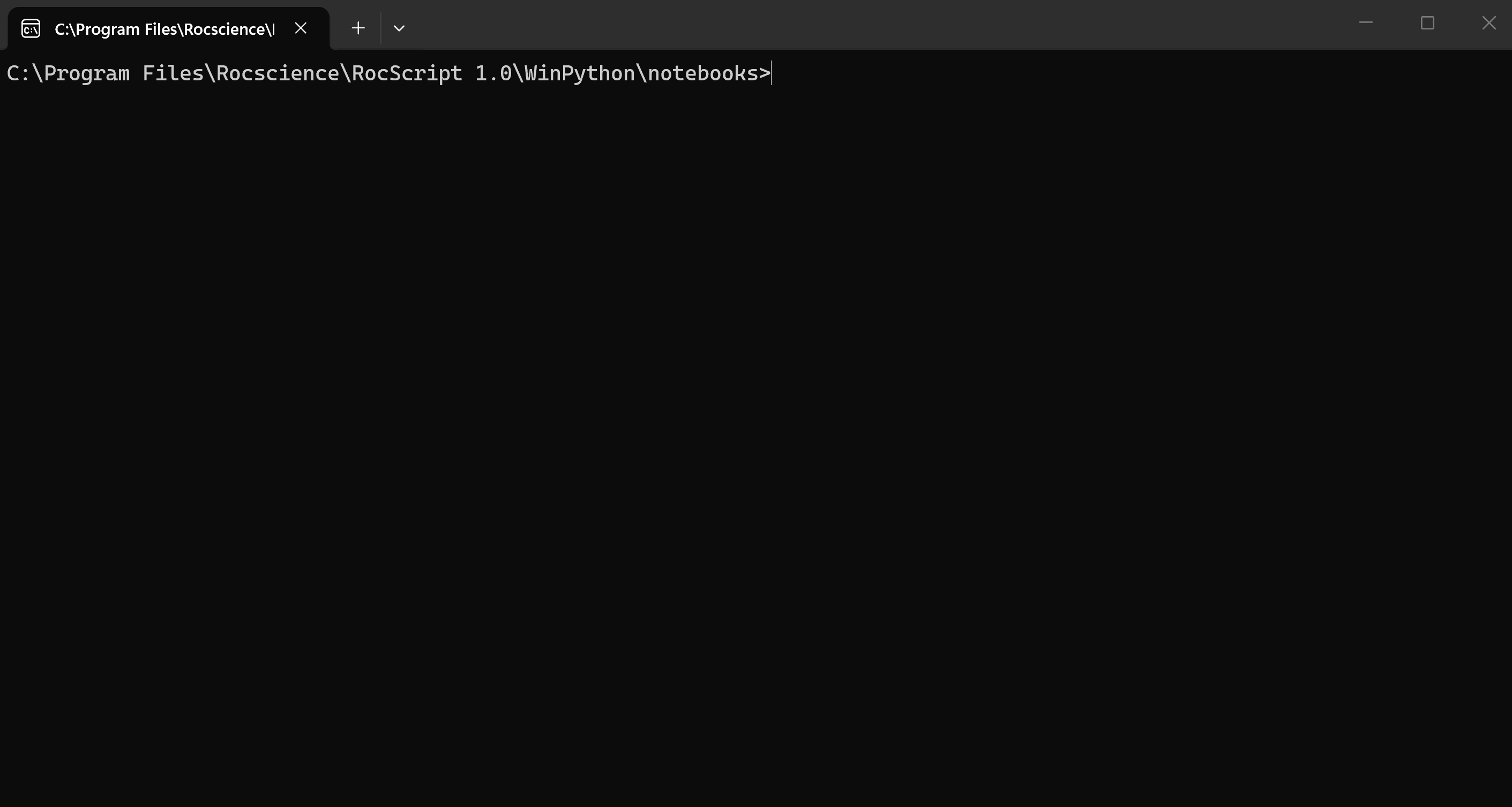
- Check the installed libraries with the command:
pip listPre-installed libraries include the RSWall Python API Library and two common python libraries: Pandas and Matplotlib.
- If you wish to install more libraries, use the below command to do so:
pip install [library name]Method 2: Using your Own Environment
The python environment is made up of two parts which need to be installed:
- The Python Interpreter (Section 2.1 below)
- The Code Editor (Section 2.2 below)
2.1 Install Python
Navigate to the 3.11.4 release page, scroll down and select Windows installer (64-bit).
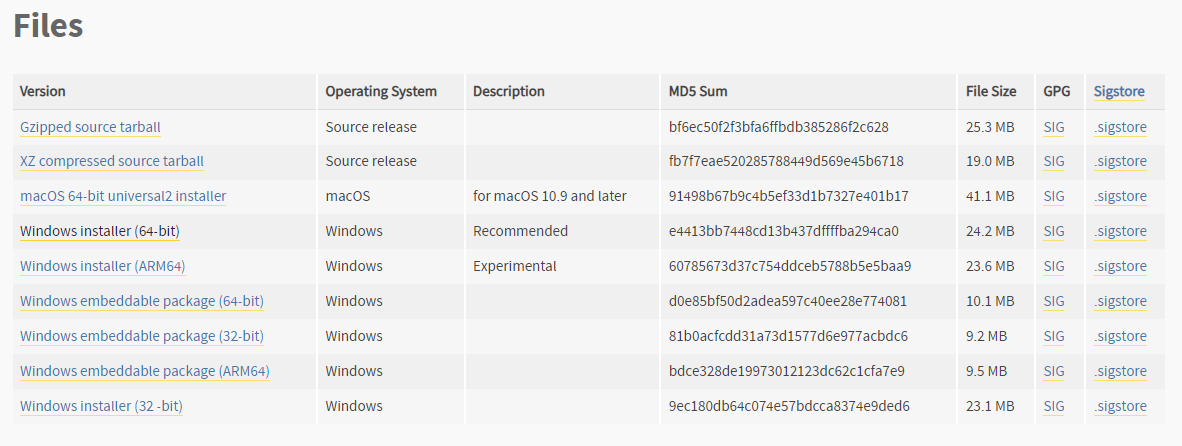
- Run the installer. Keep the defaults and select Install Now. Installation should complete successfully.
Note that any version of python above 3.7 should work, but 3.11.4 was the most thoroughly tested.
2.2 Install a Python Code Editor
Any code editor can be used, but we recommend you use Visual Studio Code.
To download and install Visual Studio Code:
Navigate to the Download page (https://code.visualstudio.com/download) and select the Windows option:
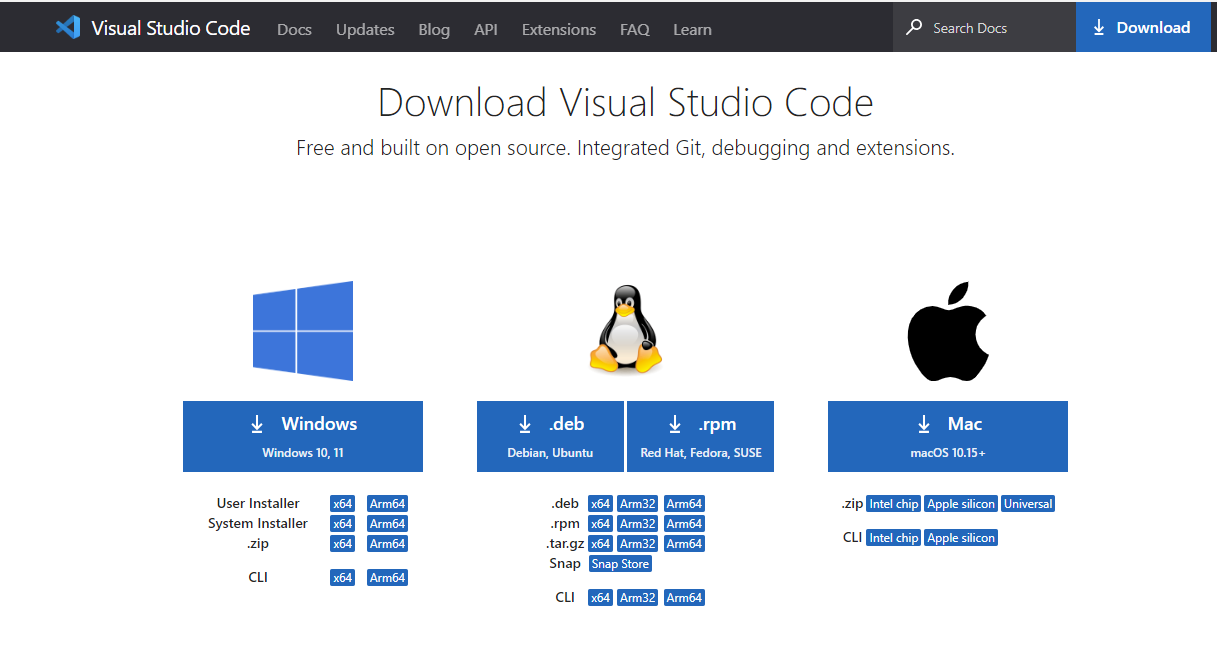
- Run the installer and complete the installation.
2.3 Configure Editor for Python
Visual Studio Code (VSCode) has extensions which can be installed.
Navigate to the Extensions pane and search for python.
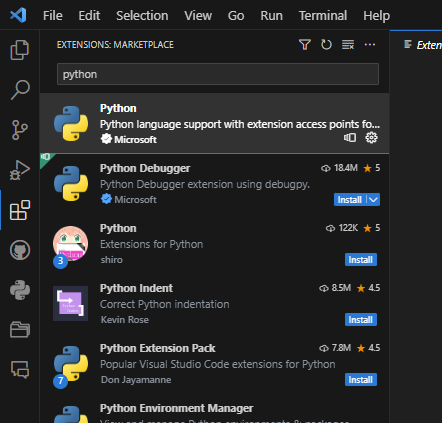
- Install the python extension.
- Restart VSCode.
2.4 Install the RSWall Library
- In VSCode, select View > Terminal in the menu to open a terminal.
- Install the library using pip, which is a package manager that comes with python:
pip install rswallIf you are not using the latest release of RSWall, you need to specify a library version that matches your RSWall version. For example:
pip install "RSWall==1.006"To find a list of available versions, see the RSWall Release History.
You can find your version of RSWall by selecting Help > About in the RSWall program.
The RSWall Python API Library is now installed.
2.5 Open a File
To open a file from the RocScript Editor:
- Select File > Open File from the menu.
- Select the RSWall_Scripting_Tutorial.py python file from the tutorial folder directory: C:\Users\Public\Documents\Rocscience\RSWall Tutorials\Tutorial 10 - Scripting\helloScripting.py
If you provided a custom location for examples when installing RSWall, search the provided location instead.
2.6 Run the File
To run the file:
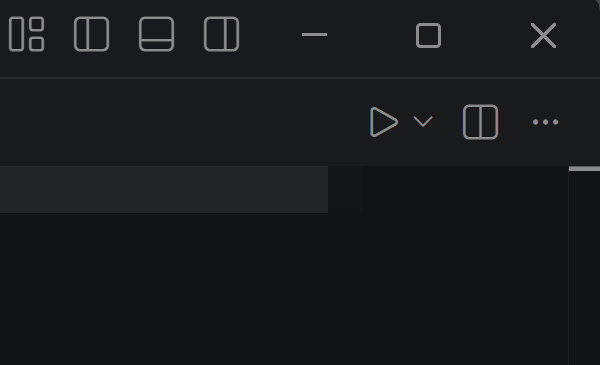
- Click on the play button at the top right of the window:
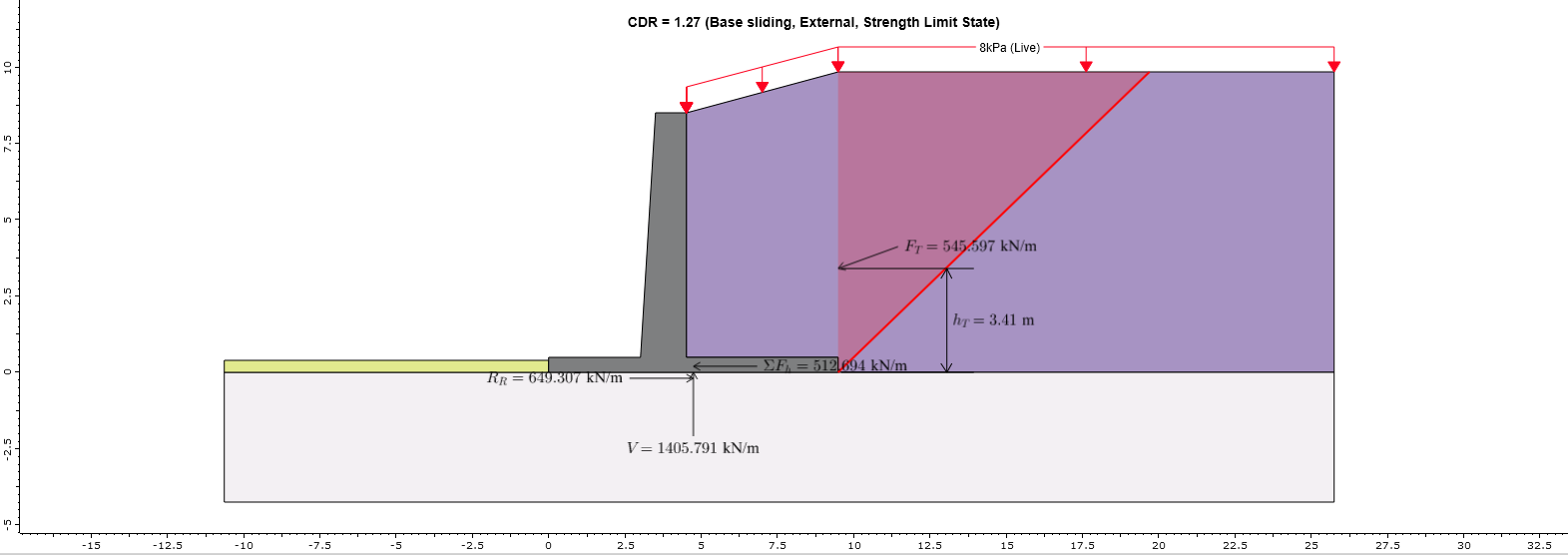
The helloScripting.py script demonstrates a simple application of RSWall Scripting. Using functions from the RSWall Python API, it connects to the RSWall Modeler and a scripting server at port 60067. The script then opens a working copy of the Tutorial 10 - Scripting.rswall model file, increases the cantilever wall stem height (h3) by 0.5 m, renames Soil 1 and Soil 2 to backfill soil and front face soil while setting unit weight of backfill soil to 22 kN/m³ and friction angle of front face soil to 25°, assigns the front face soil to the front face region, and updates Load 1 to a Live surcharge of 8 kPa assigned to Segment 1. After computing the wall, the modified file is saved to the output directory.
Resources
For more information on RSWall Scripting, check out the following resources: