9 - Multi-Tiered Wall
In this tutorial, a multi-tiered MSE wall is designed using the AASHTO 2024 standard. A step-by-step guide through the design process is provided.
Topics covered:
- Multi-tiered wall wizard
Finished product
The finished product of this tutorial can be found in the Tutorial 9 folder. All tutorial files installed with RSWall can be accessed by selecting File > Recent Folders > Tutorials Folder from the RSWall main menu.
1.0 Getting Started
This section will cover starting a new project and configuring the project settings.
- Open RSWall and select MSE wall from the wall template options.
- For Design Standard select AASHTO 2024.
- Click OK.
2.0 Project Settings
- Select Home > Project > Project Settings

- In the Units tab, select Metric, stress as kPa.
- Select the Wall type tab.
- Segmental wall is selected by default
- Select the Design Standard tab.
- Ensure AASHTO 2024 is selected. In the Load Combinations section, Serviceability is already deselected, deselect Extreme too, so only Strength is selected.
Select the Methodology tab.
- Set the Active pressure method to Coulomb method.
- Set the Tension in reinforcement to Simplified method.
Currently, other active pressure and tension in reinforcement options are not supported for multi-tier walls- Click OK to apply your changes.
3.0 Wall
In this section we will define the multi-tiered wall using the wizard.
- Go to the Wall ribbon.
You can see that by default, Wall 1 is already available. In the Segment Tree, right click on Wall 1 and select Delete to delete it.
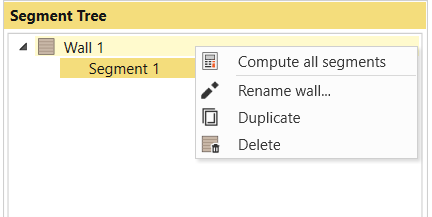
- Select Wall > Multi-Tiered Wall > Wizard

- In the Multi-Tiered Wall Wizard, enter the parameters as follows:
- Height:
- H1 = 1.5 m
- H2 = 1.5 m
- Offset:
- Vertical offset = 0.2 m
- Horizontal offset = 1 m
- Terrace shape:
- Initial run: 0 m
Slope angle: 20 degrees
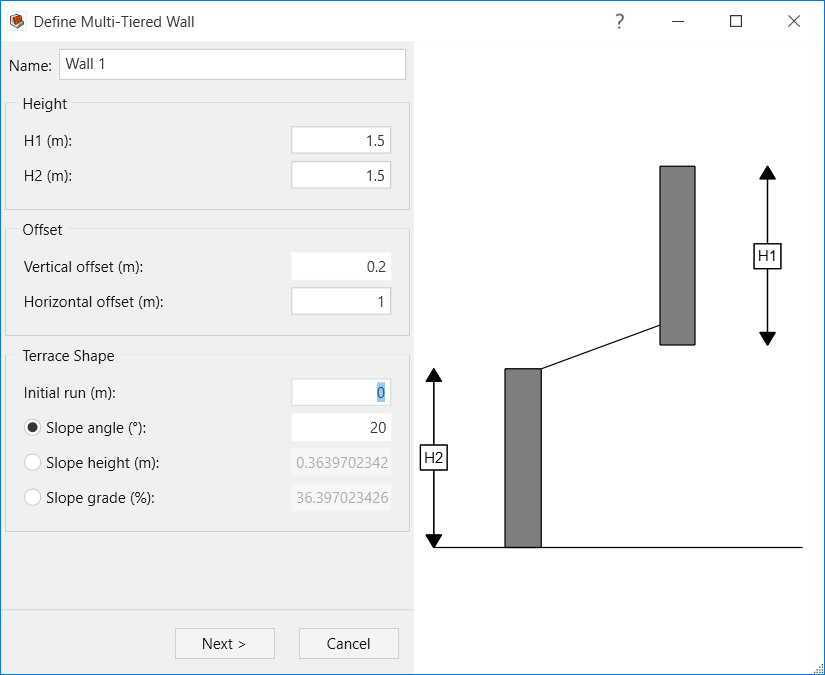
- Height:
- Click Next.
- Click on Wall Unit Properties and edit the parameters for Wall Unit 1 as follows:
- Height = 0.25 m
- Depth = 0.3 m
- Width = 0.4 m
- Center of gravity = 0.15 m
- Weight density = 23 kN/m3
- Interlayer shear strength type = Constant
Shear capacity = 50 kN/m
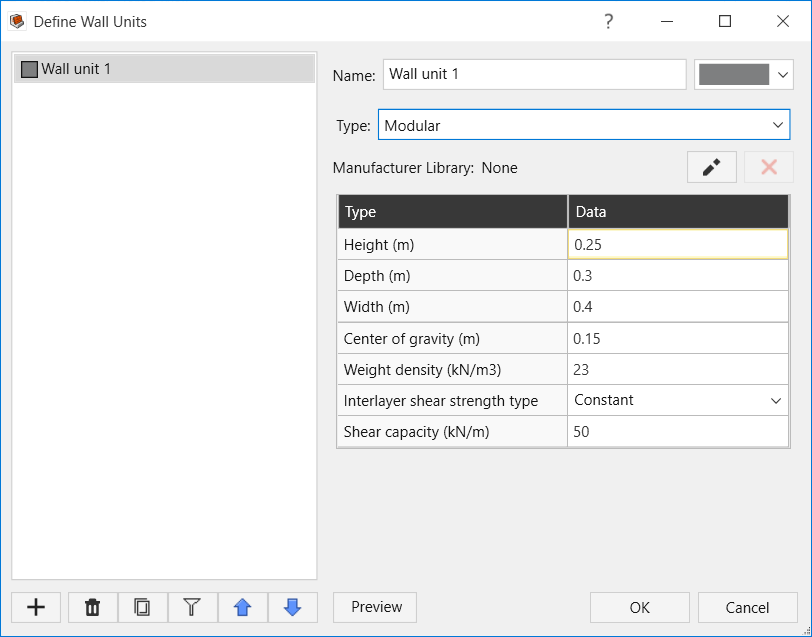
- Click OK to apply your changes and close the Define Wall Units dialog
- Click Finish to apply your changes and close the wizard
To make more detailed changes to the geometry of each tier, use the Define Section Profile dialog.
- Select Wall > Wall Profile > Define Section Profile

- In the Define Section Profiles dialog, change the following parameters for both tiers:
Set Uniform Setback Distance to 20 mm
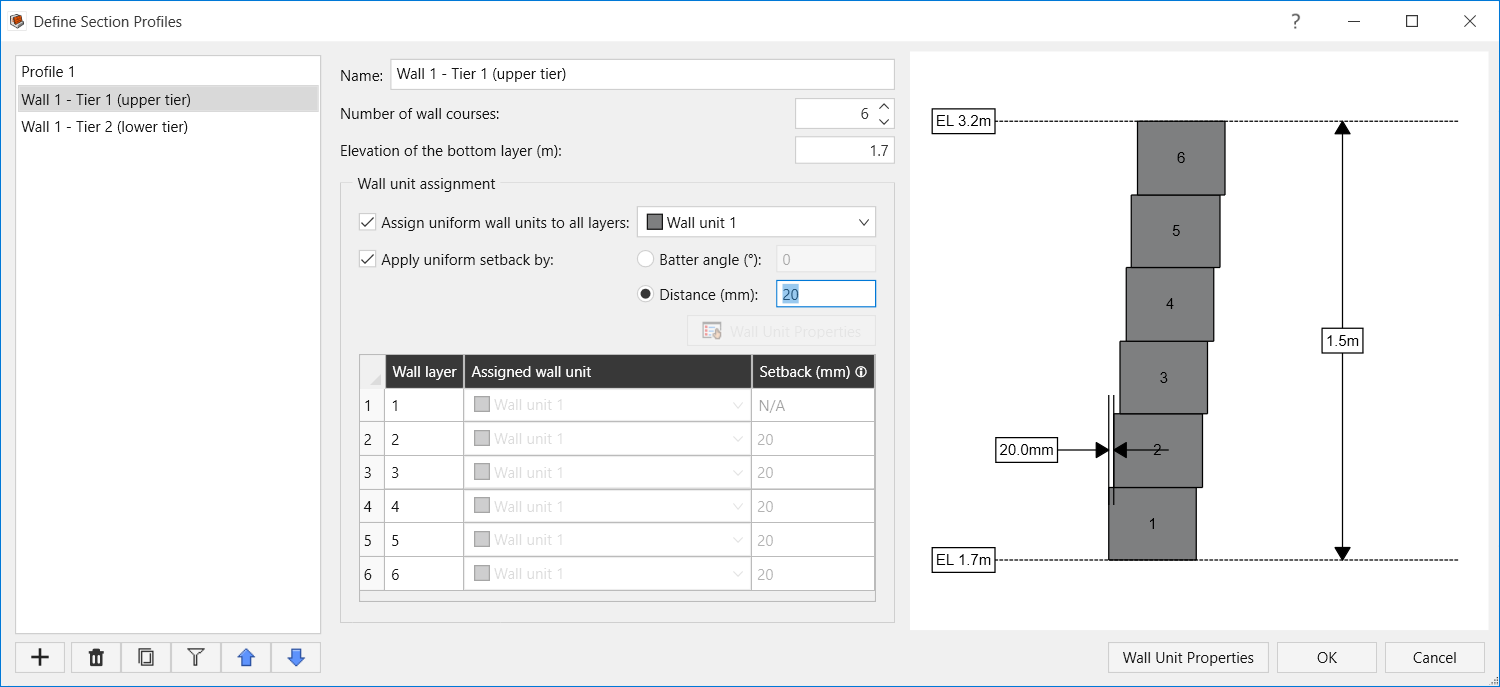
- Click OK
Further changes to the tier offsets or terrace can be made through the Edit Multi-Tiered Wall dialog.
- Select Wall > Multi-Tiered Wall > Edit

In this dialog, the section profile properties can be reassigned, and the tier offsets and terrace geometry can be edited.
You can see for both Tier 1 and 2, the vertical offset of 0.2m and the slope angle of 20 ° are considered for the offset and Terrace shape.
- Click OK to close the window
Now we will finish setting up the rest of the wall
- Select Wall > Base > Add Leveling Pad

- In the Add Leveling Pad dialog, for both tiers, select the Add leveling pad checkbox and enter the following dimensions:
- Units = m
- Thickness = 0.15
- Width = 0.6
Setback = 0.075
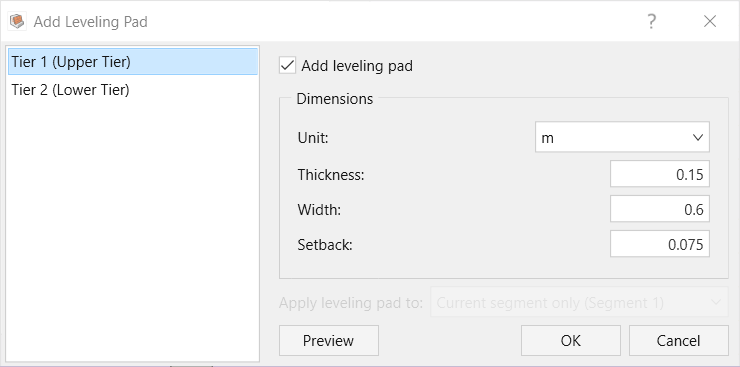
- Click OK.
- Select Wall > Base > Define Base Strength

For both tiers, set Contact with soil = Soil on soil
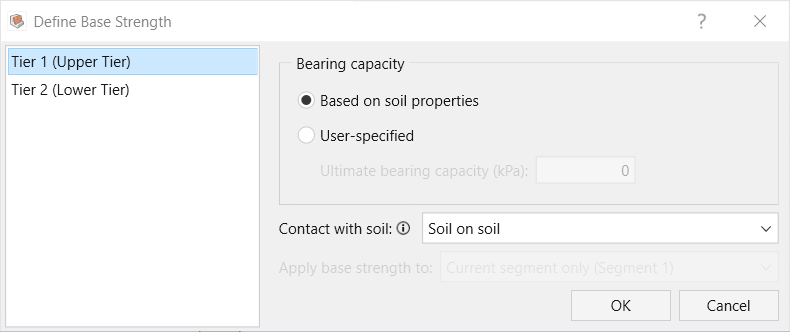
- Click OK.
4.0 Soil
In this section we will define the soil properties and assign them to different regions
- Go to the Soil ribbon.
- Select Soil > Soil Conditions > Define Soil Properties

- In the Define Soil Properties dialog, add the following soil properties in the General tab as they are defined in the table below. The coefficient of adhesion in the Advanced tab is zero for all defined soils.
| Soil name/Property | Unit weight (kN/m3) | Friction Angle | Soil-structure friction Angle | Cohesion |
| Retained upper tier | 20 | 30 | 20 | 0 |
| Retained lower tier | 20 | 32 | 21 | 0 |
| Reinforced | 22 | 34 | 22 | 0 |
| Foundation | 20 | 30 | 20 | 0 |
| Leveling Pad | 24 | 40 | 27 | 200 |
- Click OK
- Select Soil > Soil Conditions > Assign Soil Properties

To assign a soil property to a region:
- Select the desired soil property from the left-hand menu.
- Click the desired region on the diagram to assign the property. You will see the region’s color change to correspond with the selected soil property.
The matching soil properties to the soil regions are as follows:
- Front Face Soil = Foundation soil property.
- Reinforced Soil = Reinforced soil property.
- Backfill Soil (Tier 1) = Retained upper tier soil property.
- Backfill Soil (Tier 2) = Retained lower tier soil property
- Foundation Soil = Foundation soil property.
Leveling Pad = Leveling Pad soil property.
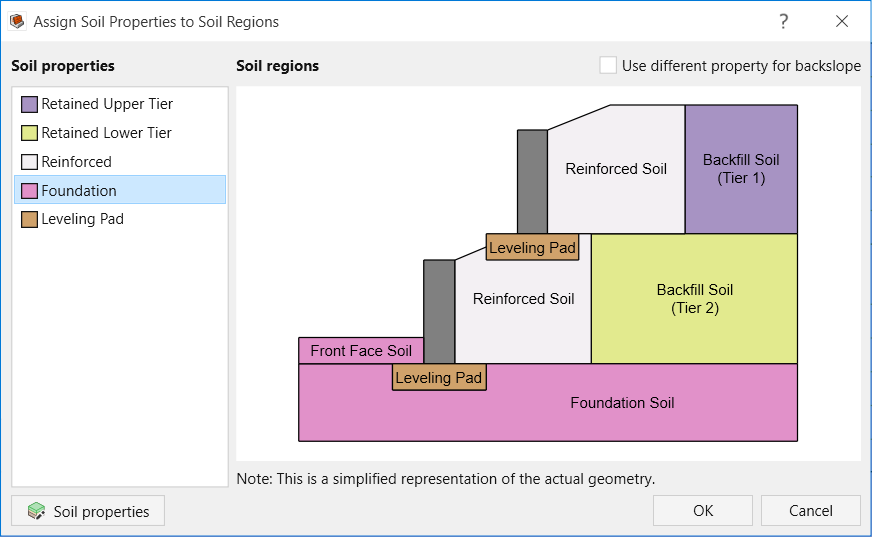
- Click OK.
- Select Home > File > Save > Save As and save the model as “Tutorial 9”.
5.0 Loading and Support
In this section we will define a live load, as well as our reinforcement properties and arrangement.
- Go to the Loading and Support ribbon.
- Select Loading and Support > Loads > Manage Loads

- In the Manage Loads dialog, for Load 1 enter the following:
- Distribution = Line load
- Classification = Live surcharge
- Direction = Vertical
- Set Horizontal distance (m) = 1
- Set Depth (m) = 0
- Set Magnitude (kN/m) = 10
- Bearing width (m) = 1
Select the Assigned Segments tab and assign the load to Segment 1.
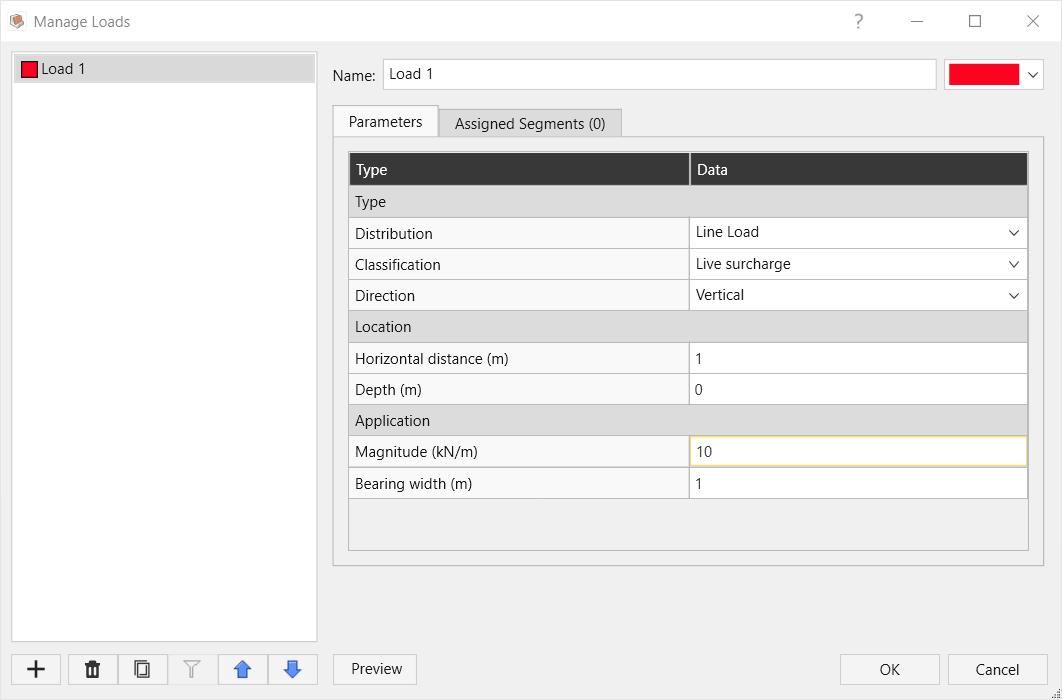
- Click OK to apply your changes and close the dialog.
- Select Loading and Support > Reinforcement > Add Layout

The Add Reinforcement Layout dialog will open.
- For Tier 1 (Upper Tier) enter the following parameters:
- Define reinforcement placement by = Wall course
- Apply uniform length (m) = 2.5
- Select Apply Uniform Placement
- Number of courses below first layer = 0
- Number of courses between layers = 1
Number of layers = 6. The data from row 1 will be copied to the additional rows.
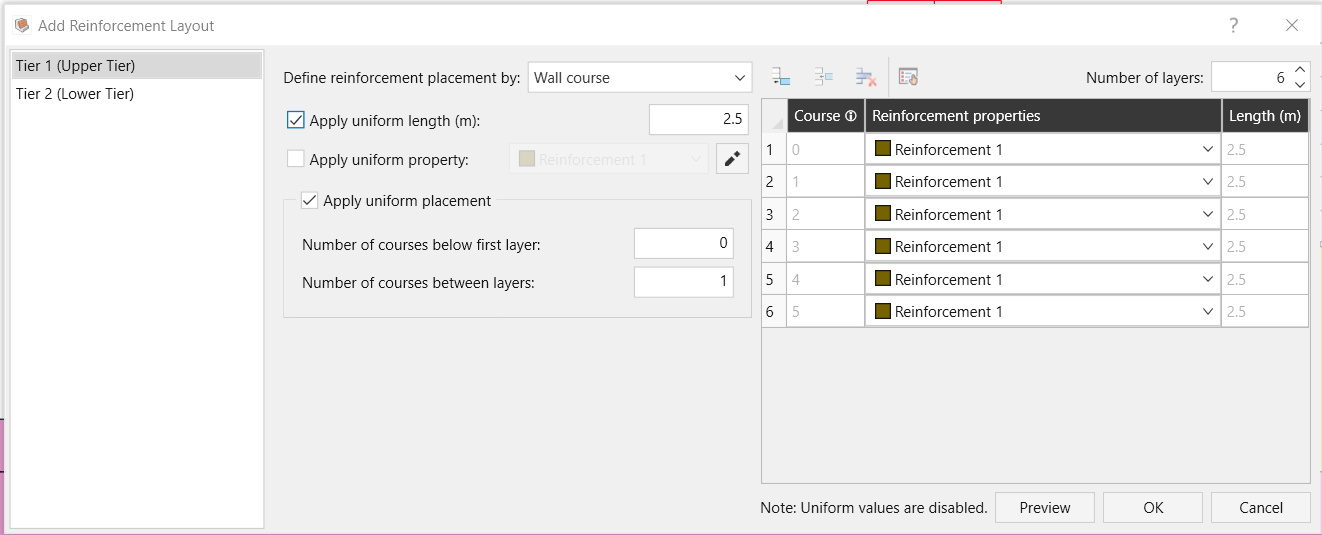
- Repeat step 6 for Tier 2 (Upper Tier)
- Click OK.
6.0 Results
In this section, we will compute the analysis and review the results.
- Go to the Results ribbon.
- Select Results > Compute > Compute

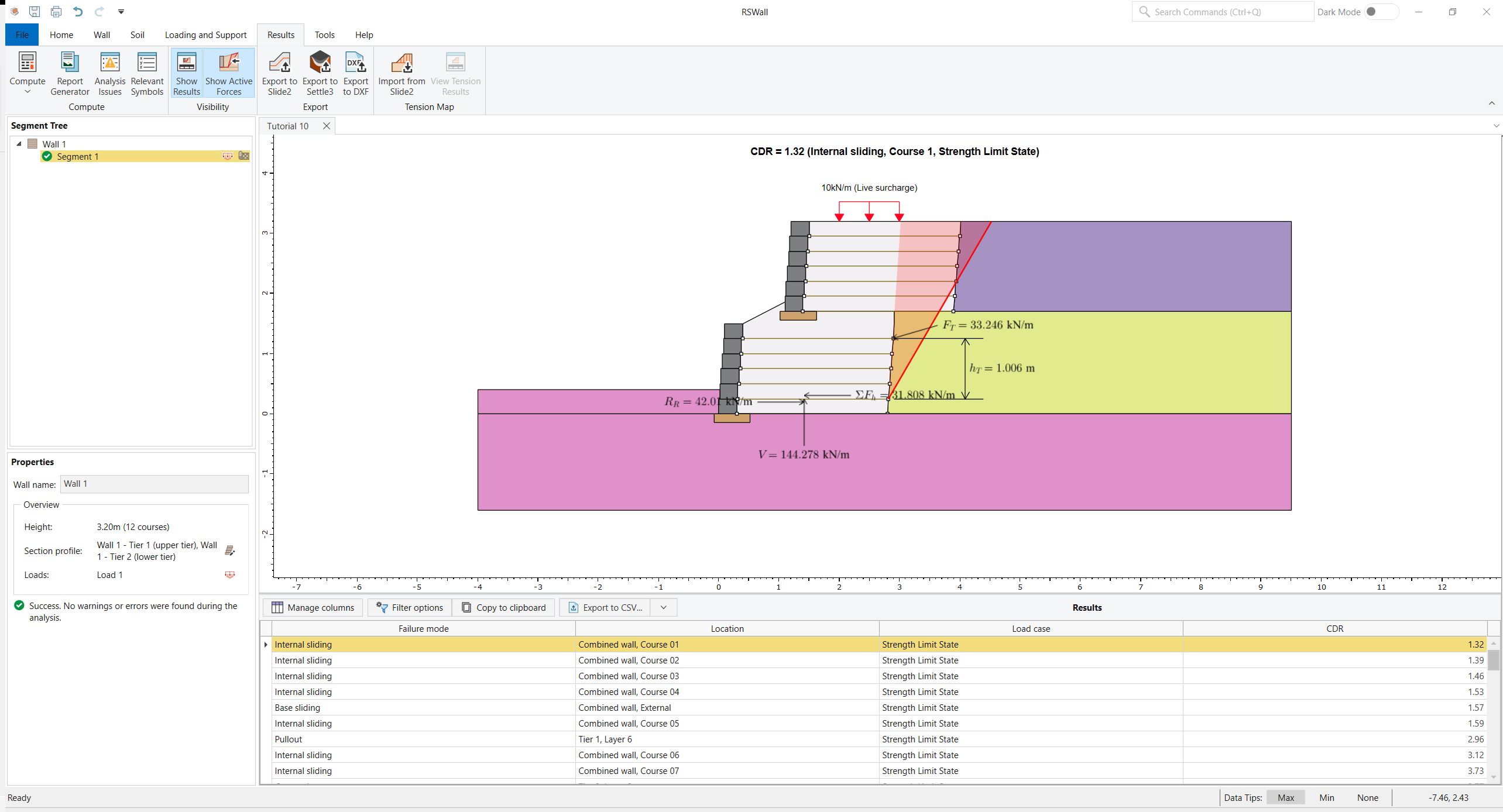
After the computation is complete, the results will appear onscreen:
The software shows the lowest Capacity Demand Ratio (CDR) value.
The Location column Results Grid now indicates whether the result corresponds to Tier 1, Tier 2, or the Combined wall geometry.
- Select Results > Compute > Report Generator in the toolbar. The Report Generator in RSWall provides all the hand calculations for the output results of the RSWall program.
- Under Navigation, click on the Results section. At the beginning of the section, the List of symbols used in the analysis is provided.
- Select Segment 1 > Complete Multi-Tiered Wall > Model properties. Note the separate sections for each component of the analysis. In the first section, the combined multi-tiered wall geometry is used to assess external and internal stability for the entire wall as a combined unit. In the other two sections, internal stability is assessed for each tier, and external stability is assessed for the top tier.
- Detailed hand calculations for each component of the analysis are provided