10 - Matching a ground motion suite to a target spectrum
1.0 Introduction
In this tutorial, we will match a ground motion suite to a target spectrum using the automatic record selection approach. More specifically, we will query a target spectrum using the NHSMP dynamic hazard feature and then automatically select a ground motion suite from the Ground-Motion Relational Database (Buckreis et al., 2023). Scaled ground motions will be employed.
Topics Covered in this Tutorial:
- Matching a ground motion suite to a target spectrum using the automatic record selection
- Ground motion matching using amplitude scaling
2.0 Open Ground Motion Manager
- Begin by opening RSSeismic.
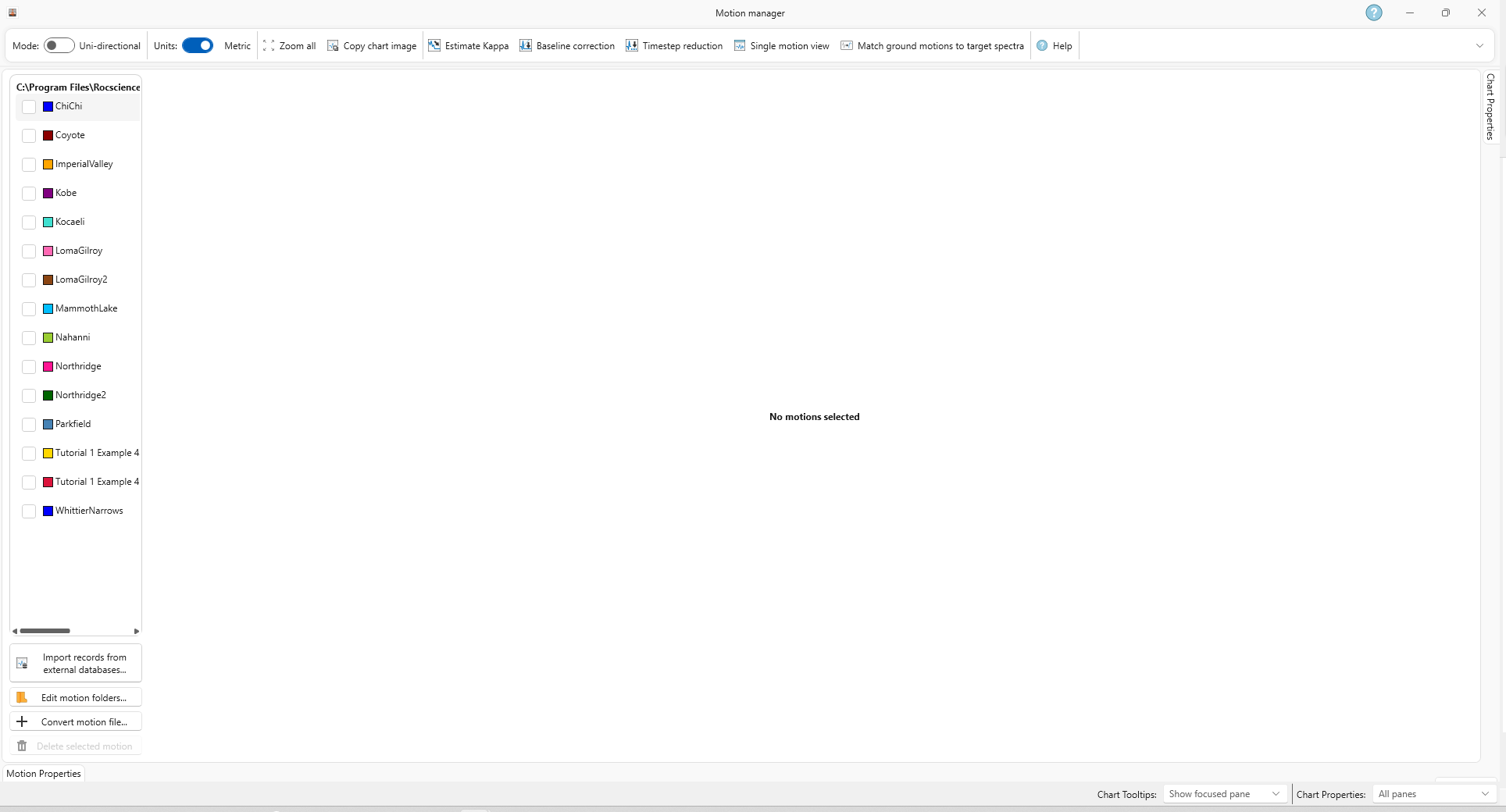
- Click Motion Manager
 to launch the Ground Motion Manager module. This can also be done by selecting Modules > Motion Manager in the menu.
3.0 Open “Match ground motion to target spectra”
- In the upper right corner, click on the Match ground motion to target spectra
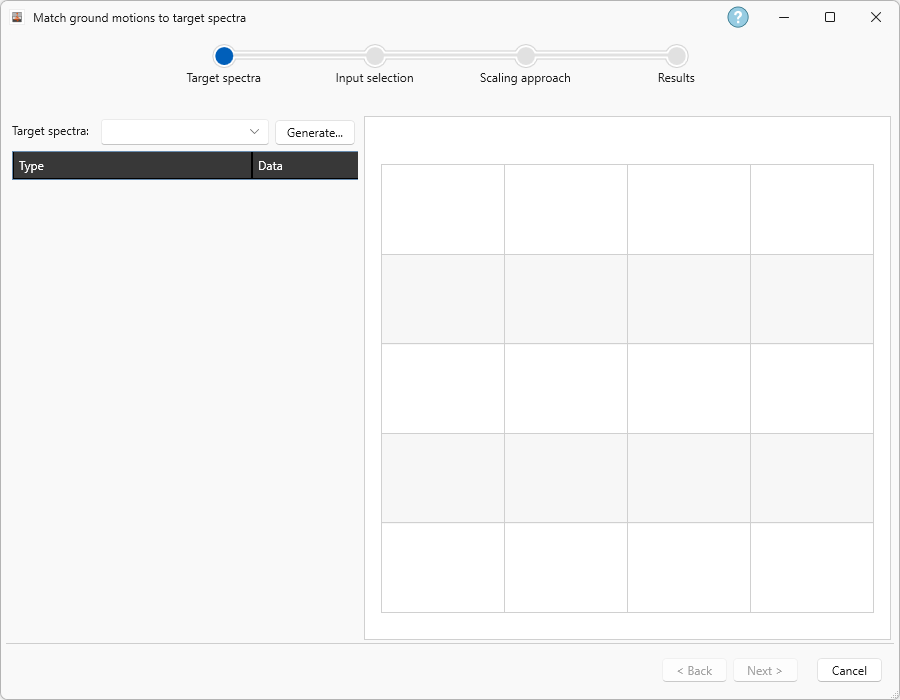
 feature. This will open the Match Ground Motion to Target Spectra dialog.
4.0 Query a target spectrum
The first step is to define a target spectrum. In this case we will employ the NSHMP dynamic curves.
- Using the Target Spectra drop down, select NSHMP Dynamic Hazard Curves.
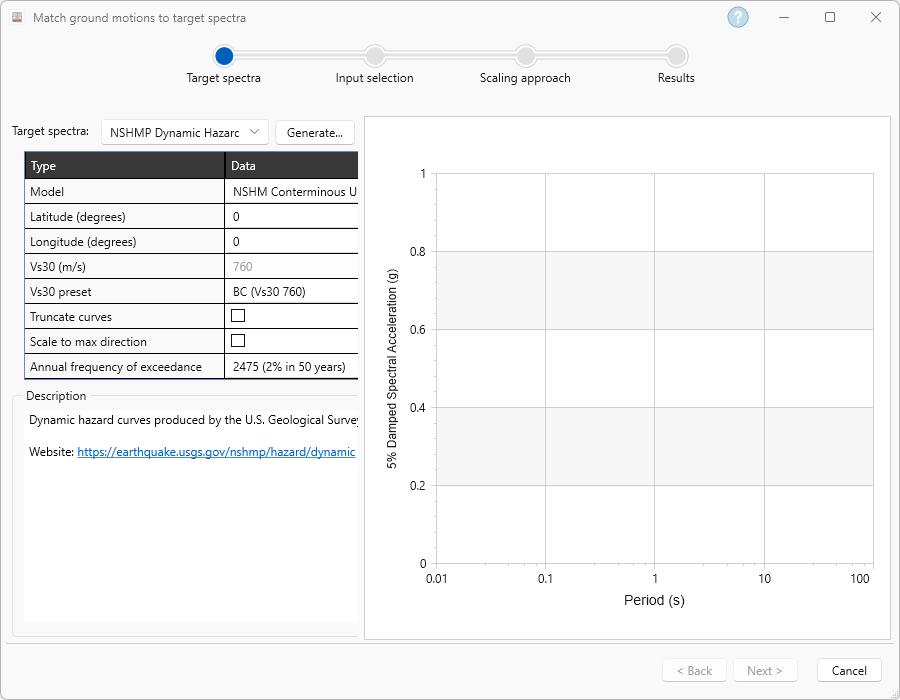
For this example, we will use a site located in San Francisco, California, specifically near the Golden Gate Bridge. For this site we will also employ a BC site class, which specifies a VS30 of 760 m/s and a 2% probability of exceedance in 50 years. To do so, enter.
- Latitude (degrees) = 37.83
- Longitude (degreees) = -122.486
- Vs30 preset = BC (Vs30 760)
- Annual frequency of exceedance = 2475 (2% in 50 years)
After defining the inputs, click on Generate.
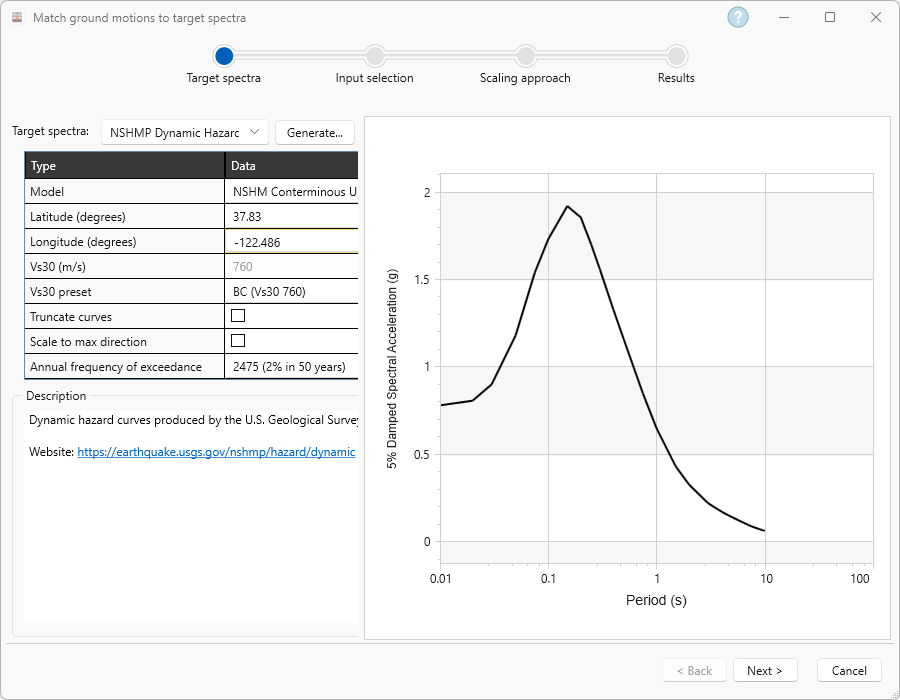
- Once generated, click Next.
5.0 Select database and record selection parameters
- In the Input selection tab, select Selection Method = Automatic record selection.
Select an output folder where you have administrator privileges.
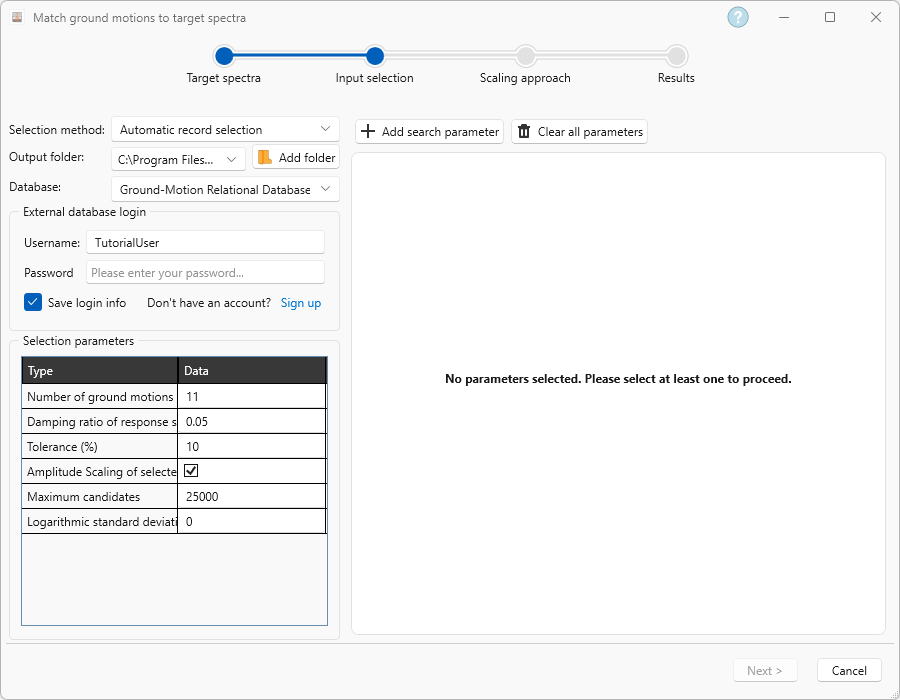
- After this, we will select the Ground-Motion Relational Database as the Database that will be used to create the ground motion suite. In order to do this, it is required to log in to the GMDB. If you do not have an account, please use the following link to create one: gmdatabase: Users
For this example we will select 2 search parameters, Magnitude and Rrup.
- Click + Add search parameter. Select:
- Magnitude with a Range of 5-9.
Rrup (km) with a Range of 5-100.
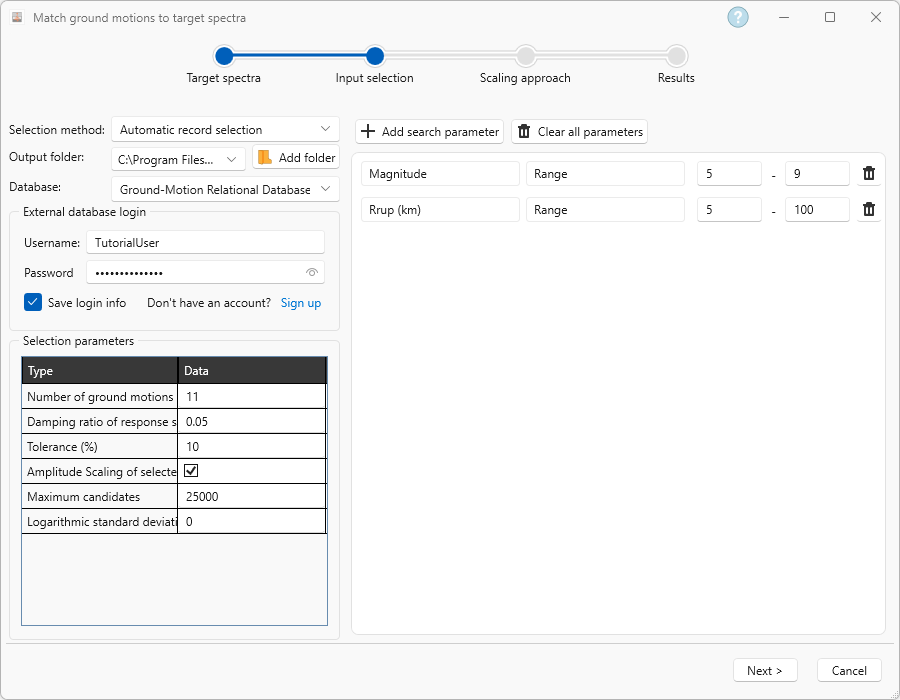
- Click Next.
6.0 Configure Ground Motion Amplitude Scaling
- Select the following parameters for the amplitude scaling:
- T1 (s) = 0.05
- T2 (s) = 2
- Scale factor lower bound = 0.25
- Scale factor upper bound = 5
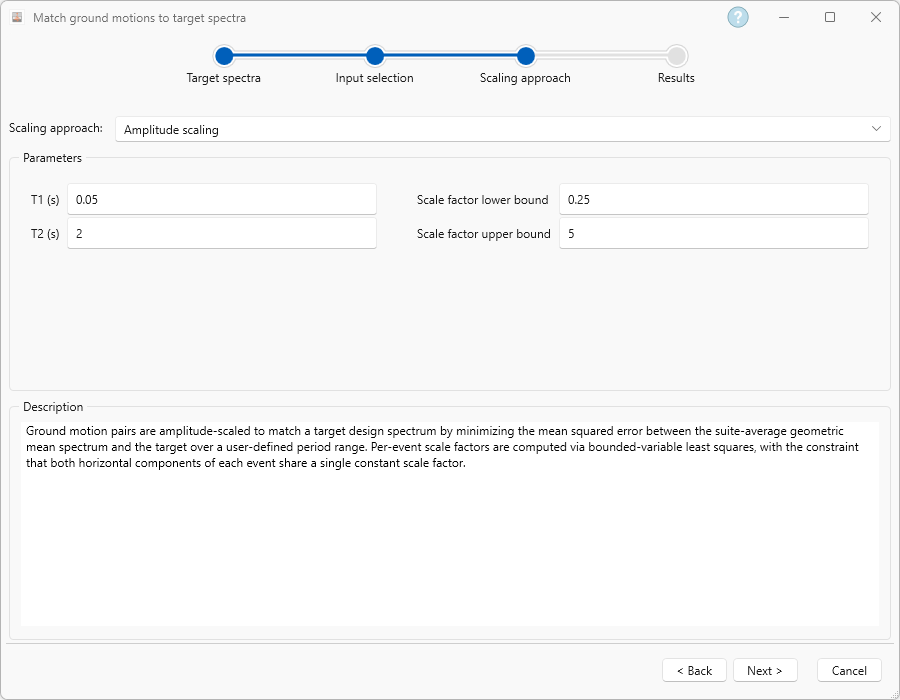
- Click Next.
7.0 Run Matching and Export Selected Ground Motion Suite
After clicking Next, the automatic record selection algorithm will run.
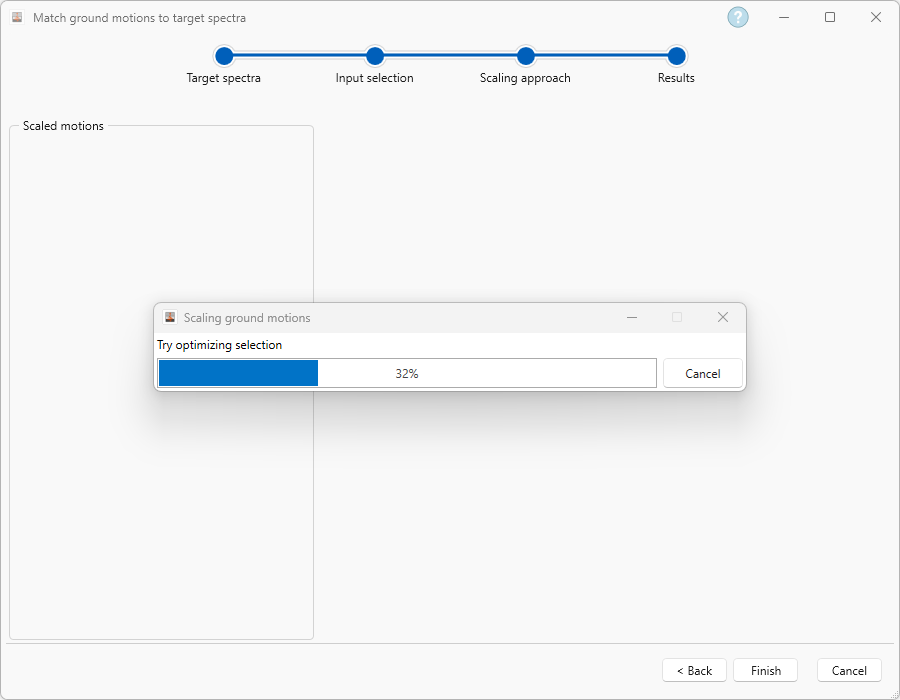
After this, you will be able to visualize the results of the ground motion scaling
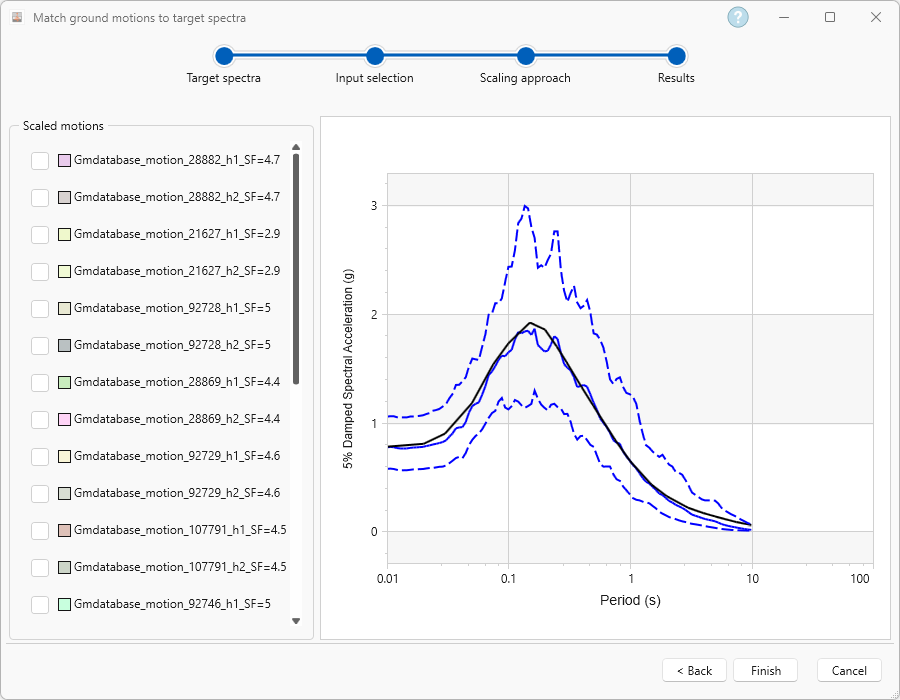
By clickling on Finish, RSSeismic saves the ground motions in the selected output folder, as well as the target spectra employed, and relevant metadata.