More Control, More Flexibility, and a More Efficient Analysis Workflow: Three New Features in RocSlope2
- Yalin Dogan, Geotechnical Product Manager at Rocscience
- Carter Comish, Geotechnical Software Developer
Rock slope stability analysis rarely ends with a single number. While the Factor of Safety remains a fundamental measure of stability, real-world engineering workflows often require much more: isolating specific subsets of potential failure blocks, comparing different failure mechanisms, refining bench geometries, and making multiple model changes before committing to another computation.
As models become larger and analyses generate more potential failure blocks, the ability to control how results are reviewed, how designs are evaluated, and when analyses are recomputed becomes increasingly important.
The latest RocSlope2 update introduces three new features designed to make these workflows more flexible and efficient: Advanced Filtering, Toppling Analysis in Bench Design, and the ability to turn Auto Compute ON or OFF.
Each enhancement addresses a different point in the analysis workflow. Advanced Filtering helps engineers focus on the results that matter to a particular review. Toppling Analysis in Bench Design brings another important failure mechanism into bench evaluation. And Auto Compute ON/OFF gives users greater control over when their analysis is updated as the model evolves.
Together, these enhancements give engineers more control over how results are reviewed, how models are optimized, how bench designs are evaluated, and when analyses are recomputed while maintaining the familiar RocSlope2 workflow.
What’s New?
With the latest update, RocSlope2 users can now:
- Filter analysis results using customizable criteria with Advanced Filtering, making it easier to focus on specific blocks or subsets of results.
- Include Toppling Analysis in Bench Design, extending bench design capabilities to another important failure mechanism.
- Turn Auto Compute ON or OFF, allowing users to decide when the analysis should be updated while making multiple model changes.
These enhancements address different stages of the analysis workflow, from model changes and computation to result interpretation and bench design.
Focusing on the Results That Matter with Advanced Filtering
Large RocSlope2 models can produce a significant number of potential blocks. While having access to a comprehensive set of results is important, engineers often need to focus on a particular subset. For example, blocks within a certain Factor of Safety range, blocks above or below a specific volume, or results associated with a particular analysis mode.
The new Advanced Filtering feature makes it easier to work with these subsets of results.
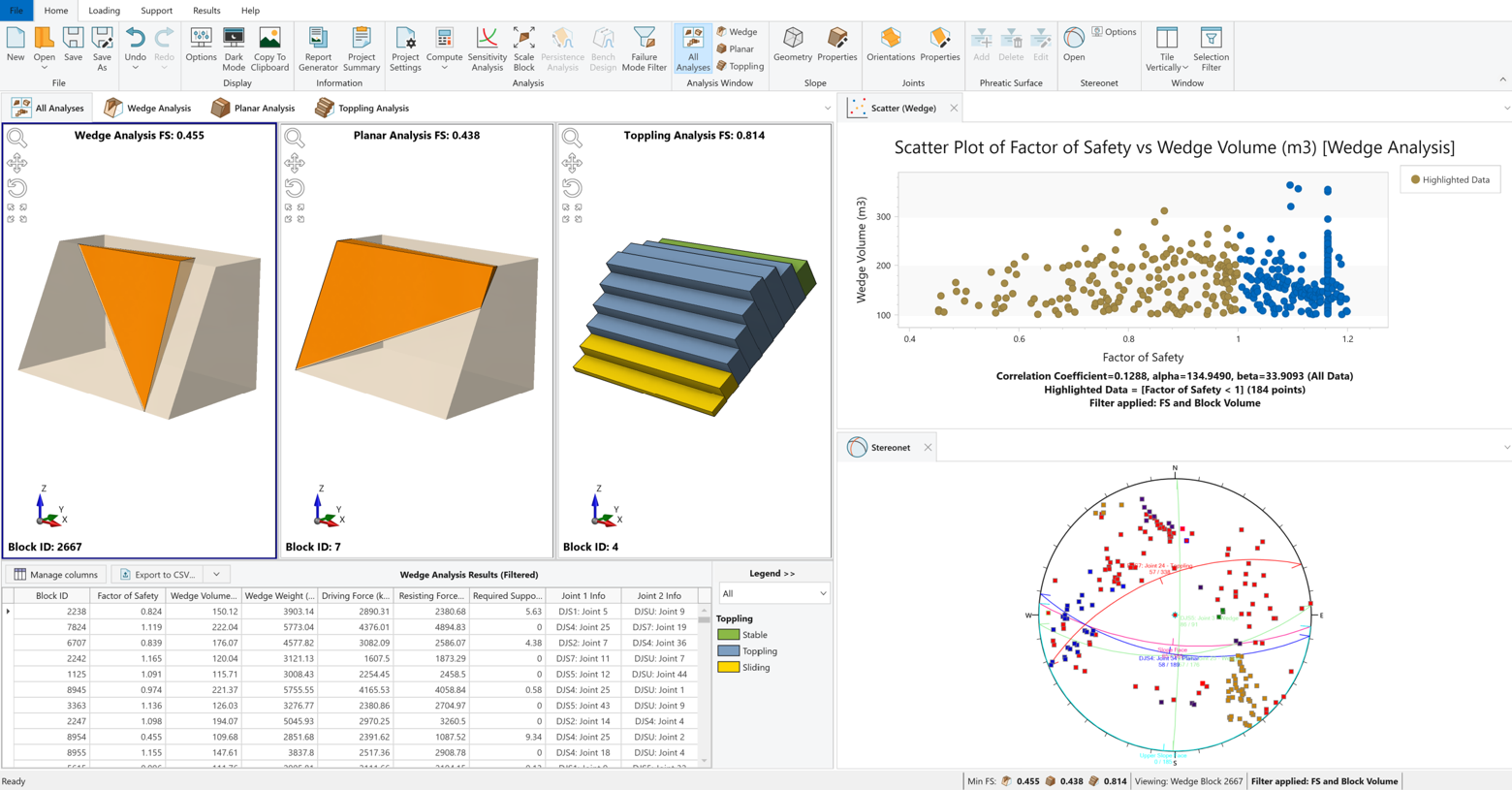
Filtering Your Analysis Results
Advanced Filtering allows users to:
- Define named filter presets using one or more criteria.
- Filter blocks based on parameters such as Factor of Safety, block volume, analysis mode, and other available result parameters.
- Combine multiple criteria to create more targeted result subsets.
- Apply a filter across relevant result displays and exports.
- Save multiple filter presets within a RocSlope2 project.
- Import and export filter presets for reuse in other projects.
Defining and storing multiple filter presets within the project makes it possible to create different views of the same analysis results without changing the underlying model or analysis.
How It Works
Advanced Filtering is available through Results > Filter > Filter Options.
Users can create or select a filter preset and define the criteria they want to use. Once the filter is applied, RocSlope2 updates the relevant result displays to show only the matching blocks.
For example, an engineer could create a filter that displays blocks with a Factor of Safety below a selected value and a volume above a specified threshold. The resulting subset can then be reviewed in the Results Grid, visualized in the model, examined through charts or stereonet displays, and included in relevant result exports.
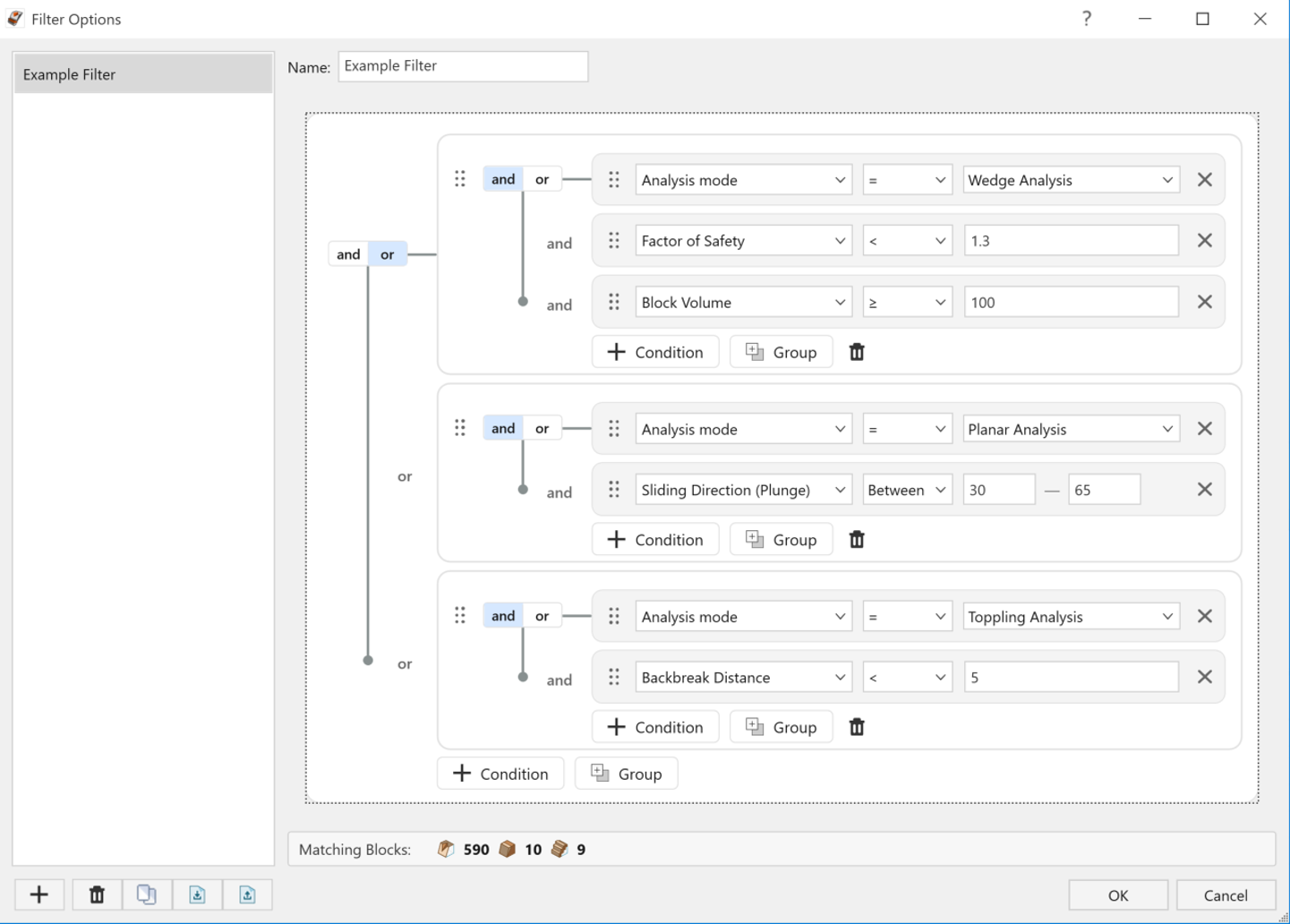
Filters can also be saved as .rocslope2filter files, making it easier to reuse established result-review criteria across different projects.
Importantly, filtering does not change the model or rerun the analysis. It simply provides a focused view of the results that have already been computed. This makes Advanced Filtering particularly useful when working with large result sets where identifying the blocks most relevant to a particular engineering question is an important part of the workflow.
Extending Bench Design to Toppling Analysis
Bench Design is an important part of evaluating open pit slope configurations. RocSlope2's Bench Design functionality allows engineers to investigate bench geometry using probabilistic analysis and assess design parameters such as bench width, inter-ramp angle, and bench face angle.
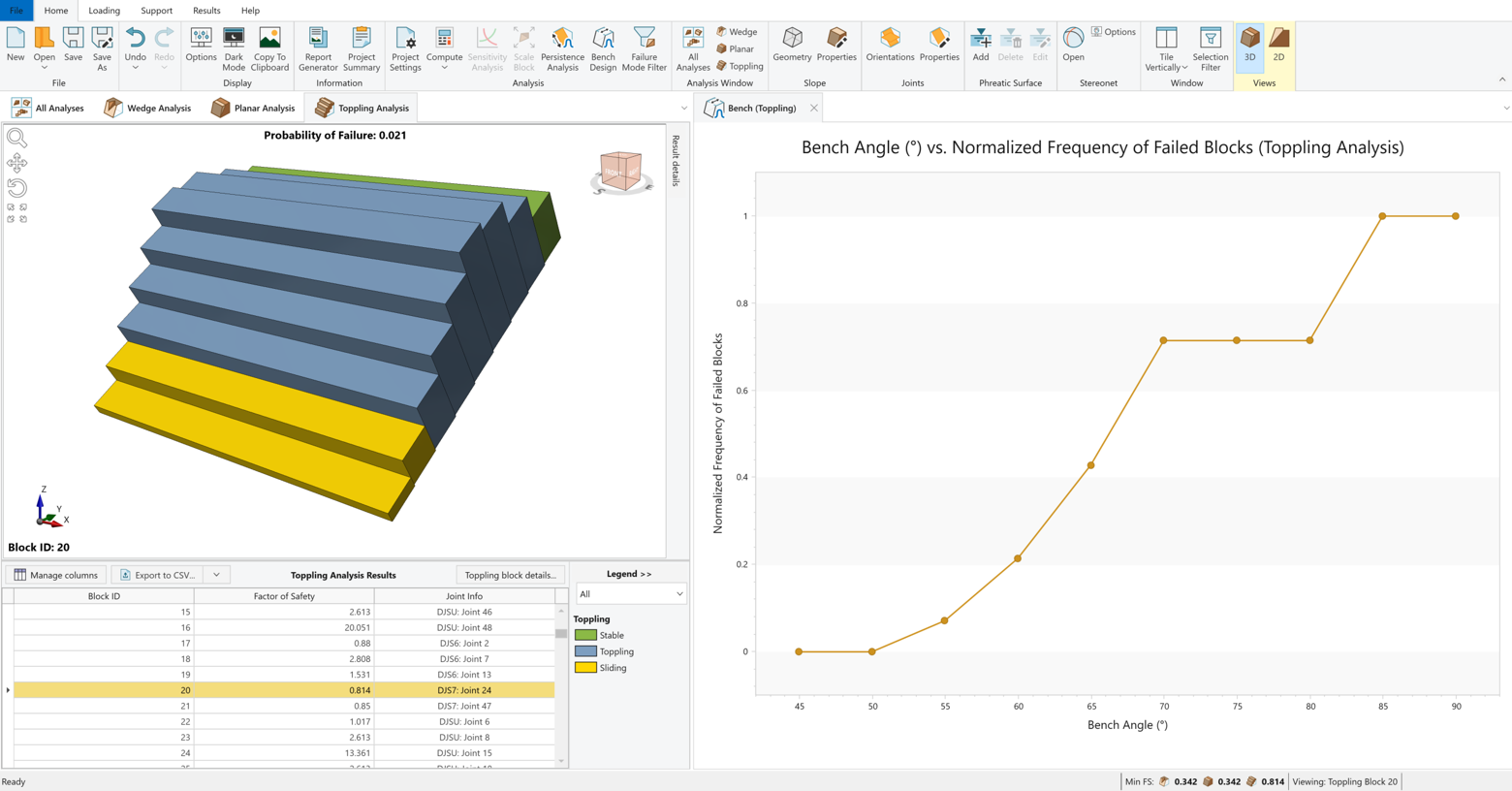
With the latest update, Toppling Analysis can now also be considered in Bench Design along with Planar and Wedge analysis methods.
This extends the existing Bench Design workflow to include another potential failure mechanism, giving engineers a more comprehensive way to evaluate bench configurations where toppling may be relevant.
Why This Matters
Different slopes and rock masses can be governed by different structural failure mechanisms. In some geological settings, toppling may be an important consideration alongside wedge or planar instability.
By including toppling analysis within Bench Design, engineers can evaluate bench configurations with greater awareness of the potential failure mechanisms represented in their model.
The result is a more complete bench design workflow within RocSlope2, without requiring a separate analysis process for toppling when evaluating the design.
Choose When to Compute
RocSlope2 is designed to keep analysis results up to date automatically. By default, 'Auto Compute' is ON, meaning that the analysis is recomputed when relevant model inputs are changed.
This is convenient during many modelling workflows, but there are situations where engineers may want to make several changes before running the analysis again.
The new 'Auto Compute ON/OFF' option gives users control over when RocSlope2 recomputes the model.
When Auto Compute is OFF
Users can turn Auto Compute OFF when they want to make multiple model changes without waiting for the analysis to recompute after each individual change.
For example, an engineer may want to adjust several slope, joint, or support parameters before reviewing the updated results. Instead of triggering a new computation after every change, the user can make the required modifications and then manually select Home > Analysis > Compute when ready.
When the model has changed and the stored results are no longer current, RocSlope2 indicates this through the 'Results Not Computed' status.
Once Compute is selected and the analysis completes successfully, the indicator is cleared and the results reflect the current model.
How It Works
Auto Compute can be controlled from the 'Compute' dropdown in the 'Analysis' group on the Home tab.
- With Auto Compute ON, RocSlope2 automatically updates the analysis when relevant model changes are made.
- With Auto Compute OFF, model changes can be made without immediately recomputing the analysis.
- When ready, users can manually select 'Compute' to update the results.
- Turning Auto Compute back ON while the results are out of date will trigger a recomputation.
This provides a simple way to balance the convenience of automatic updates with the flexibility of manual computation.
Key Highlights of the Three New Features
The latest RocSlope2 enhancements are designed to give engineers greater control at different stages of slope stability analysis.
- Advanced Filtering helps users work more efficiently with large result sets by focusing on the blocks and parameters that matter to a particular review.
- Toppling Analysis in Bench Design extends bench design capabilities to include another important failure mechanism.
- Auto Compute ON/OFF gives users more control over when their model is recomputed, particularly when making multiple changes during model development.
Together, these features make it easier to move from model changes, to computation, to result interpretation, and finally to design evaluation within a consistent RocSlope2 workflow.
For engineers working with increasingly detailed rock slope models, efficiency is not simply about computing faster. It is also about having the right level of control over what is computed, what is reviewed, and when decisions are made. The latest RocSlope2 enhancements bring that control directly into the existing workflow—helping engineers move through complex analysis and design iterations with greater flexibility, without adding unnecessary steps to the process.
Take More Control of Your Rock Slope Analysis
Explore RocSlope2 and see how flexible result filtering, toppling analysis, and computation control can fit into your workflow.
Start Your Free Trial