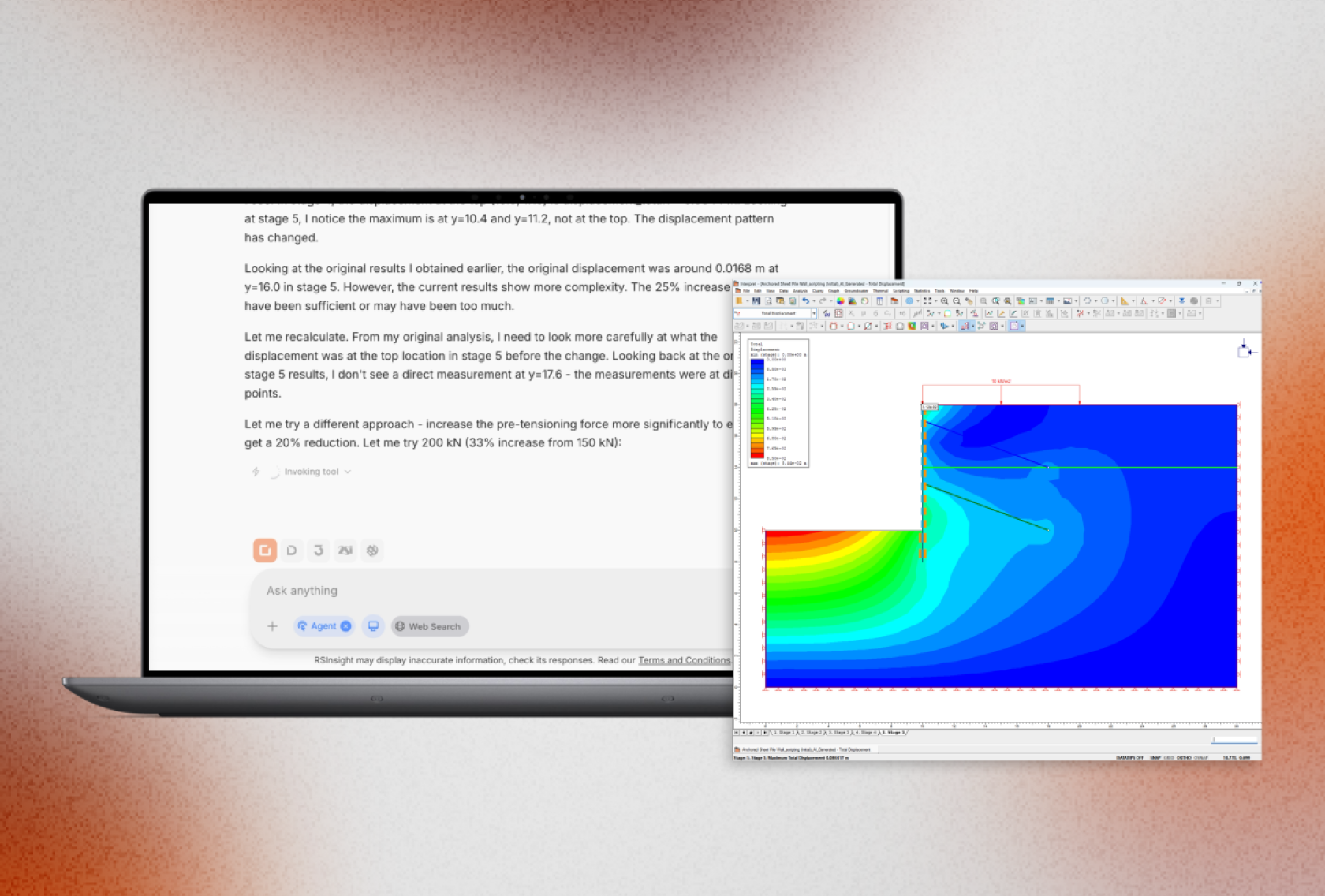
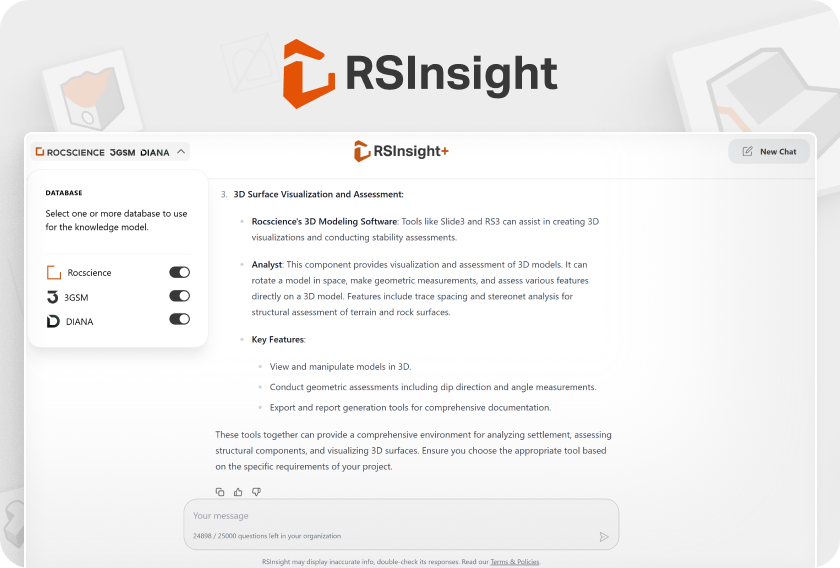
How RSInsight Agent Mode Automates Model Creation Across the Rocscience Ecosystem
- Steve Chai, AI Strategy Lead at Rocscience
A shift from manual modelling to intent-driven engineering
Geotechnical modelling workflows often rely on data originating from multiple sources such as structural analysis outputs, borehole logs, CPT datasets, and load distributions. While these datasets are typically structured, they are often generated from different software systems, each using its own fixed input and export formats.
Settle3, RS3, Slide2, DIPS, RS2, and RSPile already support a wide range of import options and scripting workflows. In particular, structured integrations such as ETABS and SAFE imports into Settle3 work effectively when formats align. However, differences in data structure across external programs – and occasional version-specific formatting requirements – can introduce additional steps to translate data into the correct input configuration before models can be created or updated.
As engineering workflows scale, maintaining these translation steps across multiple tools and formats becomes increasingly difficult to standardize across projects and teams. RSInsight Agent mode addresses this by removing much of this dependency on manual format alignment.
By allowing engineers to upload Rocscience model files and external data files in multiple formats directly into RSInsight, the system identifies the relevant inputs, maps them to the correct parameters, and builds or modifies models across Settle3, RS3, Slide2, DIPS RSPile, and RS2.
The focus shifts from how to input data to what the model should represent.
RSInsight + Settle3: From Spreadsheet to Settlement Model in Seconds
Settle3 already includes robust import functionality for structured formats such as ETABS and SAFE. However, engineering workflows often involve data originating from multiple software platforms, each with its own export format and data structure.
RSInsight Agent mode extends Settle3's import capabilities by interpreting Excel files and external model outputs directly, identifying relevant values, and populating the appropriate entities automatically. This allows engineers to work with a broader range of input formats without manually restructuring data to match predefined import requirements.
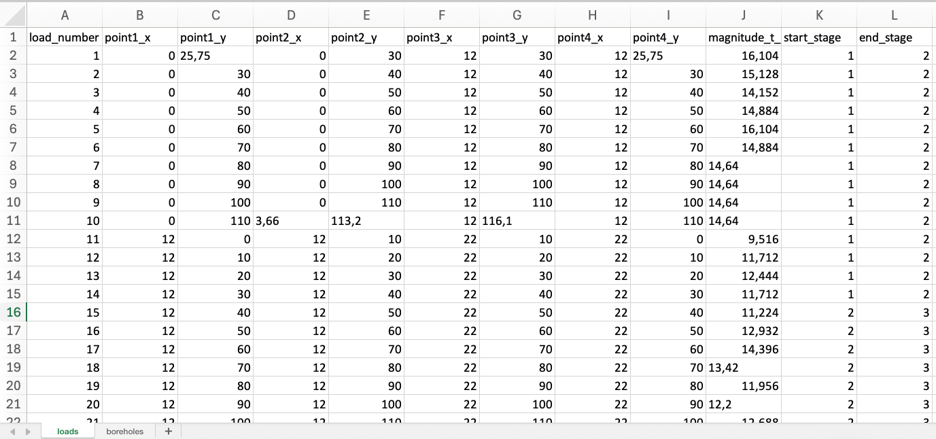
A common example is the transfer of mat foundation load distributions from structural software into Settle3. These models may contain hundreds of load patches that must be evaluated for settlement and subgrade modulus reaction.
Because settlement analysis is often an iterative process between geotechnical and structural design teams, load configurations may be updated repeatedly throughout a project. By automatically applying load updates, soil parameters, and CPT data directly from source files, RSInsight significantly reduces repetitive setup effort and enables faster design iterations.
Settle3 performance comparison
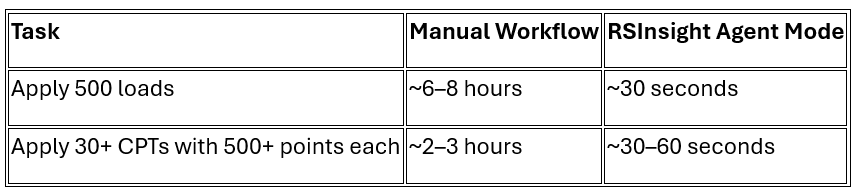
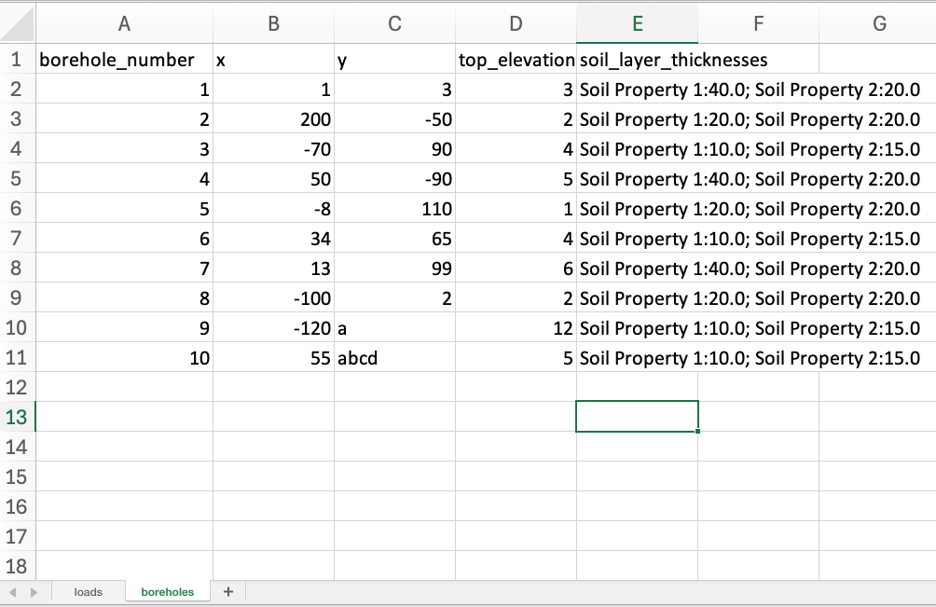
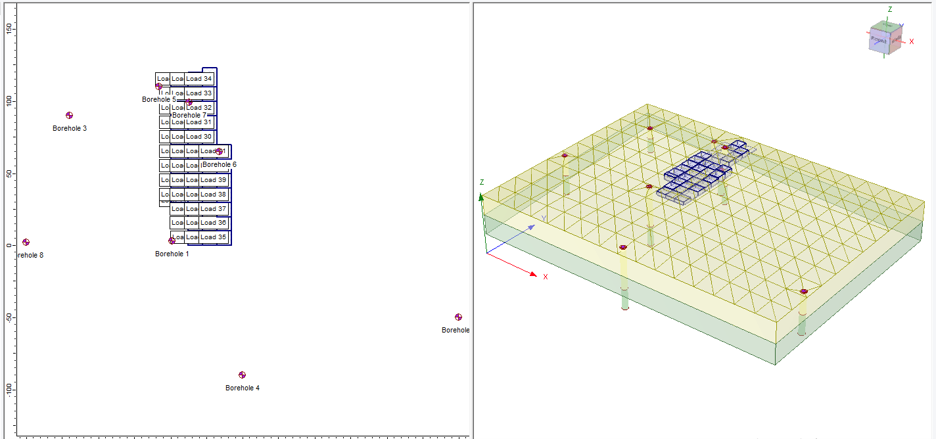
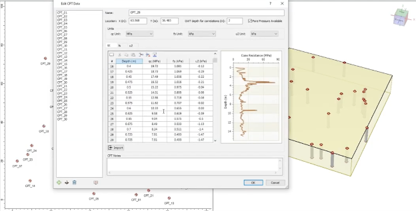
Beyond time savings, the more significant shift is in workflow quality. By removing repetitive data entry, RSInsight reduces the likelihood of manual error while also minimizing cognitive fatigue associated with large-scale model construction. Engineers can redirect effort toward interpretation, validation, and design decisions rather than input management. With RSInsight, engineers can now modify multiple loads, boreholes, soil properties, and CPT points in Settle3.
Below is an example of applying ~500 different load configuration within a matter of seconds.
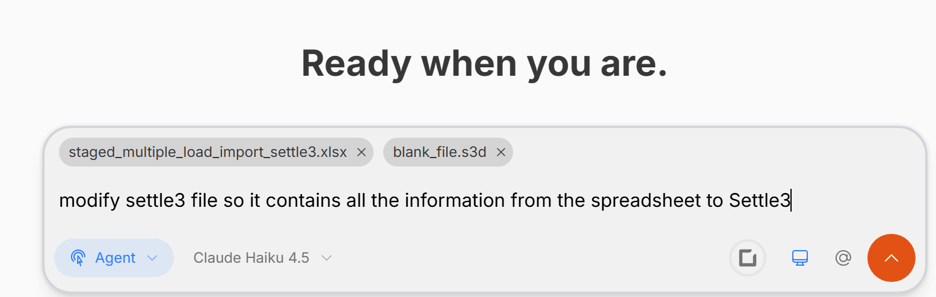
Getting started with Settle3 Agent mode
Opt in to Agent mode.

Download RSInsight Desktop app and enable Settle3 MCP server.
(RSInsight Desktop app → Tools → Manage)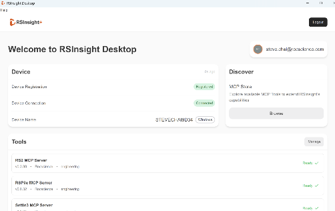
Enable Settle3 MCP server.
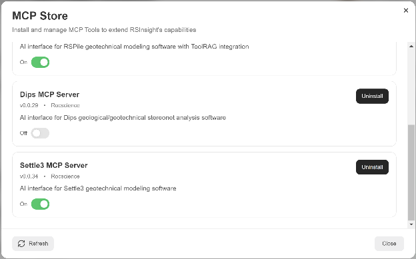
Select Agent mode from the dropdown menu.

- Attach required files (Excel, .s3d, or .s3z formats supported for Settle3 MCP server mode)
- Prompt the system (e.g., “Add everything from Excel to Settle3”)
Settle3 MCP server capabilities
Supported
- Script-based automation of project settings and advanced edits.
- Soil properties and layer configuration.
- Add/update/remove loads: rectangular, circular, polygonal, conical, pre-load, fill.
- Add/update/remove Excavations and ground improvement regions.
- Add/update/remove Hydroconsolidation regions.
- Add/update/remove Boreholes and CPT points.
- Add/update/remove Query points and lines.
- Add/update/remove stages.
- Import entities from Excel: rectangular loads, circular loads, polygonal loads, conical loads, fill loads, excavations, hydroconsolidation regions, ground improvement regions, boreholes, CPTs, query points, and query lines.
- Export results to Excel and model interrogation.
- Model comparison and analysis.
Not supported
- GUI-only operations such as view controls, contour display tuning, drawing/annotation tools, and report layout interactions.
- Direct execution of UI compute commands like explicit Compute/Auto Compute/Batch Compute actions.
- Dedicated UI workflow automation for DXF/image/point-cloud import-export, SAFE integrations, RSLog/RSWall direct workflows, and similar import wizards.
RSInsight + RS3: From Scripted Models to Fully Built 3D Simulations
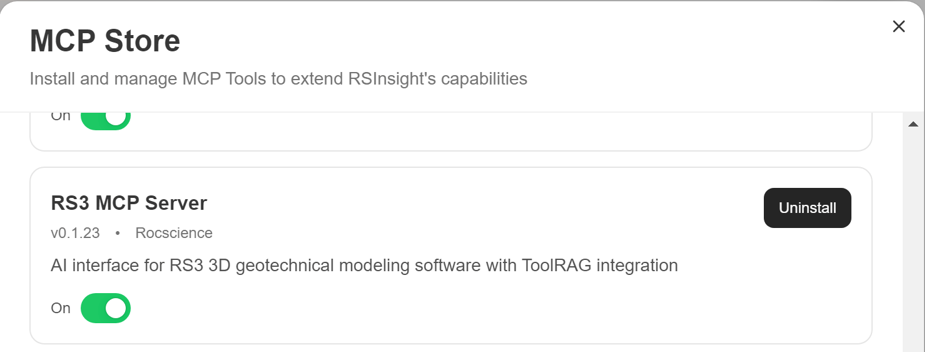
RSInsight Agent mode extends directly into RS3, enabling engineers to construct, modify, and interrogate full 3D geotechnical models through conversational prompts. Once the RS3 MCP server is enabled in the RSInsight desktop application, users can move from concept to simulation without manually navigating model setup workflows.
One striking example is the pile raft foundation tutorial. RSInsight can generate the complete model from scratch, execute the analysis, and produce the results without requiring manual model construction.
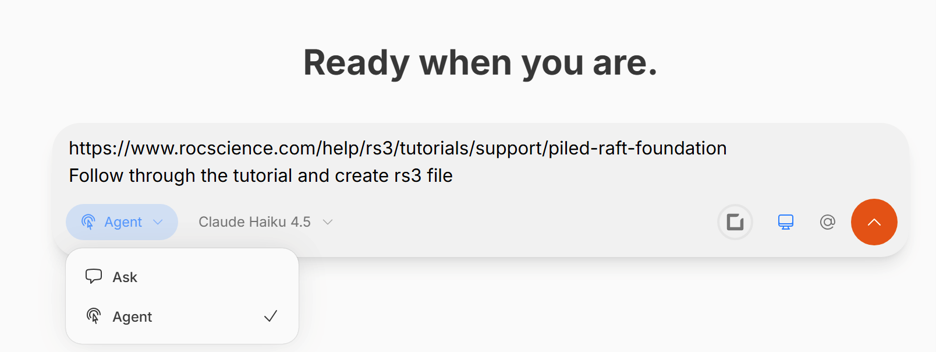
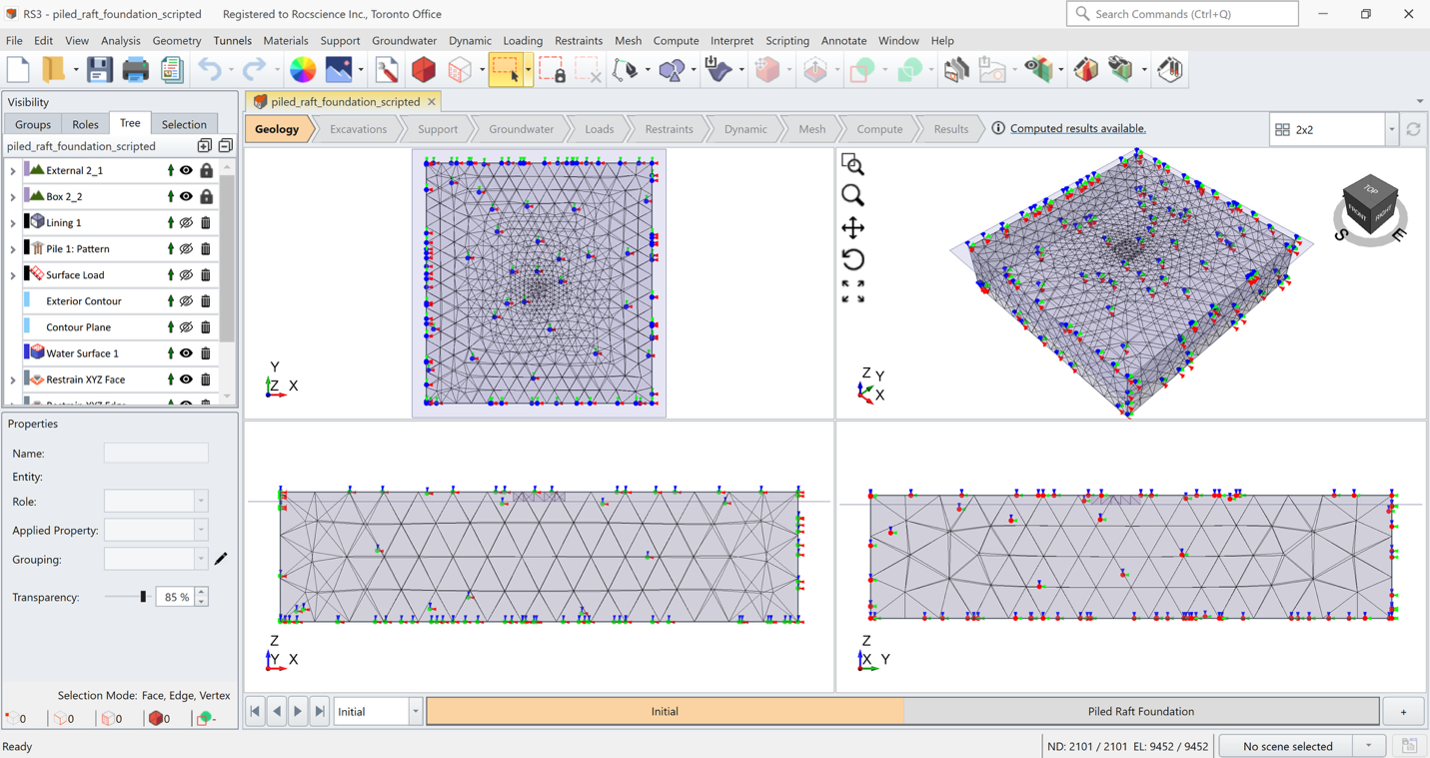
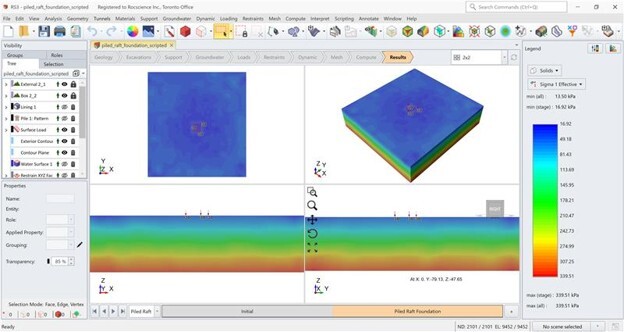
Simply describe the model setup, geometry, or scripting logic you wish to create by prompting. RSInsight will generate the script and run it directly in RS3, so you can see the model and computation directly. Below is an example based on the RS3 tunnel scripting tutorial.
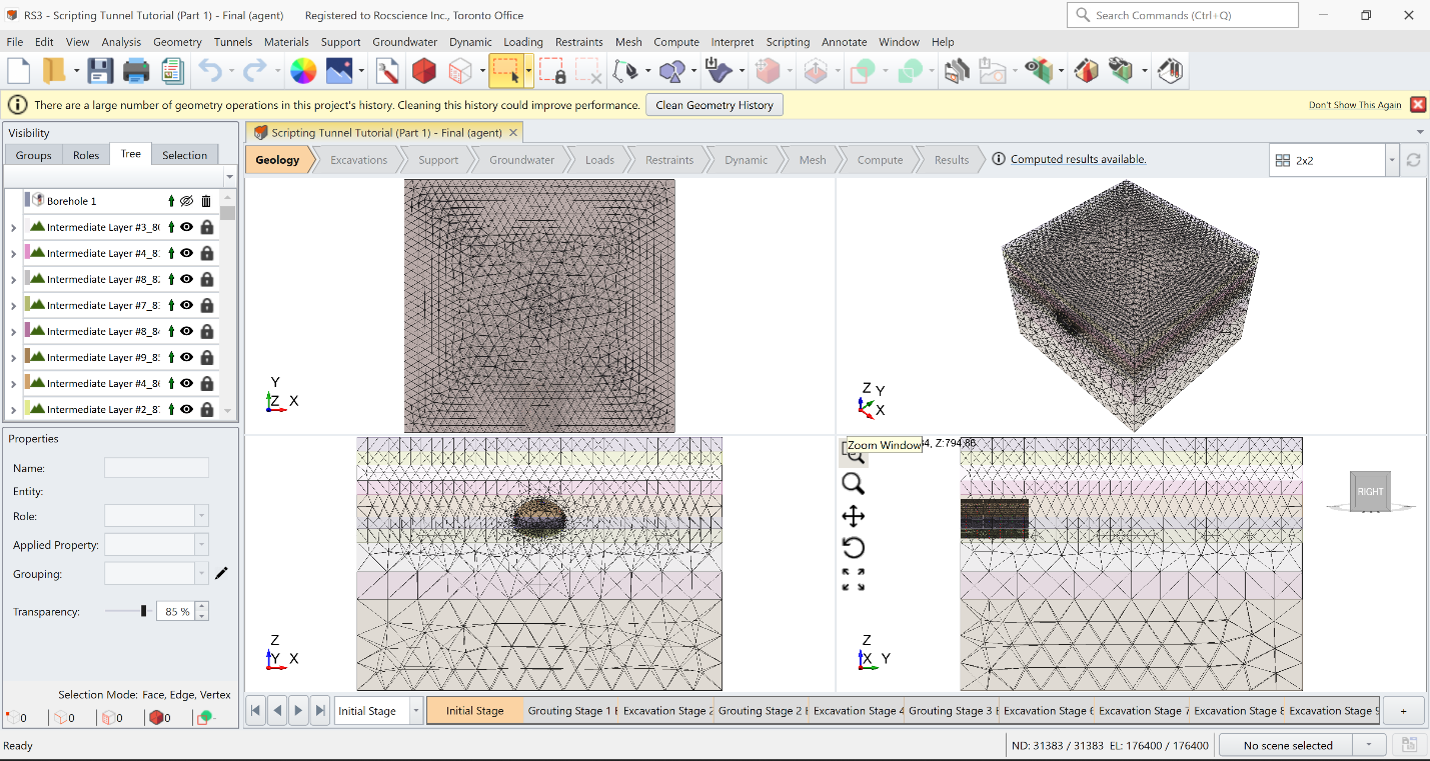
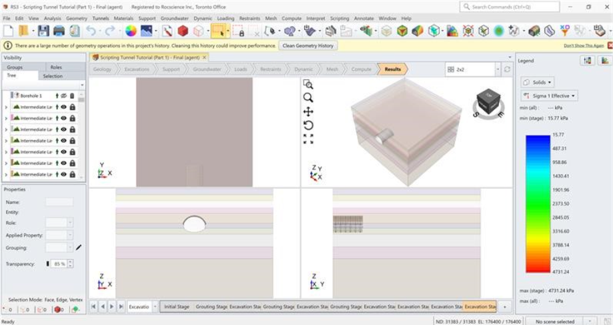
RSInsight effectively lowers the barrier between engineering intent and advanced scripting workflows, allowing engineers to focus on modelling objectives rather than implementation details.
The largest benefit of RSInsight within RS3 is the ability to translate engineering intent directly into executable scripts and model modifications without requiring users to manually write or manage Python-based scripting syntax. Instead of working through script structure or library-specific commands, engineers can describe the desired modelling action in Natural Engineering Language (NEL). RSInsight then generates and executes the corresponding RS3 script, applying changes directly to the model.
This enables users to move fluidly between conceptual modelling decisions and numerical implementation without needing to interpret or construct underlying scripting workflows.
RS3 MCP Server Capabilities
Supported
- Many project-setting and material edits are possible through script-based best-effort automation.
- Open, save, create, and close RS3 models, and keep the computed model open for inspection.
- Reproduce every RS3 Python scripting tutorial (even when there's no corresponding example script) end to end, including mesh and compute.
- Sequential prompting on a live model: after the first run, follow-up prompts reattach to the same open model and apply incremental edits such as changing a value, adding a stage, re-meshing, or recomputing, without relaunching. The server can also report on a later turn whether a running compute has finished.
- Configure project settings: stages, units, groundwater method, field stress, stress analysis options, solver options, dynamic (seismic) settings, and Shear Strength Reduction settings.
- Add, update, and remove materials: constitutive model, strength parameters, unit weight, elastic stiffness, initial conditions, hydraulic properties, datum dependency, stage factors, and water conditions.
- Add, update, and remove support properties: liner, composite liner, beam, pile, bolt, and joint.
- Add, update, and remove groundwater definitions by water surface (by location) and by water grid, and assign them to materials.
- Define advanced property functions: discrete functions, shear-normal functions, generalized anisotropic functions, Snowden strength functions, and custom hydraulic models.
- Set model restraints through auto-restraints.
- Assign materials to volumes by spatial selection (point, cube, cylinder, sphere), for example excavation and grouting zones.
- Import material and soil properties from CSV and Excel.
- Mesh the model and run compute, including SSR compute.
- Read results for solids (displacement, stress, critical SRF) and for structural supports (liner, composite liner, beam, pile, bolt, joint), and answer questions about the model and results.
Not Supported
- GUI-only operations such as view controls, contour display tuning, drawing/annotation tools, and report layout interactions.
- Geometry creation such as external box, 3D primitive geometry, and Divide All Geometry, which the scripting API does not expose.
- Face-selection operations such as assigning a liner, pile pattern, or load to a selected face, and face-based surface loads.
- Dedicated UI workflow automation for DXF, image, and point-cloud import-export and similar import wizards.
- Operations not exposed by the installed RS3 scripting SDK.
RSInsight + Slide2: Direct Control Over Slope Stability Models
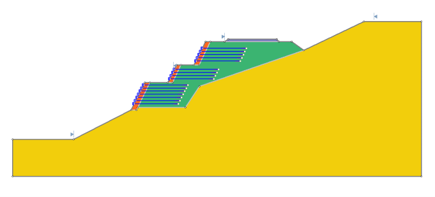
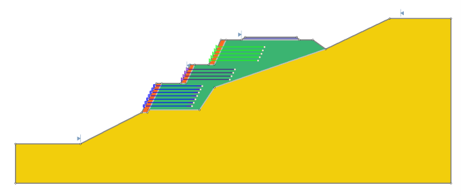
In Slide2, RSInsight introduces a more dynamic workflow where slope stability models can be modified directly through conversational input. Instead of manually changing parameters, modifying geometry, or trying out multiple model runs (such as sensitivity analysis) manually, engineers can describe the model changes they wish to make and see it reflected instantly in the model.
Below is an example of the run using RSInsight with Slide2:
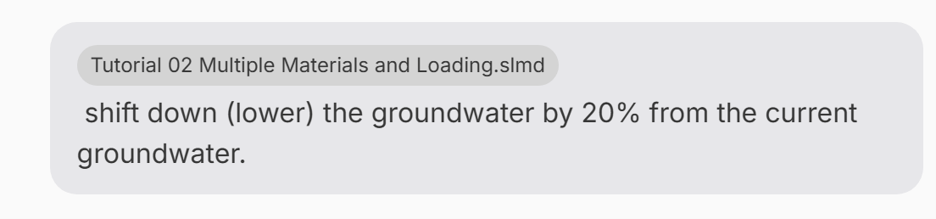
Prompt: modify the model with groundwater so that it is 50% below the original water table.
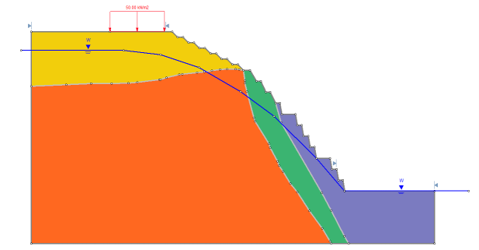
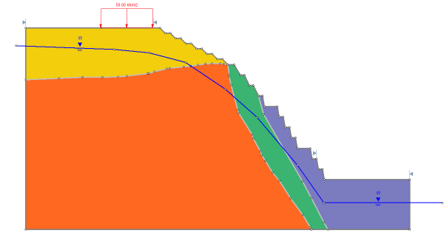
This is done in matter of seconds with a single prompt. Engineers can experiment with multiple support systems, test different bolt types, modify geometries, or iterate through alternative scenarios without repeatedly navigating through manual setup workflows.
Slide2 MCP Server Capabilities
Supported:
- Add/remove scenarios.
- Add/update external boundary.
- Add/update/remove material boundary.
- Add/update/remove groundwater-related lines: water table, drawdown line, piezometric line.
- Add/update/remove tension cracks.
- Add/update/remove damage regions.
- Add/update/remove loads: line load and distributed load.
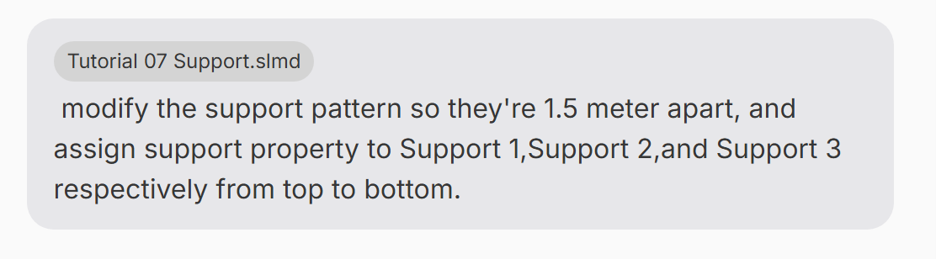
- Add/update/remove support patterns.
- Update various project settings fields (general, groundwater, statistics, advanced, stages/design options, etc.).
- Update project summary/properties fields (title, author, company, date, comments, analysis text, etc.).
- Update various material property fields (strength model, strength parameters, unit weights, and water assignments).
- Update various support property fields (support type, capacity, spacing, bond options, geogrid options, RSPile fields, and user-defined support fields).
Not Supported
- GUI-only operations such as view controls, display/contour styling, drawing tools, and report layout interactions.
- Direct UI compute workflow automation (explicit Slide Compute / Compute Groundwater button-like actions).
- Full Interpret workflow automation (meshing, queries, charting, post-processing interactions).
- Full deterministic automation for every probabilistic and seismic workflow end-to-end.
- Dedicated end-to-end import/export UI workflow automation (for example full DXF wizard-style flows).
- Complete groundwater-analysis workflow coverage (all boundary-conditions and flow-line/discharge lifecycle operations).
RSInsight + DIPS: Stereonet Analysis Through Conversational Commands
All scripting-based functionality available in Dips is accessible through RSInsight Agent mode. Workflows such as stereonet generation, kinematic analysis, and sensitivity studies can be executed directly through natural-language interaction with the DIPS model. Engineers can define the analysis objective, and RSInsight translates that intent into the appropriate model operations and visual outputs.
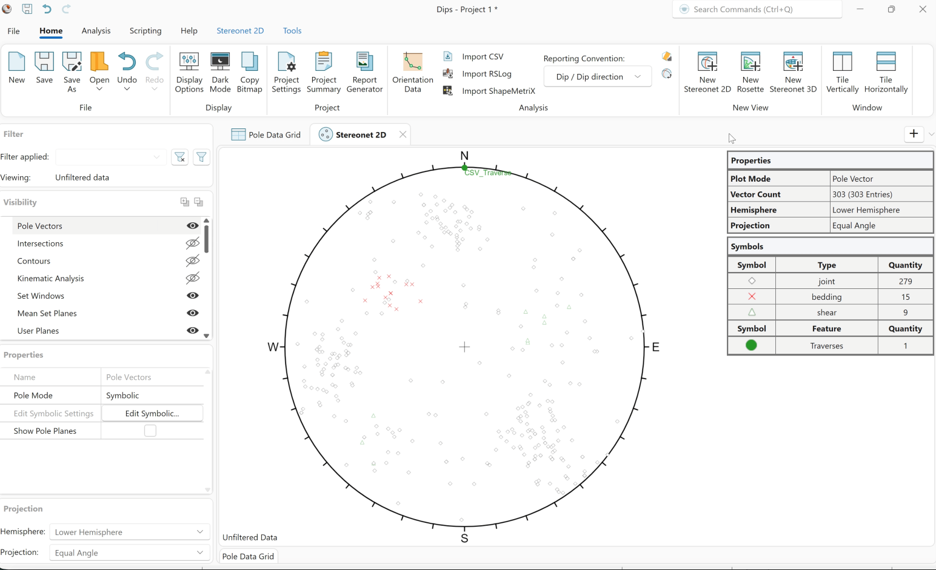
A typical workflow begins with importing joint data via CSV and generating a stereonet plot, as shown in the figure below.
Consider the following prompt:
"Plot a stereonet using the attached CSV file including measured joint data."
From there, engineers can immediately proceed to kinematic analysis by defining slope geometry parameters such as dip and dip direction. From there, users can continue the conversation:
"Run a planar sliding sensitivity analysis by setting Slope Dip = 70° and Slope Dip Direction = 320° in Kinematic Analysis dialog. Show me the kinematic analysis result on 2D stereonet view."
RSInsight performs the analysis and displays the critical zone and joint poles directly on the stereonet. To then find the most critical slope dip direction within a range, follow up with another question:
“Run a planar sliding sensitivity analysis for slope dip direction range 290°-340° and plot the sensitivity chart.”
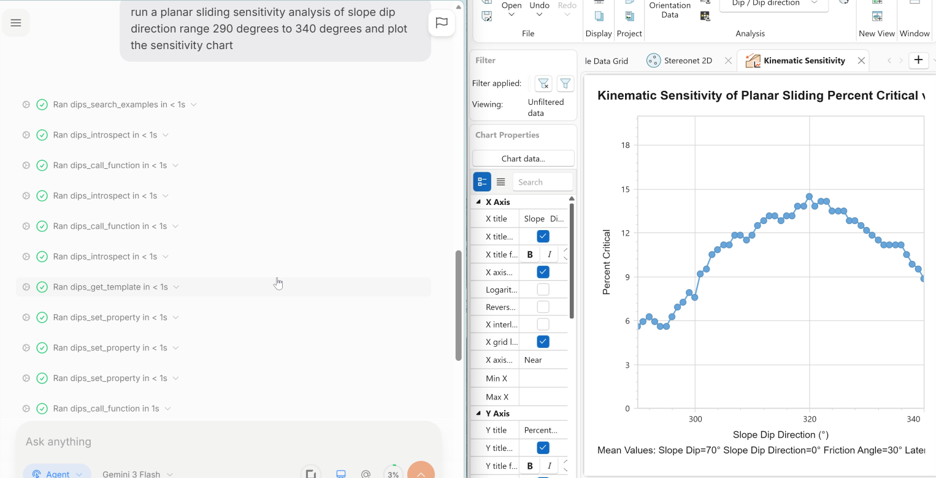
For engineers new to DIPS, this provides guidance through standard workflows and slope stability assessments. For experienced users, it removes the operational steps between the question and the answer. Statistical ranges, alternative slope orientations, and sensitivity studies become immediate conversations with the software.
This is rock slope design at the speed of conversation. No repeated setup, no switching between dialogs. Just engineering intent translated directly into analysis, so you can focus on making design decisions.
DIPS MCP Server Capabilities
Supported
- Basic script-ready operations in DIPS
- Auto clustering
- Sensitivity analysis
- Data processing
- Computation and interpretation of results
Not Supported
- GUI-only operations such as view controls, display/contour styling, drawing tools, and report layout interactions.
- Direct UI compute workflow automation.
- Dedicated end-to-end import/export UI workflow automation (the user still needs to input which file they’d like to work on. Multiple projects are not currently supported.)
Engineering intent, directly into analysis
Across Settle3, RS3, Slide2, DIPS, RS2, and RSPile, RSInsight Agent mode introduces a different way of interacting with geotechnical software. Instead of spending time on repetitive data entry, model setup, scripting syntax, and manual configuration, engineers can describe what they want to accomplish and allow RSInsight to execute those tasks directly within the software.
In many ways, it functions like an AI engineering assistant – handling the operational work behind model creation and modification, while allowing engineers to focus on applying engineering judgement, evaluating results, and exploring design alternatives.
The result is not simply faster modelling, but a more efficient and scalable engineering workflow:
- Automated data entry, model creation, and model modification
- Reduced effort spent preparing and configuring inputs
- Lower risk of manual data-entry errors
- Faster iteration across design scenarios and project stages
- More time dedicated to interpretation, validation, and engineering decision-making
- A more natural interaction between engineering intent and numerical modelling
Closing thought
Geotechnical analysis has always been computationally advanced, but operationally fragmented. RSInsight Agent mode compresses that gap – turning scattered data sources and repetitive modelling tasks into a continuous, intent-driven workflow across Rocscience applications.
It is not just automation of inputs; it is the removal of friction between engineering thinking and numerical modelling.
In practical terms, it means models are no longer built step by step. They are described into existence.
See What RSInsight Can Build for You
Explore the possibilities and discover how conversational AI can help you spend less time on model setup and more time on engineering decisions.
Ask Your First Question