Logs + QMS
Use this page for the following purposes:
- to generate borehole log for multiple boreholes,
- add watermark or attach a Legend Sheet to the logs, and
- adding review and approval comments and handling Quality Management (QM) status of boreholes.
To access this page:
Revising and Commenting on Logs
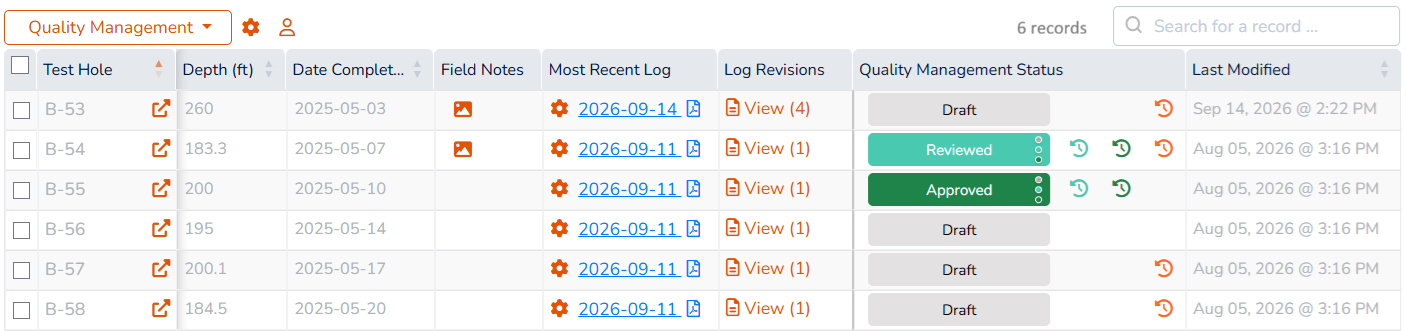
The table on this page shows the list of all test holes in your active project, along with all the logs generated for each borehole:
- Test Hole Name column: the name of the subject borehole or test pit,
- Depth column: the total depth of the test hole,
- Date Completed column: the date at which the test hole site investigation was completed,
- Field Notes column: shows the photo/scan of the field notes side by side with the most recent borehole log,
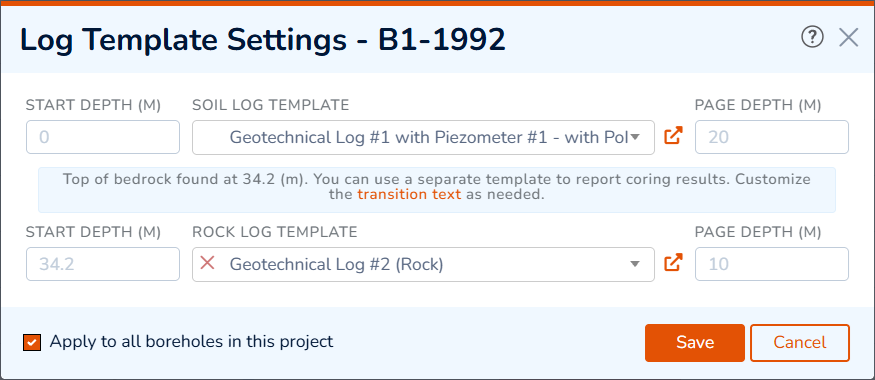
- Most Recent Log column: use this column to download the latest log generated for this test hole. To select/assign the log templates to a borehole, select the
 button on the Most Recent Log column. This opens a dialog-box where you can select the following options:
- Soil Log Template: select from the list of your log templates,
- Rock Log Template: select from the list of your log templates,
- Start Depth: for each template you can specify the start depth. For rock log template, RSLog automatically detects the top of bedrock from the first stratum with ROCK classification assigned to it,
- Page Depth: user can override the page depth for each log template,
- Transition Text: this can be customized on the Settings page → Engine tab → Logs tab,
- Apply to All Boreholes in This Project: use this checkbox to apply the log template settings to all boreholes,
- Log Revisions column: use this column to view the previous revisions of borehole logs,
- Quality Management Status column: use the features provided under this column to document your review and approval process,
Generating Logs
RSLog creates the borehole logs in PDF format. To generate logs, select desired test holes from the list and click Generate button on the right side of the page. Please note that this will not preview or download the logs (see next section):
- Add Watermark: Use this feature to add a watermark to the background of all pages. Enter the watermark text, and select style and opacity of the watermark.
- Add Customized Legend Sheet to the Log: When selected, user can attach a legend sheet to the log.
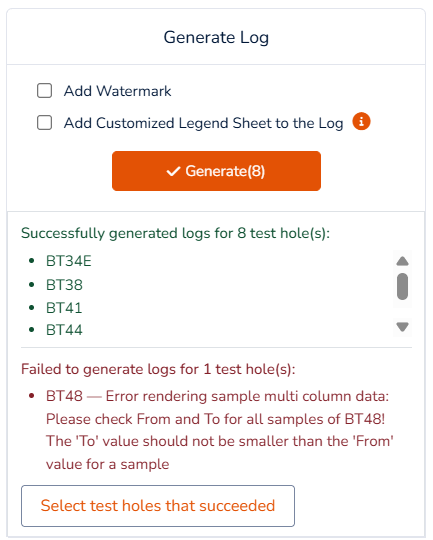
During generating logs, the progress details are shown on screen. Once generating the logs is completed, the following are provided:
- List of test holes for which the logs were successfully generated. To download the logs, use the Download button (see next section for details),
- List of test holes that failed generating logs. For these test holes refer to the error details, resolve the issue and retry generating the logs.
Downloading Logs
In general, the Download button creates a ZIP file containing the most recent borehole log of all selected test holes. The Separate PDF Files for Each Test Hole checkbox determines if the logs should be kept under separate PDF files or they should be merged in to a single PDF file.
QMS - Review
Various review and approval options offered by RSLog's Quality Management feature. Any user can review or approve a borehole log. However, only users in the admin role can lock or unlock a borehole.
Adding a Review Comment
Once users review the borehole log of a borehole, they can leave a comment. This could be a typo, incorrect soil description, conflict between the lab and field descriptions etc. To add a review comment click the + button in the Review cell. This opens a dialog where you can enter your comment.
Viewing the History of Reviews
To see a list of all comments left in RSLog for a given test hole log, click the  button in the Review cell. This opens a new dialog with list of all review comments.
Downloading List of Review Comments
To download the details of all review comments, click Download link in the footer of the dialog. This exports the data and downloads a CSV file.
Marking a Review Comment as 'Resolved'
In order to indicate that a review comment has been addressed on the log, on the review history dialog click the Mark As Resolved link on the right end of that comment. This will mark that specific comment as 'Resolved'. All outstanding review comments must be 'Resolved' prior to approving a test hole log.
QMS - Approval
Any user can approve a borehole log. However, all outstanding review comments must be marked as 'Resolved' prior to approving a test hole log.
Adding an Approval Comment
To approve a borehole log, click the + button in the Approve cell. Enter your approval comment and click Save button.
Viewing the History of Approvals
To see a list of all approval comments left in RSLog for a given test hole log, click the button in the Approve cell. This opens a new dialog with list of all approval comments.
QMS - Locking Data
Once a log has been reviewed and approved, you can 'lock' that test hole to prevent any further changes to the borehole data. Locking a borehole makes it read-only on the Test Holes page.
Download or Print a Log
The preview of the log is shown in a separate page. Using the top toolbar you can navigate between pages, zoom, and download the PDF file. This PDF can be included in your geotechnical report.

Attaching a Materials Legend Sheet
You can automatically add PDF pages to your borehole logs. This feature is particularly useful when you would like to include the list of standard definitions or soil legends used in your test hole logs (e.g. soil symbols, classifications, etc).
To add a customized legend sheet to the log:
- Click the Add Customized Legend Sheet to the PDF checkbox.
- Using the Select PDF File dropdown, select an existing PDF file to attach. If you would like to upload your customized PDF file, click the icon to manage PDF attachments. To upload a new PDF attachments:
- Once the ‘Manage Customized Legend Sheets’ dialog is prompted, click + New button.
- Click Browse to choose the PDF file from your computer.
- Click Save to upload the file.