Excel Import
RSLog Excel templates are designed for spreadsheet data entry in an Excel file that is designed based on your selected 'data template'. There is one Excel template (*.xlsm) for project data and one for each test hole (*.xlsx).
Some cells in these Excel templates are dropdowns (e.g. sample types, drilling methods, etc). The data for all these lists are saved in the Settings worksheet which is made hidden in the Excel file; At the time of downloading the Excel template files, RSLog will automatically update these lists in your Excel files based on selected 'data template'.
The Excel templates are recommended if you are offline, or if you prefer spreadsheet data entry:
Downloading Excel Templates
In order to download the latest Excel templates:
- Go to the Import page,
- From the RSLog Excel Templates section, select your desired 'data template' from the dropdown,
- click on Download Excel Templates link,
- This will download the following two files:
- RSLog Excel Project Template.xlsm: this is the project Excel template and is macro-enabled. These macros handle selection of Coordinate Reference Systems (CRS). Before opening this file please Unblock the file (see the next section). Once opened, please grant the permission to enable macros,
- RSLog Excel Testhole Template.xlsx: this is the borehole Excel template . Before opening the file please Unblock the file.
Unblocking the Files
Windows automatically blocks the downloaded files for security reasons. In order to use the features included in these Excel templates, the files must be unblocked prior to use:
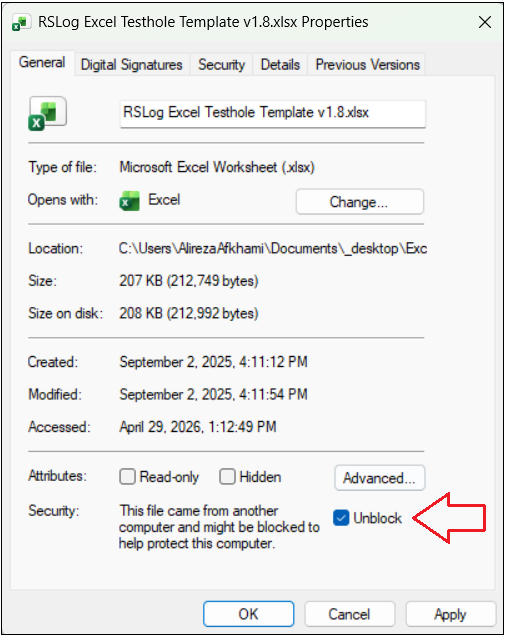
- Right click on each file, select Properties,
- Select Unblock (see below) and click OK button.
Save the Files
Once both files are unblocked, save them as your Excel templates. You will need these files for your next project data entry.
Data Entry in Excel Templates
The Excel template files allow for data entry in both offline and online conditions. Once data entry is completed, you will need internet access to login to your RSLog account and upload the files.
Project Excel Template
Open your project Excel template for data entry. This Excel file only has one worksheet:
- Database ID: if you are creating a new project leave this cell empty. If you would like to update an existing project, copy the project ID from the following steps:
- head to RSLog and go to Project List page,
- edit the subject project; this will open a dialog box,
- click Copy button at the header (see below). This will copy project ID to clipboard,
- go back to the Excel file and paste the project ID in the Database ID cell.

- Project Data: enter project data in each cell.
- Units: select between Imperial and Metric unit systems.
- Coordinate Reference System (CRS): select the CRS from the list; This CRS applies to all your boreholes.
Test Hole Excel Template
Open the borehole Excel template for data entry. This Excel file only has several worksheets:
- Database ID: if you are creating a new borehole leave this cell empty. If you would like to update an existing borehole, copy the borehole ID from the following steps:
- head to RSLog and go to the Test Holes page,
- edit the subject test hole; this will open a new page,
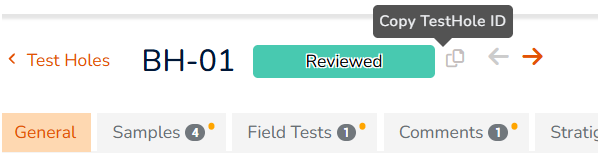
- click Copy button at the header (see below). This will copy borehole ID to clipboard,
- paste the test hole ID in your Excel file.
- General Test Hole Data: most of this data is entered in General worksheet,
- Units: the unit system selected in test hole Excel file should match with unit system selected in the project Excel file.
- Coordinates: the coordinates are entered in Easting/Northing or Latitude/Longitude format depending on the CRS selected for your project.
- Working with Lists: The dropdown lists are designed based on your selected 'data template'.
Uploading the Excel Files
- Once data entry is completed, login to your RSLog account and go to the Import page,
- Click Import button in the RSLog Excel Templates section to start uploading the files,
- After uploading all files, you will be automatically directed to the Test Holes page.
Select a destination project; The imported borehole data is saved under the project (new/existing). Start by uploading the project Excel file. Then follow by uploading the test hole Excel file(s). The file browse dialog supports selecting multiple files:
- by holding Ctrl button and clicking on each file
- by clicking on the first file in the list, holding Shift button and clicking on the last file.
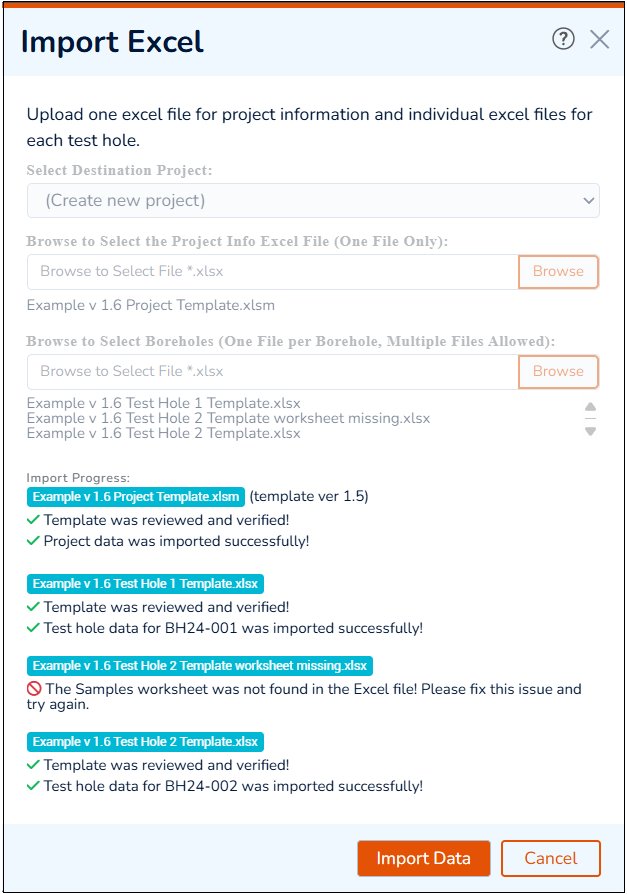
Once the files are uploaded, click on Import Data button. This will start processing Excel files and if any data entry error is encountered during processing, an error message will be shown. If all files contain valid data, you will be redirected to the Test Holes page showing the list of all imported/updated boreholes.
Importing Older Excel Templates
RSLog Excel templates ver 1.3 and newer are supported for import.