Import Records from External Databases
The Import from external databases option in the Motion Manager module provides ground motion API integration directly within the RSSeismic program. This option allows users to directly import records from external ground motion databases, in order to use them as input motion for analysis. Users can access a variety of three-component ground motion records from the following databases:
- Ground-Motion Relational Database (Buckreis et al., 2023)
- Engineering Strong Motion Database (Luzi et al., 2016)
- Center for Engineering Strong Motion Data (CGS & USGS, 2016)
To import a ground motion record from any of the external databases:
- Open the Motion Manager
 module.
 - Click Import records from external databases

The Import records from external database dialog will open. A wizard will guide guide you through the import process.
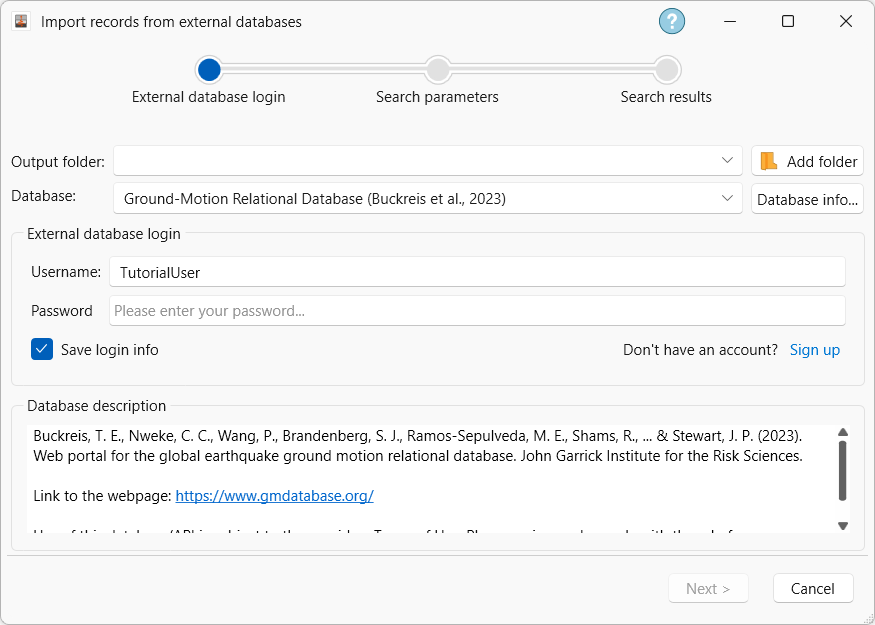
- Select the Output folder to specify the location of the imported motion records.
- Click Database Info to open the Database Info dialog. This dialog provides an overview of the selected database along with a link to the publication presenting the database. Numerous figures are also displayed that show the extent of the data coverage.
- Under External database login, enter your Username and Password.
Importing ground motion records from the GMDB or the ESM databases requires an account. Users that do not have an account can create one by accessing the following links:
For GMDB: Using this link (https://www.gmdatabase.org/users/login) and clicking on “Register.”
For ESM: Using this link (https://esm-db.eu/#/home) and clicking on “Administrator login”. A window will pop-up with 3 tabs. Please access the 2nd tab and click “Register”.
- Click Next.
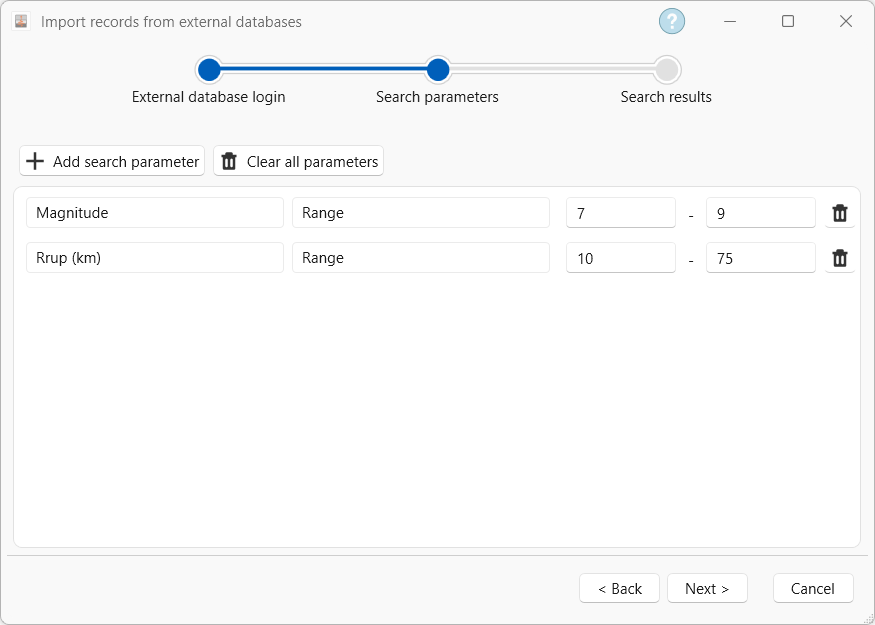
You'll be taken to the Search Parameters view. Click Add Parameter to select which search fields to use and specify allowable ranges (minimum/maximum values) to narrow results. Once parameters are entered, click Next.
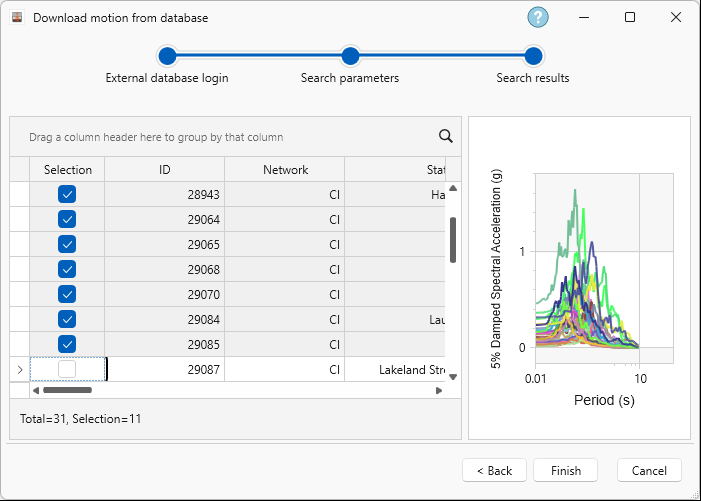
- The final view is the Search Results. All records matching the search parameters will be displayed. Tick the checkbox for the records you wish to import. Users can visualize the spectral acceleration for all 3 components of the event on the chart on the right side of the window.
After inspecting the selected events, click Finish.
- The selected motions will be imported and added to the list of available Motions.
For a step by step example of the import process, see Tutorial 6 - Importing Ground Motion Records from External Databases.