Compute
To compute results for your RS2 model, select the Compute  option from the toolbar or the Analysis menu. This will carry out the finite element stress analysis for the current model. NOTE:
- The Compute option is not enabled unless the finite element mesh exists.
- If you select Compute before saving a file, you will first be prompted to save the file, and then the analysis will be run.
- If for some reason you need to abort the analysis after selecting Compute, select the Abort button on the Compute dialog, and the analysis will be terminated.
- If you are modeling a finite element seepage analysis, the seepage analysis is automatically computed when you select Compute. You can also compute groundwater independently of the stress analysis by selecting the Compute Groundwater option.
- The RS2 analysis engine can also be run as a standalone program (e.g. for batch file compute) as described below.
Compute Options
Computation can be performed from either a defined recovery stage or the first stage of the model. Expand the dropdown arrow to see options. If you select the Compute  icon from the toolbar, Compute from selected recovery stage
will be executed.
icon from the toolbar, Compute from selected recovery stage
will be executed.
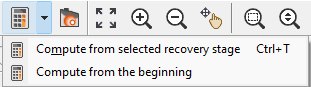
Compute from selected recovery stage
This option resumes the computation from the selected recovery stage. The recovery stage is defined in Recovery Options section under Stages tab in Project Settings dialog.
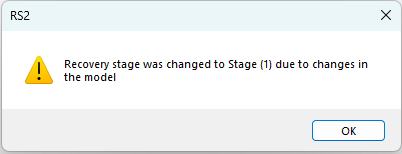
If the selected recovery stage is no longer available due to model setting or changes, the program will trace back to the nearest available stage up to the beginning. If the recovery stage changes, a notification will inform you at saving before compute, as below.
See more information about Compute Recovery from the topic.
Compute from the beginning
This option starts computation from the beginning of the model. Any previously computed data will be replaced.
Compute Engine
The engine utilizes multi-core parallel processing techniques. Depending on the number of CPU cores in your computer, this approach can lead to considerable speed gains.
The executable files can be found in your RS2 installation folder. The file name is feawin.exe.
Running Compute as a Standalone Program
The executable file for the compute engines are found in your RS2 installation folder, and has the filename of: feawin.exe (multi-core parallel processing compute engine).
You can run either engine as a standalone program (e.g. for batch file compute) by double-clicking on the desired filename.
This will display the Compute dialog, allowing you to select one or more files to compute.
Output Files
After a RS2 analysis, the following output files are created:
.R?? | The .R?? files are the main RS2 output files, containing all of the nodal stress and displacement data. The ?? characters represent the stage numbers, which can range from 01 to 300. For example, a single stage model will only have an .R01 file. A two stage model will have .R01 and .R02 files, etc. |
.X?? | The .X?? files contain bolt data, if bolts are being used for support. The ?? characters represent the stage (01 to 300) |
.U?? | The .U?? files contain strain data. The ?? characters represent the stage (01 to 300) |
.LOG | A .LOG file is always created, which summarizes a few important analysis parameters (number of iterations, run time, etc.) for each stage. The log file can be opened in the RS2 Interpreter, or it can be viewed with any text editor. |
By default RS2 uses a compressed file format to store all input and output files for a given model. After the analysis, all of the above output files will be contained in a single compressed (zip) file with extension *.fez.